Manage topics
Last updated: September, 2026
Effectively organize and manage topics within your community. In this article, we will walk you through the essential steps of managing topics.
Access all topics
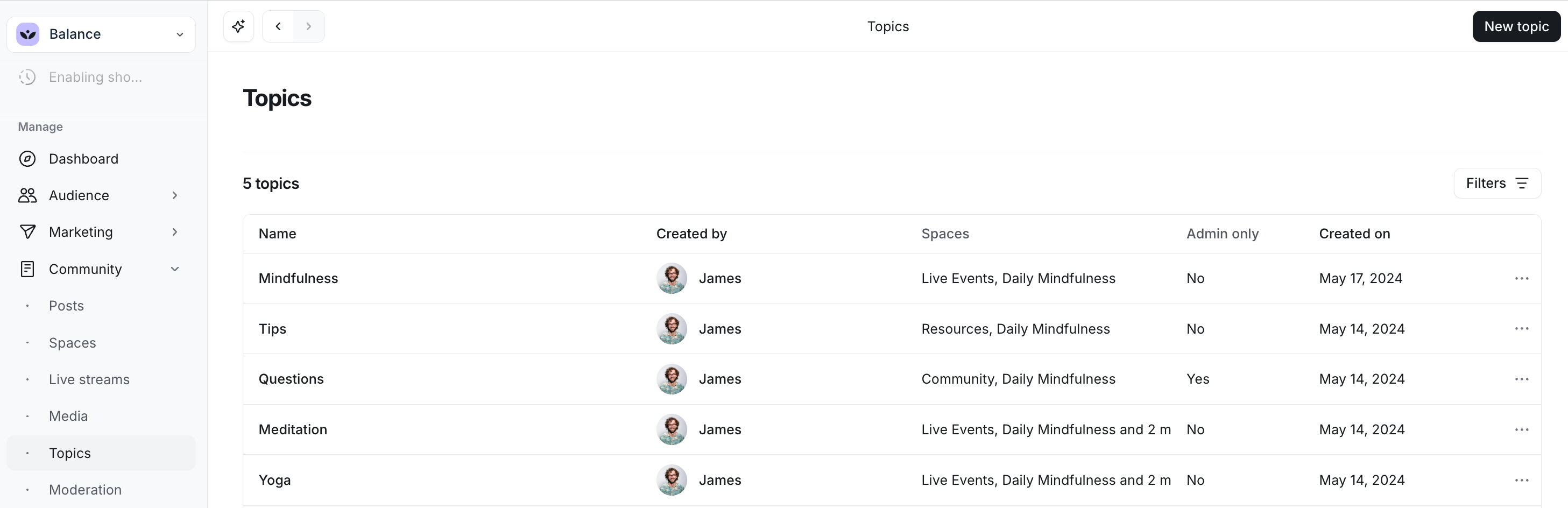
To access the topic settings, click Community in the left sidebar, then select Topics.
Here, you can access the list of all topics created in your community sorted alphabetically. Each column provides information on the topic, such as:
Topic name
Admin who created the topic
Space visibility
Whether the topic selection is reserved for admin and moderator only
Date of creation
Edit topics
To update a topic, hover over it and click More actions (three dots) and select Edit.
In the Edit topic dialog, you can update the following:
Name: Rename topic.
Topic selection access: Manage topic selection access by toggling the Only admins and moderators can select this topic option. When enabled, only admins and moderators can assign this topic to content.
-
Space visibility: Update space visibility for this topic.
To add this topic to a space, hover over the space in the Not visible column and click Add.
To remove a space, hover over it in the Visible column, then click Remove. Alternatively, click the Remove all option beside the Visible columns to remove the topic from all spaces.
💡 Tip: You can also manage the availability of a topic for a specific space via space customization settings anytime.
Rearrange the order of the topics
You can arrange the topics in a specific order of appearance for the topic navigation bar.
ℹ️ Note: The option to rearrange the order of the topics is only available for post, image, and event spaces. In the course directory, topics are displayed alphabetically by default.
To arrange the topics within a space:
Click Community in the left sidebar, then select Spaces.
Hover over the space name and click More actions (three dots) and select Edit space.
Under the Customize tab, go to the Topic navigation section.
Within the topic navigation field, click and hold the topic, then drag and drop it to a preferred position.
Click Save changes.
Delete topics
You can permanently delete the topic from your community. Please note that doing this will remove the topic from all spaces and any content it has been assigned to.
To delete a topic:
Click Community in the left sidebar, then select Topics.
Hover over the topic and click More actions (three dots) and select Delete.
In the confirmation dialog, type Confirm in the textbox and click Delete topic.