Signing in to your Circle admin account
Last updated: September 23, 2025
In this guide, we’ll walk you through how to sign in to your Circle admin account through a web browser, whether access is managed through single sign-on (SSO) or through Circle’s sign in.
Sign in to a non-SSO community
To sign in to your non-SSO community:
-
Navigate to the community URL in a web browser.
If the community is set to private, you will be directed to the login page to enter your credentials.
With a public community, you can access the login page by clicking the Log in button in the top right corner.
Enter the email associated with your Circle account and the password.
Click Sign in.
As an added layer of security, once you click Sign in a verification code will be sent to your email. Enter the code and click Verify to sign in to your account.
💡 Tip: If you’re having trouble logging in or if you need to reset you password, please refer to our guide.
Sign in to an SSO-enabled community
When you enable Single sign on (SSO) for your community, you have the option to allow users to sign in with their existing Circle account. This setting helps ensure that you and your team do not get locked out while implementing the SSO connection.
📚 To learn more about setting up SSO for your community, please refer to our guides here.
Sign in with your Circle account
To sign in to your SSO-enabled community using your Circle account:
-
Navigate to the community URL in a web browser.
If the community is set to private, you will be directed to the login page to enter your credentials.
With a public community, you can access the login page by clicking the Log in button in the top right corner.
-
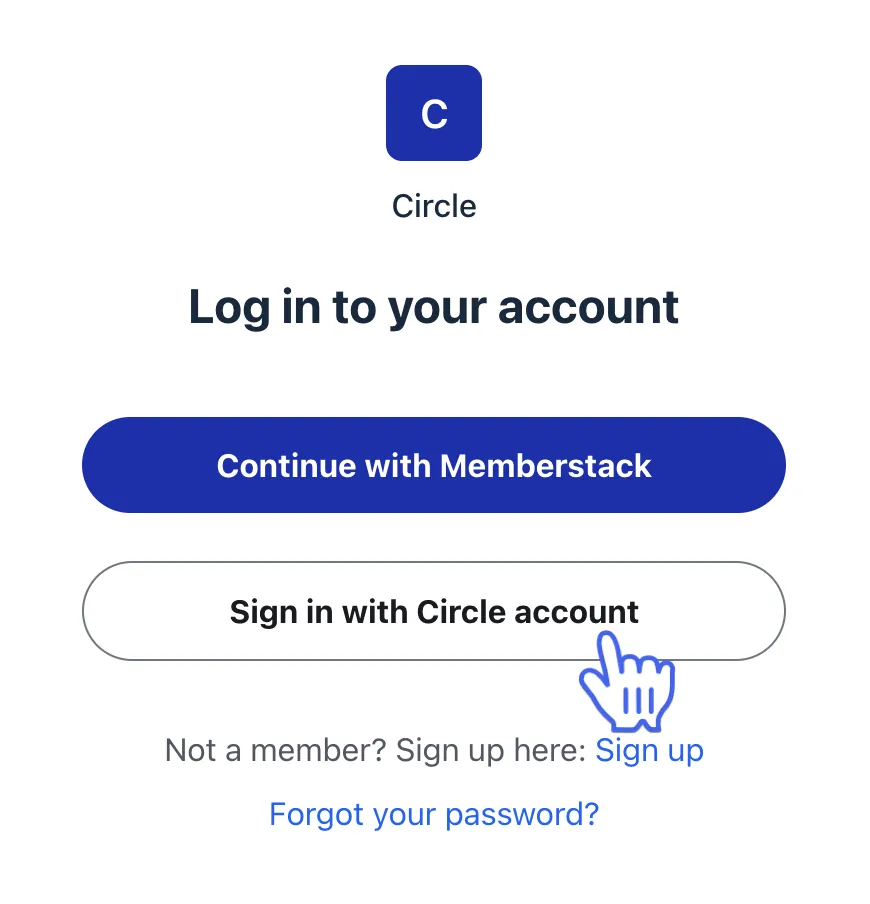
On the login page, click the Sign in with Circle account button.
-
Enter your email and password, and click Sign in.
A verification code will be sent to your email.
Enter the verification code and click Verify.
❗️Important: With SSO, your login credentials are managed entirely by your SSO provider. To maintain access to your Circle admin account when Circle sign-ins are disabled, you must create an account with your SSO provider using the same email address linked to your Circle admin account. This ensures you can continue signing in without interruption.
Sign in with an SSO provider
To sign in to Circle using SSO:
-
Navigate to your community URL in a web browser.
If the community is set to private, you will be directed to the login page to enter your credentials.
With a public community, you can access the login page by clicking the Log in button in the top right corner.
On the login page, click the Sign in with [YOUR SSO PROVIDER] button.
Enter your credentials and complete the authentication steps required by the provider.
Once authenticated, you’ll be redirected back to Circle.