Change your account password
Last updated: October, 2026
Updating your password regularly is important for keeping your account secure. Circle allows you to update your password at any time.
Key things to consider
When making changes to your account password, we want you to understand how these changes can impact your experience and what to know.
You must be on a desktop or mobile browser to access your Authentication settings to update your password.
If the community you are trying to access uses single sign-on (SSO) to log in to your community, you won't be able to update your password in Circle. You must update your password on the SSO provider instead. Please see the Communities using single sign-on (SSO) section for detailed instructions.
Since you can be a member of multiple communities using the same Circle account, any changes you make to your account password will reflect across all communities you are a member of.
How to update your password
There are two ways to update the password for your Circle account: from the Authentication page when you’re signed into a community or from the Forgot password button on the Login page.
Option 1: Updating your password from your Authentication page
To update your account email:
Log in to your account on a desktop or mobile web browser.
Click your profile photo in the top navigation bar, then select Authentication.
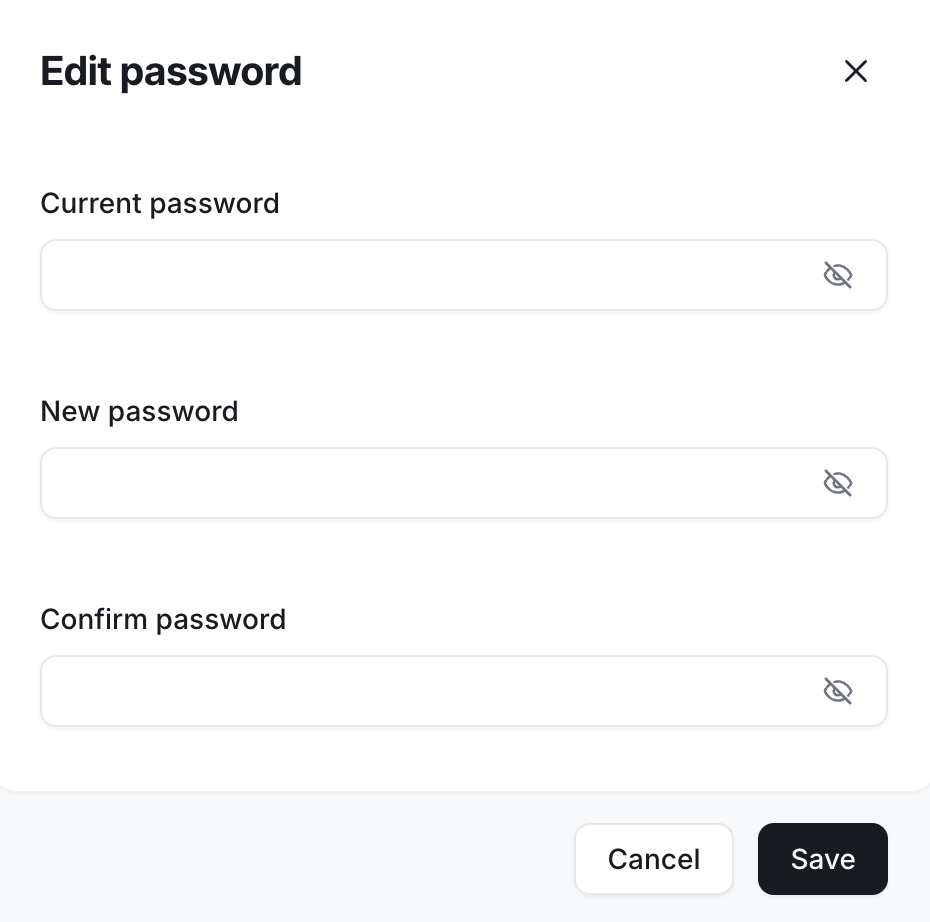
Under Account & security, click Edit next to Password.
-
In the Edit email dialog, enter your current and new passwords, and then confirm the new one.
ℹ️ Note: Please ensure that your password includes at least six characters, including one uppercase letter, one number, and one symbol (!, $, @, *, etc.).
Click Save.
Option 2: Updating your password from the Login page
If you’ve forgotten your password and cannot sign in to reach the Authentication page, follow these steps:
Navigate to the community and click Login.
On the login page, click the Forgot your password? URL below the sign-in options.
Enter the email address associated with your account.
Click Reset my password and an email with instructions will be sent to your inbox.
Click the Change my password button in the email to be redirected to a page where you can enter your new password.
-
Enter your new password and confirm it.
ℹ️ Note: Please ensure that your password includes at least six characters, including one uppercase letter, one number, and one symbol (!, $, @, *, etc.).
Click Change my password.
Communities using single sign-on (SSO)
Similar to your email, when a community uses SSO, the provider controls your email and password, so they must be updated there. Please contact the community admin for assistance with updating your account password if they use SSO. When the password is updated on the SSO provider side, this change won't be reflected on Circle until you log out of both Circle and the SSO provider and log in again.
Here are the proper steps once your password has been updated on the SSO provider side:
Log out of your community.
Log out of the SSO provider account.
Log in to the SSO provider account using the new password.
Log in to your community with your email and the new password to ensure the new credentials are properly used.
❗ Important: If you’re a part of multiple communities with the same email. The password for the SSO enabled community may be different from the password for the non-SSO communities. Updating your password for the SSO enabled community will not affect the other communities linked to your account.