Manage custom terms of service and privacy policy for your community
Last updated: October, 2026
Legal settings within your community allow you to customize the terms of service and privacy policy, providing greater flexibility and control over your community's legal documentation.
About legal settings
The legal settings are available to all Circle community plans, offering you the ability to tailor three elements:
Legal notices
Terms of service
Privacy policy
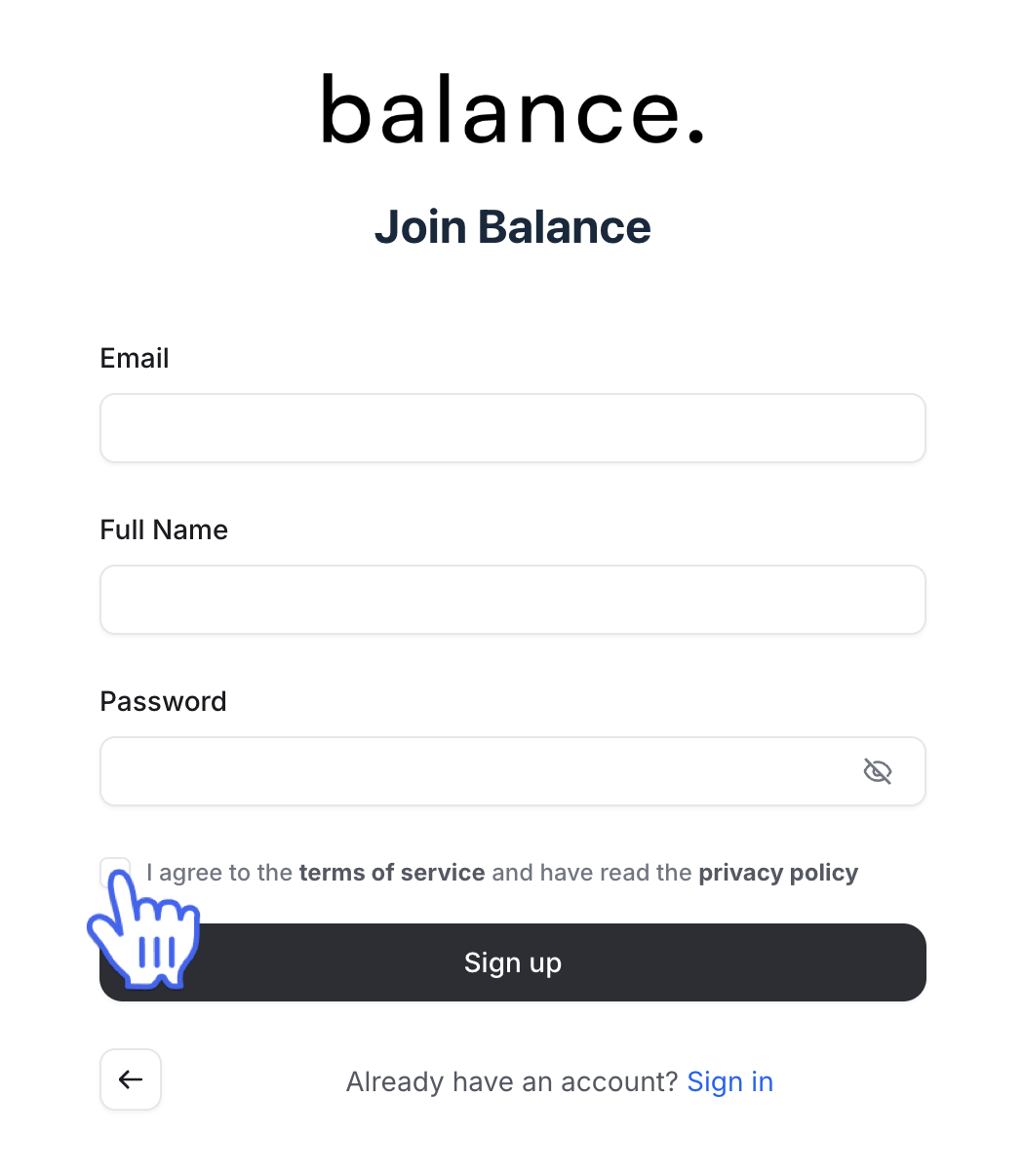
When new members sign up for your community (who do not already have a Circle account), they will be required to agree to your community's legal terms as part of the signup process. Members will see a checkbox with a consent statement linked to your terms of service and privacy policy when:
Accepting invitations to join the community.
Signing up for the community using invitation links.
Signing up for the public community (if your community is set to public and the Allow visitors to sign up toggle is enabled).
Purchasing a community membership via paywall checkout URL.
Here's an example of how the consent statement appears on the pages mentioned above.
ℹ️ Note: When users sign into the Circle mobile app, they are presented with Circle's standard terms of service and privacy policy instead of the terms configured in legal settings. By signing in, users agree to these standard terms.
❗Important: If your community has enabled single sign-on (SSO), members cannot create accounts directly on Circle; they must do so through the SSO provider's platform. As a result, the terms of service and privacy policy won't be displayed in the signup flow. In this case, you can still share your community's legal terms by including links in the onboarding popup, welcome posts, or the community sidebar to ensure members can easily access and review them.
Access legal settings
To access the legal settings page, click your community name or logo (or the dropdown icon next to it) in the top-left corner and select Settings. From the settings page, click Legal.
Important information for existing communities that have added custom terms of service URL
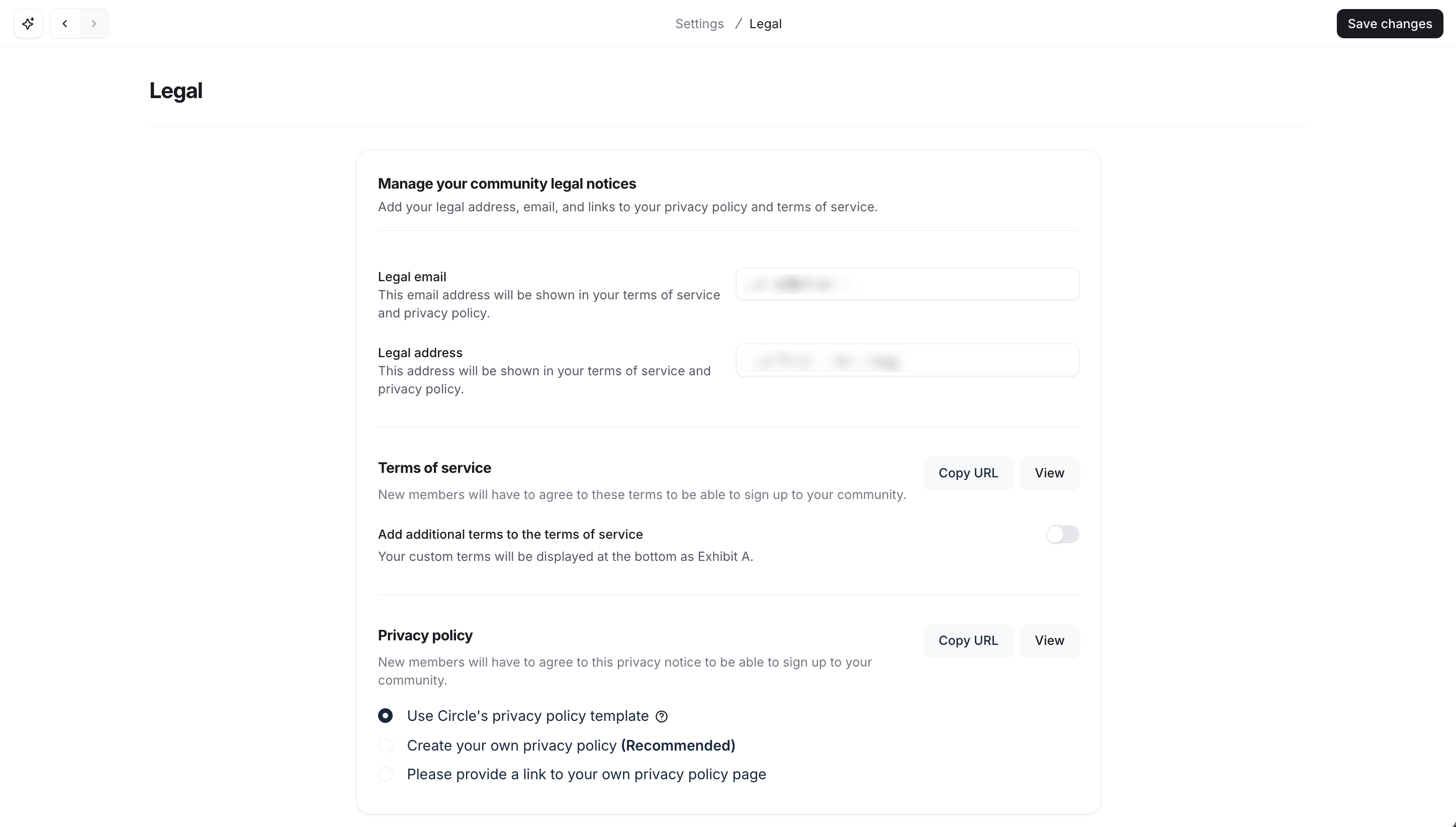
If you had previously added a custom terms of service URL through the General settings page before August 13, 2024, you would still see your existing custom URL in the terms of service section. This allows you to maintain your current setup without any changes. However, you now have the option to opt in to the new terms of service page hosted by Circle.
To opt in, click Set up new terms of service at the top of the legal settings page. This will allow you to use Circle's new, more integrated terms of service page.
Legal notices
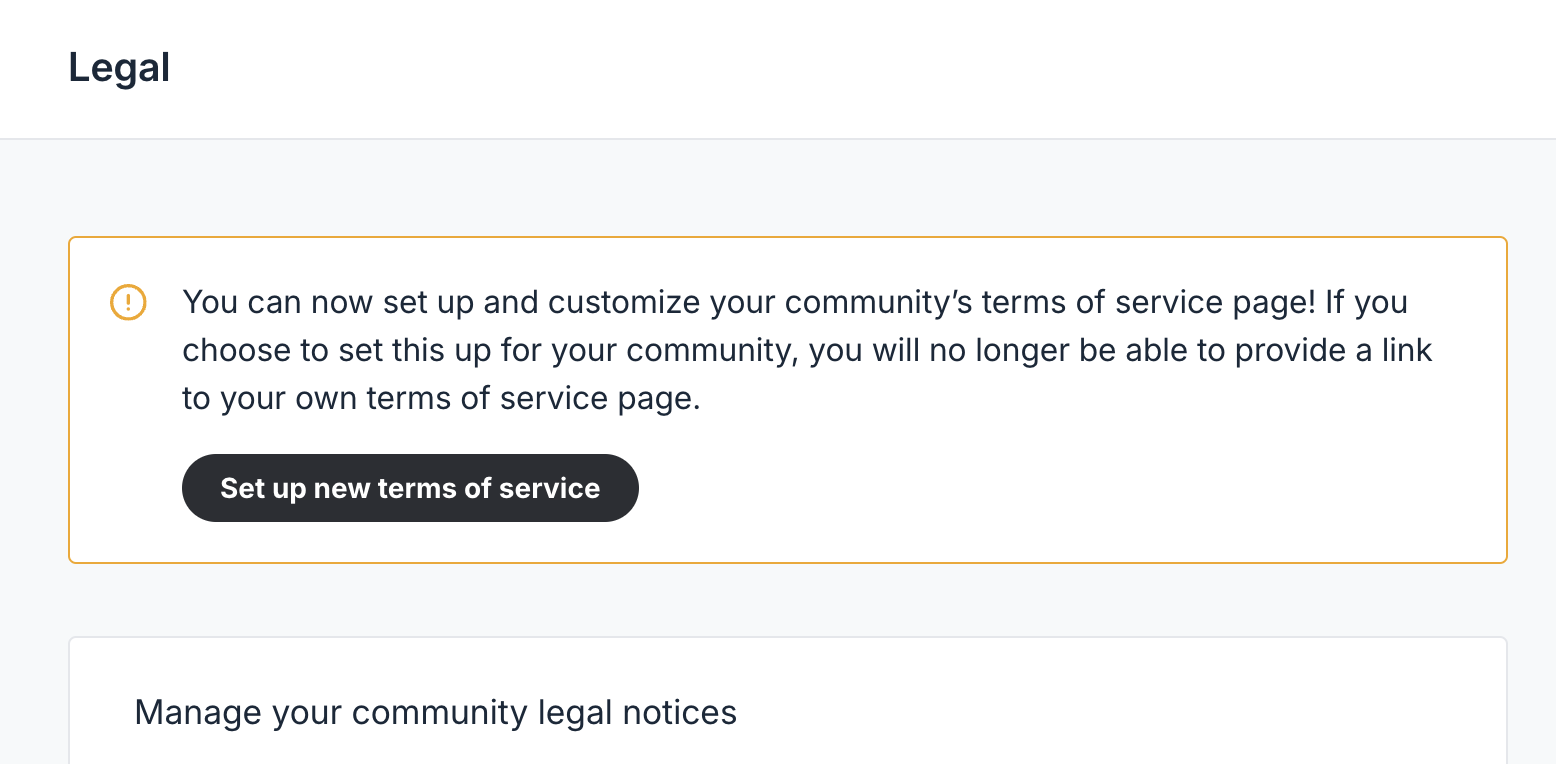
You can add a legal email and address associated with your community. This email and address will automatically reflect in your community's terms of service and privacy policy, ensuring that your community members know where to direct legal notices.
To add or change it, enter the desired email or address in the respective fields and save the changes.
Terms of service
By default, your community's terms of service use Circle's standard terms, which are automatically customized with your community's name, legal email, and address. It's important to note that these terms are white-labeled, except for one reference where Circle is mentioned as the service provider.
Circle hosts this terms of service page at [https://your community URL/terms]. You can easily share the link to the terms of service page by clicking the Copy URL option in the terms of service section. To view the terms page, click View in the section.
Add custom terms
If your community has specific legal requirements or guidelines that go beyond the standard terms of service, you can add custom terms. These custom terms will be displayed at the bottom of the standard terms of service as Exhibit A: Additional Terms.
To add the custom terms on the terms of service page, turn on the Add additional terms to the terms of service toggle. Use the text editor to either paste your custom terms from an existing document or write them directly in the editor.
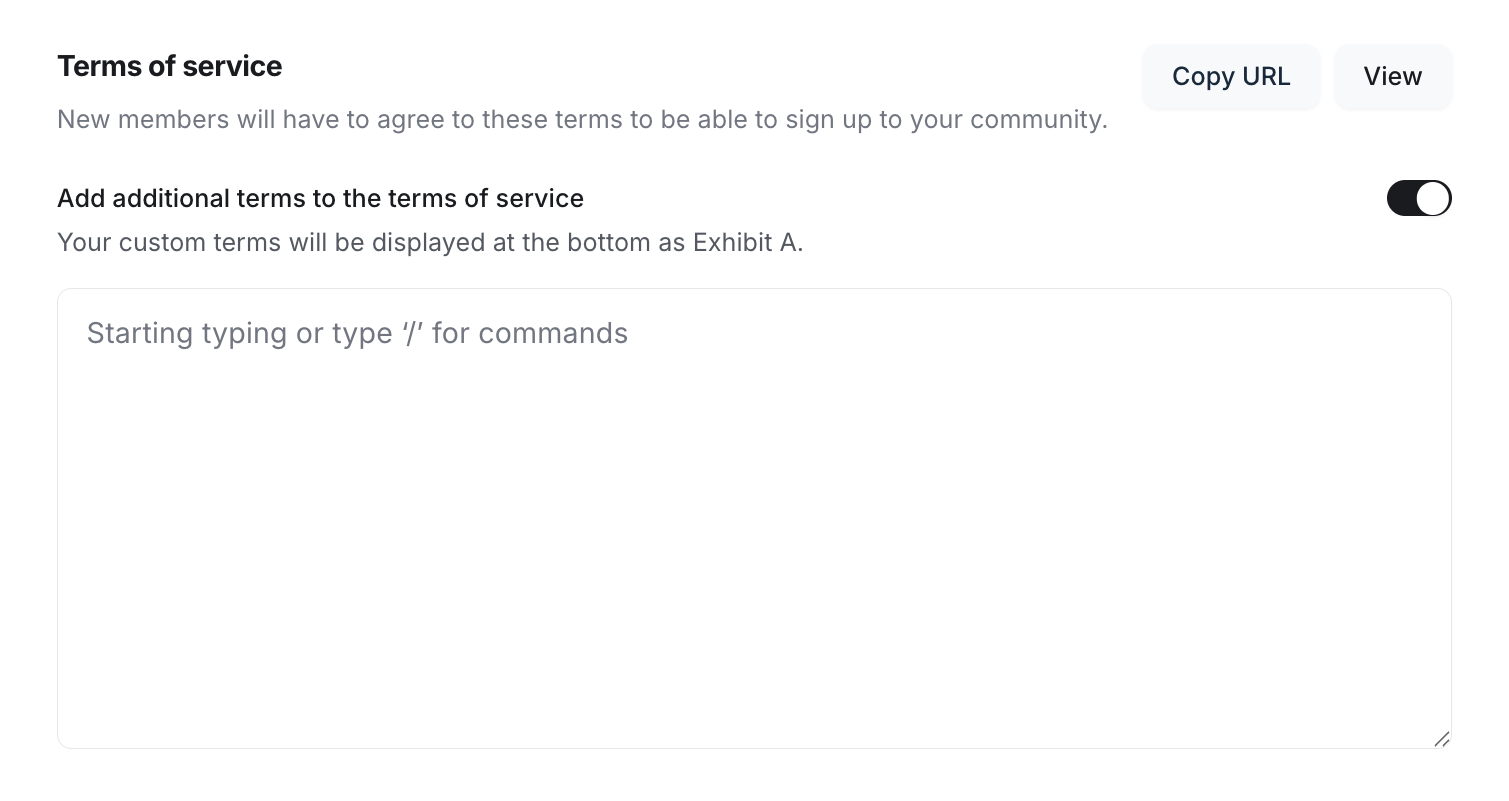
To access the basic text formatting options, type the forward-slash (/) command. To make changes to the written text in the editor, select the text you want to edit. Once selected, a formatting bar will appear with options such as:
Bold
Italic
H2 and H3 headings
Strikethrough
Underline
Hyperlink
Numbered and bulleted lists
Privacy policy
When it comes to privacy policy for your community, you have three options to choose from:
Use Circle's privacy policy template
Create your own privacy policy
Link to your own privacy policy page
ℹ️ Note: You can only select one option at a time. Choosing a new option replaces your previous setting.
You can easily share the link to the privacy policy page by clicking the Copy URL option in the privacy policy section. To review the policies, click View in the section.
Use Circle's privacy policy template
When you create your community, Circle's standard privacy policy template is selected by default. This template will remain in place unless you set up your own policy. Circle hosts the standard privacy policy at [https://your community URL/privacy].
It's important to note that Circle's privacy policy may not fully align with your community's specific data practices and requirements. Hence, we strongly encourage you to create your own privacy policy or link to an existing one that accurately reflects your community's data handling practices.
Create your own privacy policy
If you prefer a privacy policy tailored to your community's specific needs, you can create one using Circle's built-in text editor. Circle will host this custom policy at [https://your community URL/privacy].
To enter the custom privacy policy, select the Create your own privacy policy option. Use the text editor to either paste your policy from an existing document or write it directly in the editor.
The editor includes basic text formatting tools to help you structure your policy clearly. To access these tools, type the forward-slash (/) command. To make changes to the written text in the editor, select the text you want to edit. Once selected, a formatting bar will appear with options such as:
Bold
Italic
H2 and H3 headings
Strikethrough
Underline
Hyperlink
Numbered and bulleted lists
Provide a link to your own privacy policy page
If you already have a privacy policy hosted on an external website, you can link directly to that page instead of creating a new one within Circle. This option is ideal if you prefer to maintain all legal documentation on your main website or if your privacy policy is regularly updated outside Circle.
To do this, select the Please provide a link to your own privacy policy page option and paste the URL of your external privacy policy page into the field.
Share terms of service and privacy policies
While the terms of service and privacy policy appear when a new member signs up to the community via various methods, you can easily share the URLs for your community's terms of service and privacy policy in several ways to ensure that all members have easy access to this information.
For additional visibility to your community's guidelines, you can copy the URL of the terms of service and privacy policy from the legal settings page and share it via the following:
Invitation emails: Add links to the body of your onboarding emails.
Onboarding pop-up: Include the links in the onboarding pop-up that appear to members when they enter the community for the first time on a desktop.
Welcome posts: Add links to welcome or onboarding posts in your community's welcome space. You can also add them at the top of any post spaces dedicated to resources or guidelines, making them readily accessible.
Sidebar links: Add links in the community sidebar under the Links section, providing an easily accessible reference point for all members.