Get help with writing content with AI content writer
Last updated: September, 2026
Creating engaging and high-quality content for your community can sometimes feel like a challenge. AI content writer is a powerful tool that generates ideas, writes content, and offers summaries in a conversational tone—making the process of content creation faster and more efficient.
About AI content writer
The AI content writer is available to users on the Business plan and above, offering assistance for content creation across various areas of your community, including:
Posts
Lessons
Event reminders
Email editors (available with Email Hub)
ℹ️ Note: This feature is only available to admin and space or space group moderator roles on desktop and mobile browsers.
Here are some ideas for using the content writer in a text editor:
Generate new ideas: Ask AI to suggest post and lesson topics.
Write paragraphs: Ask AI to generate an introduction, conclusion, or additional paragraphs about a specific topic.
Write a summary: Ask AI to write a summary of your content. This is really helpful, especially when writing about complex topics.
Ask for additional resources: When writing a lesson or post, ask AI for resources to supplement your research and add depth to your content.
Ask about course activities: Ask AI to generate ideas for lesson activities and quiz questions related to a specific topic.
Edit content: Ask AI to improve, simplify, or expand the content.
Manage AI content writer settings
To access the content writer settings:
Click the community name or logo (or the dropdown icon next to it) in the top-left corner and select Settings.
Scroll down to the Community section and select Community AI.
-
On the Community AI page, you can:
Manage availability: Enable or disable AI content writer for your community.
Update community description: To generate more personalized co-pilot responses, provide a description of your community (up to 255 characters).
Once you've made your changes, click Save changes.
Draft content
To use the content writer inside a post or lesson:
-
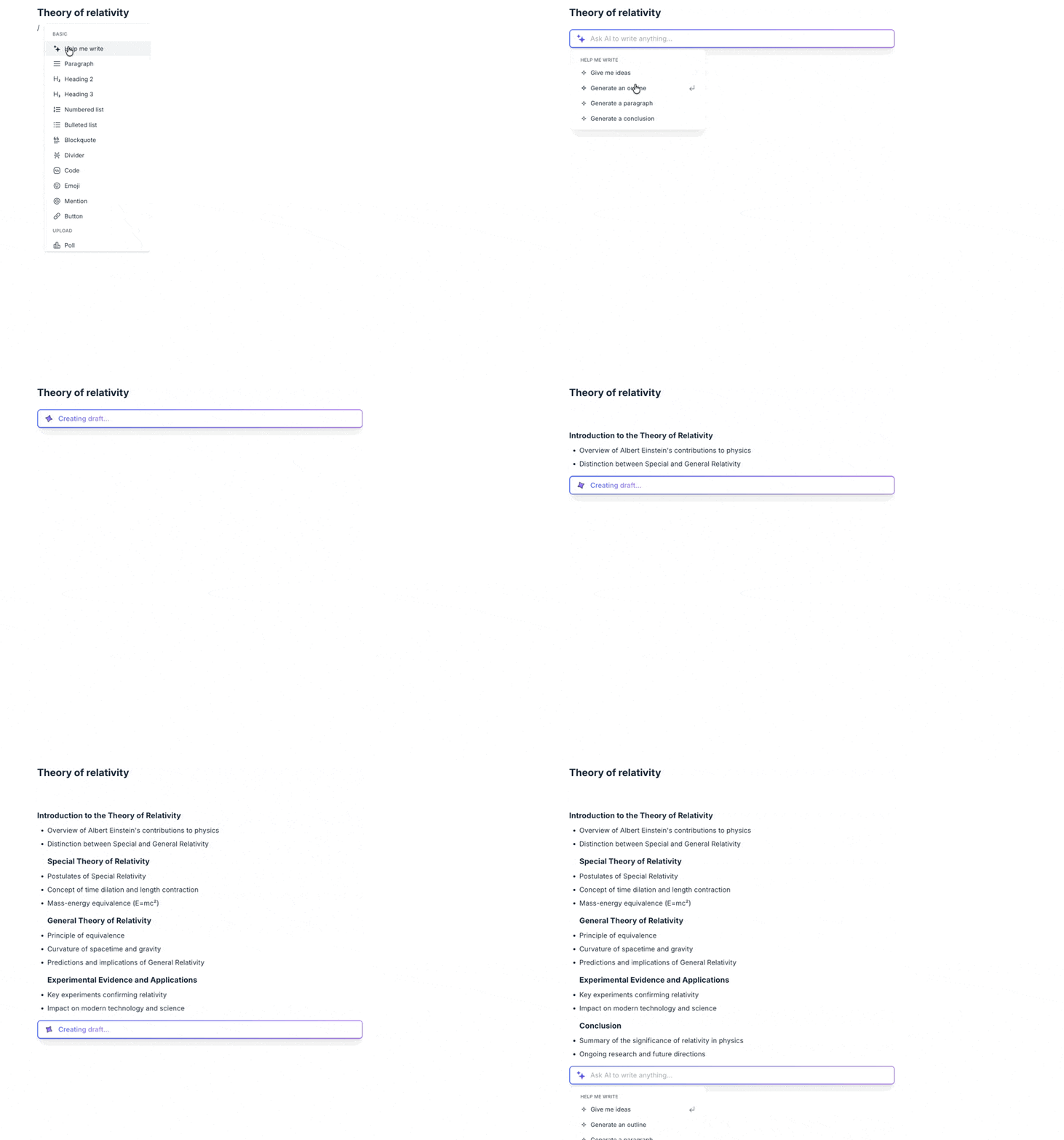
Type the forward-slash (/) command and select Help me write.

-
Choose an option from the dropdown and complete the prompt, or type your custom prompt in the field.
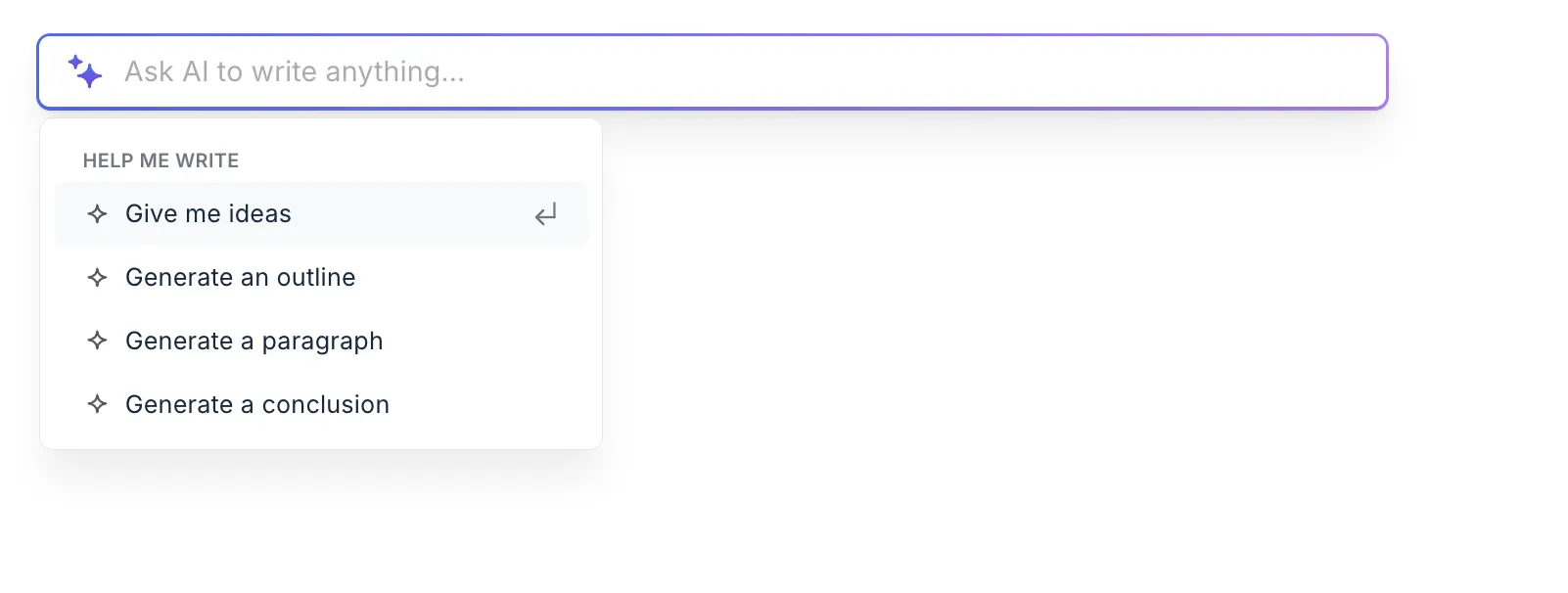
Once the content is generated, you can type an additional prompt in the field to continue generating content. To close the content writer, click anywhere on the screen or use the Esc key on your keyboard.
As an example, let’s ask the content writer to provide us with an outline about Albert Einstein's theory of relativity.
Edit content
When you have already drafted content for a post or lesson, you can use the content writer to enhance it. You can select the content and ask AI to:
Improve or simplify your writing.
Fix spelling and grammar.
Summarize it in a few lines.
Make your content shorter or longer.
Translate the content in a different language.
Edit content based on a custom prompt.
To edit your content:
-
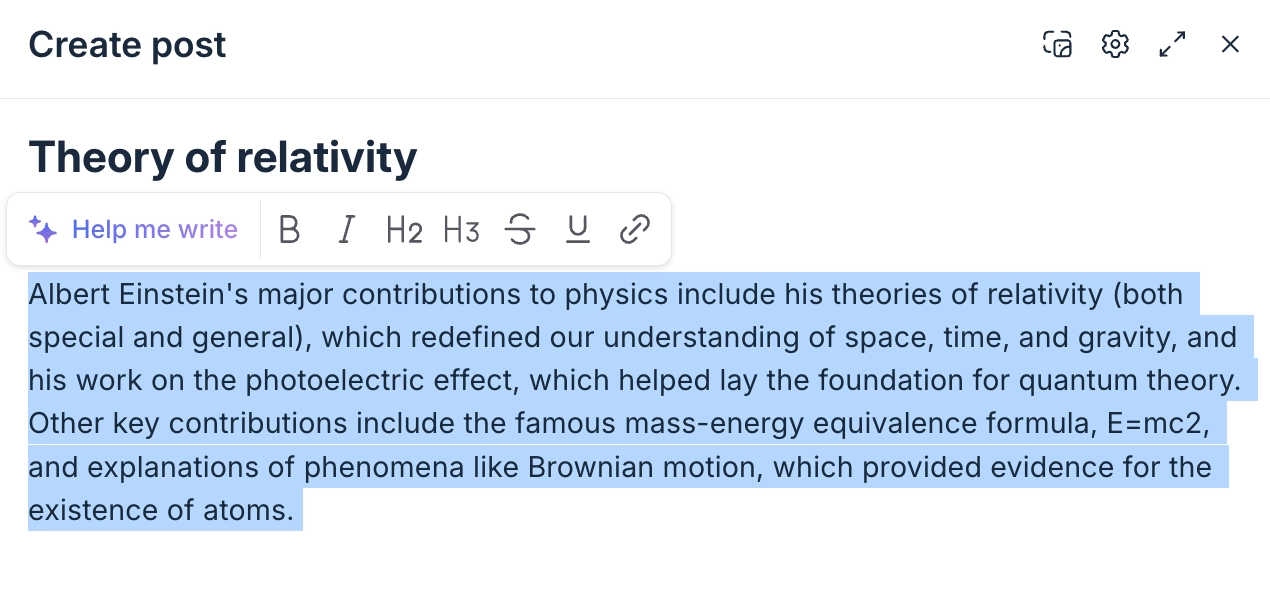
Select the text and click Help me write in the formatting toolbar.
Select an option from the dropdown and complete the prompt, or type your custom prompt in the field.
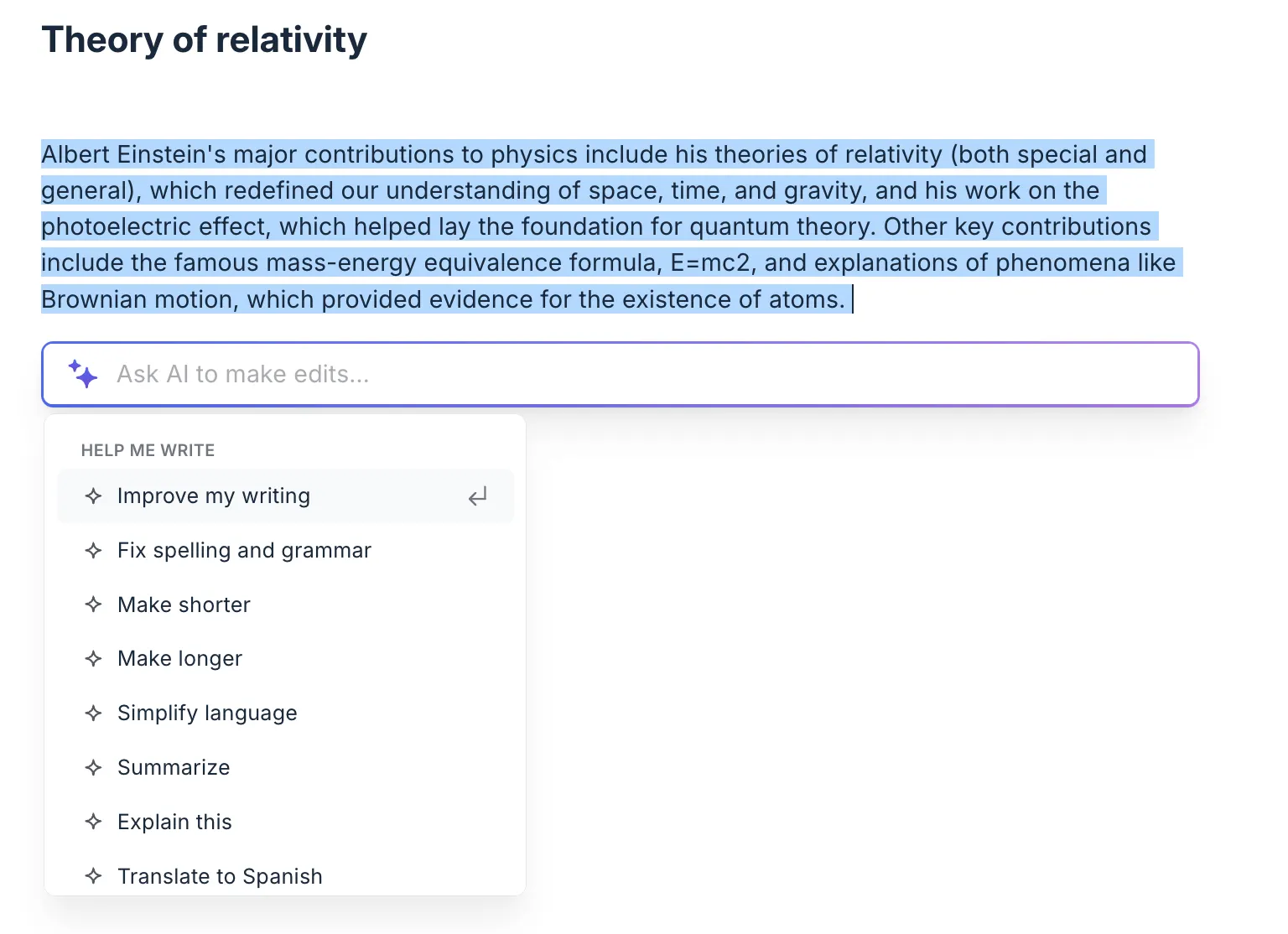
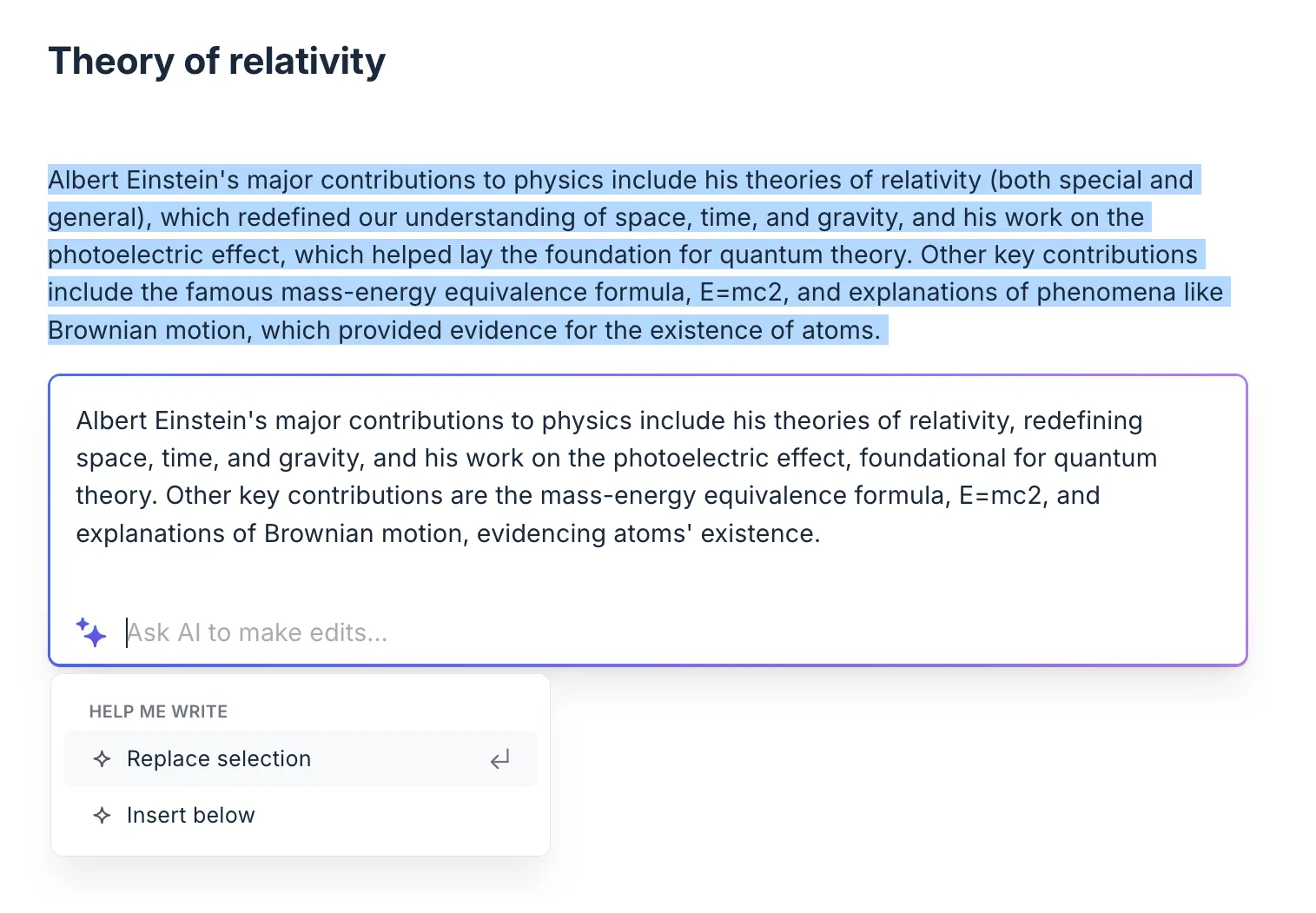
Once the content is generated, choose from the following options:
Replace selection: Replace your selected text with the newly generated content.
-
Insert below: Insert newly generated content below the selected text.