Reward members for unlocking new levels
Last updated: October, 2026
Take your gamification strategy to the next level by seamlessly rewarding members on their level achievements with Circle’s powerful workflows feature. This helps you ensure that members feel recognized and motivated as they progress.
About gamification level workflow events
Circle workflows allow you to automate specific actions based on an event, run bulk actions manually based on certain audience rules, or schedule bulk action workflows at a specific date and time within your community.
To reward members, you can set up workflows using the following entry rules:
Automation workflows: Use the Member leveled up event to trigger automatic rewards when a member reaches a new level.
Bulk action workflows: Apply the Level audience rule to run bulk actions for members who meet specific level criteria.
💡 Tip: You can also take advantage of the Member leveled down event in automation workflows. This event is triggered whenever a member's gamification level decreases, allowing you to take specific actions automatically, such as modifying the member’s access, removing tags, and more.
Automate rewards when members reach a new level
Automation workflows enable you to put your reward strategy on autopilot. This means whenever a member reaches a new level, the automation performs rewarding actions you have configured in the workflow—without any manual effort on your part.
Here’s how you can set up a workflow to reward members as they achieve specific levels:
Click Workflows in the left sidebar, then select Workflows.
Create a new custom automation workflow. You can follow the detailed steps in our workflow setup guide.
-
In the Entry rule card, click the Choose event dropdown menu and select Member leveled up. Then, choose the specific level at which you want to trigger the workflow.
-
In the Action card, choose your preferred action. You can include multiple actions within a single workflow, such as sending a direct message (DM), adding a member tag, or granting access to exclusive spaces, allowing for multiple rewards when a level is unlocked.
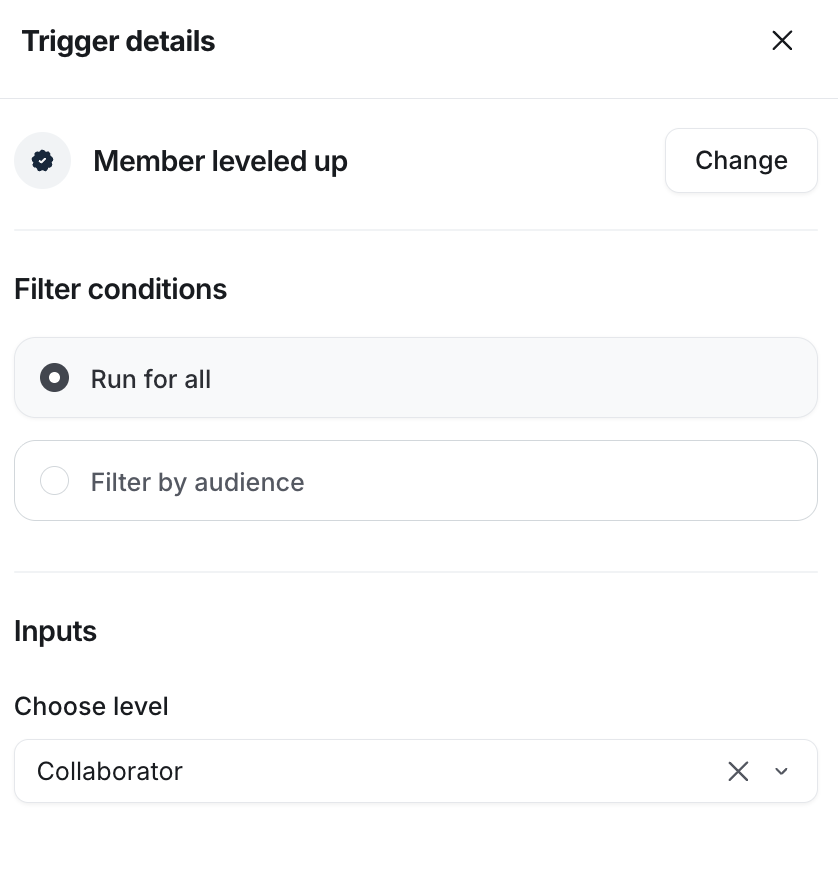
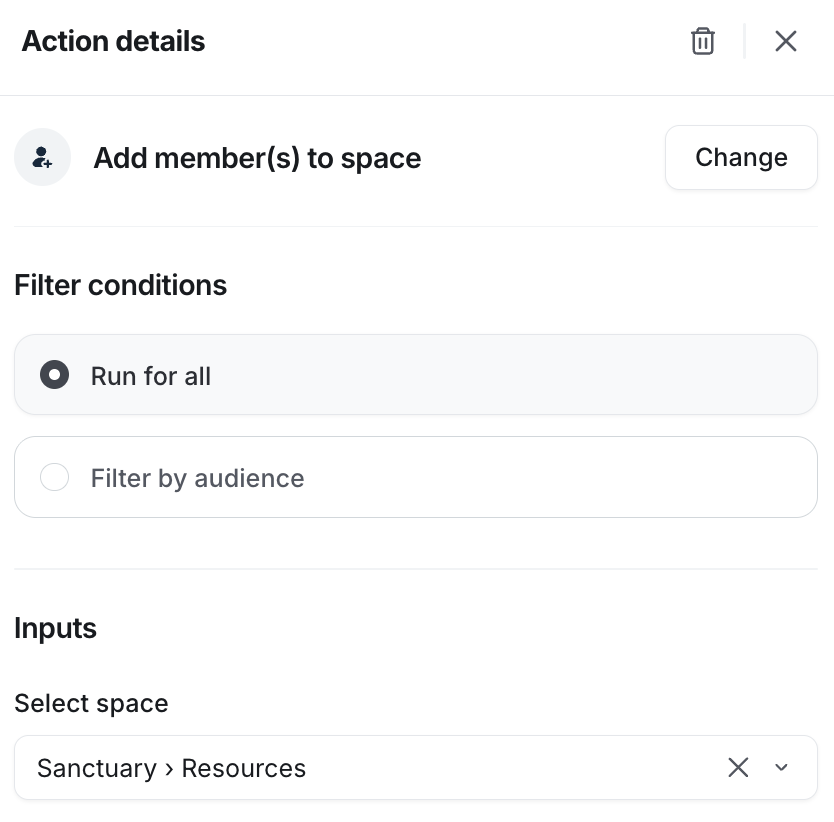
💡 Tip: You have the ability to insert a delay action either before any other action or in between actions. This allows you to pause the execution of the next action for a specific amount of time, creating a spaced-out and thoughtful reward experience. For detailed information on workflow delays, see our guide here.
You can repeat these steps to create automation workflows for each level members unlock, tailoring rewards to match the significance of the achievement.
Perform bulk actions to offer rewards to members at a certain level
Whether you want to perform specific actions or just send direct messages (DMs) to members at a certain level, bulk action workflows let you execute these actions immediately or schedule them for a future date and time.
Here’s how to set up a bulk action workflow for members at a specific level:
Click Workflows in the left sidebar, then select Workflows.
Create a new custom bulk action workflow. You can follow the steps in our workflow setup guide.
-
In the Entry rule card, click Add audience rule and select Level. Then, choose the specific level from the dropdown menu and click Apply.
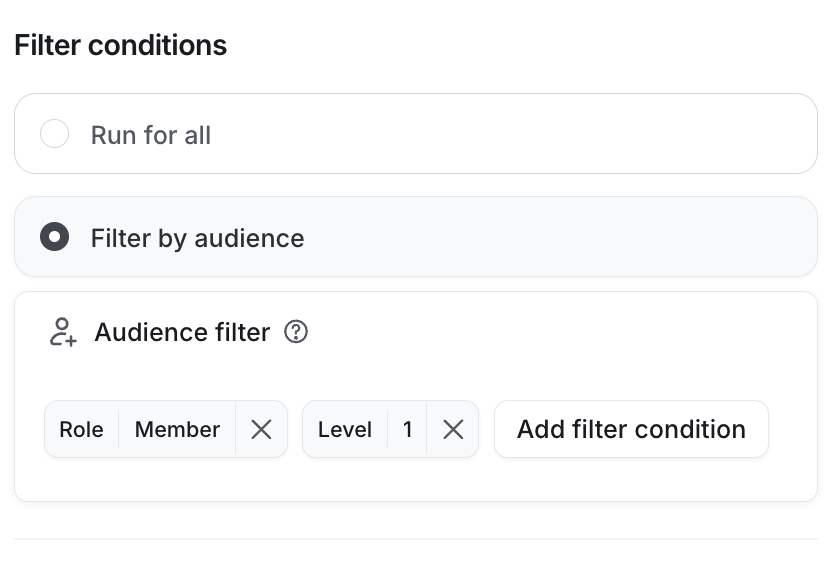
-
In the Action card, choose your preferred action. You can add multiple actions within a single workflow, such as sending a DM, adding a member tag, or granting access to spaces.
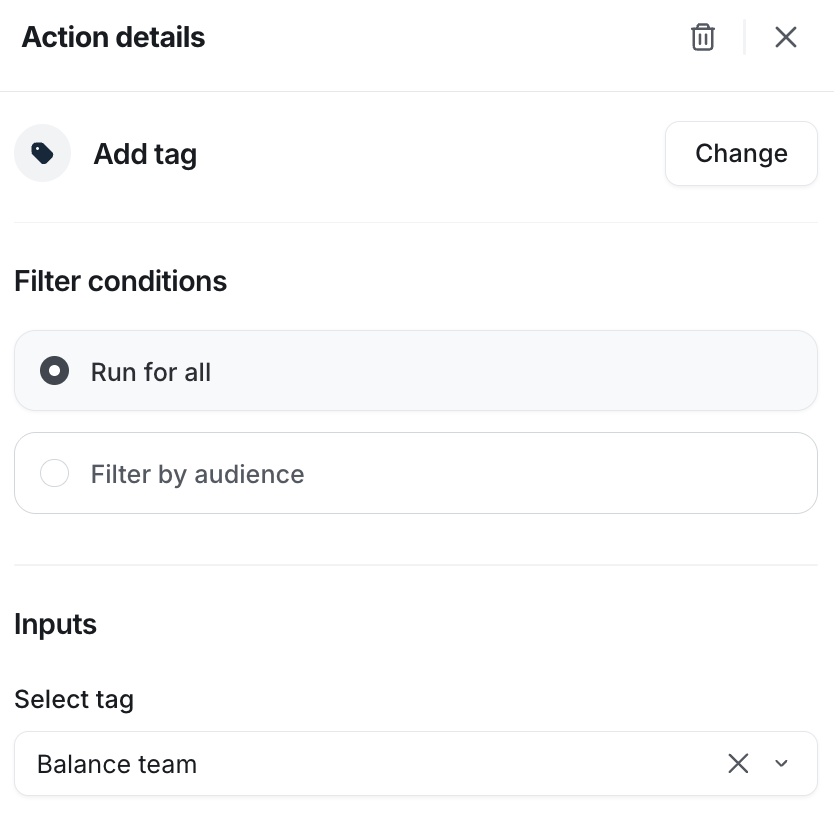
💡 Tip: You have the ability to insert a delay action either before any other action or in between actions. This lets you space out the execution of rewards, creating a more thoughtful experience for your members. For detailed information on workflow delays, see our guide here.
You can repeat these steps to run separate bulk action workflows for rewarding members who are currently at a specific level within your community.
Ideas for rewarding members
Let's look at some effective ideas to help you get started.
Send congratulatory message
Celebrate member's milestones with a personalized message, making them feel valued and appreciated. You can set up a direct message (DM) that congratulates them on their milestone. You can also include hyperlinks to valuable resources, video notes, or other relevant content content that aligns with their progress.
When setting up the workflow, in the Action card, select Send a direct message action.
In the message body, you can click the Add variable {…} icon to insert placeholders for the member’s name or other details, which will be automatically filled in when the message is sent. Before activating the workflow, use the Preview message option to see how the final message will look.
Assign a member tag
Enhance visibility and acknowledgment by adding a new member tag to the member’s profile corresponding to their level. Tags can signify achievements, expertise, or status within the community, serving as a badge of honor for the member.
When setting up the workflow, in the Action card, click the Add member tag action and choose the tag from the dropdown menu.
Provide access to exclusive spaces
Reward your members by granting them access to exclusive spaces within your community. These could include spaces that offer unique content or experiences to these achievers. For instance, you can provide access to:
Exclusive course spaces tailored for members who reach certain levels.
Private chat spaces for discussions.
Private event spaces reserved for achievers at specific levels.
Member spaces for those who are at the same level, promoting networking and peer interaction.
Granting free access to these exclusive spaces not only acknowledges their progress but also motivates them to stay engaged and continue their participation.
When setting up a workflow, in the Action card, select the Add member(s) to space action and choose the specific space you want to grant access to. To grant access to multiple spaces, you can add multiple actions to the workflow for each space.
Grant DM capabilities
You can create a tiered experience by enabling direct messaging (DM) capabilities only for members who reach a certain level. This adds an extra layer of exclusivity and motivation for members to advance within the community.
To automate granting DM capabilities when members reach a certain level, set up an automation workflow with the following configuration:
Choose the Member leveled up event as the entry rule and select the preferred level that members need to achieve.
For the workflow action, select the Enable direct messaging action from the dropdown menu.
You might be wondering about the following scenarios:
What about disabling the DM capabilities for new members first so I can enable them later once they reach a specific level?
You have the option to enforce this going forward by setting up an automation workflow that automatically disables DM capabilities for new members upon joining the community.
To configure this, create an automation workflow with the following configuration:
Choose the Member joined community event as the entry rule.
For the workflow action, select the Disable direct messaging action to enforce this restriction.
What should I do about existing members who already have DM capabilities?
If you prefer, you can run a bulk action workflow to disable DM capabilities for existing members who have yet to reach the necessary level. To achieve this, you will need to set up separate bulk action workflows for each level below the required level.
❗Important: Please note that by doing this, the members will lose their ability to send and receive messages from other members. However, as an admin, you will still be able to communicate with them via DMs.
For example, if members are required to achieve level 3 in order to have DM capabilities, create and run separate bulk action workflows for levels 1 and 2 with the following configuration:
In the Entry rule card, click Add audience rule and select Level. Then, choose the specific level from the dropdown menu and click Apply.
For the workflow action, select the Disable direct messaging action to enforce this restriction.
Provide access to a free paywall trial
Reward your members with a free trial of premium content gated behind the paywall. You can customize the trial duration within the workflow action setup, offering a taste of what’s available behind the paywall as a reward for their achievement.
When setting up a workflow, in the Action card, select the Subscribe to paywall trial action. Then, select a paywall and a paywall price and enter a custom number of trial days. You can also enable the Send member(s) a trial started email confirmation toggle to notify members of trial initiation.
RSVP members to exclusive events
Enhance member engagement by granting access to exclusive events as a reward for reaching specific milestones or levels. For instance, you can organize a group call or coaching session via a live room event for members who reach a certain level.
When setting up a workflow, in the Action card, select the RSVP member(s) to event action. Then, choose an event from the list. When the workflow action is performed, the members will be added to the event.