Set up the profanity filter
Last updated: October, 2026
Creating a safe and welcoming community involves establishing clear guidelines and effectively enforcing them. In this article, we'll explore the importance of a profanity filter and provide a comprehensive guide on how to set one up for automated moderation.
About the profanity filter
By setting up the profanity filter, you can automate the detection and flagging of posts or comments that contain inappropriate language, ensuring that the community standards are upheld.
Within moderation settings, you can add as many keywords as you’d like that go against your community guidelines. The following areas are monitored for profanity in your community:
Post spaces: Posts and comments
Image spaces: Posts and comments
Event spaces: Comments
❗Important: The profanity filter will only apply to members. Posts or comments made by admins and moderators of that specific space or its space group will not be affected by the profanity filter.
How the profanity filter works
When a member posts or comments within a space, the profanity filter checks the title and body of content.
If the content includes any keyword that matches the profanity filter settings, it is immediately flagged and hidden from view. Only the member who posted it, as well as the admins and moderators of the space or its space group, can see the flagged content.
Flagged content displays an In review badge, indicating it is pending approval.
Admins and moderators of the space or its space group receive email and in-app notifications about the flagged content, prompting them to review it.
-
Admins or moderators can then approve or reject the flagged content:
If approved, the content becomes visible to the community.
If rejected, the content will be deleted from the community.
Set up the profanity filter
To add keywords to the profanity filter:
Click Community in the left sidebar, then select Moderation.
Click Settings in the top-right corner.
-
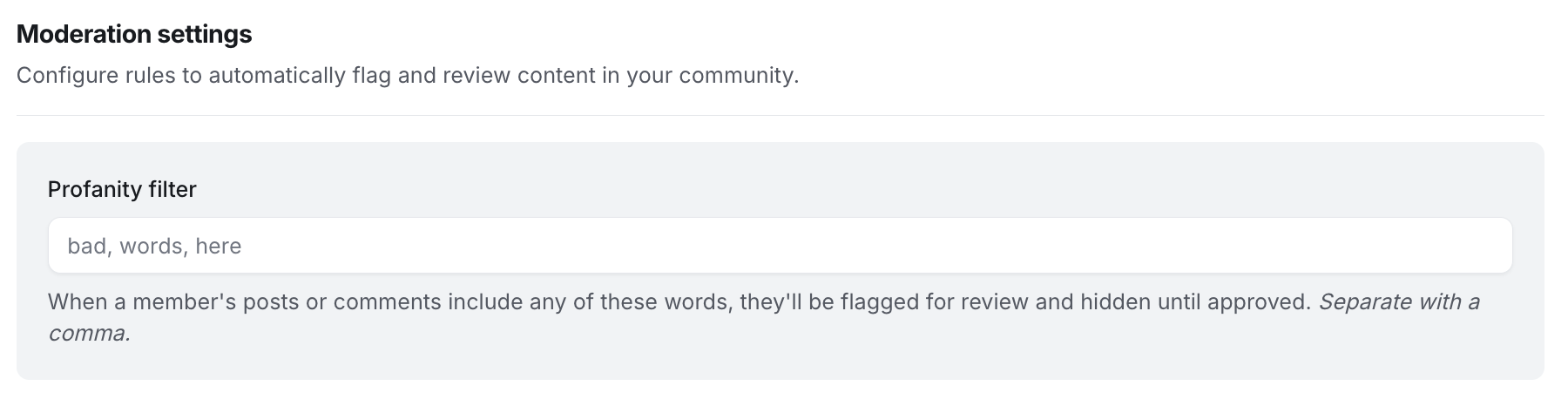
In the Profanity filter section, enter the keywords you want to filter, separated by commas. You can add as many keywords as needed.
Click Save changes.
📚 To learn more about configuring various moderation settings, see Manage moderation settings.