View your community plan details
Last updated: October, 2026
You can check out your plan's features, explore its limits, or simply gain a better understanding of your subscription by navigating to community settings. In this article, we'll show you how to view your community plan details with ease.
💡 Tip: You can also check out our pricing page for more details on features and options included in each plan.
View plan details and comparisons
To see what's included in your current plan and compare the features to other plans:
Click the community name or logo (or the dropdown icon next to it) in the top-left corner and select Settings.
Under the Subscription section, select Plans.
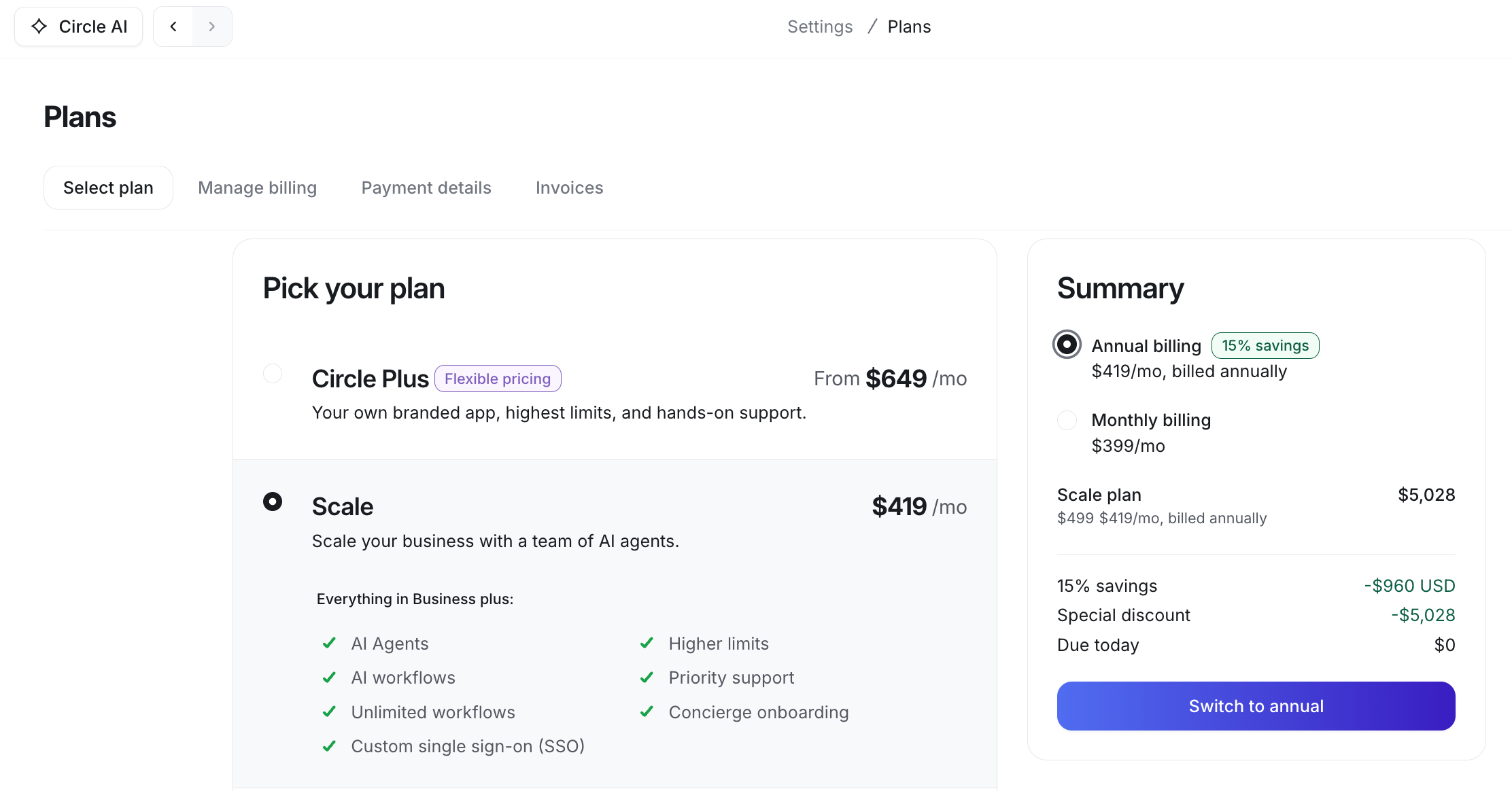
Under the Select plan tab, you will see your current plan highlighted with a Current plan badge.
-
Select another plan to review it’s features or, click Compare plan features at the bottom of the page to see a side by side comparison of all available plans.
View plan summary
To view a summary of your current plan’s limits:
Click the community name or logo (or the dropdown icon next to it) in the top-left corner and select Settings.
Under the Subscription section, select Plans.
Navigate to the Manage billing tab.
Once you're on the billing page, you'll find a concise summary of your plan's limits, including:
Spaces
Admins
Moderators and members
On the billing page, you can also take care of your subscription, add-ons and Email Hub billing with ease. For more information, please refer to the following articles: