Understanding and managing your Email Hub billing
Last updated: October, 2026
Email Hub billing is designed to be flexible and adapt as your community grows. This article explains how Email Hub billing works and how to manage your community's subscription.
About Email Hub billing
Email Hub billing is based only on the number of contacts. These contacts are individuals who have subscribed to receive marketing emails.
Email Hub is billed monthly, regardless of whether your community plan is monthly or annual. If you’re on a monthly community plan, your Email Hub charges will be billed alongside your community plan. However, if you’re on an annual plan, your Email Hub subscription will still be billed monthly and may fall on a different date than your annual community plan payment.
💡 Tip: To learn more about Circle plans and Email Hub pricing, visit our pricing page here. To check pricing for your desired number of contacts (even beyond 100,000 contacts), use the interactive slider in the Email Hub section on the pricing page. The slider allows you to easily see the monthly price for the selected maximum number of contacts.
ℹ️ Note: There is a contact import limit when using the import feature to add contacts in bulk. This won’t impact other ways of adding contacts, such as inviting new members, collecting form submissions, or when someone subscribes to email marketing.
To learn more about contact import limits, see our guide here.
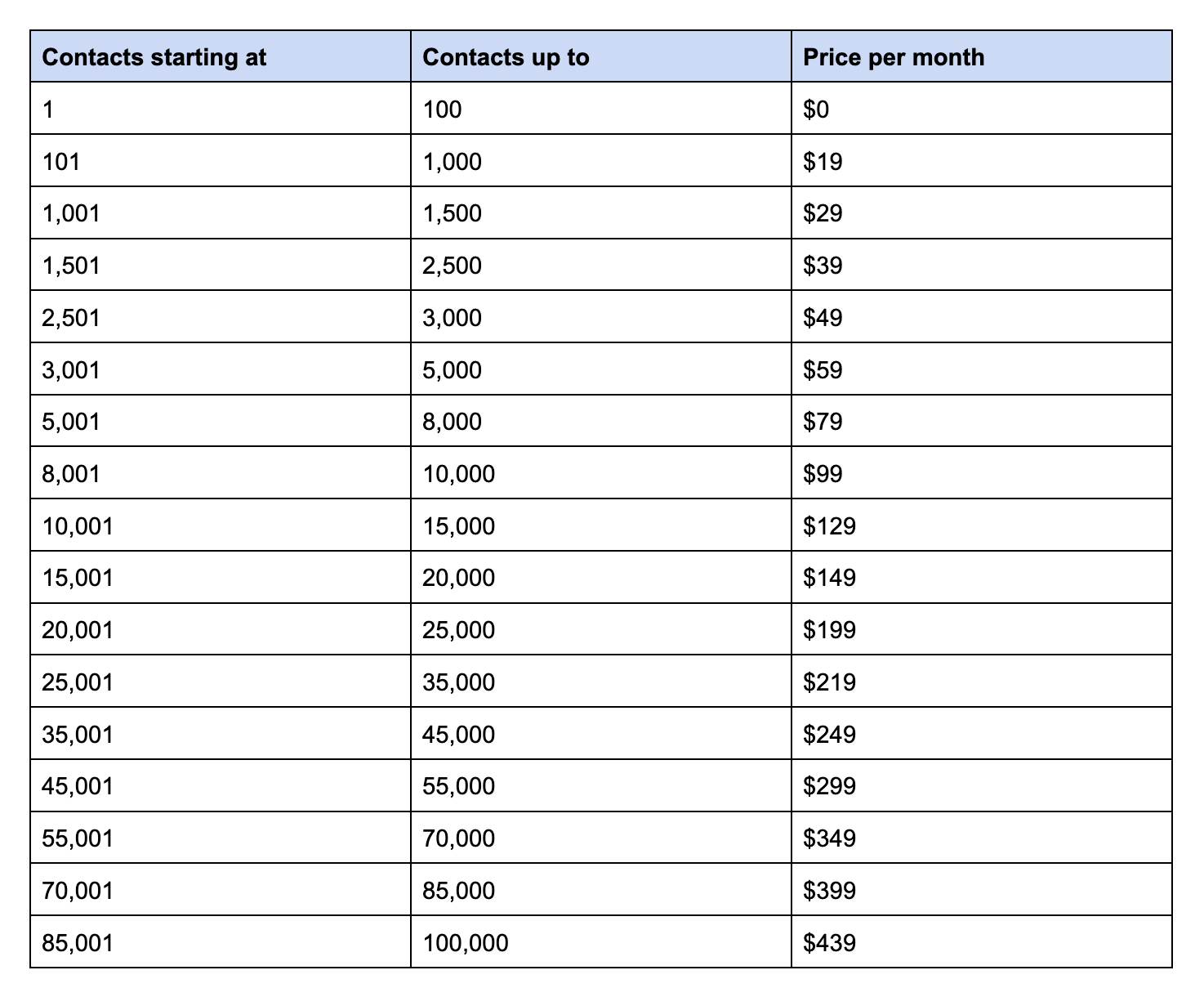
Understanding contact calculation
Each pricing tier covers a specific range of contacts. You are charged for the pricing tier that supports the number of contacts you have in your community.
For instance, let’s say your community has 1,200 individuals, but 700 are subscribed to marketing emails. Only these 700 individuals are considered contacts and counted toward your pricing tier that covers 101–1,000 contacts.
Since only subscribed contacts affect your Email Hub billing, when a contact unsubscribes from marketing emails, they are no longer counted toward your billing.
Note that as contacts are updated throughout the day, the Billing page may not immediately reflect the most up-to-date count of billable contacts. However, the Manage audience page, specifically the Contacts tab, shows real-time changes to the count. This may cause a temporary discrepancy between the two counts during the day.
📚 To gain a better understanding of who we consider to be contacts, please refer to our detailed guide here.
Automatic tier upgrades
Email Hub automatically adjusts your pricing tier as your subscribed contact list expands. When your contact count exceeds the limits of your current tier, you’ll be automatically upgraded to the next appropriate tier—no manual intervention is needed. This ensures that your billing always reflects the number of contacts you're actively engaging.
This contact expansion includes new contacts added via imports and forms, as well as individuals who resubscribe after previously unsubscribing.
If the contact count increases mid-billing cycle, you’ll only be charged for the appropriate new tier on a prorated basis for the remainder of that billing period. The full rate for the new tier will take effect at the start of the next billing cycle.
This automatic scaling ensures your subscription adjusts seamlessly to your needs, supporting your growth without interruptions.
Access your Email Hub billing
To access and manage your Email Hub billing:
Click the community name or logo (or the dropdown icon next to it) in the top-left corner and select Settings.
Under the Subscription section, select Plans.
Navigate to the Manage Billing tab.
Understanding your Email Hub bill
When it comes to your bill, there are two key principles to remember:
We always pro-rate for tier upgrades.
We charge for the billing period ahead.
This means when you pay your bill at the start of the month, you pay for the upcoming billing period. For example, if your monthly bill is $19 on April 1st, you're paying for the pricing tier that covers up to 1,000 subscribed contacts from April 1 to April 30.
How pro-rated charges work
If your contact count exceeds your current pricing tier during the month, your next bill will reflect a pro-rated credit for unused days at the lower tier and a pro-rated charge for the days spent in the higher tier. The new, higher tier rate will take full effect at the start of the next billing cycle.
Let’s break this down with an example:
On April 1, you paid $19 for the month of April, which covers up to 1,000 contacts.
On April 20, your contact count exceeds 1,000, so you're automatically upgraded to the next tier (at $29/month) which covers up to 1500 contacts.
Here’s how the pro-rate calculation works:
Pro-rated credit for unused time at the lower tier: For the 10 unused days on the $19 tier, we calculate a pro-rated credit of $6.33.
Pro-rated charge for the higher tier: For the 10 days from April 20 to April 30 on the higher $29 tier, we calculate an additional charge of $9.66.
On May 1, your total bill will be: $29 (for the new pricing tier covering 1,001–1,500 contacts) + $9.66 (pro-rated for the ten days spent at the higher tier in April) - $6.33 credit (for unused ten days on $19 tier) = $32.33.
By doing this, we ensure that your bill always matches the growth of your community, charging you only for the time spent at each tier.
Downgrading an Email Hub tier
If you want to downgrade to a lower tier due to a reduced contact count, contact customer support to check if you're eligible. If approved, the new rate will apply starting from your next billing cycle.
For example, if you’re on a $29 plan and request a downgrade on April 20, your new $19 pricing tier will take effect on May 1.
Note that if you exceed the limits of the downgraded tier, you will be automatically upgraded to the next appropriate tier based on the number of contacts to ensure there’s no disruption to Email Hub access.
Canceling your Email Hub subscription
To cancel your Email Hub subscription at any time:
Click the community name or logo (or the dropdown icon next to it) in the top-left corner and select Settings.
Under the Subscription section, select Plans.
Navigate to the Manage Billing tab.
Scroll to the Email Hub section. Click on More actions (three dots) and select Disable Email Hub.
You will keep access to the Email Hub features till the end of your current billing cycle.
If your contact count exceeds your current pricing tier during the billing cycle, any additional charges for that tier increase will be prorated and added to your final bill. For example, if you had more contacts than your original tier, the balance for those additional contacts will be charged on the last day of your billing cycle.
After cancelation, your Billing page will indicate that the subscription to Email Hub is disabled. You can reactivate it at any time by returning to the Billing page and clicking Enable now.
After the end of your final billing cycle, when Email Hub is disabled:
All email communications part of Email Hub will stop, and you’ll no longer have access to Email Hub features such as broadcasts and forms.
Any workflows that contain the send email action or the form submission trigger will be disabled and stop working.
Forms you’ve created will no longer render or capture new contacts.
The option to import new contacts will no longer be unavailable. However, you can view all your contacts and update or delete them in the community.