Schedule a bulk action workflow
Last updated: September, 2026
Scheduled workflows let you plan and execute your bulk actions in advance, eliminating the need to run them manually at specific times. In this article, we’ll walk you through how to create and schedule these workflows.
Scheduled workflows combine the power of bulk action workflows with the convenience of scheduling. With two powerful scheduling options, one-time and recurring, you can streamline your community management tasks with ease. This frees you to focus on fostering meaningful interactions and driving community growth.
One-time scheduling enables you to plan a workflow to run once at a specific future date and time. For example, you can create a workflow to send a personalized email to your members teasing an upcoming summit or event in your community, generating interest and engagement.
Recurring scheduling, on the other hand, allows you to set up workflows that run repeatedly at specified intervals. This option is particularly helpful for tasks you need to perform regularly, such as sending weekly updates to your members every Monday, keeping them informed and connected to your community.
Create a scheduled workflow
Setting up a scheduled workflow is similar to creating a regular bulk action workflow, with a few additional steps to schedule it.
Click Workflows in the left sidebar, then select Workflows.
Click New workflow in the top-right corner.
On the workflow creation page, click Start from scratch.
Select Scheduled and click Create workflow.
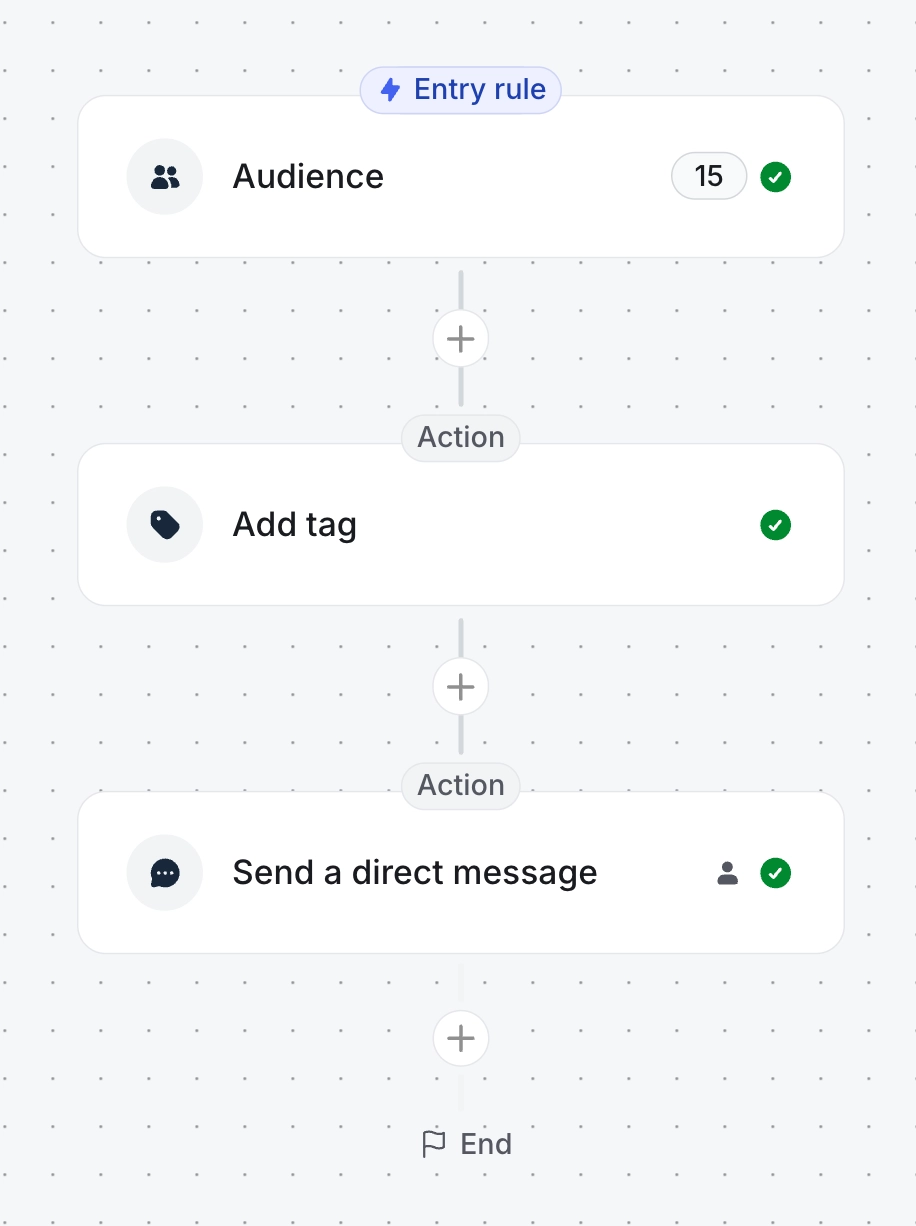
Define your audience by setting up one or multiple audience rules in the entry rule step.
-
Add actions to define tasks that the workflow will perform for the audience. For detailed information on setting up the entry rule and actions, see our guide here.
As with bulk action workflows, you can set filter conditions for each action within a scheduled workflow. This ensures that actions are only performed for individuals who meet the specified conditions.
💡 Tip: You have the ability to insert a delay action either before any other action or in between actions. This allows you to pause the execution of the next action for a specific amount of time. For detailed information on workflow delays, see our guide here.
Once you are ready, you can choose to schedule this workflow on a one-time or recurring basis. Let’s take a look at both options below.
ℹ️ Note: It's important to note that once you schedule the workflow, you won't be able to delete it. However, you can archive the workflow anytime if needed.
Schedule one-time
Schedule your workflow to run at a specific date and time in just a few steps:
-
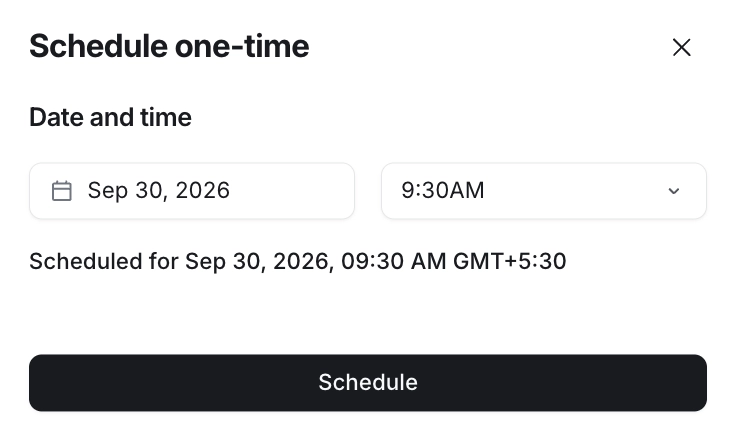
Click Schedule at the top-right of the editor and select Schedule one-time.
-
Set your preferred date and time and click Schedule.
Verify the details and click Schedule in the top-right corner.

Schedule recurring
To schedule recurring workflow:
-
Click Schedule at the top-right of the editor and select Schedule recurring.
-
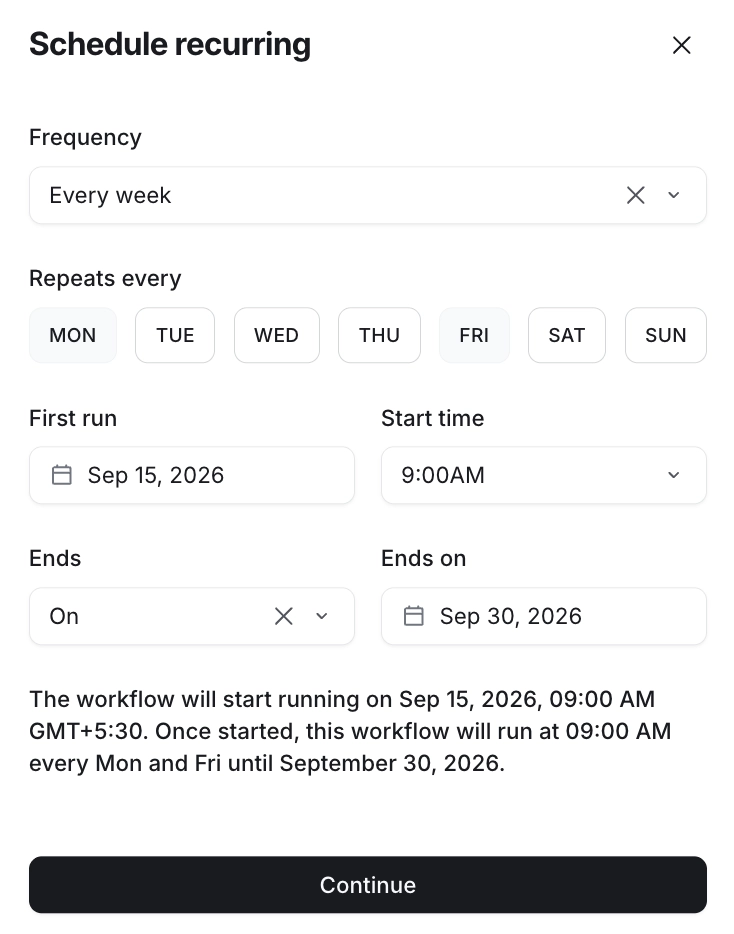
In the Schedule recurring dialog, set these parameters:
Frequency: Choose daily, weekly, monthly, or yearly.
Repeats: If you have selected weekly frequency, select the days of the week on which you would like to run this workflow.
First run: Select the date and time to initiate the workflow.
-
Ends: You can choose to run this workflow on schedule indefinitely by selecting Never. If you would like to end the workflow on a specific date, choose the On option and enter the date.
Click Continue.
-
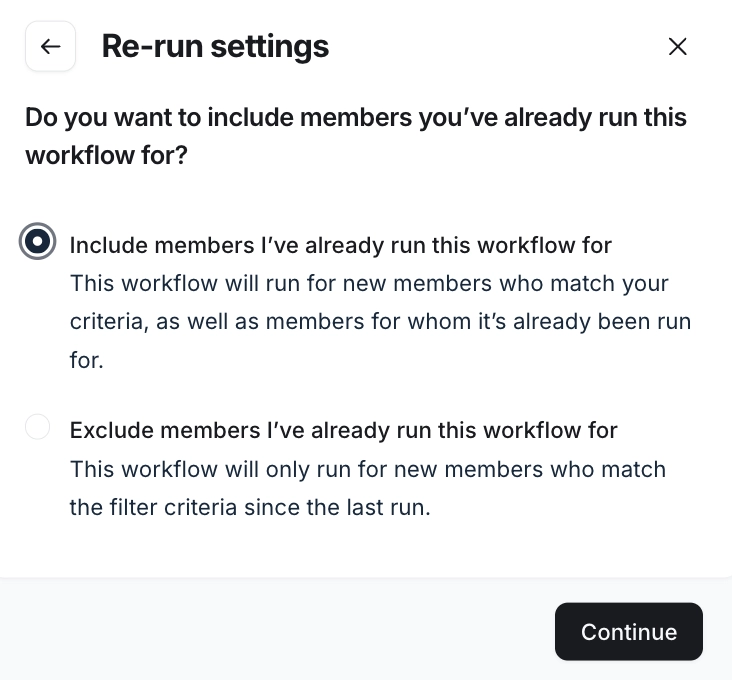
In the next dialog, choose the configuration for re-runs based on your preference:
Include members I’ve already run this workflow for: Run this workflow for all audience members who meet the audience rule criteria, regardless of whether the workflow has been previously executed for them.
-
Exclude members I’ve already run this workflow for: Run this workflow for only new audience members who match the audience rule criteria since the last run.
Click Continue.
Verify the details and click Schedule in the top-right corner.

You're now all set! The workflow will automatically run the tests for you.
Once scheduled, the workflow overview page displays the entry rule and action configuration. To view and modify the schedule, click Schedule details at the top of the editor.

💡 Tip: If you've selected the workflow to run monthly on the 31st, please note that for months with only 30 days or during February, the workflow will execute a run on the last day of the month.
💡 Tip: After scheduling the workflow, you can still make changes to the setup as needed. If you edit the bulk action workflow that is currently running, your changes will immediately apply to members who haven’t yet gone through the workflow. For more information on how to edit workflows, check out our guide here.
Modify workflow schedule
You can update both one-time and recurring workflow schedules with a few simple steps.
One-time: For one-time workflows, you can modify the schedule any time before the original run time.
Recurring: For recurring workflows, you can adjust both the recurring schedule and end date as long as the end date hasn't passed. If the start date hasn’t passed, you can change the first run date as well.
To modify the workflow schedule:
Click Workflows in the left sidebar, then select Workflows.
Locate the workflow using filters.
Click More actions (three icons) next to the workflow title and select Edit.
Click Schedule details at the top of the page and select Modify.
Update the configuration and reschedule it.
Cancel workflow schedule
You have full control over your workflow schedule, even after setting it. You can cancel a schedule at any time before the runtime for one-time workflows, or before the recurring schedule ends.
To cancel the workflow schedule:
Click Workflows in the left sidebar, then select Workflows.
Locate the workflow using filters.
Click More actions (three icons) next to the workflow title and select Edit.
Click Schedule details at the top of the page and select Cancel.
After canceling, you have the flexibility to re-run the workflow instantly or set a new one-time or recurring schedule.
Re-run workflow
You can re-run the scheduled workflows if the schedule is already canceled or all scheduled runs are complete.
To re-run the workflow:
Click Workflows in the left sidebar, then select Workflows.
Locate the workflow using filters.
Click More actions (three icons) next to the workflow title and select Edit.
-
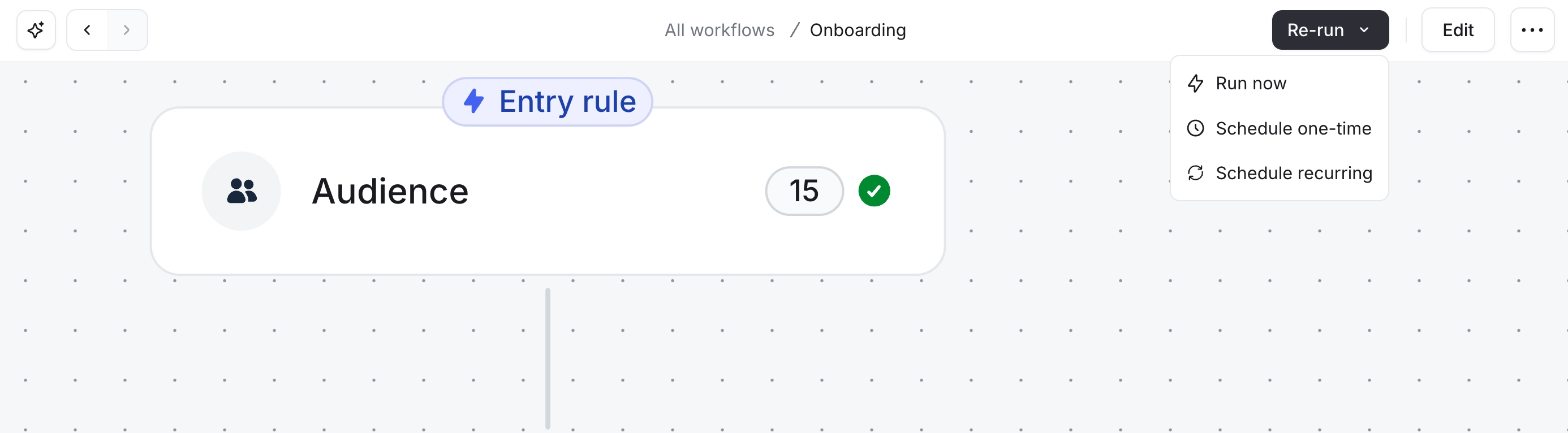
Click Re-run at the top of the page and select one of the following:
Run now: Execute the workflow immediately.
Schedule one-time: Set a new one-time schedule for the workflow.
Schedule recurring: Create a new recurring schedule for the workflow.