Edit workflows
Last updated: September, 2026
The workflow edit feature allows you to fine-tune and adjust your workflows. This helps you make the necessary changes to your workflow setup to meet your changing needs without duplicating or archiving workflows. This article will walk you through the steps to edit workflows and provide key information about this feature.
Key things to know about editing workflows
Eligible workflows: You can modify all types of workflows, including automation, bulk action, and scheduled.
-
Changes to workflow setup: You can update the entry rule and actions, add new actions, or delete existing ones.
ℹ️ Note: Changes you make will only apply going forward. This means if a member has already been through the workflow, they won’t be affected by the changes.
For active automation or currently running bulk action workflows, your changes will immediately apply to members or non-members who have yet to go through the workflow.
💡 Tip: To see if a particular member or non-member was affected by the change you made, you can check the detailed task history, which provides information about the trigger or entry rule and all the actions performed for the member or non-member.
Time delay actions: Currently, you can’t modify the existing time delay action when editing the workflow. If you need to change the delay setup, remove the action and add a new one. As with all changes, these updates will only apply to members for whom workflow hasn't run yet.
Edit workflows
To get started with editing a workflow, follow these steps:
Click Workflows in the left sidebar, then select Workflows.
Locate the workflow you would like to edit.
Click the workflow title or click More actions (three dots) next to the workflow and select View.
-
On the workflow overview page, click Edit in the top-right corner.
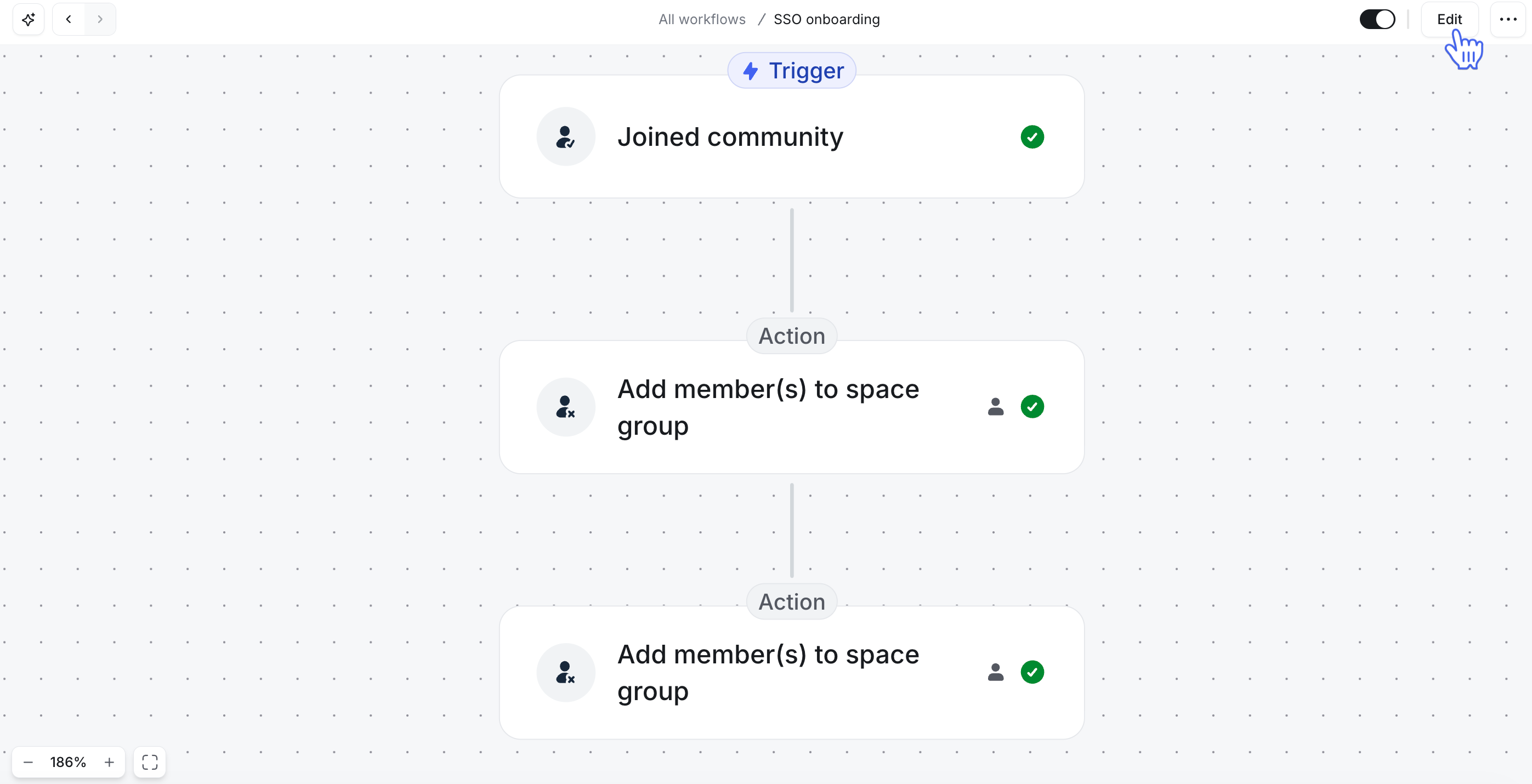
You'll now be taken to the workflow editor. In the editor, you can make the following changes:
-
Edit event (for automation workflows): In an active automation workflow, you can modify the entry rule card by selecting a different event or event entity using the dropdown menus.
After you click Continue on the entry rule card, the updated event will take effect immediately, triggering the workflow based on the new event.
If the workflow has already begun for a member, the updated entry rule event won't apply to them.
-
Edit audience rules (for bulk action workflows): You can adjust the audience rules within the entry rule card for bulk action workflows, including scheduled ones. Once you click Continue on the entry rule card, the updated rules will be applied in the next run.
If the workflow is already running, audience rules can’t be changed until the current run is complete.
-
Edit actions: You can modify the existing action cards by changing the action entity (such as a member tag for Add member tag action) or selecting a new action using the dropdown menus. Click Continue on the action card to confirm and apply the change immediately.
Changes to existing workflow actions will only apply to members for whom workflow has yet to run these actions.
-
Add new actions: To add new actions, click the ➕ icon above or below any existing action cards. After setting up an action, click Continue to confirm and apply the change immediately.
If the workflow has not yet executed actions for a member, this new action will be included for them. However, if the workflow has already executed all actions for a member, this new action won't be applied retroactively.
-
Delete actions: To remove an action, click the More actions (three dots) icon on the action card, then select Delete Action.
If the workflow has not yet executed actions for a member, the deleted action will be skipped for that member, and the workflow will proceed to the next available action.
❗Important: Since the changes will take effect immediately and apply to members or non-members for whom the workflow has yet to run, we recommend reviewing your edits carefully before clicking continue to avoid unintended changes, especially with an active automation workflow or a bulk action workflow that's currently running.
Once you've made all the changes, click Done. You are now all set with changes.