Send custom push notifications to members using workflows
Last updated: September, 2026
With Circle workflows, you can set up an automation that sends a custom push notification in the Circle mobile apps to specific members, based on the workflow event or audience rules you prefer.Here are some ideas for sending custom push notifications:
Send personalized push notifications directed toward a specific group of members based on workflow trigger or entry rule, ensuring a custom message reaches the right group of members.
Grab the attention of a group of members and encourage them to take action or interact with specific content in your community.
Trigger custom push notifications on current trends, activities, and events in your community, allowing you to send timely and relevant notifications based on members’ interests.
Key things to know about custom push notifications
The custom push notification action is available on all types of workflows.
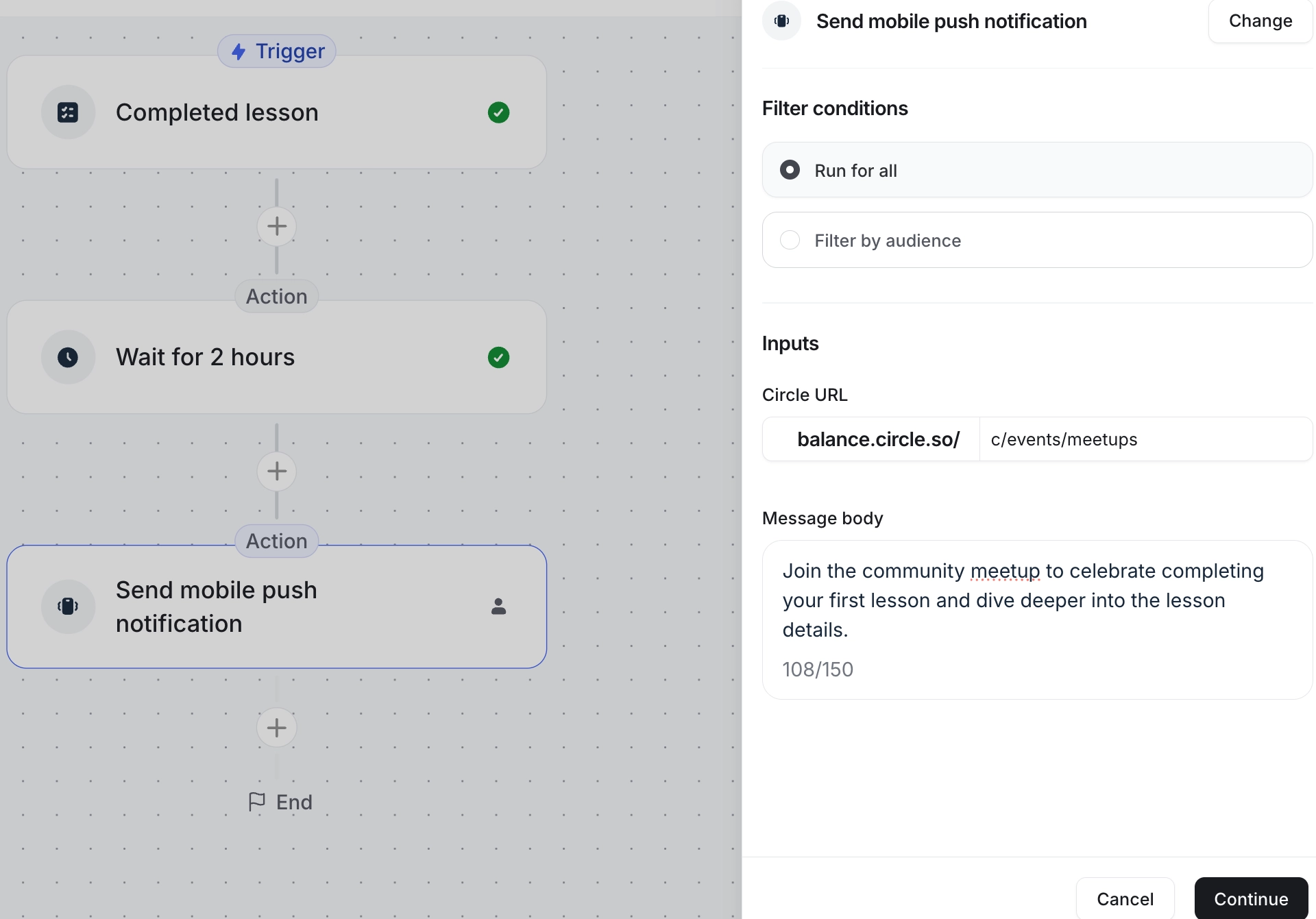
You can add your community's URL to direct members to a specific location within the community, such as a space, post, event, or lesson.
You can add a custom message of up to 150 characters.
Set up custom push notifications
Create a new automation or bulk action workflow.
Set up the entry rule for the workflow.
Go to the workflow action. In the Choose an action dropdown menu, select Send mobile push notification.
-
In the Circle URL field, your community's domain will be prefilled. Add the URL path after your community domain.
For example, if your community URL is https://mars-ed.circle.so/c/space-events/meet-james-webb-space-telescope, add the following.
c/space-events/meet-james-webb-space-telescope
In the Message body field, add a custom message of up to 150 characters.
-
Click Continue and activate or run your workflow.