Create polls
Last updated: February 20, 2025
Are you looking for a powerful and exciting way to connect with your community while obtaining valuable feedback? Look no further than polls! In this article, we will guide you through the steps to create and manage polls.
Key highlights of polls
Polls are an incredible resource to gather valuable insights from your community members. With the right approach, you can use polls to drive engagement and foster a sense of community among your members.
ℹ️ The ability to create and participate in the poll is supported across all platforms, including Circle mobile apps.
Let’s take a look at some key aspects of this feature:
Currently, polls are seamlessly integrated into post spaces, allowing anyone with post-creation privileges within a specific space to craft multiple polls in a single post.
Each poll is designed for single-answer selections. Once you have posted the poll, members interested in participation can select a response from the choices.
Once the poll is published, the post creator, space moderator, and admins can edit or remove polls at any time.
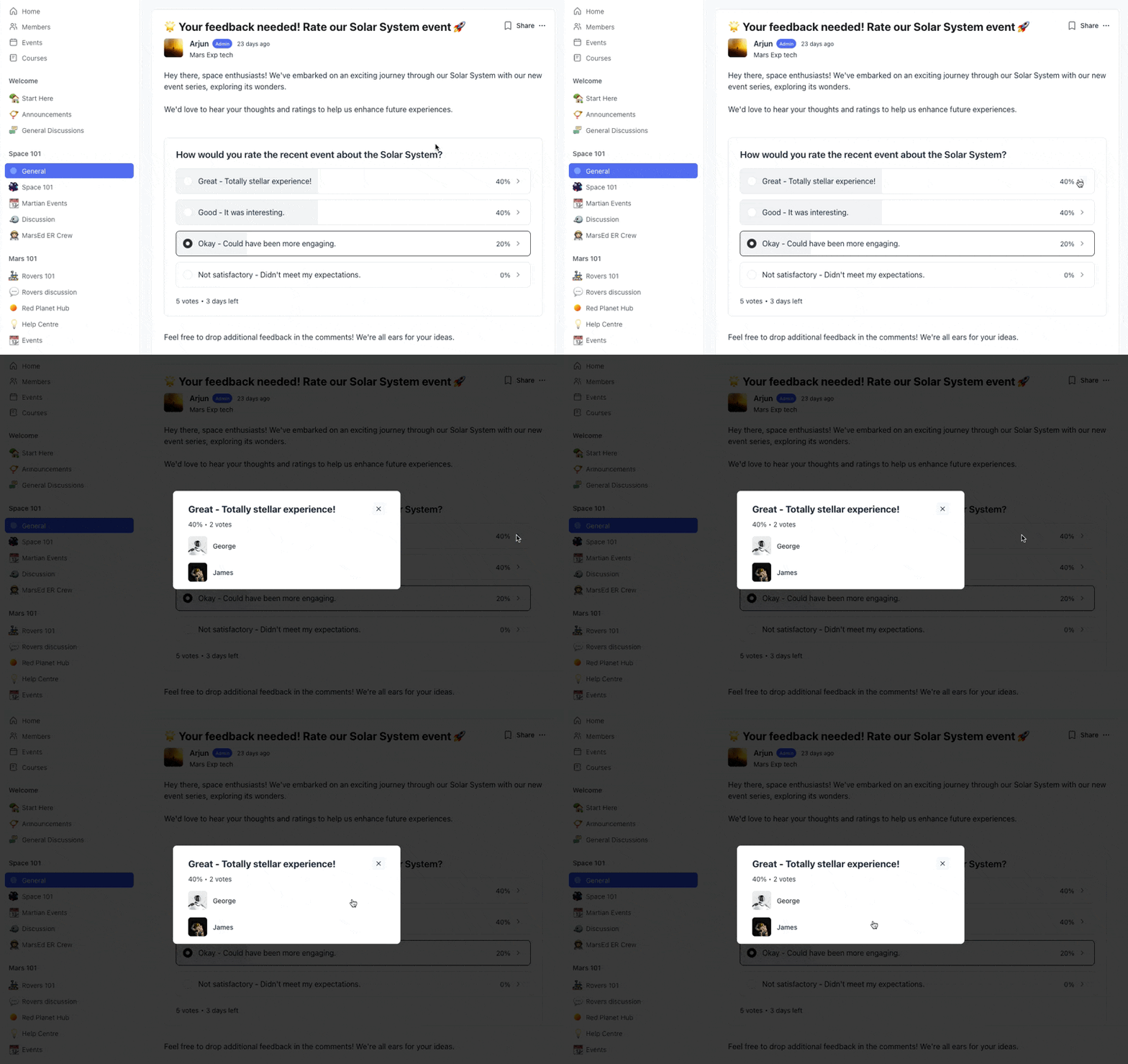
Poll results display percentages for each option, a list of members who voted for each choice, and the total number of votes received. When creating a poll, you can decide whether you would like to allow members to see the results when they submit a vote.
Here are some benefits of using polls in your community:
Validate ideas: Use polls to quickly test the feasibility of ideas or concepts within the community. This helps assess members' interest and enthusiasm before investing resources.
Tailor content: Utilize polls to gather insights on member preferences. This can help you create tailored content or offerings for distinct member groups.
Community bonding: Foster a closer-knit community by creating interactive and fun polls around shared interests, igniting discussions, and uniting members on diverse topics.
Member recognition: Celebrate and award the valuable contributions of community members through polls. Nominating and voting for outstanding contributors not only recognizes their efforts but also cultivates a culture of appreciation within the community.
Content feedback: Polls serve as an effective means to gather feedback via post on various community aspects, whether it's your recent events series, new chat space for discussions, recently released course, or any other offering. This direct feedback loop helps in refining and improving content to better serve the community's needs and preferences.
Create a poll
Polls can be added when creating or editing a post. To create a poll, follow these steps:
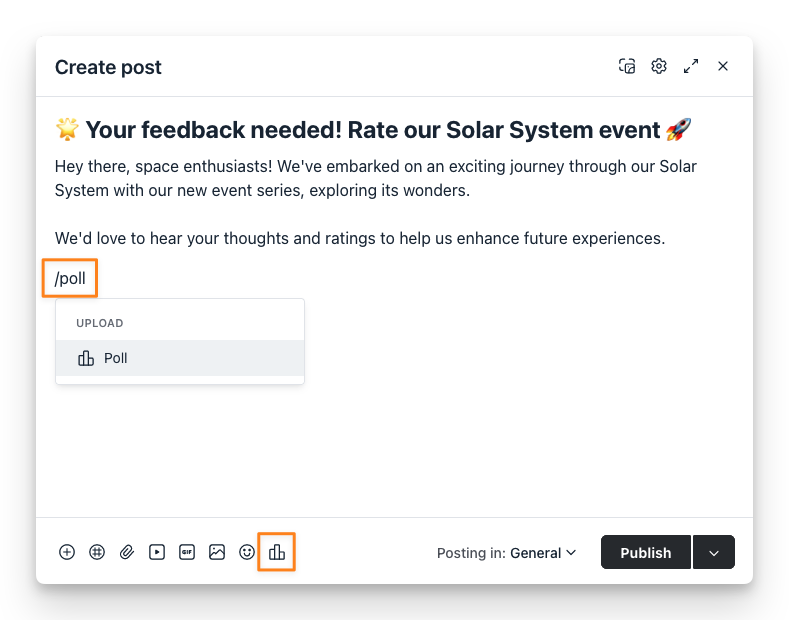
1️⃣ To start, in the post editor, click the Poll icon located at the footer or type the forward-slash (/) command and select Poll from the list.
2️⃣ In the Ask a question field, type in the question that will appear as the title of your poll. Make it engaging and clear to encourage more participation!
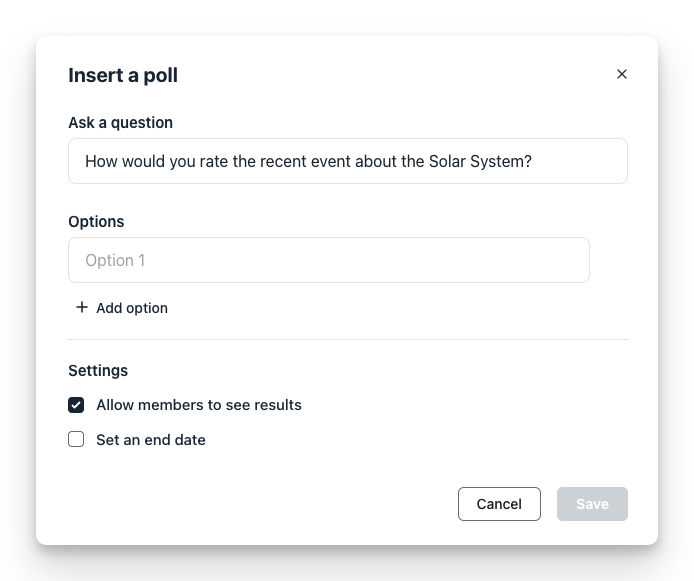
3️⃣ Now, let's fill in the choices for your poll within the Options section. To add a new option, click the Add option below the field. You can include up to five options.
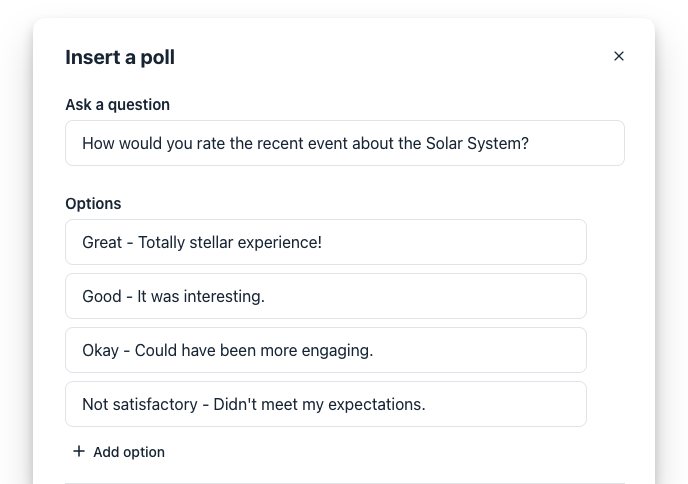
You can also rearrange them in your preferred order. Simply click, hold, and drag an option to rearrange them to your liking.
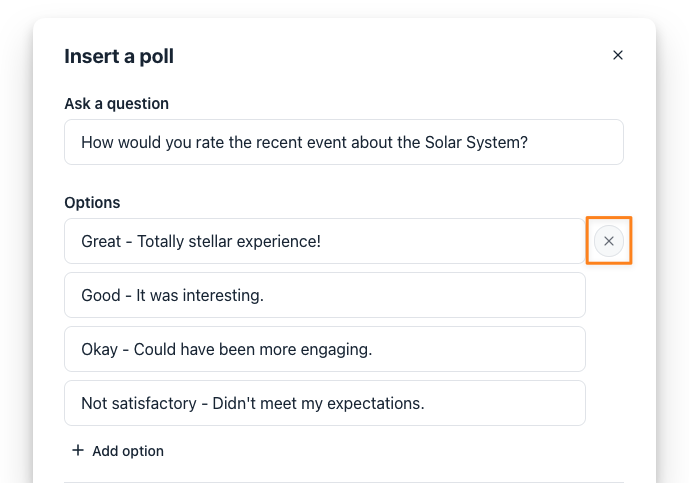
To remove an option, hover over it and click the X icon next to the option.
4️⃣ Configure the following settings as per your preference:
Allow members to see results: Enable this option to let participants view the results for each option, who voted for each option, and the total number of votes submitted. If disabled, only the poll creator, admin, and moderator of the space will be able to see results. Please note that after the poll is closed, members can see the results regardless of this setting.
Set an end date: Choose this option to set a specific closing date and time for your poll. The end time will be set as per your profile time zone. When the end date is set, a message will display the remaining time until closure on the poll.
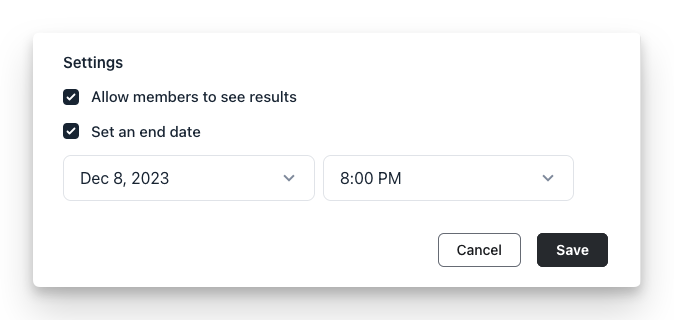
After you have reviewed everything, click Save to add the poll to the post. Once your post is published, everyone in the space will be able to take part in the poll, including you.
Poll notifications
New post: Just like any other post, when a post containing a poll is published, space members will receive a notification about the post based on their notification preferences for the new post. You can reset this notification preference for space members by visiting the post space settings. For more information, see Bulk reset notifications for post and event space members.
-
Poll closed notifications: If the poll has a set end date, once the scheduled duration concludes, the poll creator will receive an in-app notification about the closure of the poll.
The poll creator has the option to disable the poll closed in-app notification from their account's notification settings. In the New activity section within notification settings, they can manage this by selecting or deselecting the Polls checkbox.
Participate in a poll
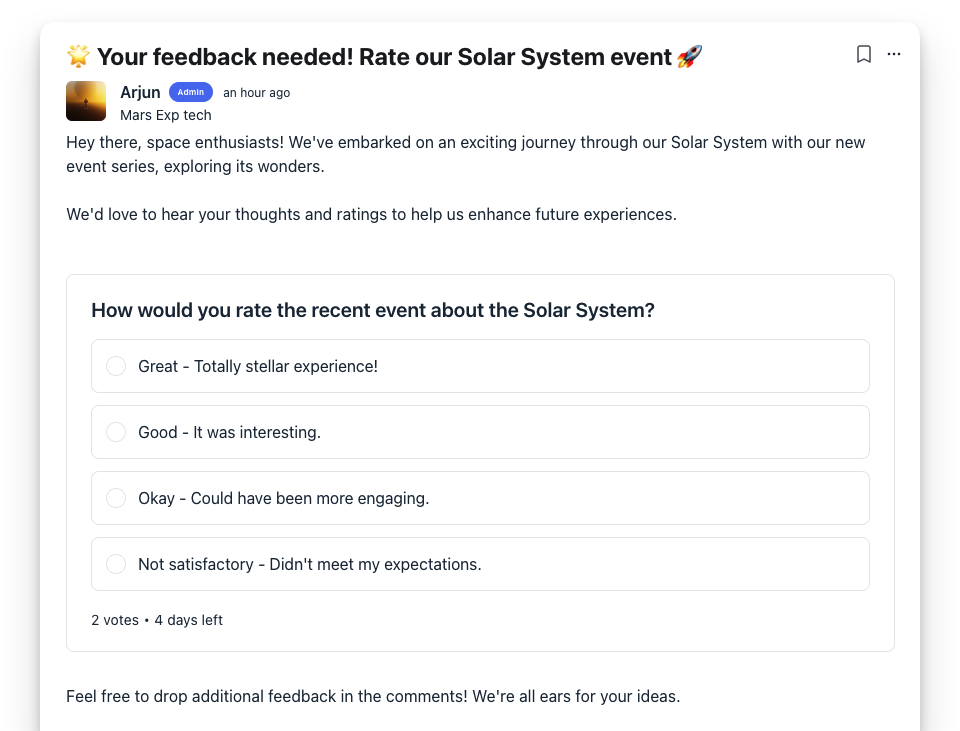
After publishing a post with polls, all members who have access to the post space can actively participate in the poll.
To vote, members can simply select their preferred option among the choices provided in the poll.
After selecting an option, members get a brief window of flexibility to change their minds. They have 15 seconds to use the Undo option, which is conveniently located at the bottom of the poll. Clicking this option removes their vote, allowing them to cast a new one if they wish.
💡 Tip: The option to undo poll response is available on all supported platforms including web browsers on both desktop and mobile devices, as well as iOS and Android mobile apps.
View poll results
If the poll result visibility is turned on for members, they can view the percentage of votes for each option and the total number of votes received in the poll once they've submitted their choice. Furthermore, clicking the Arrow > icon next to the vote percentage reveals a list of members who voted for each option (currently available on web browsers).
If the poll result visibility is turned off, members can only see results after the poll is closed. The poll creator, admin, and moderator of the space can view the poll results anytime, regardless of the visibility setting.
💡 Tip: As an admin or moderator, you can also export the poll responses in a CSV file. For more information, see our guide here.
Edit a poll
The post creator, including the admin and moderator, can edit the poll question and settings anytime from the post editor.
Please note that you can only edit or rearrange options if no votes have been selected. Once at least one vote has been added, you will no longer be able to update the poll options.
To edit a poll:
Locate your post, click the More actions (three dots) icon next to the post title, and select Edit post.
-
Next to the poll question, click the More actions (three dots) icon and select Edit poll.
Make your desired changes and click Save.
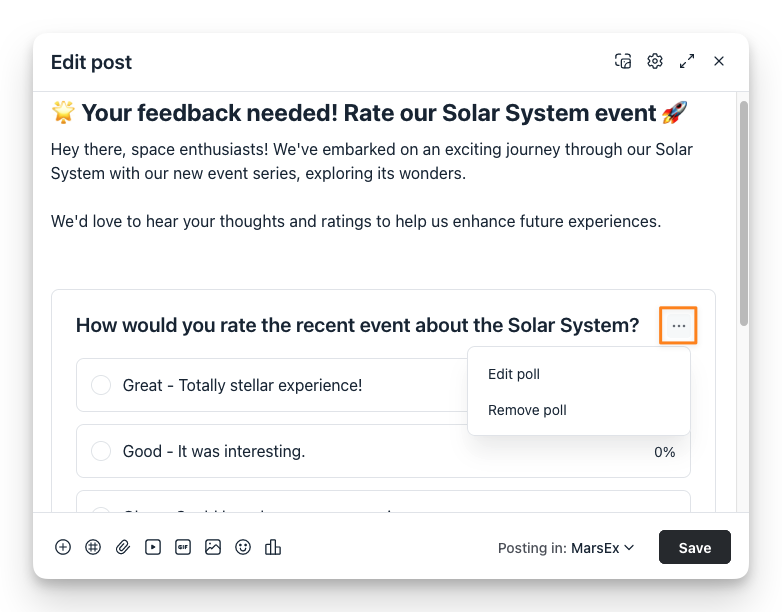
To remove a poll from the post, next to the poll question, click the More actions (three dots) icon and select Remove poll.
Get ready to craft exciting polls and watch your community thrive with active participation and insightful feedback. 📊