Allow your members to create posts
Last updated: June, 2026
Enabling your community members to create posts helps boost engagement and encourage participation within your community.
Key information about members’ post creation ability
Here are some important considerations when allowing members to create posts:
Members can utilize the editor to craft their posts, incorporating both textual content and media elements, including embeds. However, it's worth noting that they won't have access to post settings.
While members have the ability to create posts, administrative actions like pinning a post to the space or sidebar and duplicating a post are restricted to moderators and admins.
Members can only change the location of the post to any space they are a part of, provided that you have enabled the option that allows them to post in those spaces.
Members have ownership of their posts and can edit or delete them at any time.
Allow members to create posts
Let’s configure the options that allow you to achieve this:
Head to the post space.
Click the Space settings (three dots) icon in the top-right corner of the space and select Options.
-
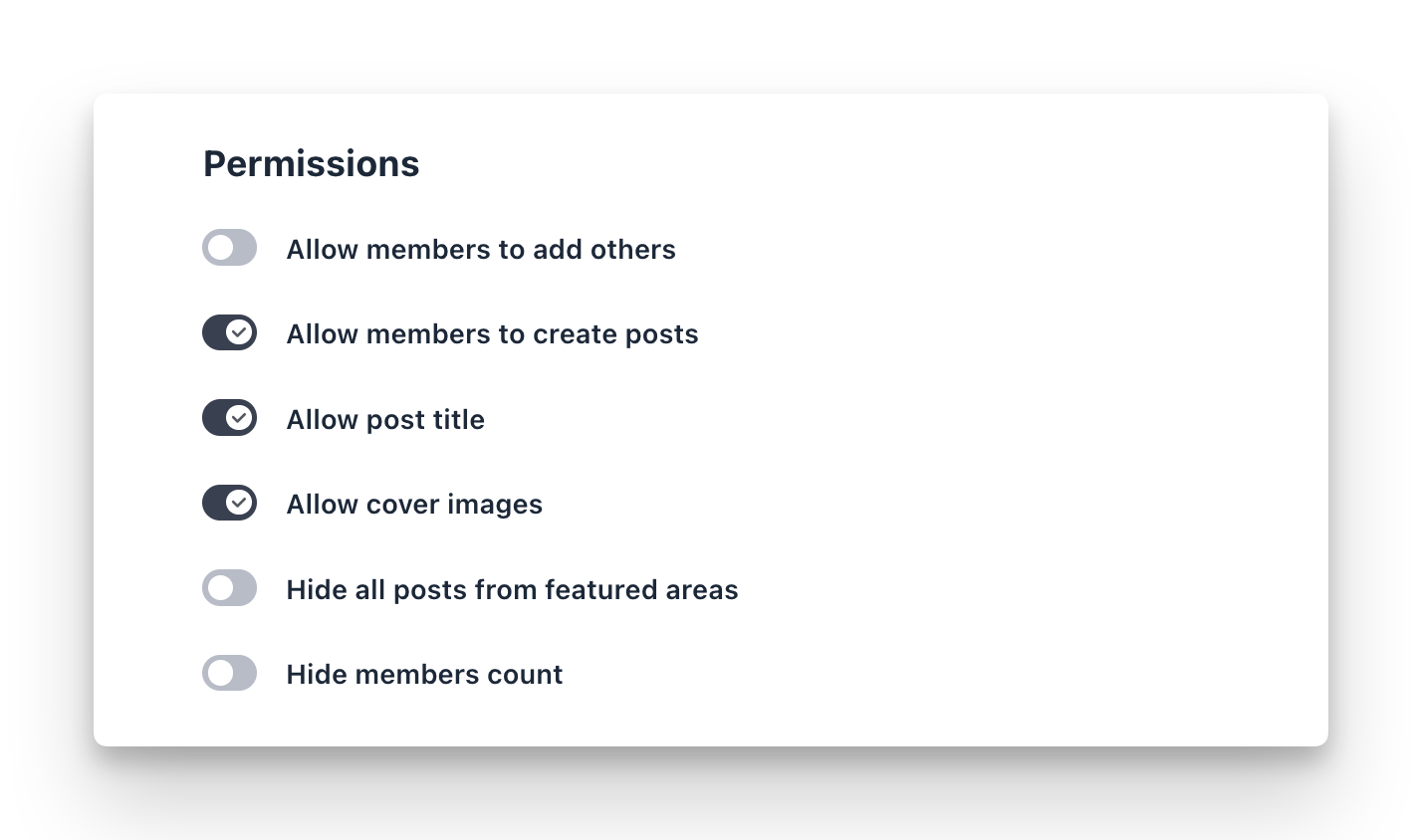
In the Permissions section, set up the following options:
Allow member to create posts: Turn this toggle on to provide your space members with the ability to create posts.
Allow post title: You can enable this to allow your members to add A title when creating a post. If you turn off this toggle, a title field will become hidden when members are creating posts. Please note that admins and moderators will still be able to add titles to posts.
Allow cover images: You can enable this to allow your members to add cover images for posts. If you turn off this toggle, the option to add a cover image will become hidden for members. Please note that admins and moderators will still be able to add cover images to posts.
Click Save changes.
Once these toggles are enabled, members will see a New post button in the space. To guide your members through creating and managing posts, see Creating and managing posts as a member.