Setting up a new image space
Last updated: September, 2026
Are you looking to create a space that highlights creativity and visual expression through images? Setting up a new image space opens doors to showcasing stunning visuals within your community. This article will guide you through the steps to create your image space effortlessly.
Get to know image space
Visuals have great potential for storytelling and for igniting conversations. You can harness this potential with image spaces by creating dedicated spaces based on various topics or themes in your community.
Here are some key features of image spaces:
Create a dedicated image space where members can view and interact with images, and even share their own visual narratives.
Tailor the appearance of your image space by choosing from three distinct layouts: Feed, Masonry, or Grid, to enhance the visual experience.
Enable members to engage with image posts by expressing appreciation through likes and sharing thoughts via comments.
-
Members can follow image posts similar to regular posts to stay informed about the discussions within a particular post.
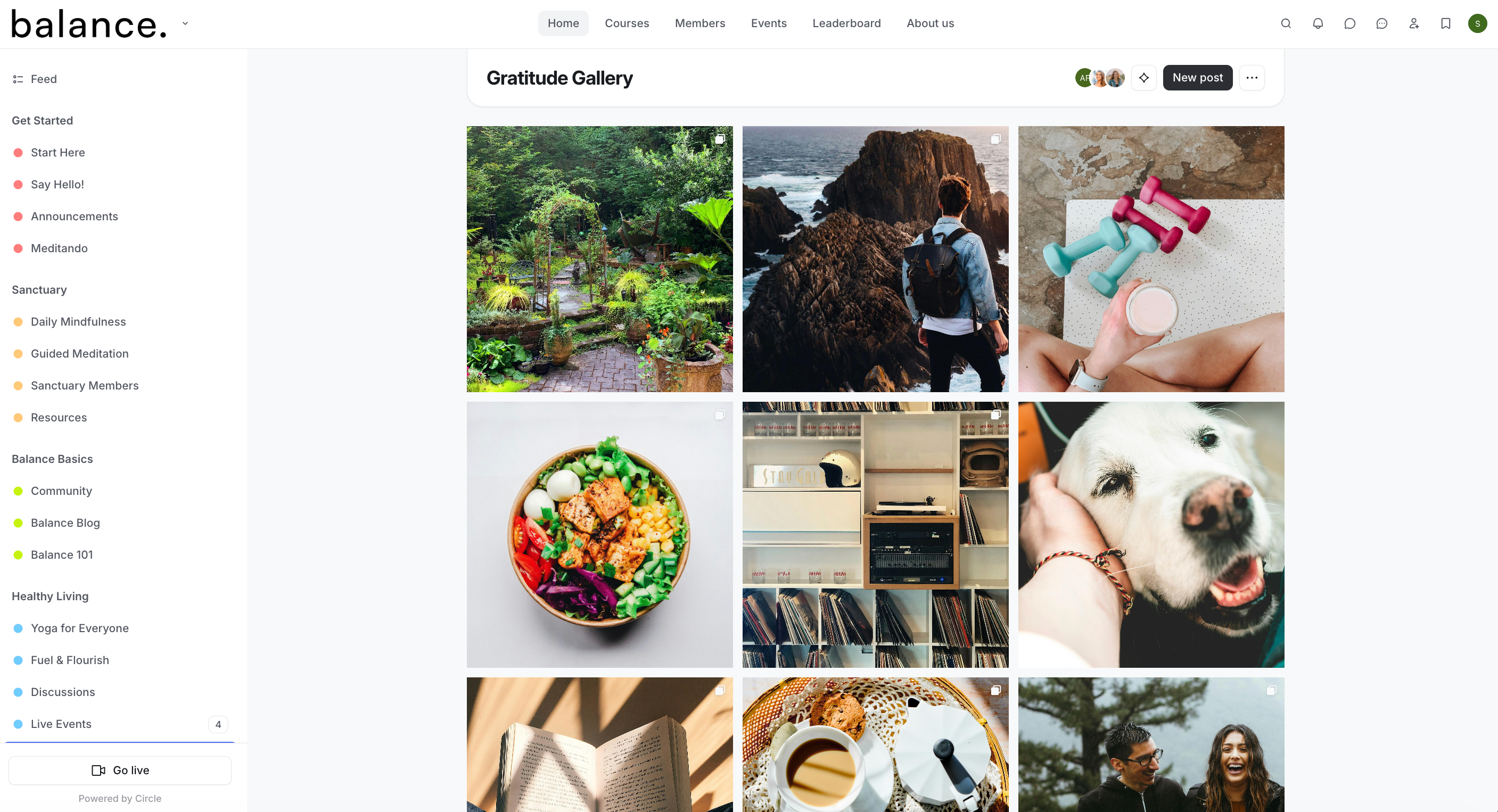
Here are some ideas to use the image spaces in your community:
Community events and campaign highlights: Use the image space to showcase visuals from events, campaigns, or contests held within your community. It's a captivating way to document and celebrate memorable moments.
Social space: Establish a dedicated social space where everyone can share their visuals and interact on image posts like social media platforms.
Thematic galleries: Curate themed galleries, such as landscapes, portraits, architecture, or nature, allowing for focused appreciation and discussion. This can be a great way to share visuals in art and photography-focused communities.
Featured artist/photographer: Dedicate image spaces to feature specific artists or photographers. Highlight their work and provide insights into their creative process.
Visual guides: Create image spaces to host visual aids that can significantly enhance the understanding of complex processes or creative techniques.
Create an image space
To create an image space:
Click Community in the left sidebar, select Spaces, then click New space in the top-right corner. Alternatively, hover over a space group, click the ➕ icon, and select New space.
In the Create a space dialog, select Images and click Next.
-
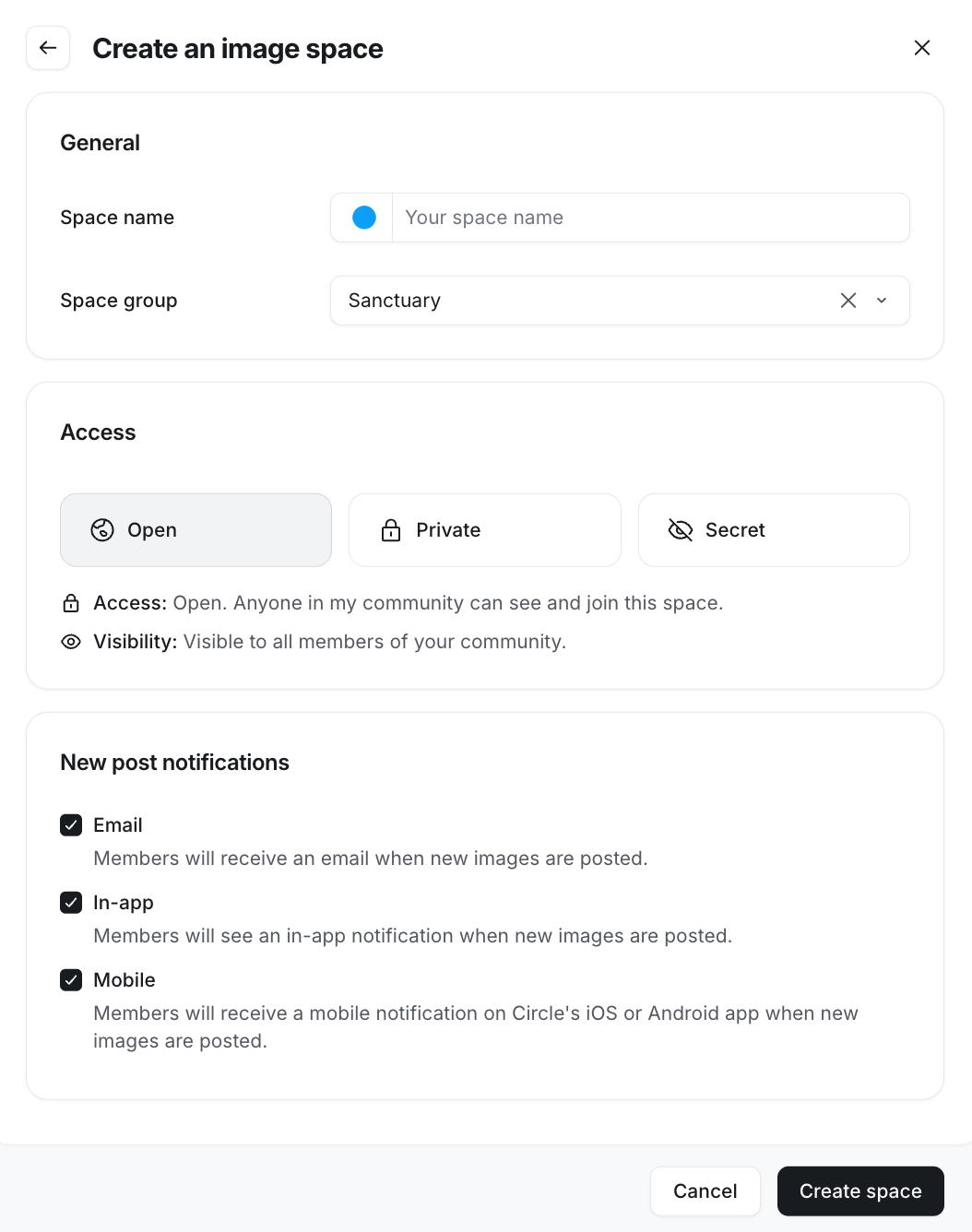
Configure essential space details:
Add a space icon: Add an icon of your choice that will be displayed in the left sidebar and space header in your community. To learn more, see Set up a space icon.
Add space name: Name your image space.
Space group: The space group will be pre-filled based on where you initiated the new space. However, you can choose a different space group from the dropdown if you have changed your mind.
Select access level: Choose from open, private, or secret access. To learn more about space access, see Managing space access and visibility.
-
New post notifications: You can choose a default notification setting for your members to trigger email, in-app, and mobile push notifications when a new post is posted.
After reviewing the details, click Create space.
You will now be taken to the newly created space, where you can customize settings and start crafting new content!
Ready to customize your image space?
📚 To learn more about image space customization, see Customize image space settings.