Duplicating an image post
Last updated: September, 2026
Save time and effort by sharing similar image-post content across different image spaces within your community with post duplication. In this article, we will provide you with important insights and step-by-step instructions for duplicating an image post with ease.
Key insights into the duplication feature
Here are a few important things about the duplication feature:
The post duplication feature is exclusive to admin and moderator roles in your community.
You can duplicate a post in the same or different image space than the original location.
When you duplicate a post, its images, caption, and settings are copied to the new post. However, comments or likes from the original post won't be duplicated.
If you duplicate a draft or scheduled post, the duplicate will remain in the same state as the original on the post management page. From there, you can edit and manage the duplicated post or publish it right away. For more details, check out our guide on Manage drafts and scheduled posts.
Duplicate a post
Click Community in the left sidebar, then select Spaces.
Navigate to the image space and open the post. If you want to duplicate a draft or scheduled post, go to the post management page and locate the post in the relevant tab.
Click More actions (three dots) in the upper-right corner and select Duplicate post.
-
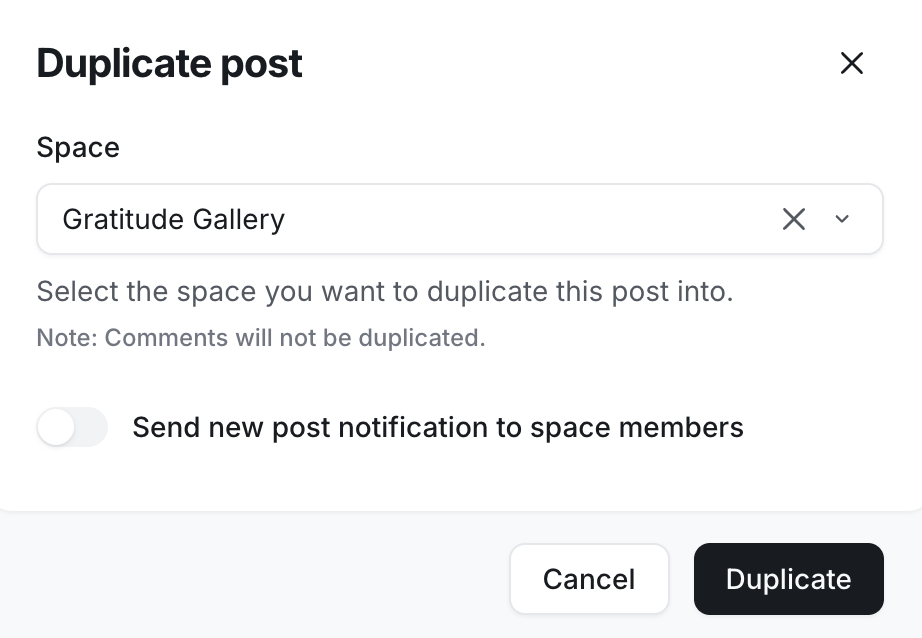
In the Duplicate post dialog, configure the following:
Space: Click the dropdown menu and select the location for this space.
-
Notifications: Enable the Send new post notification to space members toggle to trigger new post notification for this duplicated post. If this toggle is enabled, new post notifications will be sent to members based on the preferences set in their community account.
Once you are ready, click Duplicate. Please note that this will make the duplicated post live right away.
After the image post is duplicated and live, you will be taken to the post, where you can make any changes if you would like.