Allow members to repurchase one-time fee paywalls
Last updated: August, 2026
You can create a paywall with one-time-fee pricing that lets you sell the same service to a member multiple times from the same paywall.
This feature serves a distinct purpose, separate from the other paywall options that you may use to provide access to specific content in your community via recurring subscriptions.
Here are some ideas for using this paywall feature:
Coaching: Offer personalized paid coaching or consultation sessions in your community.
One-to-one mentoring: Provide paid one-to-one mentoring to members, offering expert guidance on specific topics.
Exclusive events: Give your member exclusive access to invite-only private or secret events.
💡 Tip: Installment paywalls are also re-purchasable by default. You do not have to take any steps to enable this for installment paywalls; it works independently of the Allow members to repurchase this paywall setting. Once all installments are completed for their previous paywall purchase, members can re-purchase the same paywall again using the checkout page URL.
Set up a repurchasable paywall
To allow members to repurchase the paywall:
-
When setting this up for:
New paywall: Start by creating a paywall using the guide here.
Existing paywall: Go to the paywalls page, hover over the paywall, and click the More actions (three dots) icon → Edit.
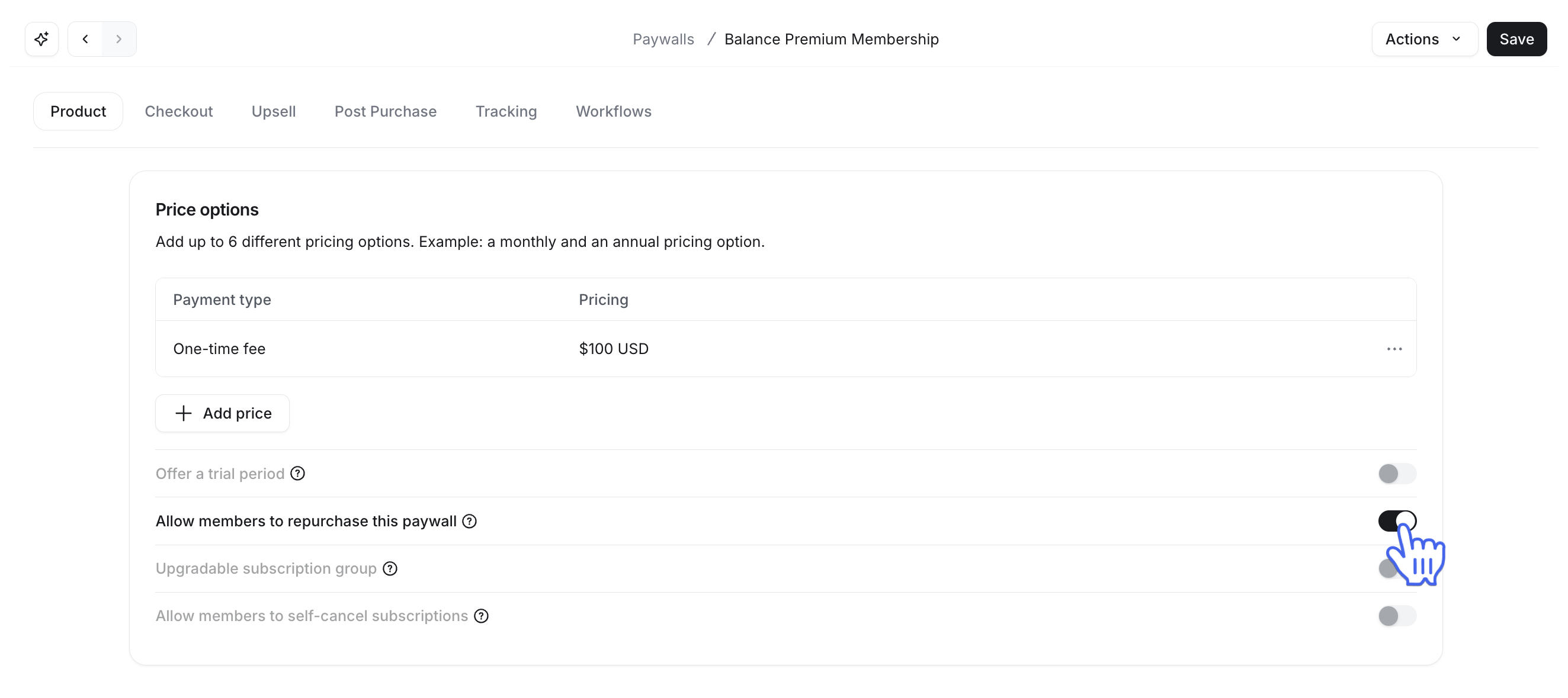
Select the Product tab and click Add price in the Price options section.
Select One-time fee in the Payment type dropdown menu.
Enter the desired amount and click Add.
-
Next, turn on the Allow members to repurchase this paywall toggle.
-
Once you have finalized the pricing details:
If you are creating a new paywall, continue with the remaining setup by clicking Next.
If you are updating an existing paywall, click Save again to save your changes.
💡 Tip: If you do not intend to provide access to any particular community content for this purpose, you can simply add any free or open space to the Access tab when setting up a paywall that can be re-purchased.
❗Important: Please note that when members receive access to any spaces via this paywall, they will remain members of these spaces forever and won’t automatically get removed. However, members can voluntarily leave space, or you can remove them anytime.
Check paywall transactions
To track purchases, check the transaction information to view a list of members who have purchased this paywall in your community.
Click Payments in the left sidebar and then select Transactions.
Use the filter options to list all transactions related to the specific paywall.
Click Apply.
📚 For more information about transactions, see View all member transactions.
💡 Tip: If you would like to receive a notification email from Stripe for every successful payment made via paywalls, you can enable this by visiting the communication preferences page (Profile → Communication preferences) in your paywall-connected Stripe account.