Block a member from messaging you
Last updated: October, 2026
Blocking direct messages lets you control who can message you one-to-one, without limiting how you participate in the rest of the community.
About blocking direct messages
Preventing members from sending you private DM is a simple way to set boundaries while staying active in conversations, spaces, and groups.
What happens when you block someone
When you block someone from sending you direct messages:
They can no longer start or continue one-to-one direct messages with you.
Any existing direct message conversation between you will no longer allow new messages; however, past messages in the conversation will remain visible.
-
Both of you can still interact normally in other areas of the community, including:
Chat spaces
Group DMs that you are part of
Posts and comments across the community
How blocking is shown to you and the other member
To keep things clear:
A Blocked direct messages label appears on the blocked member’s profile so you know they’re blocked from messaging you.
When a blocked member is viewing the conversation with you, they will see a “This member is not receiving messages” banner at the bottom of the conversation.
What blocking direct messages does not do
Blocking direct messages is not the same as removing or muting a member.
It does not:
Hide or remove their posts or comments.
Prevent them from participating in spaces or group conversations.
Limit their access to the community.
Who you can and can’t block
Before blocking a member, keep these things in mind:
As an admin or a member, you can block any community member individually.
You cannot block community admins from messaging you.
If a blocked member is later promoted to admin, they are automatically unblocked.
How to block a member from sending you direct messages
You can block a member through their profile, chat, and DM conversations.
At the moment, the option to block direct messages is available only through the desktop app and web browser.
From a member’s profile
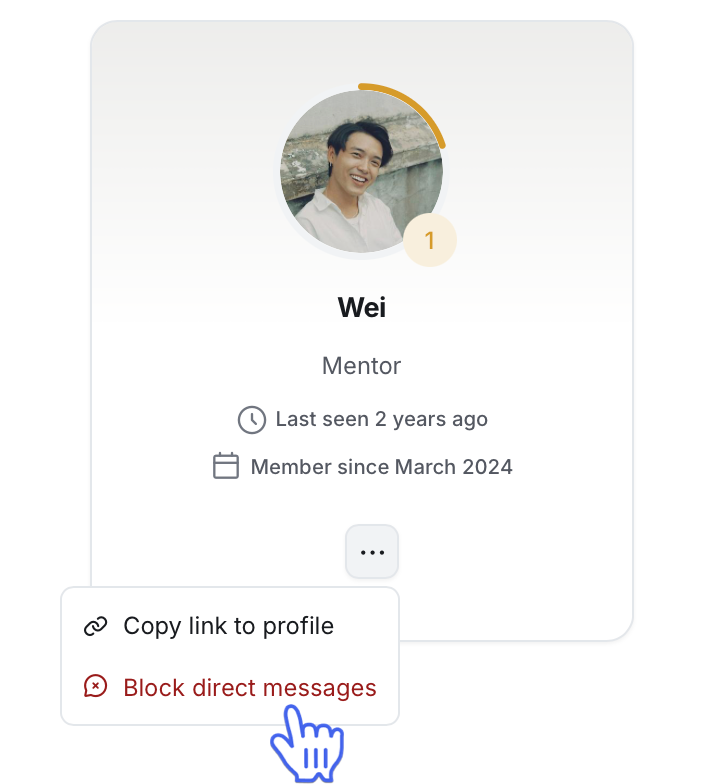
Open the member’s profile by searching for them or by clicking their profile photo in any community area.
Click More actions (three dots) below their name.
-
Select Block direct messages.
Confirm the action.
From a chat space or DM
This option is helpful if you decide to block someone while viewing a conversation.
Open the chat space, group DM, or one-to-one conversation with a member.
In the right sidebar, click More actions (three dots) next to the member’s name.
Select Block direct messages.
Confirm the action.
View your blocked members
To view all members you’ve blocked:
Click your profile photo in the top navigation bar, then select Edit profile.
Navigate to the Privacy tab.
-
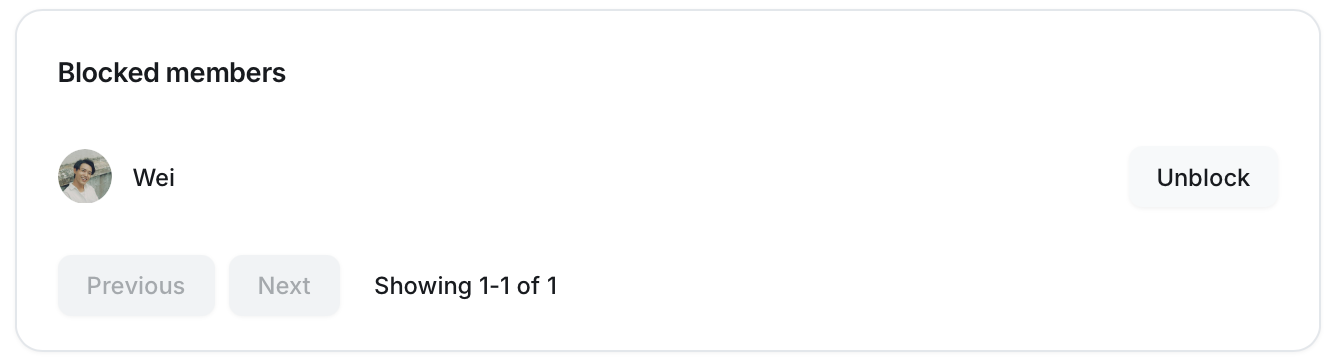
Scroll down to the Blocked members section.
📚 To learn more about this list and how to unblock members, see Unblock direct messages from a member.