Unblock direct messages from a member
Last updated: October, 2026
If you’ve previously blocked a member from sending you direct messages, you can unblock them at any time.
What happens when you unblock a member
When you unblock a member:
They can send you one-to-one direct messages again.
You can message each other in an existing direct message conversation.
💡 Tip: If you’re unable to message a member after unblocking them, they may have blocked you or disabled direct messaging in their account settings. If you are having trouble sending messages to everyone, see Troubleshooting issues sending or receiving direct messages.
How to unblock a member
Similar to how you blocked a member from messaging you, you can unblock them through different areas in your community.
Currently, the option to unblock direct messages is available only through the desktop app and web browser.
Unblock from your account settings
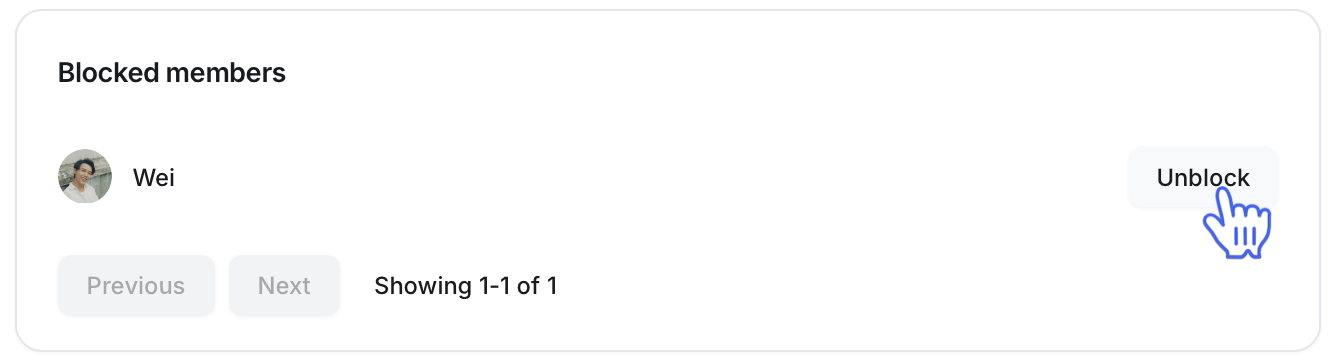
Your account settings show a complete list of all members you’ve blocked from sending you one-to-one direct messages.
From here, you can review everyone you’ve blocked in one place and unblock them individually.
To do so:
Click your profile photo in the top navigation bar, then select Edit profile.
Navigate to the Privacy tab.
Scroll down to the Blocked members section.
-
Click Unblock next to their name.
Unblock from the member’s profile
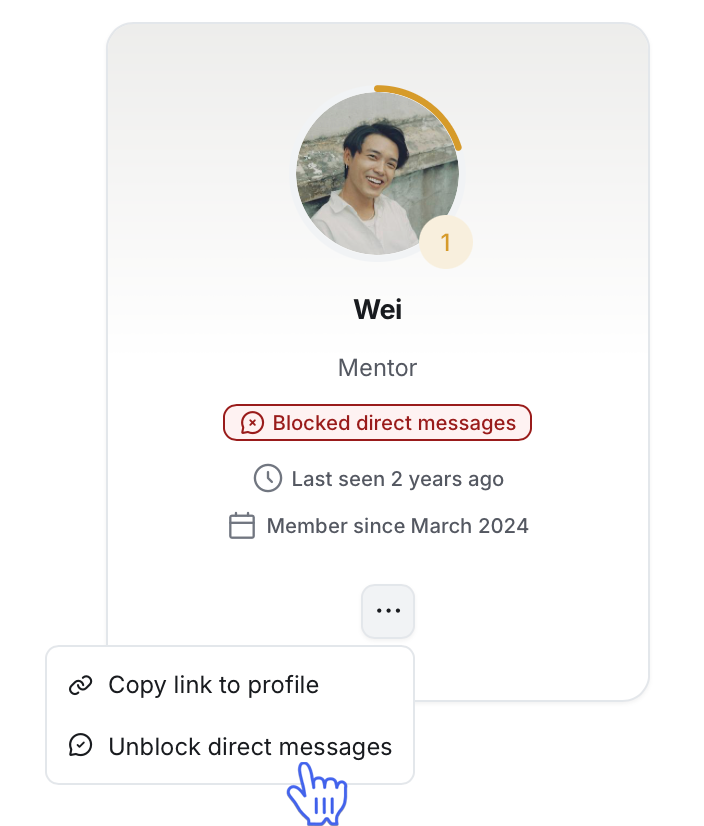
Open the member’s profile by searching for them or by clicking their profile photo in any community area.
Click More actions (three dots) below their name.
-
Select Unblock direct messages.
Unblock from chat space or DM
Open the chat space, group DM, or one-to-one conversation with a member.
In the right sidebar, click More actions (three dots) next to the member’s name.
Select Unblock direct messages.