Manage privacy and messaging settings for your account
Last updated: January 26, 2026
Your community account privacy settings let you control who can see your information and how other members can interact with you. This article provides a detailed overview of each setting, helping you customize your privacy preferences.
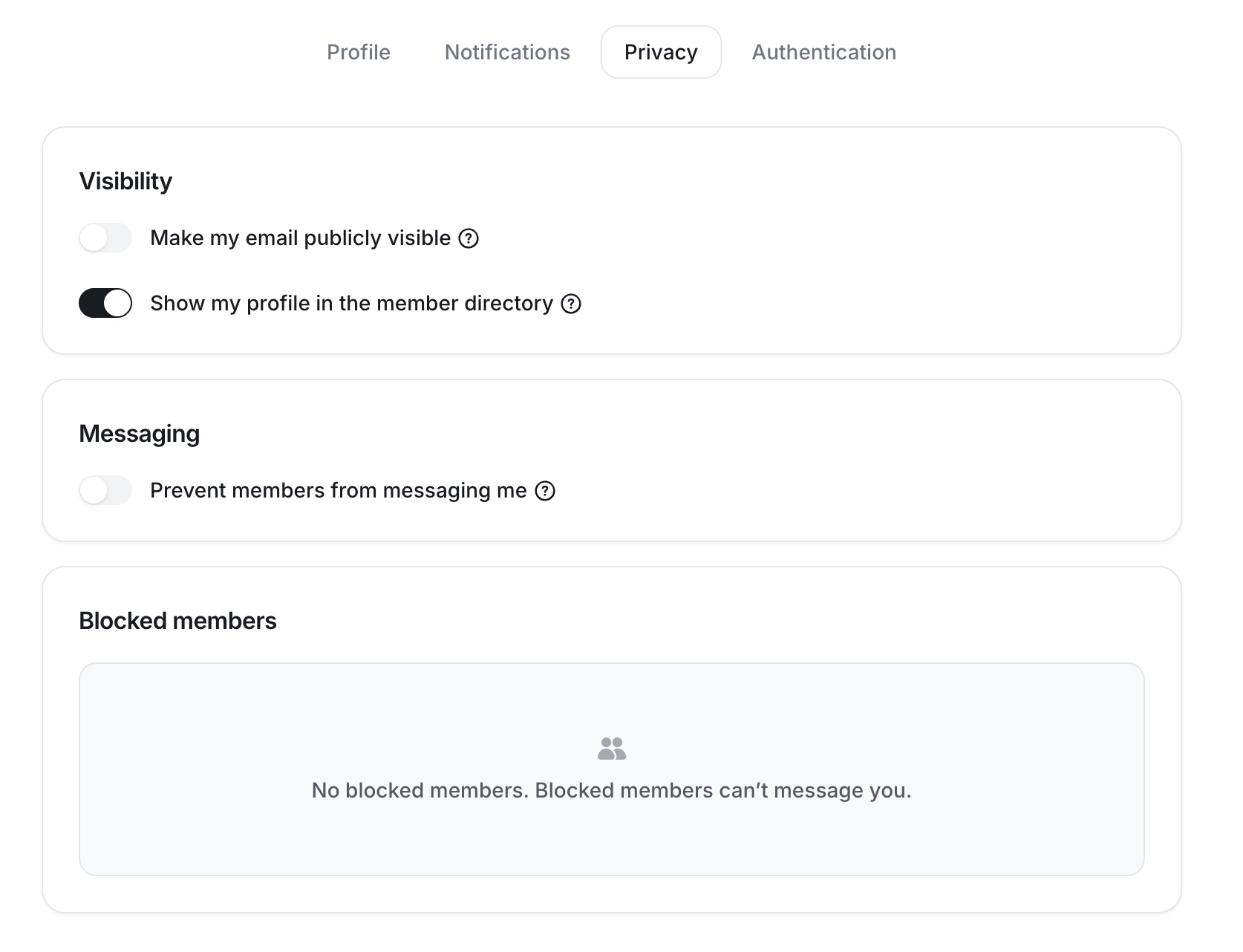
Access your account’s privacy settings
You can update your privacy preferences from both desktop and mobile.
Desktop and web browsers
Click your profile photo in the top navigation bar, then select Edit profile.
Navigate to the Privacy tab.
-
Update your preferences accordingly.
Click Save changes.
Mobile apps
Tap your profile photo in the top-right corner and select Profile.
Tap Edit profile.
Scroll down to the Permissions section and update your preferences accordingly.
Tap the Checkmark icon at the top-right to save your changes.
Make my email publicly visible
When this setting is turned on, your email address is visible to other members who view your profile. If you prefer to keep your email private, turn this setting off, and your email will be hidden from other community members in your profile.
ℹ️ Note: If your community admin has disabled email visibility for everyone, you won’t see this option in your account. In that case, your email is automatically hidden from other members.
Prevent members from messaging me
When this setting is turned on, you won’t be able to send or receive any direct messages in your account. Existing one-to-one and group DM conversations will be hidden from your inbox. Direct messages with admins will remain visible, and you can still reply to them.
This setting applies to:
One-to-one direct messages
Group direct messages
To send or receive one-to-one and group messages, make sure this setting is turned off.
ℹ️ Note: Admins cannot override this setting for your account. However, admins can still message you directly, even when this setting is turned on.
Block direct messages from specific members
If you only want to stop messages from specific members, you can block individuals rather than disable messaging entirely.
Blocked members won’t be able to send you one-to-one direct messages. You can see and manage blocked members in the Blocked members section when accessing privacy settings in a desktop browser.
Show my profile in the member directory
This setting controls whether your profile appears in:
Member directory
Leaderboard
Member search results
If you turn this setting off, other members won’t be able to find or view your profile through those areas.
ℹ️ Note: Even if this setting is turned off, members can still access your profile from other areas of the community, such as chat spaces, direct message conversations, or by clicking your profile photo from your posts or comments.