Utilizing the Breakout rooms feature with live rooms
Last updated: October, 2026
Breakout rooms let you split a Live Room into smaller groups for discussion, exercises, networking, peer learning, and collaborative work. As the host, you control when groups form, how long they meet, and when everyone comes back together.
Availability
Breakout rooms are supported for Live rooms and available on plans that include Circle live events.
Key things to know about breakout rooms
Host controls are available on desktop only. Participants can join a breakout room from desktop or mobile.
Breakout rooms are supported only in Live rooms.
Chat messages don't carry between rooms. Messages sent in the main room chat don't appear in breakout room chats, and messages sent in a breakout room chat don't appear in the main room or in other breakout rooms.
Recording the event only captures the main room, not individual breakout rooms. If you’d like to record a breakout discussion, ask participants to share their takeaways in the main room when everyone returns.
Start a breakout room session
As the host, you can set up and manage a breakout room session during a scheduled or instant Live room.
To start a breakout room session:
-
Click the Breakout session icon in the toolbar.
-
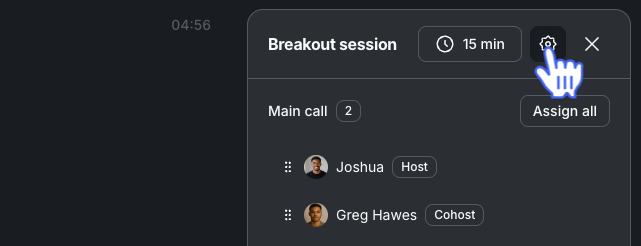
Click the ⚙️ Settings icon in the breakout session tab header and configure the following:
Move participants into room right away: Toggle this on to automatically send participants into their assigned rooms when the session starts. When disabled, participants will be prompted to join the room.
Allow viewing and joining other rooms: Toggle this on to let participants view and join other rooms on their own.
Bring back participants after the timer ends: With a session timer set, enable this setting to automatically return everyone to the main call once the session timer ends.
-
Optional: Click the 🕐 Session timer icon in the header and select how long the breakout session should last.
You can set a timer up to 60 minutes.
-
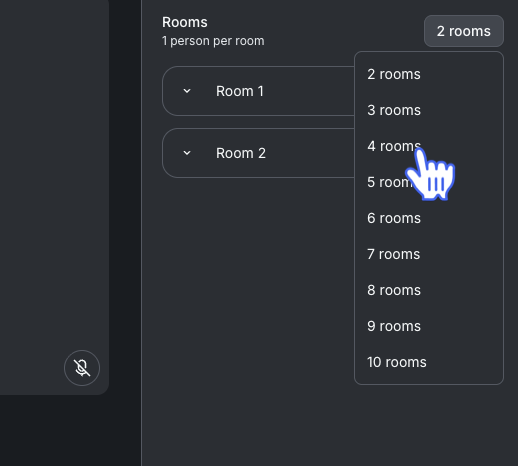
Add the number of rooms you’d like to assign participants to under the Rooms section. Click the button that displays the current room count, then select up to 10 rooms from the dropdown menu.
-
Assign everyone to rooms at random by clicking the Assign all button under the Main call section.
You can also assign members to specific rooms by hovering over their name and clicking the ➕ Icon.
When you’re ready, click Start breakout session.

Managing a breakout room session
Once a session starts, hosts can move between rooms, move participants, and end the session when ready.
Move between rooms
To check in on a room, click Join next to the room you want to enter in the sidebar. You can do this for any room. To return to the main call, click Join in the main call section of the sidebar.
Reassign participants
Reassign a participant to a different room during a session by clicking the ➕ Plus icon next to their name in the sidebar and then selecting a room from the dropdown menu.
End the session
When you’re ready to end the session, click Finish Breakout Session. This starts a 30-second timer to let participants know that the session is about to end. To skip the timer and end the session immediately, click Finish Breakout Session again.