Find and review live session details
Last updated: September, 2026
This article shows you how to find specific live sessions and review their details from the live dashboard.
Finding live sessions
Once a live stream, live room, or live event session is created, you can review its details. This includes session information, recordings, and the participant list.
Live sessions list
To access the live sessions list, go to the live dashboard by clicking Community in the left sidebar, then selecting Live streams.
Live sessions are organized into two tabs:
All events: Shows all live sessions, regardless of status.
Past events: Shows only sessions that have finished.
By default, the table displays finished sessions first, with the most recent at the top. You can change this using the available sort and filter options.
Here’s what each column shows:
Name: Title of the live stream or room. For a live event session, the event title will be displayed.
Type: Whether the session is a stream or a room.
Status: The current state of the live session, such as scheduled, backstage, live, or finished.
-
Date: This indicates the date when the live session took place.
ℹ️ Note: If a live session or event hasn’t ended yet (for example, it’s created, scheduled for a live event, or in the backstage), the date won’t be shown, and the session will appear at the bottom of the list. Once the session or event is finished, the date is displayed, and it’s sorted according to the selected order.
Recording: Option to download the recording if available. If the session was not recorded, a Dash will appear instead.
Participants: Total number of members who joined the instant live session or live event (visitors are excluded).
💡 Tip: Use the Previous and Next buttons at the bottom to browse through all your sessions.
Filter sessions
Each tab includes filters that help you narrow down the list and quickly find specific sessions.
To apply filters:
In any tab, click Add filter in the filter bar.
-
Select your filter and enter the search criteria. Some filters include checkboxes so you can select multiple values.
ℹ️ Note: Filters are applied using the "And" condition, meaning all filter criteria you configured must be met.
Click Apply to confirm.
You can filter instant live sessions and event sessions using these options:
Name: Search by the name of the live session or event.
Type: Filter by session type, such as stream or room.
Status: Filter by session status, like backstage, live, or finished.
Date: Filter by a specific date range or choose from preset options.
Recording: Show only sessions that were recorded.
ℹ️ Note: Once you move to a different tab or move away from the live dashboard, the filters will reset.
Sort sessions
You can also sort the table by the sortable column headers, such as name, type, status, or date.
Click a column title to sort by that field. For example, click the Name column to arrange sessions alphabetically. An arrow will show up to indicate the sorting order. To toggle between sort orders, click the column title again.
View live session details
To view the live session details:
Click the name of the live session, or
-
Hover over the live session, click More actions (three dots) next to it, and click View details.
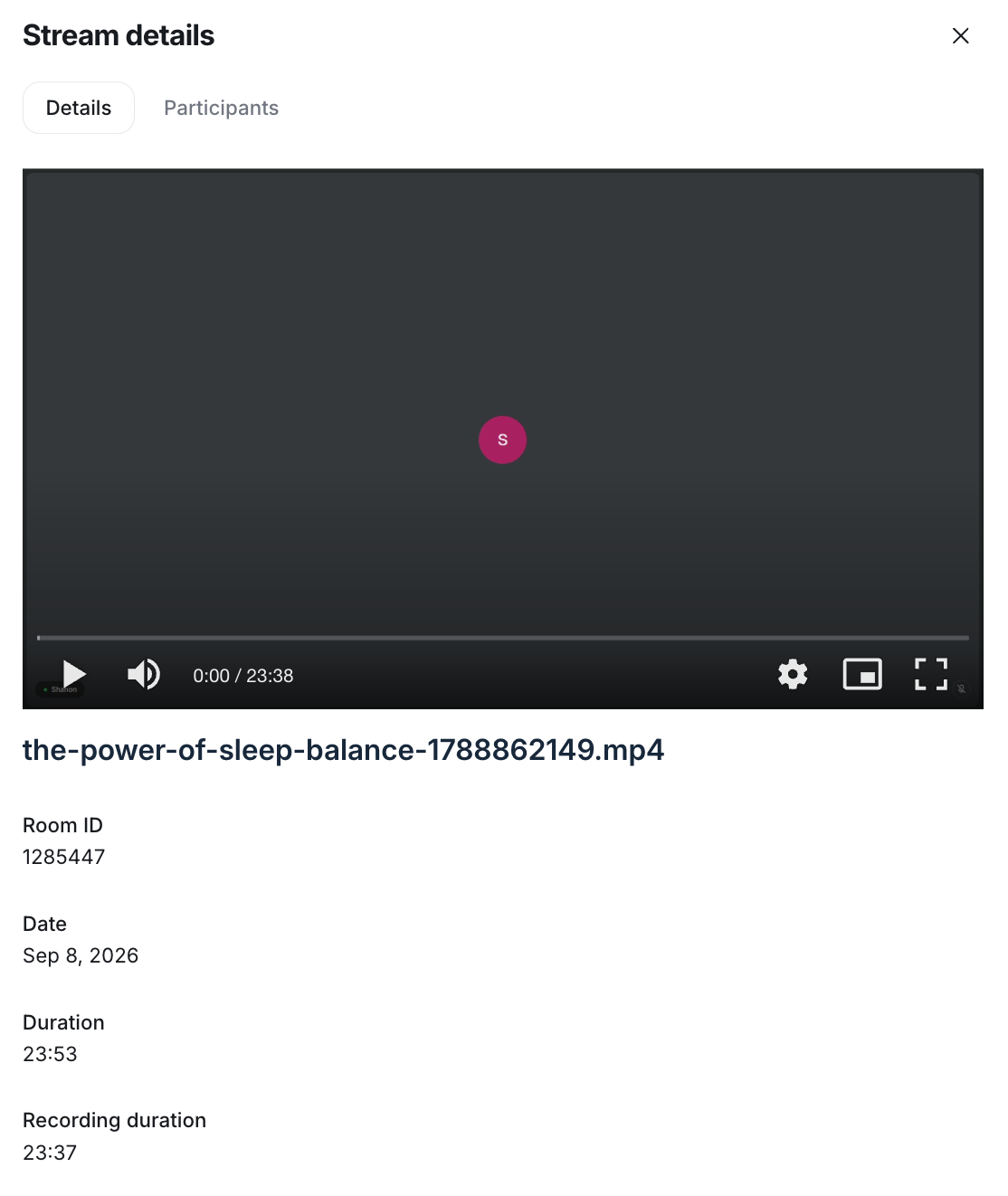
Details
The Details tab shows key information about the session, including:
Recording (if the session was recorded)
The description added to the live session or event
Room ID (A unique identifier for the live session)
-
Date of live session
For instant live streams and rooms, this shows the date the session took place.
For live event sessions, this initially reflects the date the session was created, typically when you published the event with Live stream or Live room as the event location. Once the live event session starts, the date updates to reflect the actual session start date.
Total duration of the live session
Total duration of the recording (if available)
Participants
The Participants tab shows everyone who joined the live session, including hosts and co-hosts.
From here, you can:
Use the search bar to look for a specific participant.
Sort participants alphabetically.
Export participant list.
ℹ️ Note: Visitors who joined as guests are excluded from the participant list for public live streams.