Moderate a live session
Last updated: September, 2026
This article will walk you through the options available for moderating a live stream or live room in the community.
ℹ️ Note: The ability to moderate a live session is currently only available on desktop and mobile browsers.
When a host makes you a moderator, a banner will appear on your screen displaying a message that you have been assigned as a moderator. Also, you'll be moved to the Moderators section in the Participants panel and assigned a moderator badge.
ℹ️ Note: As a live moderator, you can manage participants and chat in a live session. However, please note that your microphone and camera will be disabled. Additionally, if you are a participant in the live room or a co-host of the live stream and then become a moderator, your speaker tile will be removed from the screen.
💡 Tip: You can remove yourself as moderator and return to being a participant anytime during the live session.
Manage participants
To help manage co-hosts and participants, you can perform the following tasks in a live session:
Invite to co-host (stream only)
Assign moderators
Mute microphone
Disable camera
Lower hands
Remove a co-host or moderator
Remove participants
To get started, click Participants 👥 on the control bar. The Participants panel will appear on the right side of the screen. You can hover over the names of co-hosts or participants and click More actions (three dots) icon to access the options mentioned above.
💡 Tip: You can also access various options to manage co-hosts or participants directly from their speaker tile by hovering over the tile and clicking the More actions (three dots) icon.
Let’s take a look at all these options in detail:
Invite to co-host (stream only)
You can invite any participant to co-host during the live stream. As a co-host, they will be able to turn on their microphone and camera and share their screen during the live stream.
To invite a co-host, hover over the participant’s name in the Participants panel. Then, click the More actions (three dots) icon and select Invite to co-host.
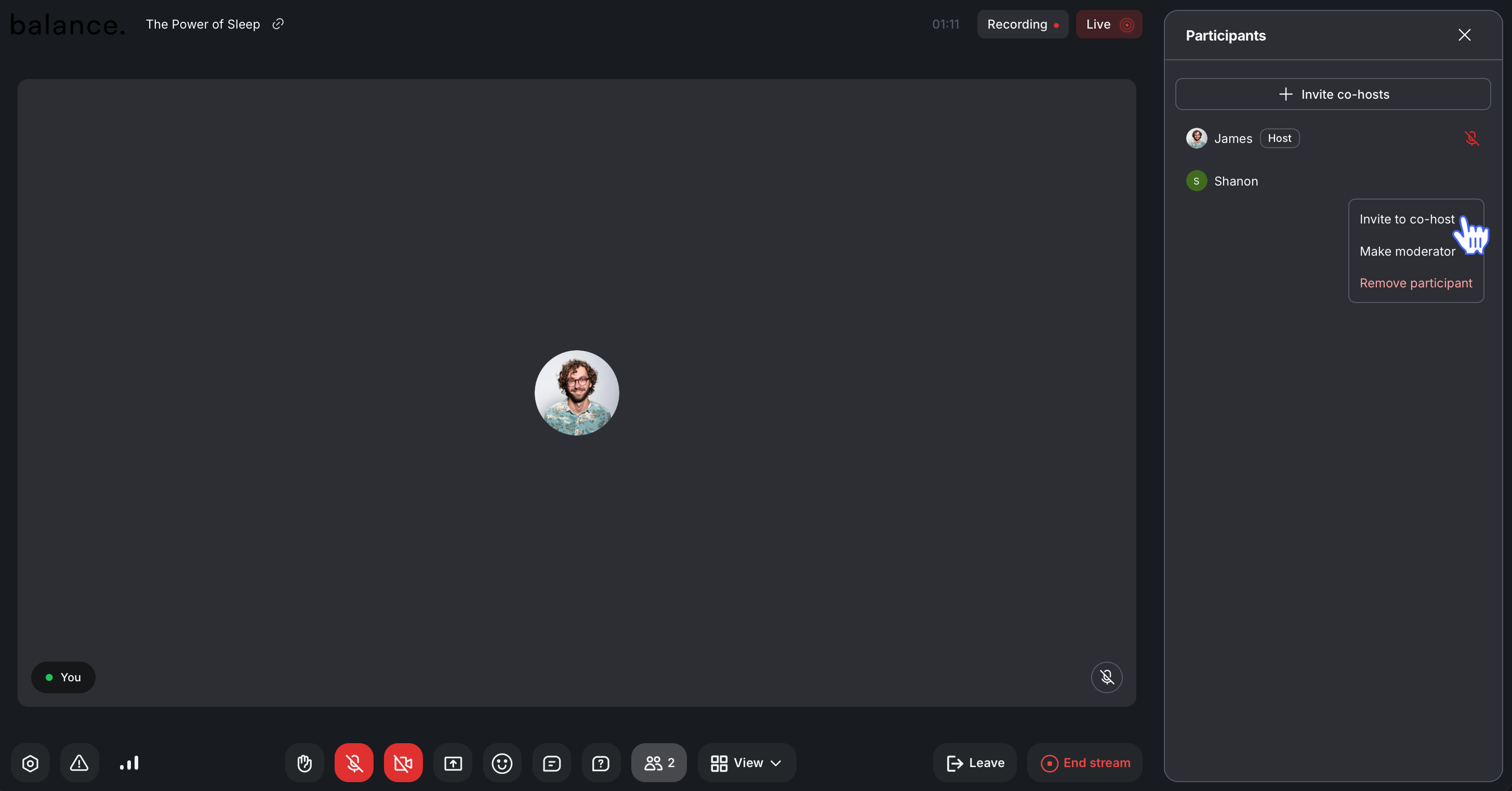
ℹ️ Note: As a live moderator, you can invite yourself to co-host as well. However, if you wish to become a moderator again, you’ll have to ask the host to assign you back as a moderator.
Assign moderators
To assign any co-host or participant as a moderator, hover over their name in the Participants panel. Click More actions (three dots) and select Make moderator.
Mute microphone
Whether it’s an unmuted participant in a live room or an unmuted co-host in a live stream, you can mute their microphone.
To mute the microphone, hover over the participant’s name in the Participants panel. Click More actions (three dots)and select Mute microphone.
Disable camera
If the co-host's camera in the live stream or a participant's camera in the live room session is turned on, you can turn it off on their behalf.
To disable a camera, hover over the co-host or participant in the Participants panel. Click More actions (three dots) and select Disable camera.
Lower participant’s hands
If participants raise their hands during the live, you can lower their hands once their question or concern is addressed.
To lower the participant’s hands, hover over the participant’s name in the Participants panel. Click More actions (three dots) and select Lower hand.
Remove a co-host or moderator
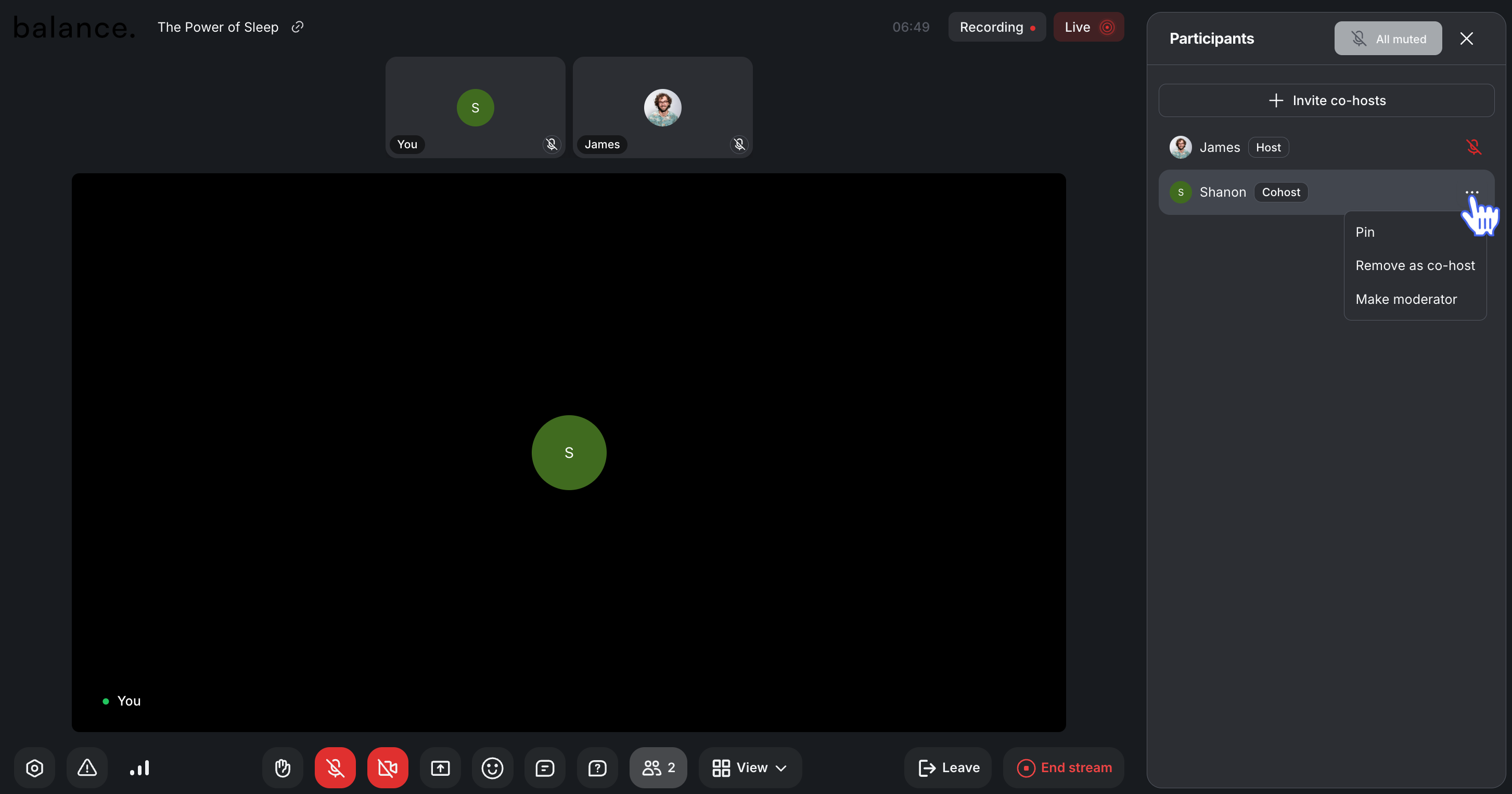
You can remove any co-host (stream only) or moderator from the role and make them participants again.
To remove the co-host, hover over the co-host’s name in the Participants panel. Click More actions (three dots)and select Remove as co-host.
To remove the moderator, hover over the moderator’s name in the Participants panel. Click More actions (three dots) and select Remove moderator.
Remove participants
You can remove any participant from the live session, including co-hosts and other moderators.
To remove participants, hover over their name in the Participants panel. Click More actions (three dots) and select Remove participant.
Manage chat
As a moderator, you can do the following in both stream and room chats:
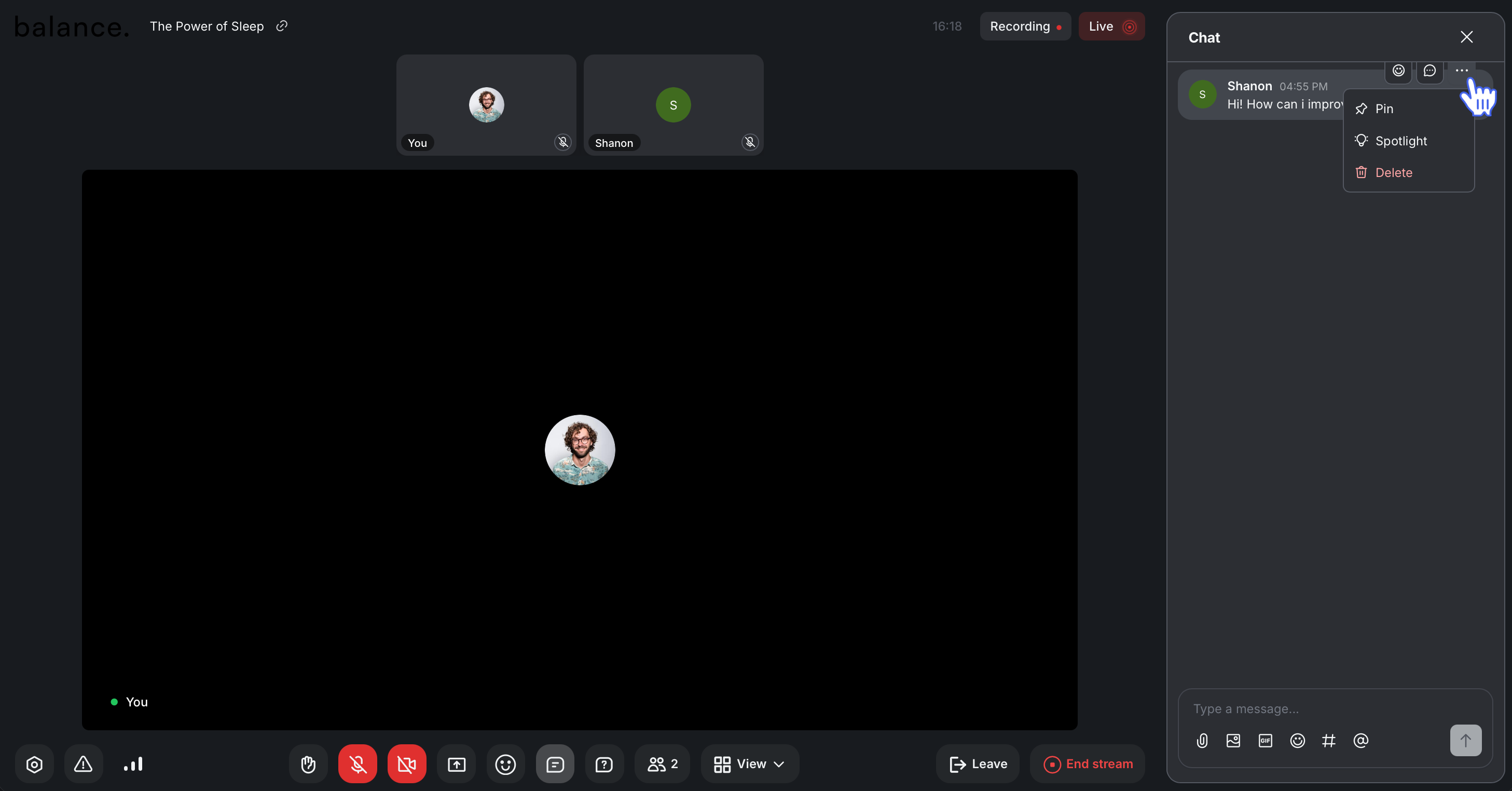
Pin a message
Delete participant’s messages
Spotlight participant’s messages
Edit or delete your own message
To access chat management options, navigate to the Chat panel by clicking Chat 💬 on the control bar. Then, hover over the message and click More actions (three dots) to perform one of the actions.