Join a live stream as a co-host
Last updated: September, 2026
This article will walk you through how to join a live stream as a co-host using a desktop or Circle iOS and Android app when invited by a host.
Desktop
Let's look at the two ways you can join a live stream as a co-host on a desktop browser.
Join live stream as a co-host
The host can invite you to co-host at any time during the live stream. If you're not in the stream, you'll receive an in-app notification and a push notification to join the stream as a co-host.
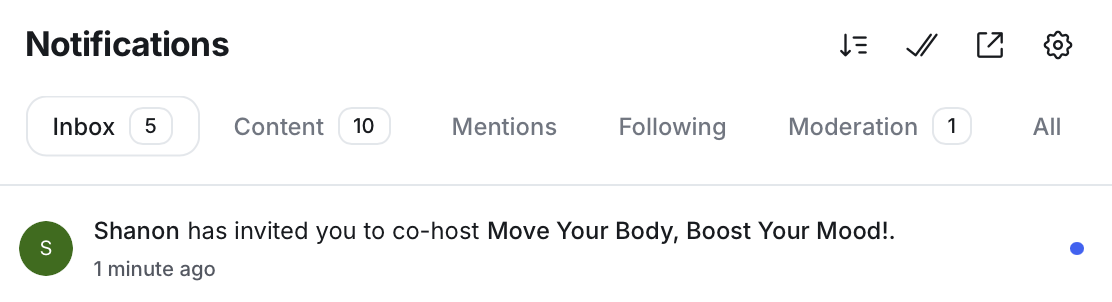
To join the stream as a co-host:
Go to your Notifications tab in the left sidebar.
-
Select the Inbox tab and click the notification:
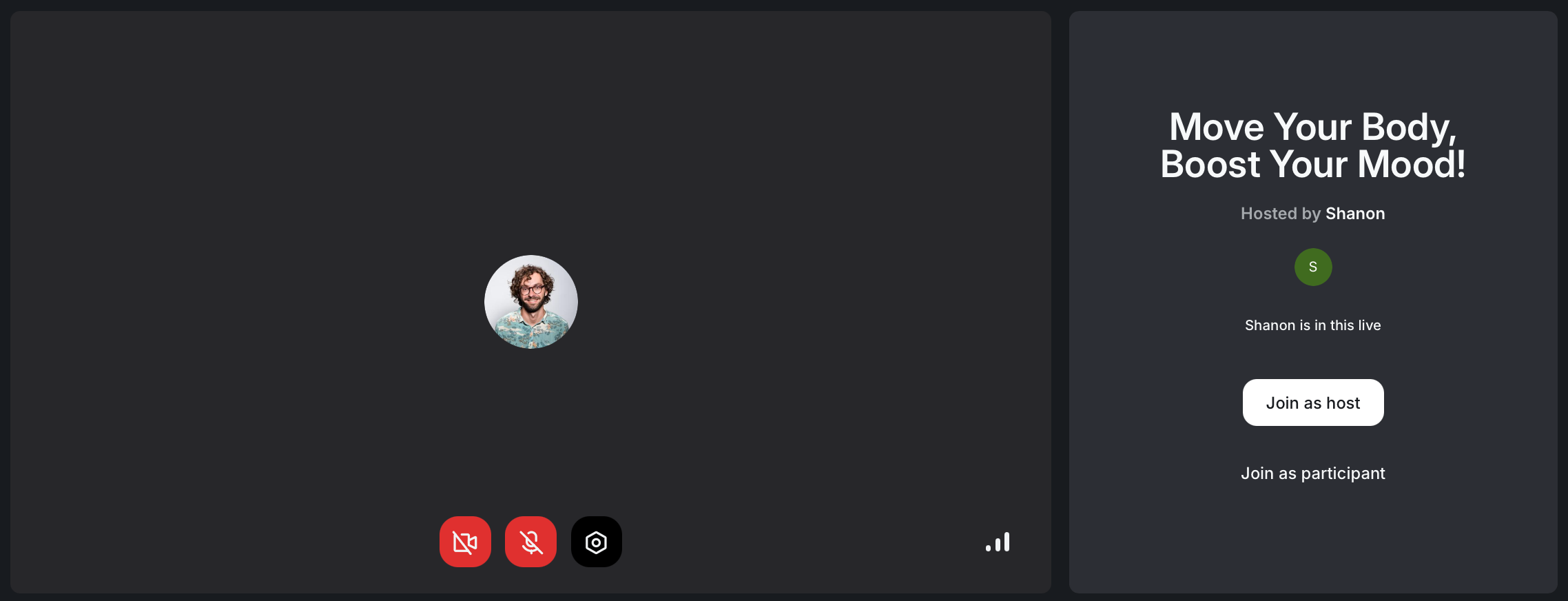
If the host is backstage: You're presented with an option to enter backstage as a co-host.
If the host is live: You're presented with the option to either join as a co-host or as a participant.
-
On the preview screen:
Click the Microphone or Camera icons to turn them on/off.
-
Click Device settings ⚙️ to configure the following:
Camera input
Blur your background
Mirror your video input
Microphone input and audio output
Check your connection quality.
-
Once ready, enter the stream.
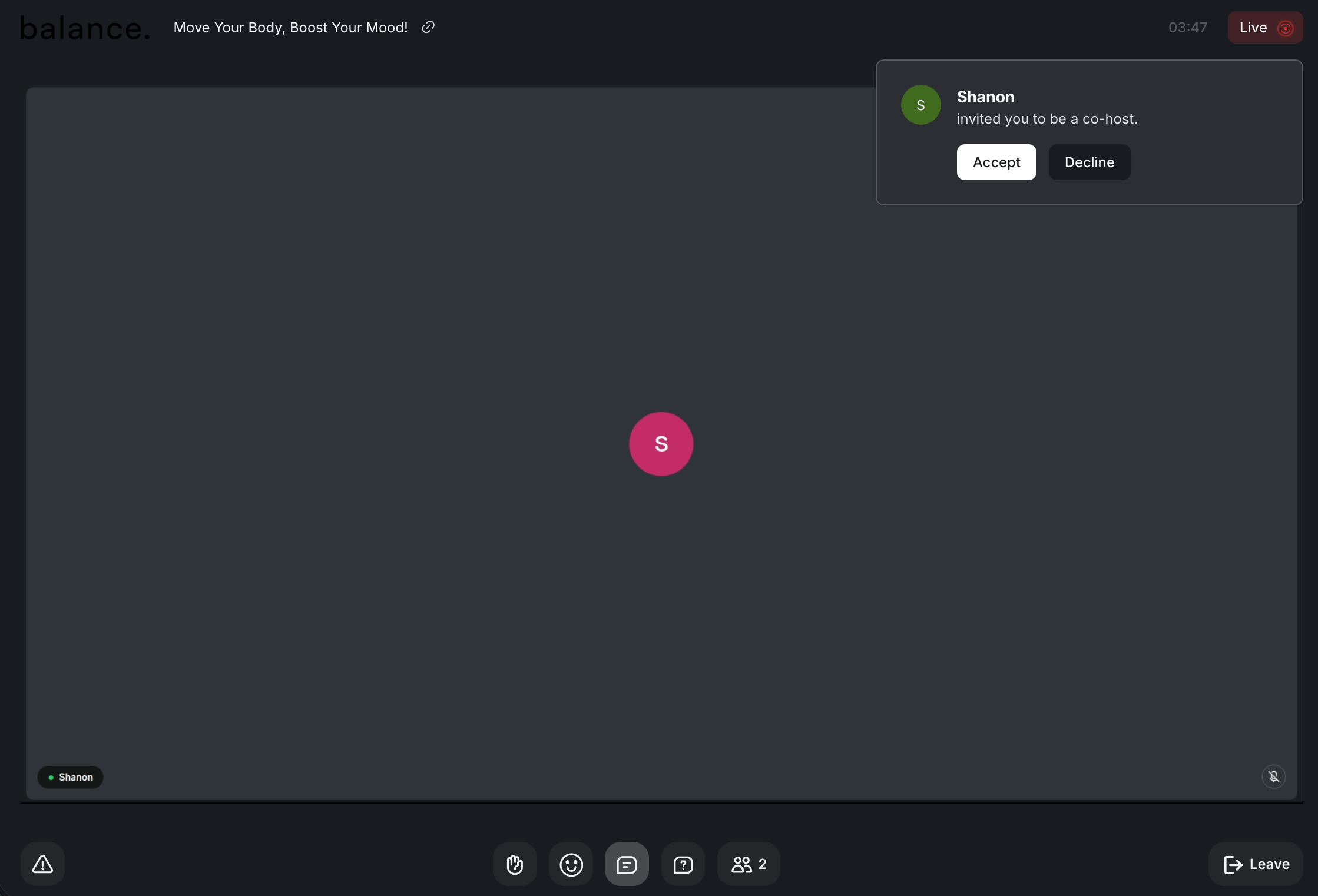
Accept to be a co-host during the live stream
If you are already present in the live stream as a participant, you’ll be prompted with an invitation to co-host the stream.
You can choose to accept or decline it in the invitation dialog. If you accept the invite, you'll be promoted to co-host the live stream.
Circle mobile apps
Join live stream as a co-host
Similar to the desktop, if you're not in the stream already, you'll get an in-app and push notification to join the stream as a co-host.
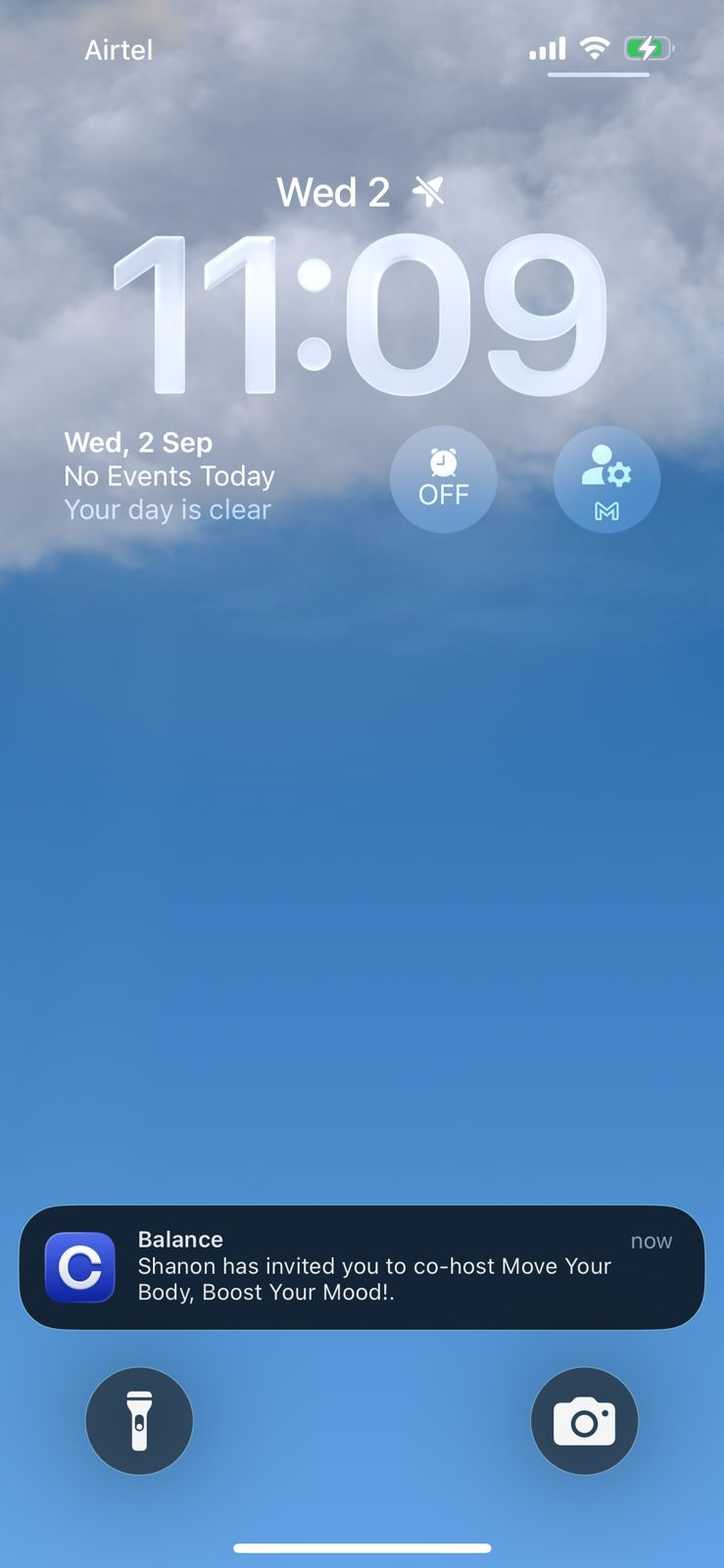
To join the live stream from an in-app or push notification:
Tap the push notification. If you are already in the app, tap Notifications 🔔 on the control bar, go to the Inbox tab, and then select the live notification.
Tap the Microphone or Camera icons to turn them on/off.
Once ready, tap Join as a co-host.
Accept to be a co-host during the live stream
If you are already present in the live stream as a participant, you’ll be prompted with an invitation to co-host the stream.
On the joining screen, tap the Microphone or Camera icons to turn them on/off.
Once ready, tap Join as a co-host.