Unsubscribe contacts from email marketing
Last updated: October, 2026
As an admin, managing your audience’s preferences is crucial to maintaining compliance with email marketing regulations and fostering a positive user experience. This article outlines how you can unsubscribe contacts from marketing emails on their behalf, either individually or using Circle workflows.
💡 Tip: Once unsubscribed, members or non-members must manually resubscribe to marketing emails. They can also submit a form to resubscribe. If you re-import contacts who are already unsubscribed, it won’t resubscribe them.
Manually unsubscribe a contact
To unsubscribe an individual contact:
Click Audience in the left sidebar, then select Audience.
Navigate to the Contacts tab and find the contact.
-
Hover over the contact’s name, click More actions (three dots) next to the name and select Unsubscribe.
Confirm the action.

Unsubscribe contact through Circle workflows
Circle workflows provide a more efficient way to manage unsubscribes. Depending on your needs, you can choose between automation workflows and bulk action workflows.
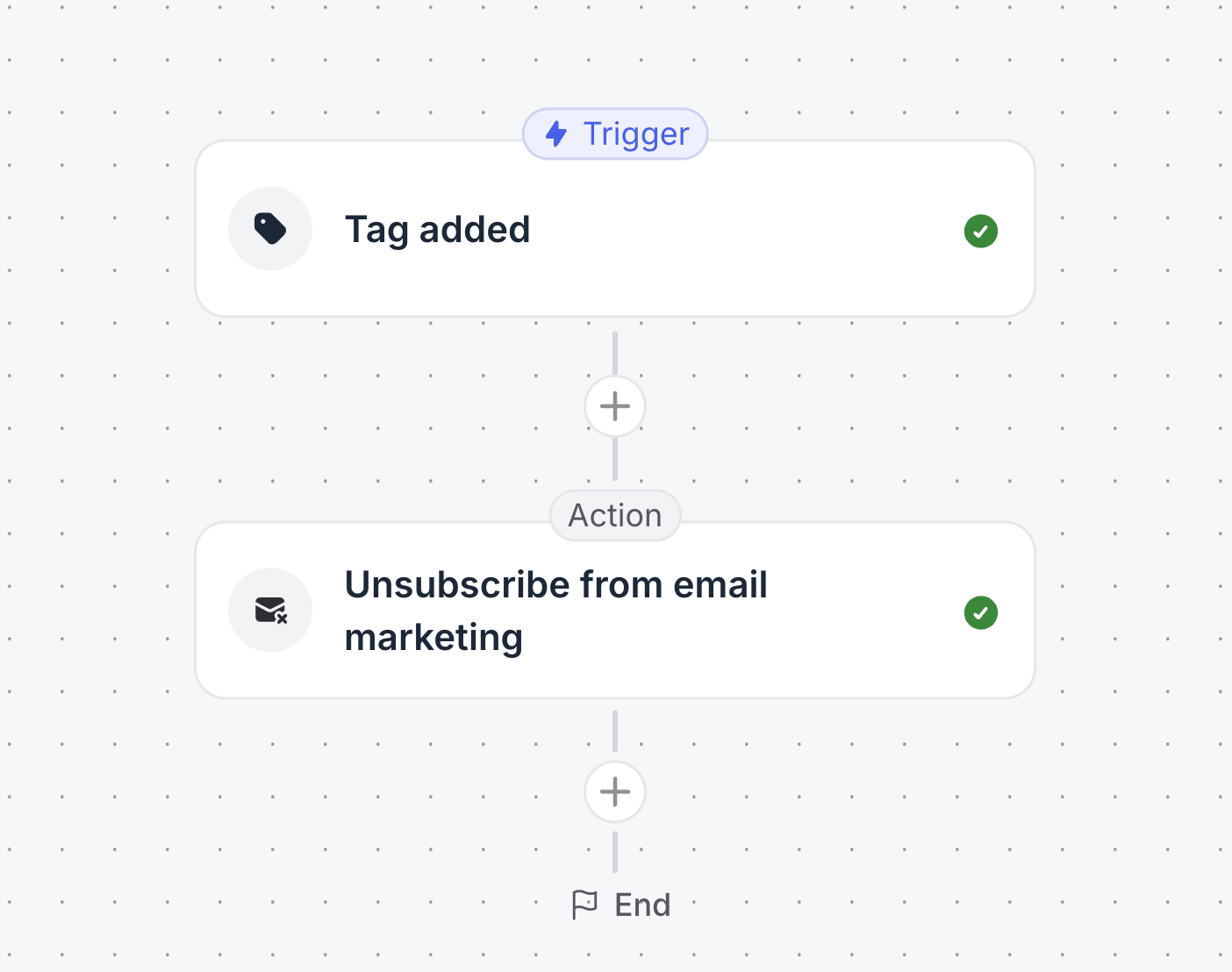
Automation workflows: Set up an automation workflow to unsubscribe contacts automatically based on specific trigger. For instance, when a certain tag (e.g., "Do not contact") is added to individuals, unsubscribe them from email marketing.
Bulk action workflows: Unsubscribe multiple contacts based on predefined audience rules. Bulk action workflows let you execute these actions immediately or schedule them for a future date and time. For example, set up audience rules to target members at a specific Gamification level, then run a bulk action to unsubscribe them from email marketing.
When creating any type of workflow, set up Unsubscribe from email marketing action to ensure the contacts are unsubscribed.