Duplicate courses, lessons, and quizzes
Last updated: July, 2026
Whether you’re running the same program for a new group or reusing old course content, duplication can save you a lot of work. This article covers how to duplicate an entire course space, and how to duplicate a single lesson or quiz within a course.
Duplicating an entire course space
Building a new course takes time. Duplicating a course space is the fastest way to create a new course that follows the same structure and content as the existing one. This copies all your lessons and quizzes, including any media, embeds, files, and settings. You can also bring over the members from the original course.
It’s especially useful when:
You’re creating a seasonal or recurring program and want to reuse past course material.
You need a strong starting point for a new course with only minor differences.
Here are some things to know about duplicating an entire course:
Lesson comments and member progress are not copied. This ensures your new course starts fresh, without past discussions or completion records.
When you duplicate the course, it is set to draft mode. This gives you time to review lessons, update content, and define space access before members can access the course. Only you and other community admins can view it until you decide to set the access for the space.
To duplicate a course, follow these steps:
Click Community on the left sidebar, and select Spaces.
-
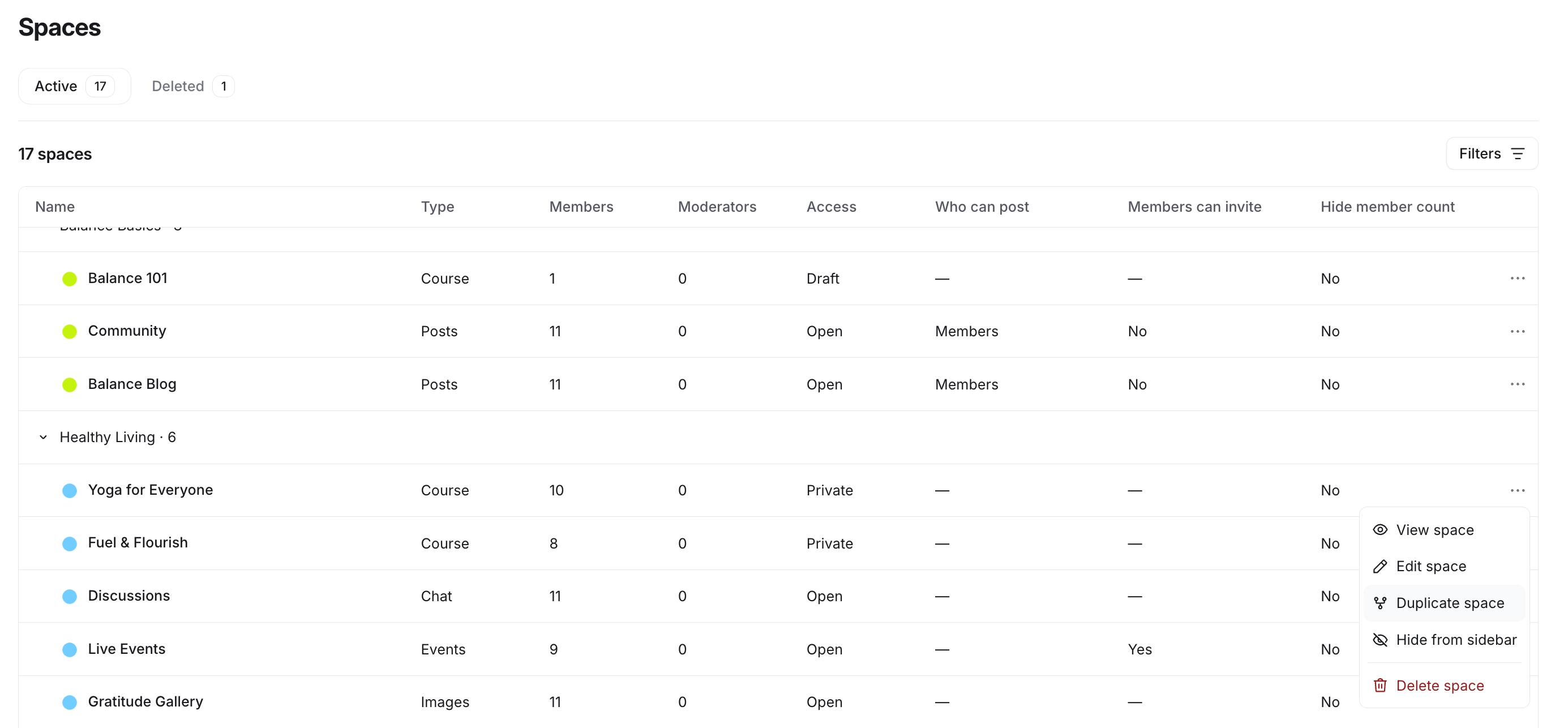
Find and hover over the course space you want to duplicate. Click the More actions (three dots) icon, and select Duplicate space.
-
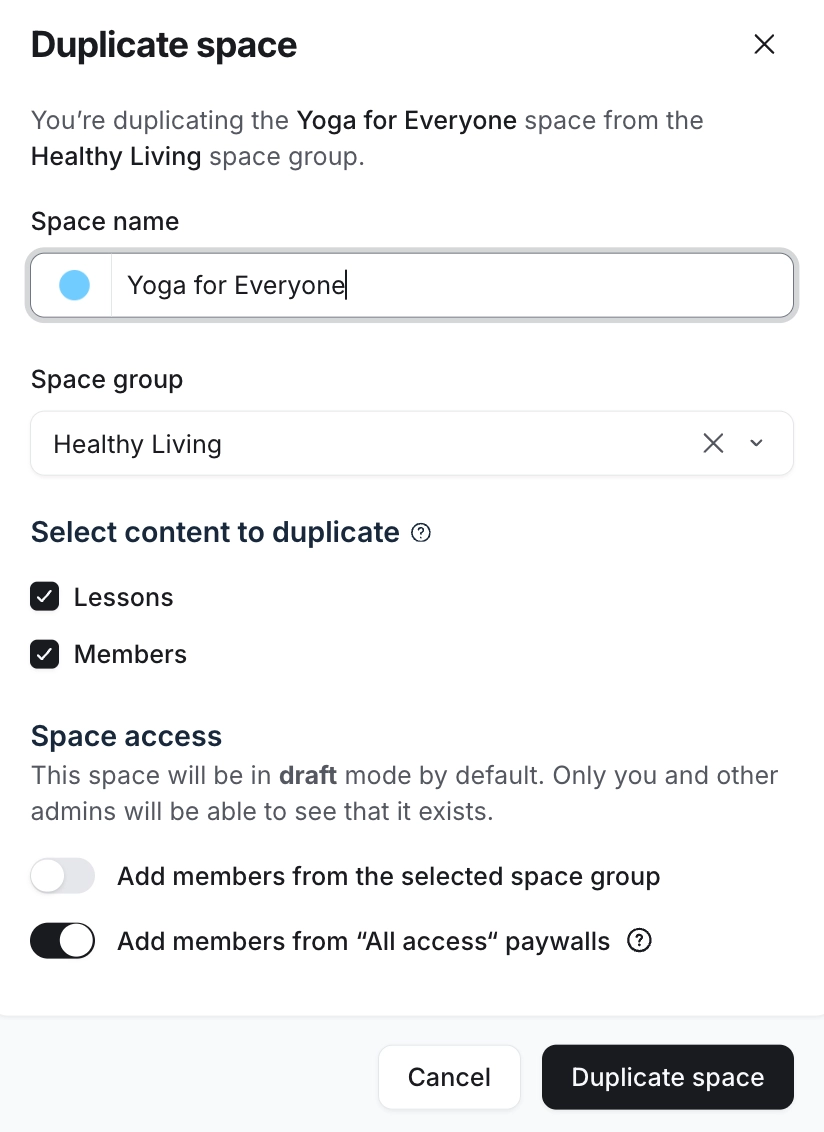
Configure all the details, such as the name, choose a space group, and decide whether to include lessons (and quizzes) and members from the original course. If needed, turn on access settings so members of the space group and “All access” paywalls are automatically added to the duplicated space.
Click Duplicate space.
📚 To learn more about space duplication, see Duplicating a space.
Duplicating a lesson or quiz within a course
Sometimes, you may need to duplicate an individual lesson or quiz within a course. This option lets you quickly reuse an existing lesson or quiz’s content, files, and settings without rebuilding it from scratch.
It’s especially useful when:
You’re creating similar lessons with small variations.
You want to keep formatting and layout consistent.
You need to copy a quiz to adjust for a different section of the course.
To duplicate an individual lesson or quiz, follow these steps:
Click Courses on the left sidebar, and select Courses.
Click on the course space containing the lessons you want to replicate.
Navigate to the Lessons tab.
Hover over the lesson or quiz you want to duplicate.
-
Click the More actions (three dots) icon next to it and select Duplicate.
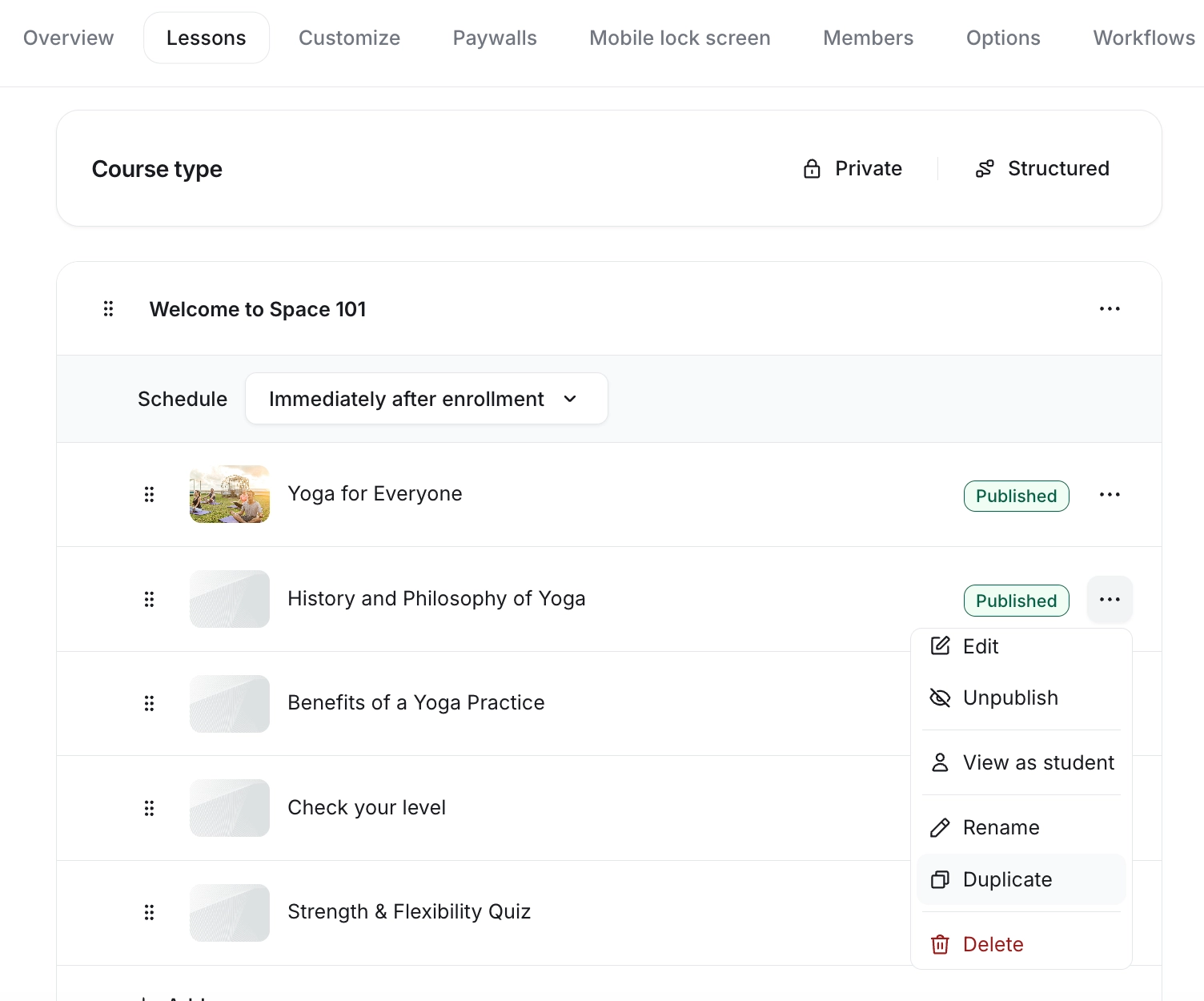
A duplicate of the lesson or quiz is created in draft mode. You can update the content, files, and settings, then publish it when it's ready.