Get to know Eclipse
Last updated: September, 2026
If you've seen a banner at the top of your community asking you to activate Circle Eclipse, this article explains what Eclipse includes, what happens when you activate it, how to preview it as an admin before your members see any changes, and what happens after the activation deadline.
What is Circle Eclipse?
Circle Eclipse is a group of new products and design improvements that make your community experience faster and more powerful. When you activate Eclipse, you turn on this new experience for your community.
Eclipse includes:
Circle AI: An AI assistant that helps you build and run your community. You can ask it questions about how Circle works, have it take actions for you, and use it to create content.
Circle Discover: A purpose-built marketplace where people find and explore Circle communities, courses, and memberships. It puts your business in front of a wider audience, helps grow your membership, and gives people an easy way to find high-quality communities and courses that match their interests.
Circle Studios: A done-for-you partnership for creators with large, established audiences who want to grow a business without running it themselves. Circle's team designs the program, builds the community, handles day-to-day operations, and drives growth, so creators can focus on what matters most.
Courses 2.0: A redesigned course builder that's fully integrated with Circle AI, allowing you to build courses from a prompt.
Circle Inbox: A unified inbox to manage your messages, notifications, and moderation actions.
What does activating Eclipse do?
Activating Eclipse turns on a preview of the new experience for you first, as an admin. Your members don't see any changes until you're ready for them to.
When you activate Eclipse, the following stays the same:
Your existing spaces, posts, courses, and settings stay in place. Activating Eclipse doesn't remove or reset your content.
What's included in your current plan doesn't change. Eclipse's new features are available across all plans.
You stay in control of the member experience. You get an admin-only preview before anything changes for your members.
Preview Eclipse as an admin
To preview Eclipse as an admin, click the Preview button in the banner on your home page.

You can also exit the preview any time before the deadline by clicking Exit preview in the top left corner of the banner. Exiting the preview rolls back the changes and brings you back to the Circle 3.0 experience.
Activate Eclipse for your members
When you’re ready to activate Eclipse for your community and members, click the Activate for all members button in the banner. You’ll be prompted to confirm the change before your community is updated.
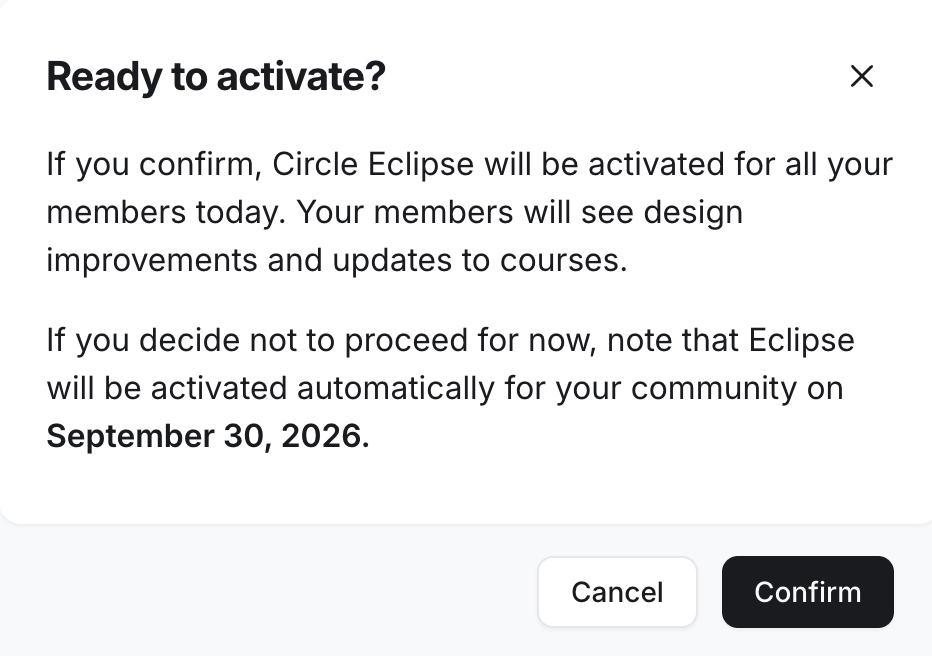
For communities with custom code snippets, you’ll be prompted to review your custom code before activating Eclipse for your members. Due to the wide range of possible customizations and the way certain CSS, HTML, or JavaScript snippets may interact with our front-end code, we recommend previewing your code and making any necessary changes before activating Eclipse.
What happens after the activation deadline?
After the deadline, Eclipse will automatically be enabled for your entire community. Here's what the activation deadline means:
Before the date, you can activate Eclipse yourself whenever you're ready, or leave it turned off.
On the date, if you haven't activated Eclipse yet, it will be turned on automatically for your community.
It will not be possible to roll back the changes once the deadline passes.
Missing the date won't break your community or remove features you already use. It only means Eclipse is switched on for you rather than you switching it on yourself.