Get to know the community switcher
Last updated: August, 2026
The community switcher allows you to seamlessly navigate between all of your Circle communities under a single email account within the same browser session.
Availability
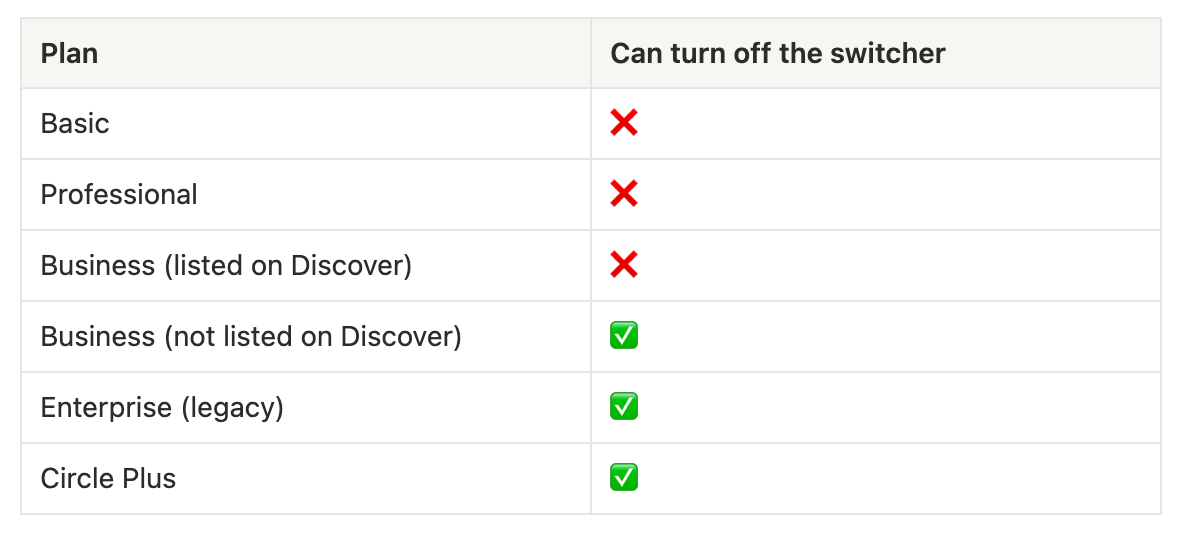
The community switcher is available on all Circle plans and is enabled by default on all new communities. However, the ability to turn it off depends on your plan:
About the community switcher
The community switcher displays all the Circle communities you’re connected to whether you’re a member or an admin, as long as the switcher is enabled for those communities. It streamlines your experience, making it easier than ever to move between communities without needing to re-authenticate.
The switcher behaves differently depending on whether a community uses a Circle domain or a custom domain. Let’s take a look at how this works:
-
Switching between communities that use a default Circle domain
If both communities use Circle’s default domain (e.g. yourcommunity.circle.so), you can seamlessly switch between them without needing to log in again.
-
Switching to a community with a custom domain
If one of the communities you’re a part of uses a custom domain (e.g. community.yoursite.com), you’ll need to enter your credentials the first time you visit it. Seamless login won’t apply initially.
After logging into each community at least once, Circle keeps you signed in. From there, switching works seamlessly no matter the domain. Sessions stay active for up to one year, unless you reset your password.
ℹ️ Note: The community switcher on the Circle mobile app operates independently of your community’s switcher settings. Enabling or disabling the switcher in your community settings only affects the web browser experience. On the mobile app, you and your members will always see all the communities you’re part of in the switcher, unless you’ve disabled mobile app access for your community.
Located on the far-left side of the screen, the switcher bar displays each community you belong to that has enabled the switcher feature. These communities are represented by their icons. When you hover over a community icon, a tooltip shows the community’s name and a keyboard shortcut for quick navigation. If there are new notifications in a community, a red dot will also appear on its icon.
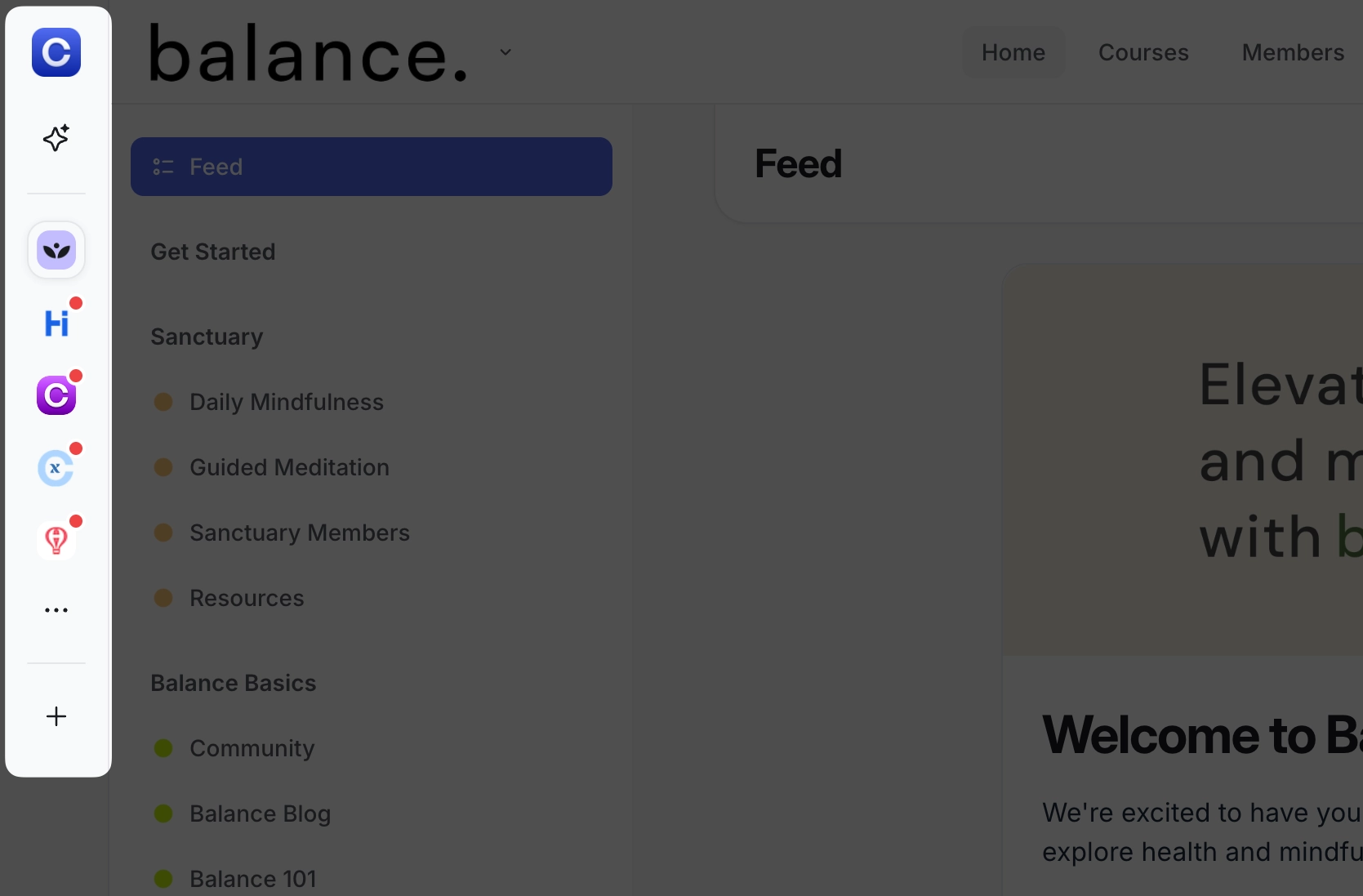
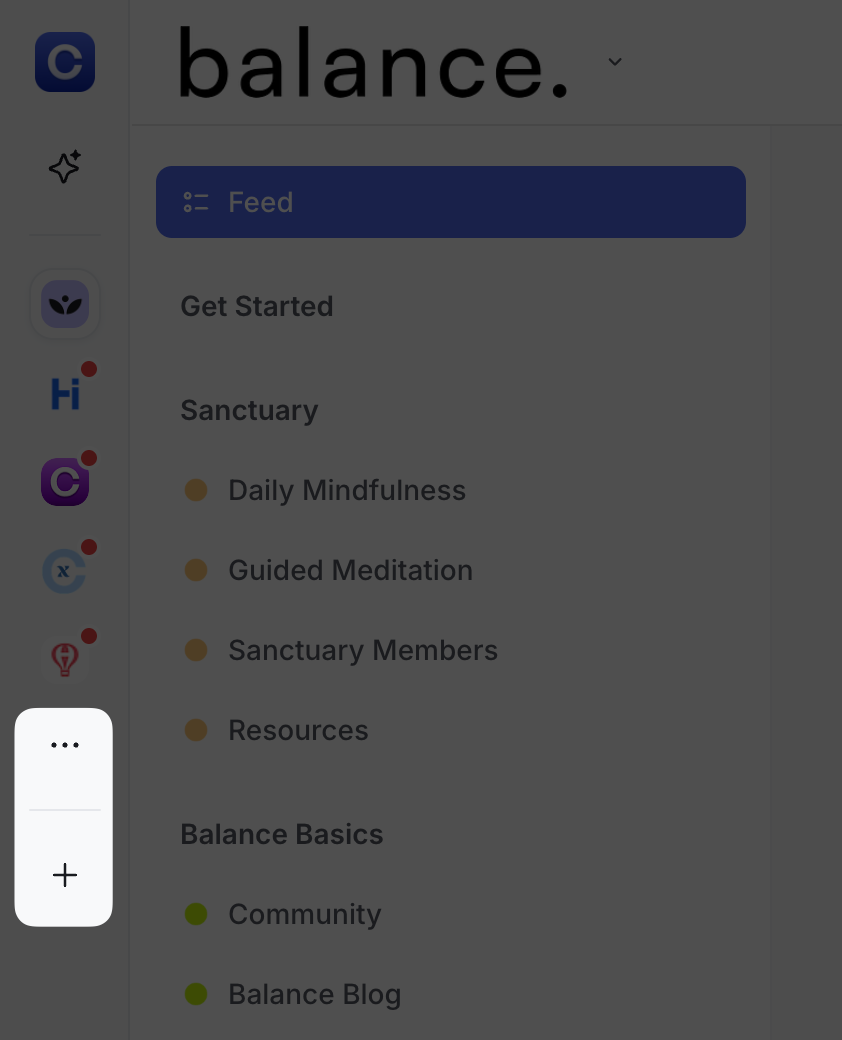
If you belong to more than five communities, simply click the Three dots icon on the switcher bar to access the list of all communities you can switch between.
💡 Tip: If you want to create a brand new community on Circle with the same email account, simply click the ➕ icon on the switcher.
Reorder communities on the switcher bar
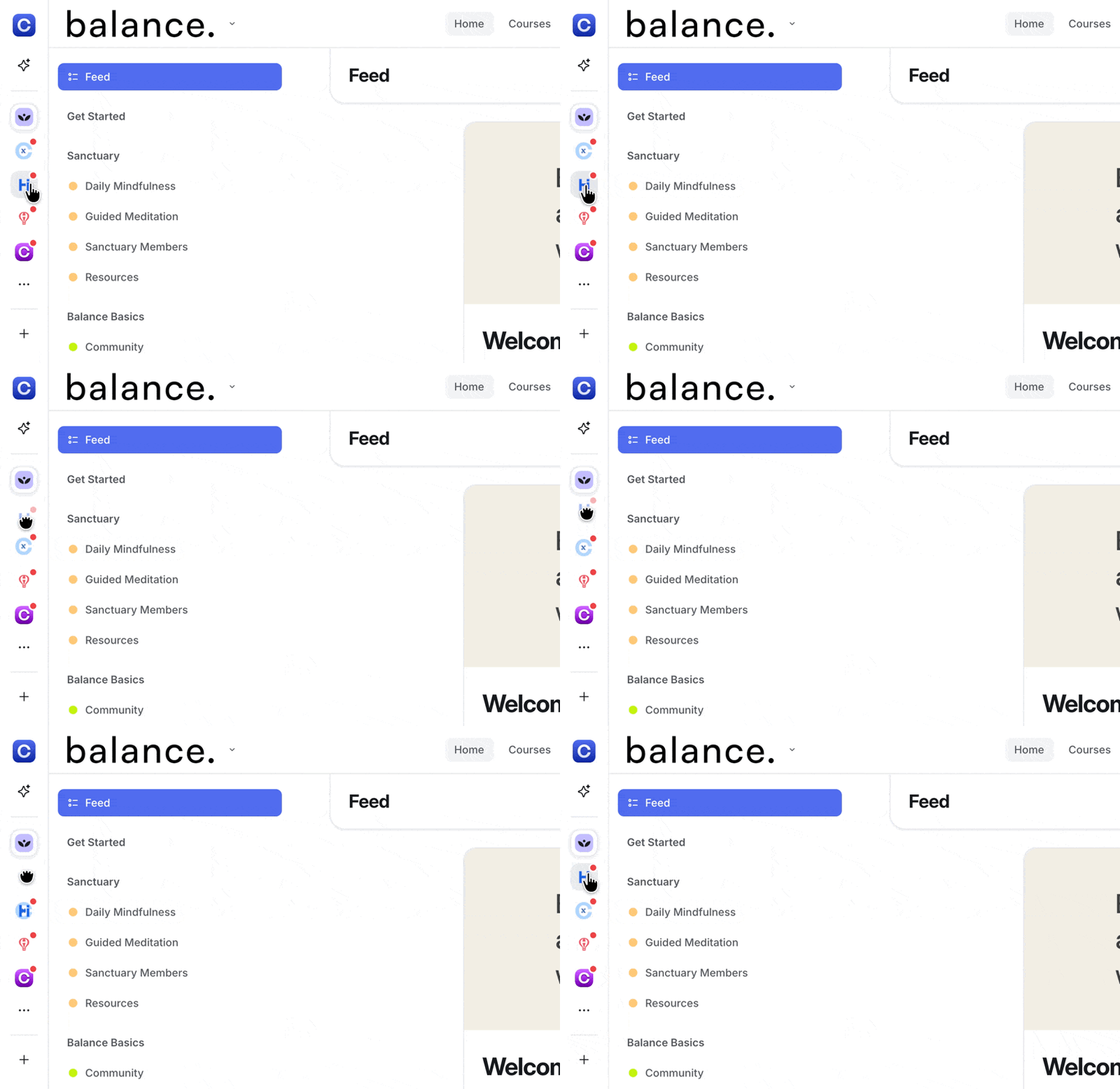
You can customize the order of communities displayed on the switcher bar to keep the communities you frequently visit within reach. To reorder the community icons directly on the switcher bar, click and hold the community icon, then drag and drop it to a preferred position.
To reorder the entire list of communities, click the Three dots icon on the switcher bar to open the list of your communities. Then, click and drag the Drag handle (six dots) next to the community icon and drop it into position.
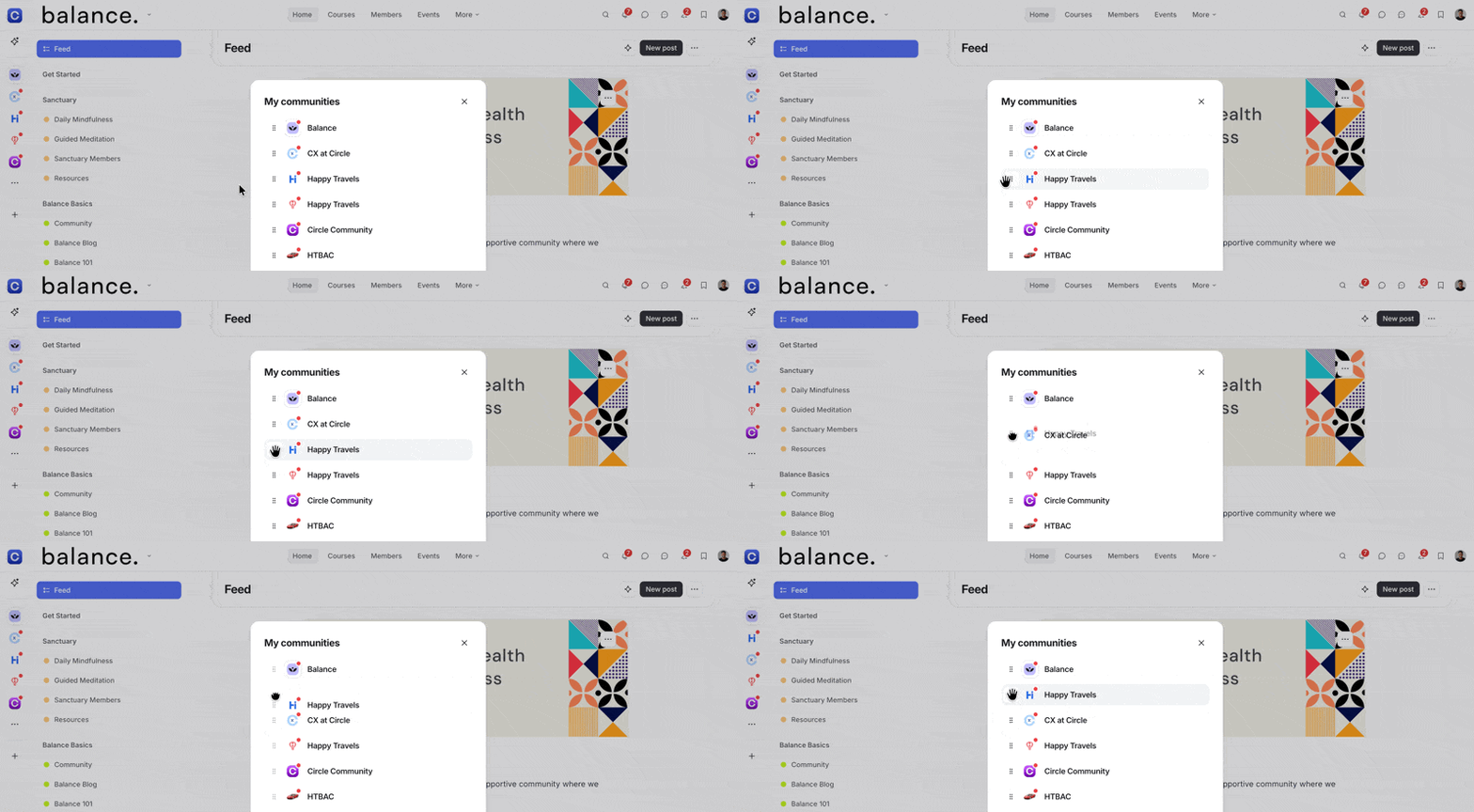
These changes will automatically reflect across the switcher bar in all your communities, providing a consistent experience.
Enable the community switcher for your community on a web browser
Admins can enable the switcher for their community, allowing everyone in the community to switch seamlessly between the other communities they belong to.
When the community switcher is enabled, two things happen:
When members or admins log into your community, a switcher bar appears on the far-left side of the screen for anyone connected to multiple communities with the same email account.
Your community’s icon will also appear as a selectable option on the switcher bar in other communities where the switcher is enabled, allowing members and admins to access your community.
The community switcher is turned on by default when you create a new community, but you can adjust its availability anytime by following these steps:
Click your community name or logo (or the dropdown icon next) in the top-left corner and select Settings.
Select General under the Website section.
-
Scroll down to the Defaults section and toggle Disable community switcher based on your preference.
Click Save changes.

My community has single sign-on (SSO) enabled. How will this work?
If your community has SSO enabled, the community switcher still allows seamless navigation for admins and members using the same email address across different Circle communities.
When you sign in to the SSO-enabled community (and the community switcher feature is enabled), the system checks if you use the same email in other communities. If you belong to multiple communities and they have the community switcher enabled, their icons will appear, letting you switch between them easily.
Switching between SSO-enabled communities
If you belong to multiple communities that have SSO enabled, you’ll authenticate through your SSO provider when switching between them. Here’s how it works depending on the setup of each community:
Switching to a community with the same SSO provider and Circle login enabled: When switching to another community that uses the same SSO provider and has Circle login enabled, you’ll be briefly redirected to the SSO login page. After selecting your login option, you’ll be taken directly to the community without needing to re-enter credentials.
Switching to a community with the same SSO provider and Circle login disabled: If the Circle login is disabled for the community you’re switching to, you’ll be taken directly to that community without additional steps.
Switching to a community that has a different SSO provider: When switching to a community that uses a different SSO provider, you’ll be prompted to log in through that provider before being directed to the community.
Switching between SSO-enabled and non-SSO communities
When switching from an SSO-enabled community to a non-SSO community, re-authentication isn’t required, and you’ll be directed straight to the new community.