Switching between communities on the Circle mobile app
Last updated: May 2026
Are you a member of multiple communities under one Circle account? We've got you covered! On Circle’s iOS and Android mobile apps, you can easily switch between your communities with just a few taps on your screen.
Key things to know
Linked accounts: You can only switch between community accounts that are linked to the same email account on Circle.
-
Mobile vs. web settings: The community switcher on the Circle mobile app operates independently of your community’s switcher settings. On the Circle mobile app, you’ll always see all the communities you’re part of in the switcher, unless a community admin has disabled mobile app access for their community.
Please note that the branded mobile apps will only display additional communities in the switcher if the admin has configured them with assistance from the Circle team.
Switching between communities
To switch to a different community on the Circle mobile app, follow these steps:
-
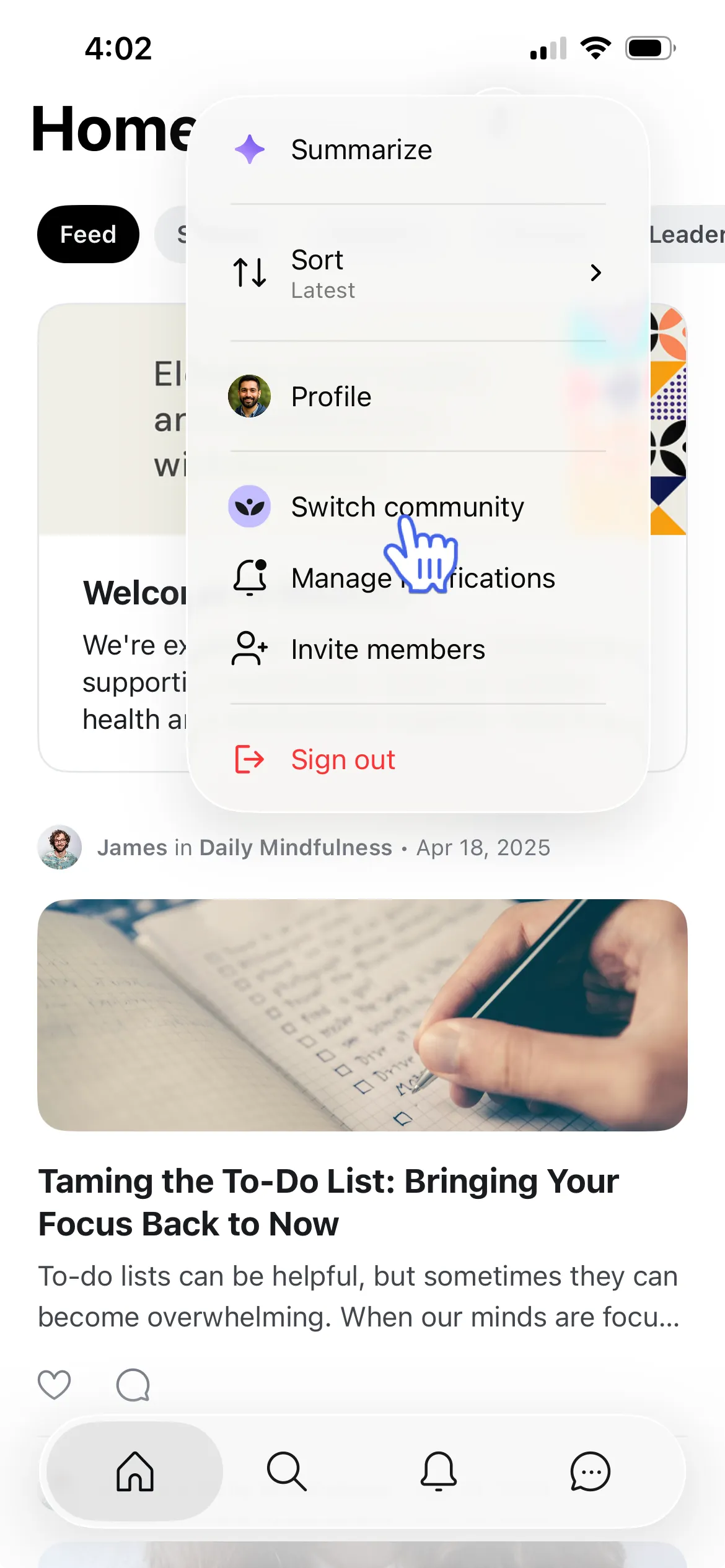
On the Home screen, tap your profile picture in the upper-right corner and select Switch community.
-
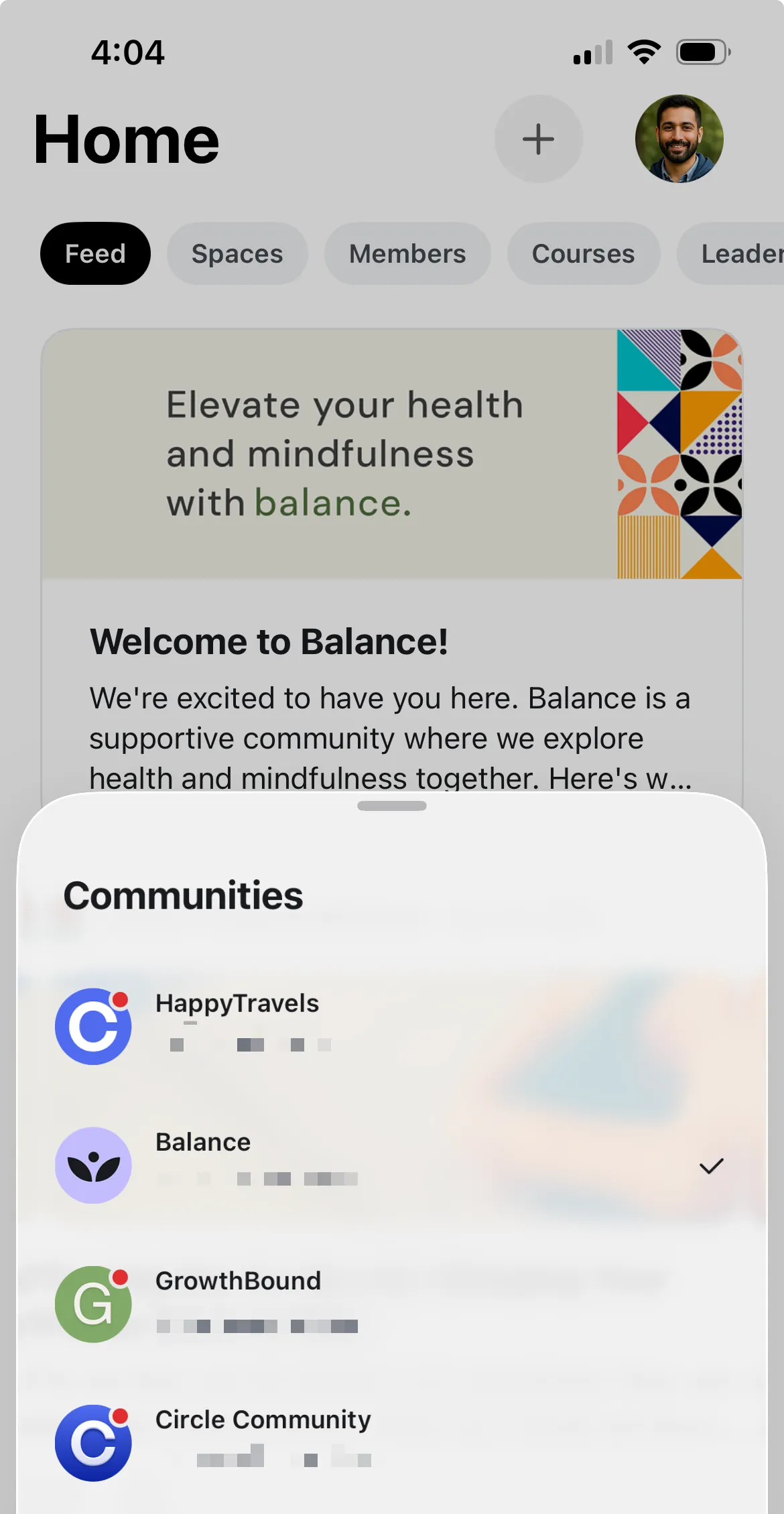
This will open the list of communities available on the Circle mobile app under your account. If you have unread DMs or notifications in any community, a red indicator will appear on the community icon.
Tap the name of the community you want to visit, and you’ll be taken there instantly.
You can also access the community switcher by tapping the community logo on the top-left corner of the Home tab.