Before using access groups: Key considerations and FAQs
Last updated: August, 2026
We recommend reading this guide to help you make informed decisions about access in your community. It covers essential considerations and answers to common questions about access groups.
Key considerations
Availability of manual space grants
While access groups simplify managing members' access to spaces, you can still grant access manually when needed. This includes:
Adding access to spaces directly to an individual member’s account.
Adding members directly from specific spaces or space groups.
Using workflows to provide access.
Members joining the open space by themselves.
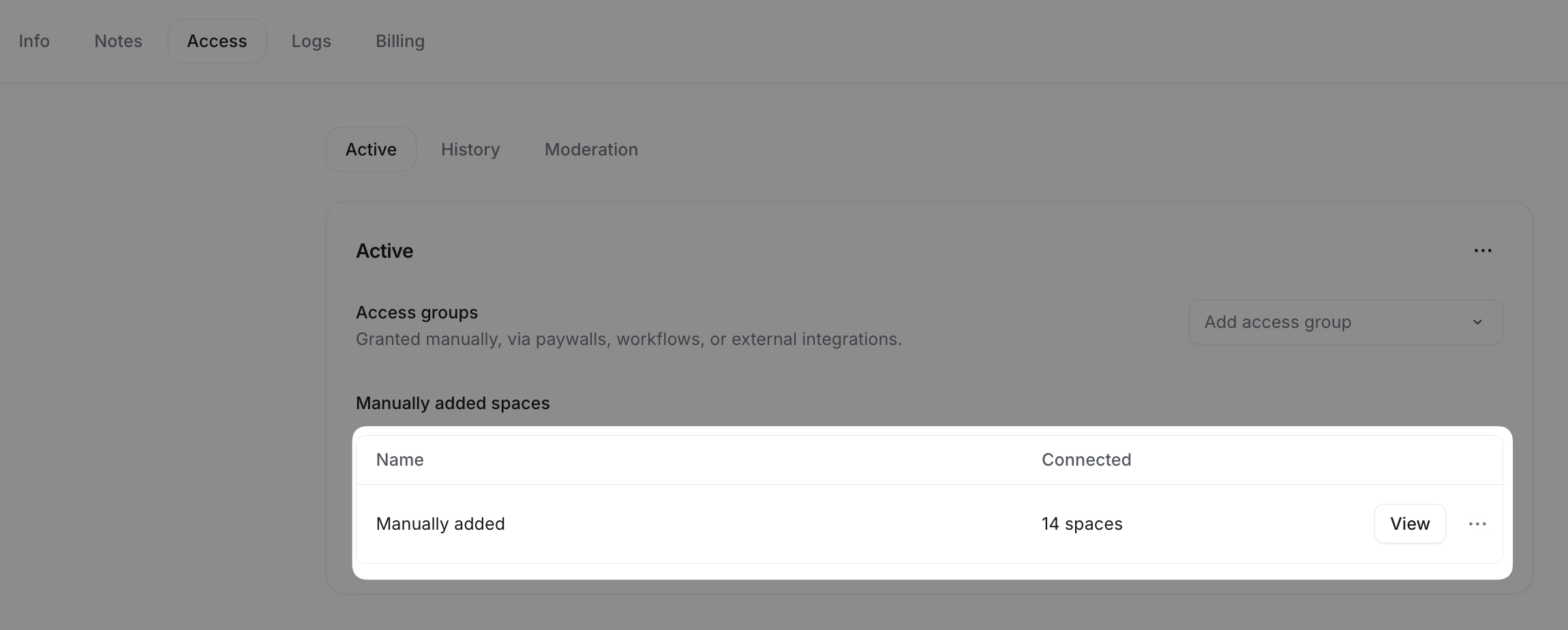
When the access is granted manually, it appears in the Manually added section within the Access tab of the member’s account.
How access group affect manual space grants
When you add a member to an access group, it becomes the primary way to control their space access. The access group settings take precedence over any previous manual space grants. This means if you've manually given a member access to specific spaces, and those same spaces are part of an access group, the access group will now overwrite and control their access.
For example, let’s say:
You went to Spaces A, B, and C and added Taylor to each space directly, manually granting her access.
When you navigate to Taylor’s edit account page, their access to Space A will appear under the Manually added section within the Access tab.
Later, you added Taylor to Access group 1, which includes access to Space A. As a result, the access group now manages their access to Space A.
-
If you decide to remove Taylor from Access group 1, her access to Space A will be revoked. However, their access to Space B and C, which are not included in the access group, will remain unaffected. You can see those spaces under the Manually added section on the member's edit account page.
Legacy paywall access: special considerations
Legacy paywall access works differently from standard manual grants. Here's what you need to know:
Spaces granted to a member through a paywall’s legacy space access will appear under the Manually added section on the member's edit account page.
If the same member is later added to an access group with overlapping spaces, the access granted via the legacy paywall will not be overwritten or controlled by the access group.
Any space that is part of legacy space access through a paywall will continue to appear under the Manually added section and remain unaffected by access group changes.
Granting access to whole space groups via access group
Adding entire space groups to an access group creates a dynamic access relationship. All spaces within that group, current and future, automatically become part of the access group. This includes private and secret spaces.
For instance:
Julie has been added to Access group 1. This access group includes access to Space group A.
Later, you created a new space called Space Z inside Space group A. Since Julie is already part of Access group 1, they will automatically gain access to Space Z.
Granting access to only some spaces within space group via access group
If you want to add only certain spaces from a space group to an access group, members will gain access only to those selected spaces. If new spaces are later added to the space group, members with partial access won’t automatically receive access to the newly created spaces.
However, if your community was created before January 29, 2025, your community has a legacy space access toggle available in the space group settings, which changes the above behavior. Here’s how it works:
Let’s say instead of the entire Space group A, you add only Space A, B, C from the group to Access group 1.
If the Automatically add members to new spaces within group toggle is enabled in the space group settings, any member of Space group A will automatically gain access to newly created spaces.
Now, suppose you create a new space called Space F. Because the toggle is enabled, members of Space group A will automatically gain access to Space F. However, since Space F is not included in Access group 1, it will appear under the Manually added section on the member's edit account page.
Making changes to members’ access granted via access groups
Access to spaces granted via an access group cannot be removed individually from a member's account.If needed, you can remove a member directly from a space to revoke their access to a particular space (see the Members’ ability to leave spaces section below for more details).
However, if you need to make changes for all access group members, we strongly recommend making them directly in the access group.
Members’ ability to leave spaces
Members can't leave spaces they were added to via an access group on their own. To leave one of these spaces, they need to contact an admin. This ensures controlled management of space access and prevents unintended changes to access without your knowledge.
Removing a member from a space
As an admin, you can remove a member directly from a specific space while preserving their access to other spaces in the access group. To remove a member, go to the space and then Members settings page. Locate the member from the list and remove them from the space. You can also remove members in bulk from a space using workflows.
Restoring a member’s access
If you need to restore a member’s access to a space they were removed from, you’ll need to manually re-add them. You can do so using one of the manual grant options, such as the Members settings page, the member’s account, or via workflows.
❗Important:
When a member is manually re-added to a space, their access is granted independently of the access group. This means the space will appear under the Manually added section in the Access tab of the member’s account.
However, if the access group is later updated and includes the same space, the member’s access to that space will revert to being controlled by the access group, provided the member remains part of the access group. This ensures consistency in access group-based access management while allowing flexibility for temporary manual adjustments.
Accessibility to open spaces
If a space is set to open and visible in the sidebar, any member can voluntarily join it, regardless of whether they belong to an access group. Similarly, adding space to an access group doesn’t restrict the space’s ability to grant access manually.
💡 Tip: When configuring access groups, you can identify the access status: open, private, or secret by the icons displayed next to its name. Hovering over the icon will reveal a tooltip with its access status.
Let’s consider an example where your community has two open spaces: Space A and Space B. Both spaces are visible in the sidebar, making them easily accessible to all members.
Now, let’s explore different scenarios based on whether a space is part of an access group:
Scenario 1: Open space within an access group
Space A is added to Access group 1.
Kevin, a member of your community, is also part of Access group 1, which means they have access to Space A.
If you remove Kevin from the space, they will no longer have access to it. When you navigate to edit Kevin’s account, you won’t see the space listed under the access group table anymore.
-
Since Space A is open, Kevin can rejoin later without admin approval.
When Kevin rejoins on their own , it will be considered a manual space grant. As a result, Space A shifts to the Manually added section in Kevin’s profile and is no longer tied to Access group 1’s control for them.
Any other community member can join the open space anytime, and it will be considered a manual space grant.
Scenario 2: Open space not added to any access group
Space B is also open and visible in the sidebar and not part of any access group.
Since it is open and not tied to an access group, Kevin or any other member can join or leave Space B anytime by themselves.
Switching from legacy space access to access groups
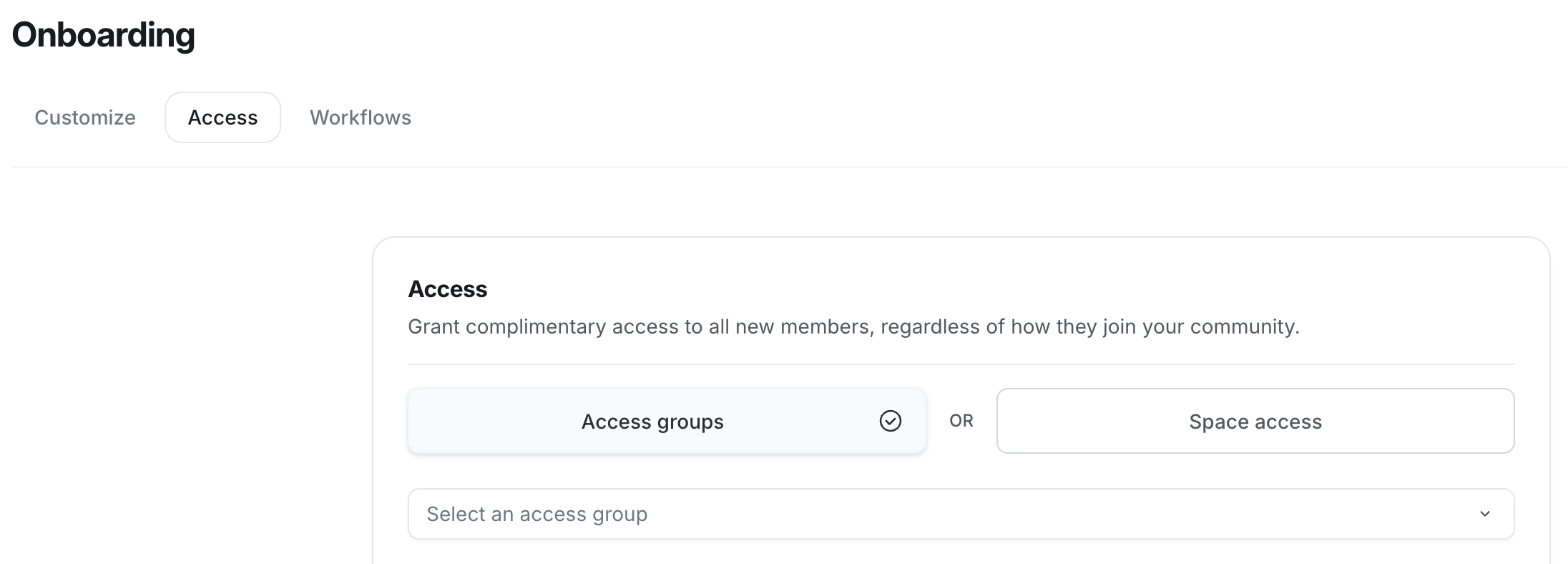
For communities created before January 29, 2025, you'll see both "Space access" and "Access group" options when setting up entry points. We recommend using access groups for better scalability and management.
To enable access groups for an entry point:
Open your entry point configuration.
Select the Access group option in the entry point configuration.
Add one or more access groups from the list.
Once configured, all new members joining through that entry point will automatically receive access to spaces as defined by the selected access group(s).
You can revert to the legacy space access setup if needed. Select the Space access option in the entry point configuration. Going forward, members joining through that entry point automatically receive access to spaces as defined by legacy space access.
Frequently asked questions
Do access groups affect my existing access configurations?
If your community was created before January 29, 2025, your existing access configurations (legacy space access) remain unchanged for now. However, you now have the option to switch to access groups in your entry point configurations.
We recommend transitioning to access groups, as they simplify space access management and reduce administrative effort.
📚 For more information about switching to access groups, please refer to our guide here.
What is the difference between legacy space access and access groups?
Before access groups were introduced, granting members access to spaces required manual configuration. This manual method is now referred to as legacy space access. It involved manually configuring access at entry points (e.g., invites or paywalls).
You can view this manually granted legacy space access when editing a member's account under the Access tab within the Manually added section.
Access groups help eliminate repetitive manual setup, so we recommend transitioning to them. However, for now, if you prefer to use legacy space access for specific entry-point configurations such as invites, invitation links, or paywalls, you can select the Space access option during setup.
ℹ️ Note: Space access option is only available if your community was created before January 29, 2025.
Can I grant an existing member access using an access group?
Yes, you can assign one or multiple access groups to an existing community member to migrate them to access groups. This lets you provide access without relying solely on entry points like invitation links or manual space configurations.
Can I manually grant access to spaces and space groups without using access groups?
Yes, you can manually grant members access to spaces and space groups without using access groups. To do this, edit the member’s account and follow these steps:
Navigate to the Access tab.
Click More actions (three dots icon) in the top right corner and select Manually add spaces.
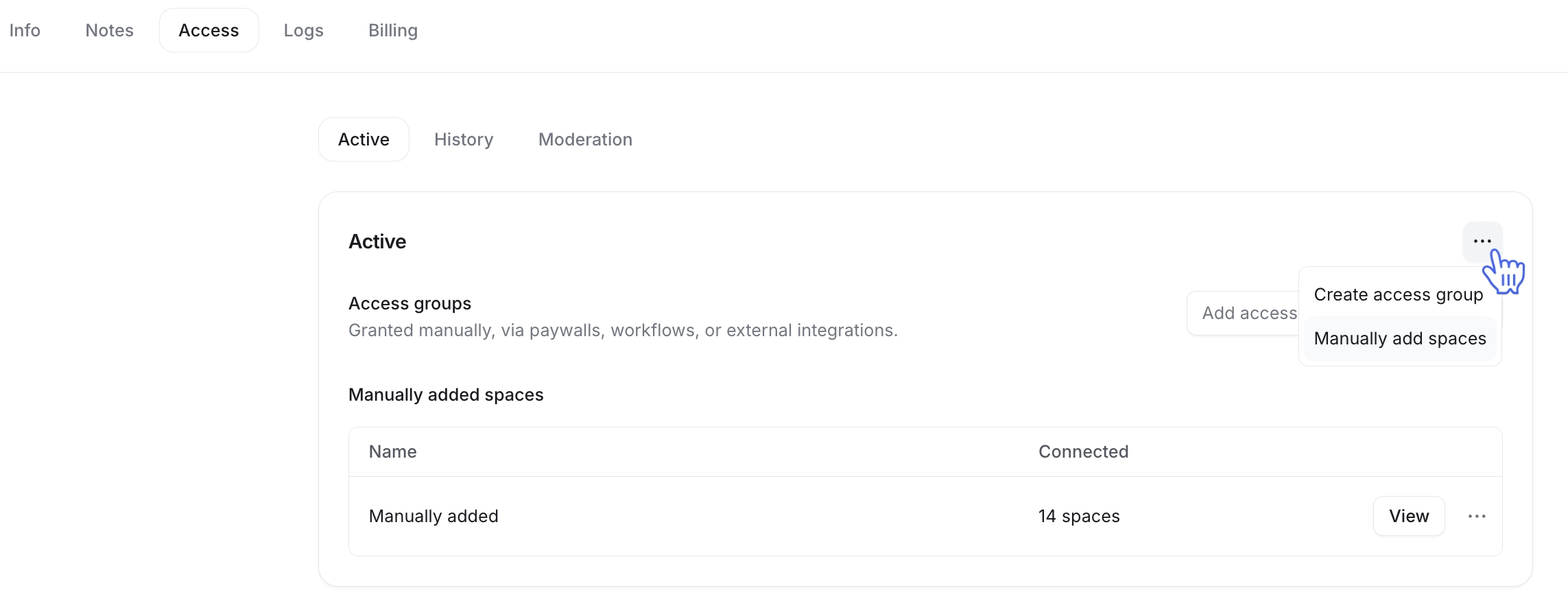
In the access form, add the desired space(s) or space group(s).
Click Save.
Alternatively, you can grant access through workflows or directly from spaces and space groups by adding members to the Members list.
Can I switch the existing paywall access configuration to access groups?
Yes. You can move your paywall's legacy space access setup over to access groups.
Once migrated, members' access via the paywall transitions to access groups and stays tied to the paywall. This ensures that in case their paywall membership is canceled, they automatically lose access to it.
📚 For more details on migration, see Migrate your paywall’s access from legacy space access to access groups.
Can I use access groups to assign specific roles or permissions to members?
No, access groups are designed only to configure and manage access to spaces within your community. Assigning roles (e.g., moderators or admins) or permissions (e.g., direct messaging) must be handled through entry point configuration (e.g., invites) or the member’s account settings.
Can I create different onboarding experiences for specific access groups?
The onboarding settings, such as onboarding access, emails, and the pop-up, apply uniformly to all entry points in your community. You cannot customize onboarding journeys for individual access groups.