Migrate your paywall’s access from legacy space access to access groups
Last updated: August, 2026
If your paywalls currently use legacy space access for paywalls instead of access groups, you can migrate your paywall subscribers’ (members who brought the paywall) access to access groups. This migration ensures that members’ access via the paywall is seamlessly transitioned to access groups and kept through the paywall so that, in case their paywall membership is canceled, they automatically lose access to it.
Before you migrate paywall access
Individual paywall migration: If your community has multiple paywalls that use legacy space access, you’ll need to migrate each paywall you wish to update separately.
Eligibility for migration: The option to migrate paywall access is only available for paywalls that currently use legacy space access. This method was standard for communities created before January 29, 2025. If your paywall already uses access groups, you won’t see the option to migrate.
What gets migrated: When you migrate access for this paywall, we will only transfer members’ legacy paywall space access to the specific access groups you include during the migration process. Other forms of access, such as onboarding access, manually assigned spaces, or access granted through other entry points, will remain unaffected.
Irreversible action: Once you migrate a paywall’s access from legacy space access to access groups, you cannot revert to the legacy space access method for that paywall.
Migrating paywall’s access
Follow these detailed steps to migrate your paywall from legacy space access to access groups.
Step 1: Initiate the migration process
Click Payments on the left sidebar, then select Paywalls.
Hover over a paywall. Click the More actions (three dots) and select Edit.
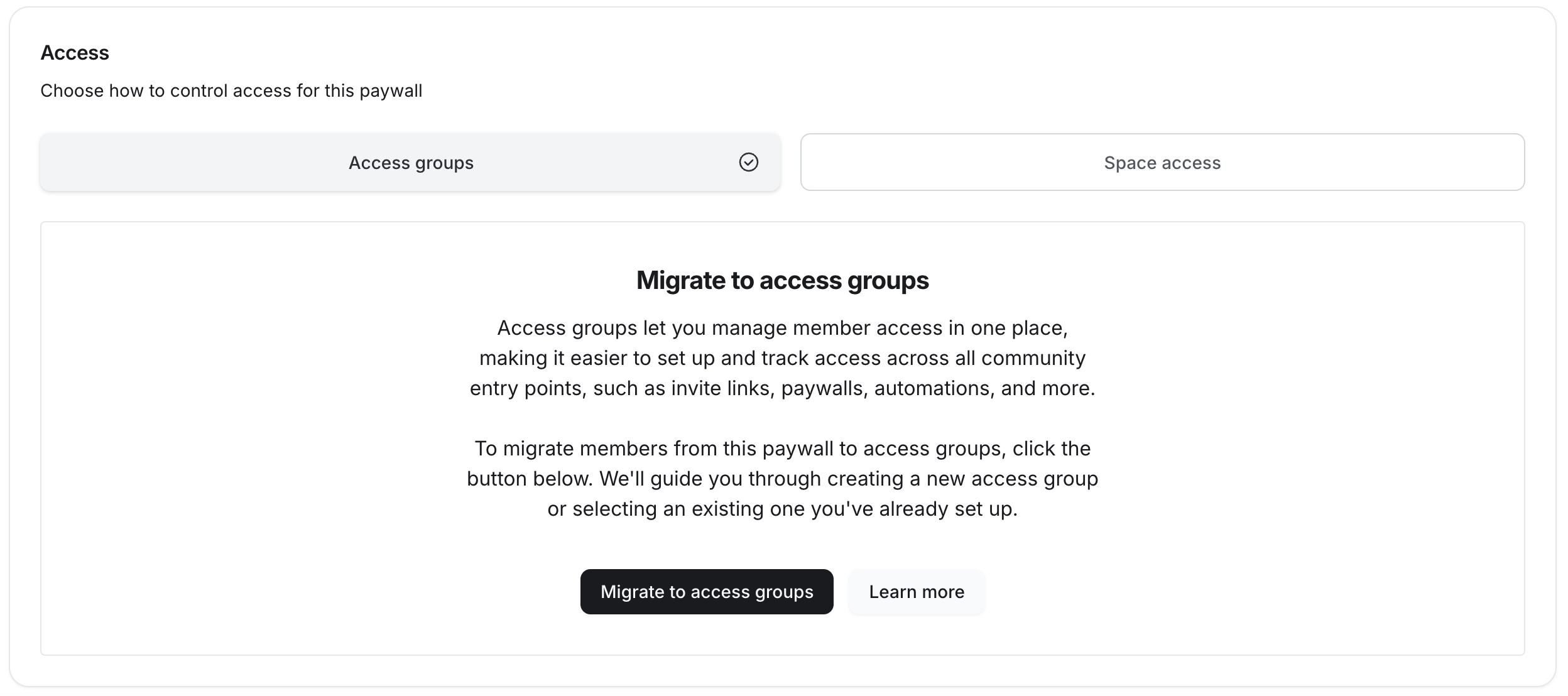
Go to the Access section in the Product tab.
In this section, you’ll see the Access groups option. Click this option, then select Migrate to access the group.
Step 2: Change your subscription group
If your paywall is part of a subscription group, you’ll need to choose a different subscription group that supports access groups.
Subscription groups can only include paywalls with the same access type, either Access groups or legacy Space access. You’ll need to select a subscription group that is either empty (with no assigned paywalls) or already includes paywalls configured with access groups.
Use the dropdown menu to choose from a list of eligible subscription groups. If no eligible subscription group exists in your community, you can create a new one and automatically add this paywall.
Step 3: Create an access group or choose existing groups
In the Migrate to access groups dialog, you’ll have two options to select from:
-
Create new access group: This option lets you create a new access group for this paywall. The system will automatically populate the new access group with all the spaces currently included in your paywall’s legacy space access configuration.
Enter a name for the access group (e.g., “Pro paywall access”). Choose a clear, descriptive name to make it easy to identify later.
Add a description (optional) to provide context about the access group’s purpose, such as “Grants access to exclusive content for pro paywall.”
-
Select existing access groups: This option lets you assign one or more existing access groups to the paywall, leveraging groups you’ve already set up.
Click the dropdown menu to view a list of your community’s existing access groups. Choose an access group that aligns with the paywall’s intended access permissions.
To add multiple access groups, click the dropdown menu again and select additional groups as needed.
💡 Tip: If you accidentally added the wrong access group, click the More actions (three dots icon) next to the group and select Remove.
Once you’ve chosen your option (new or existing access groups) and provided the necessary details, click Continue to move to the review phase.
Step 4: Review and confirm changes
In the Review tab, you’ll see the following:
Left side: A members card listing all members currently subscribed to the paywall. This helps you confirm who will be affected by the migration.
Right side: The access groups card lists all access groups you’ve selected or created for the paywall, along with details about the spaces included in each group. Click an access group’s name to expand the card and view the spaces included in that group. This is especially helpful when using existing access groups and you need to quickly confirm which spaces are included.
Checking for changes:
If the migration alters members’ access compared to the legacy space access setup, a space changes indicator will appear on the access groups card.
Click the indicator to open a detailed comparison showing:
New spaces members will gain access to as a result of the migration.
Spaces members will lose access due to differences between the legacy setup and the selected access groups.
Review these changes carefully to ensure they align with your intentions. For example, if members lose access to some key spaces, you may need to adjust the access group configuration before proceeding.
If you need to make changes, go to the Select tab again in the Migrate to access groups dialog.
Step 5: Confirm migration
Once you’re satisfied with the setup, click Continue to proceed. As a safety measure, you’ll be prompted to enter the keyword CONFIRM in the dialog to verify your action. This helps prevent accidental migrations.
❗Important: The migration is irreversible. After confirming, you cannot revert the paywall to legacy space access. Please double-check all details before proceeding.
After migration: What to expect
Once you confirm the migration, the system will begin transitioning your paywall’s access. Here’s what happens next:
-
Migration status:
The paywall’s Access tab will display a “Syncing” indicator next to access groups while it migrates all existing members who brought the paywall to the selected access groups. Depending on the number of members who have purchased, this process may take some time.
You won’t be able to make changes to the paywall’s access until the migration is complete.
New purchases: As soon as you confirm the migration, any new purchases of the paywall will grant access via the designated access groups rather than legacy space access. This ensures consistency for new subscribers moving forward.
-
Subscriber experience:
Members will not experience disruptions during the migration, provided the access groups include the same or equivalent spaces as the previous legacy setup.
If access changes occur (e.g., new spaces added or existing ones removed), members will notice these updates immediately after the migration completes. This means they may see and be able to access new spaces added through migration or notice lost access to their existing spaces. We suggest notifying them in advance if the changes are significant.