Resend member invites
Last updated: October, 2026
Resending pending member invites can help ensure that your community members complete their onboarding process and activate their accounts.
About resending invites
As an admin, you can resend invitations to individuals, specific groups of members, or all invited members to motivate them to complete the process. Depending on whether the member already has a Circle account associated with the same email, an email will be sent to them per your invitation email configuration in the onboarding settings.
When you resend the invitation to a member, their invitation status will be set to Invited again. Example scenarios:
If a member started the sign-up process using the invitation link but didn’t confirm their profile, resending the invitation sets their Invitation status to Invited. Once the member logs in using their previously set password and completes their profile, their status updates accordingly.
If a member was invited, accepted the invitation, and set a password but left the onboarding process incomplete, their current status might be Account created. Resending the invitation reverts the status to Invited, and as they proceed through onboarding, the timeline updates to reflect their progress.
💡 Tip: You can use the email features within Email Hub to engage and nurture potential members before they fully join the community. This early engagement helps spark interest and excitement, increasing the chances that they’ll decide to join. For detailed information on invited members, tracking their journey, and additional insights, check out our guide here.
Let’s take a look at two ways to resend the invitations within your community.
Resend individual invites
To resend the invitation email to an individual member:
Click Audience in the left sidebar, then select Audience.
On the Manage audience page, navigate to the Invited tab.
-
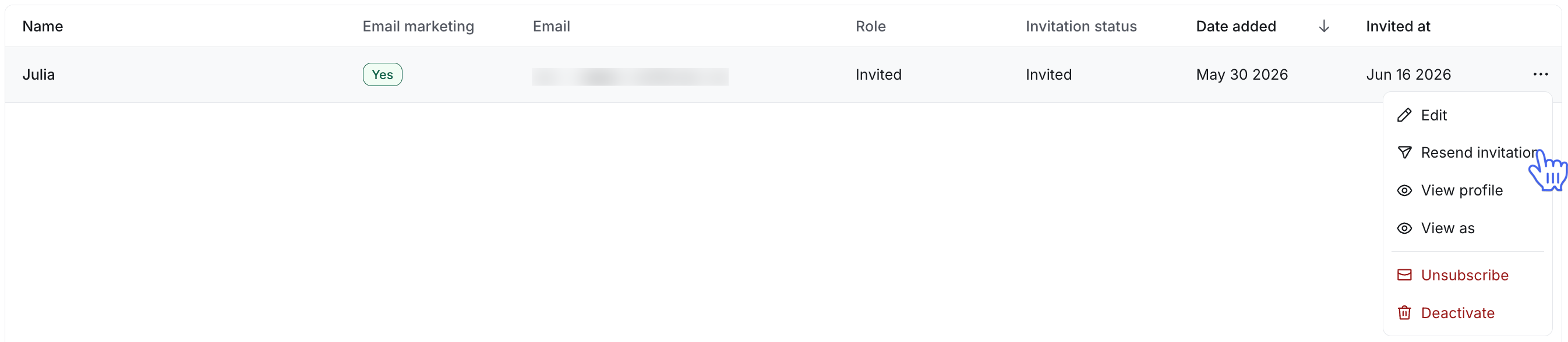
Click More actions (three dots) next to the member’s name and select Resend invitation.
Resend invites to specific groups of members
To resend invitation emails to a specific group of members who are listed on the Invited tab:
Click Audience in the left sidebar, then select Audience.
On the Manage audience page, navigate to the Invited tab.
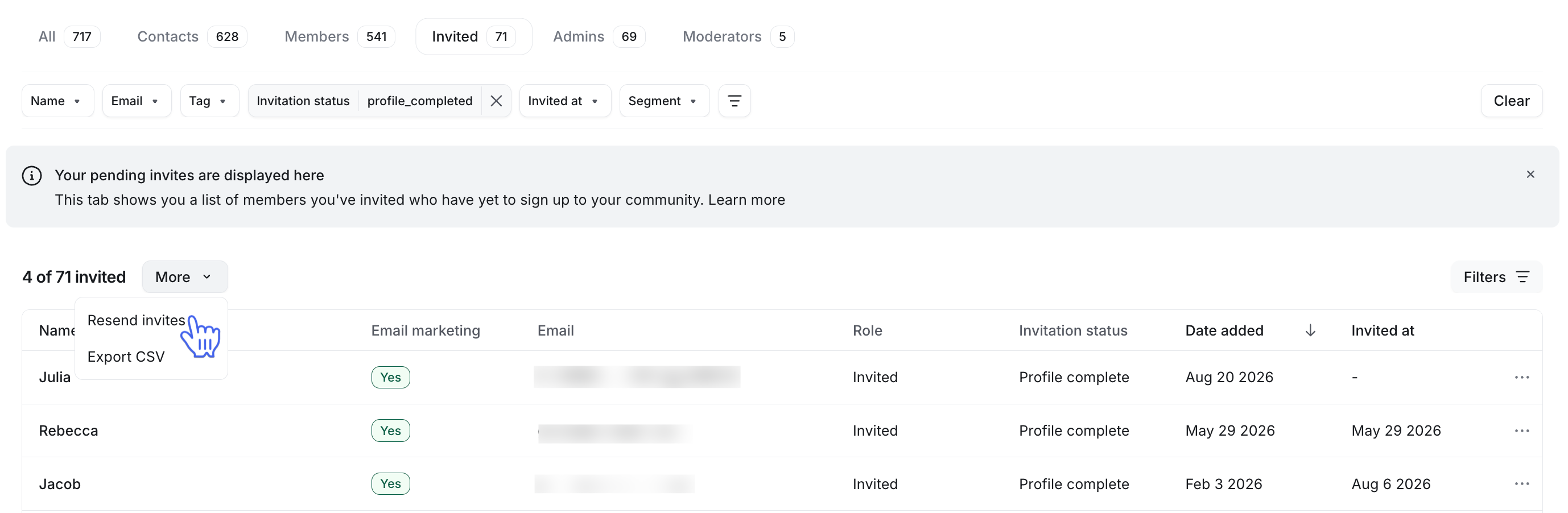
Use filters to target specific groups of members by email, invited date, segments or tags.
-
Click the More button next to the filtered member count and select Resend invites.
On the confirmation dialog, click Send invites.
Resend all invitations
To resend invitation emails to all members who are listed on the Invited tab:
Click Audience in the left sidebar, then select Audience.
On the Manage audience page, navigate to the Invited tab.
-
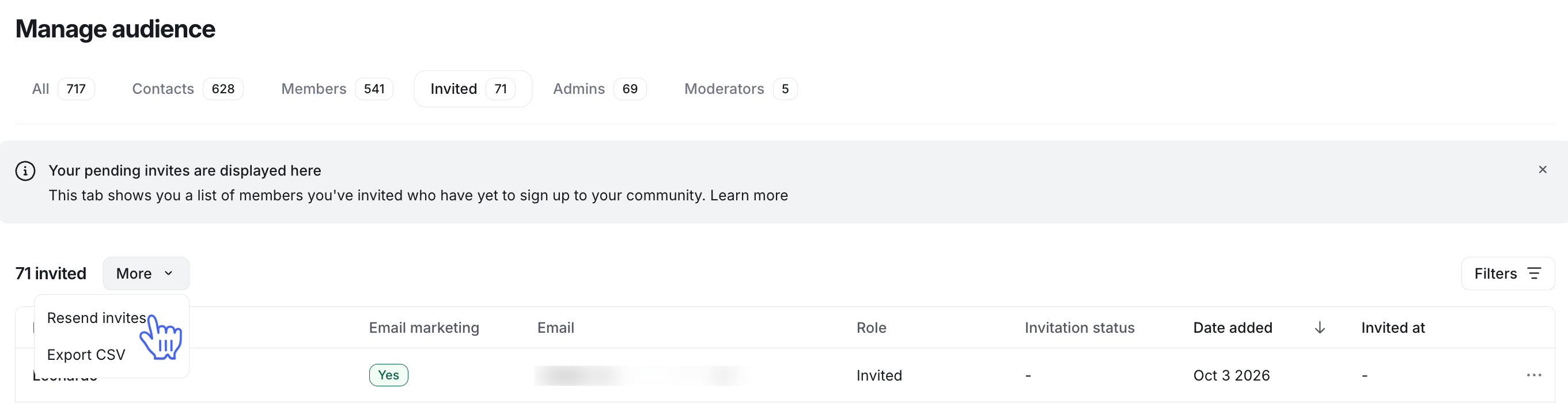
Click the More button next to the member count and select Resend invites.
On the confirmation dialog, click Send invites.