Setting up the weekly digest
Last updated: October, 2026
Staying informed and connected with the latest happenings in the community is crucial. That's where the weekly digest comes into play – your key to keep members updated on valuable insights with what's hot and trending within your community. In this article, we will walk you through the feature and its setup.
Get to know the weekly digest
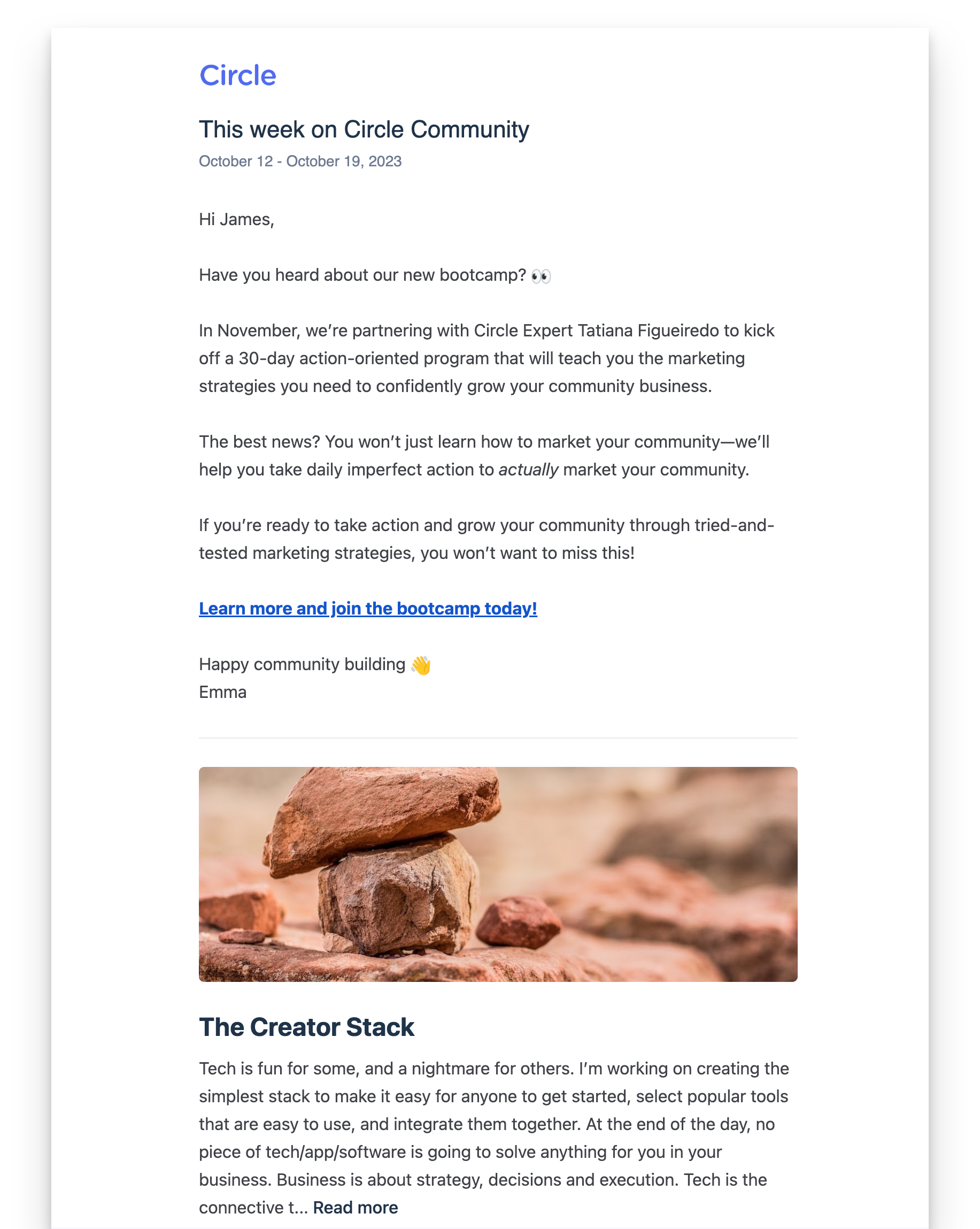
The weekly digest is designed to spark your members' interest, highlight the latest trending content that's relevant to them, and entice them to dive back into the discussions.
Benefits of setting up the weekly digest
But why should you set up the weekly digest in the first place? Here are some compelling reasons:
Automation at its best: Say goodbye to manual data gathering. The weekly digest automatically compiles the most crucial information and discussions from your community from the seven-day period since the last digest. We automatically send it every Thursday starting at 9 AM Pacific Time, and it takes a few hours to reach all members.
Personalized for your members: Each member gets a personalized experience. They only see content such as posts, comments, and events from the spaces they’re part of, making it more engaging and accurate.
Customizable: You can customize the digest introduction and choose to hide or show various sections.
Engaging: It's all about maintaining a strong connection with your community. The Weekly Digest keeps the conversation alive, giving your members a quick overview of what they might have missed.
Enable weekly digest
To turn on the weekly digest for your community:
Click the community name or logo (or the dropdown icon next to it) in the top-left corner and select Settings.
Scroll down to the Community section and select Weekly digest.
Toggle on the Enable weekly digest option.
Your community members can manage their preference for receiving the weekly digest emails in their notification settings.
Digest eligibility
To ensure members receive the weekly digest, the following criteria must be met:
Onboarding completion: To receive the digest, a member must have successfully completed onboarding and set up their community accounts.
Notification settings: Members must have enabled the weekly digest emails in their notification settings.
Content threshold: The digest is sent only if there are at least two new posts published in the post type spaces a member belongs to within the seven-day period since the last digest (the digest is automatically sent every Thursday).
💡 Tip: If your community’s post type spaces have infrequent postings each week, you can create an announcement space (post-type space) and add all community members to it. Publishing at least two new posts every week in this space will ensure that the weekly digest is sent to all members.
What’s included in the digest
The weekly digest highlights a variety of content collected from the spaces visible to a member.
Let's explore what's included from the community in the digest and how it's selected for members, including yourself:
Custom subject and introduction: You have the flexibility to add a personalized email subject and introduction to your weekly digest. This introduction is displayed at the top of the digest content.
-
Popular posts: The digest showcases up to five posts from the spaces that a member is a part of, sorted by popularity. To qualify as a popular post, the post must be published within the eligible date range, defined as the seven-day period since the last digest.
Posts are automatically chosen using an engagement score formula: (2 x comments made by members) + (1 x likes received). Additionally, pinned posts will get a super boost.
The first post is prominently featured with a cover image (if available). Please note that posts in the digest are always presented in a truncated form.
It’s important to note that if you have hidden specific posts or spaces from featured areas, they won’t appear in the digest. For more information, see Exclude the specific event, post, or space from the Feed and weekly digest.
-
Popular comments: The digest showcases up to five of the most engaging comments from the spaces that a member is part of.
The most engaged comments are automatically selected based on the number of likes received.
If there are fewer than two new comments visible to a member, the popular comments section is excluded for that member.
-
To qualify for this section, comments must meet the following criteria:
Be posted on eligible posts (those published within the seven-day period since the last digest).
Be posted within the eligible date range, defined as the seven-day period since the last digest.
Upcoming events: The digest aggregates up to five of the latest upcoming events from event spaces that a member is part of. Similar to posts, if you have hidden specific events or spaces from featured areas, it won’t appear in the digest.
New members: The digest displays up to three new members who have completed onboarding and set up profiles for their community accounts. If there were fewer than two new members in the community in the last seven days, we exclude this section from the digest.
-
New posts and notifications stat: In this section, a member can see the following stats:
The number of new posts published within the past seven days in the spaces that a member is part of. We only count posts that are published and visible in featured areas.
Total number of notifications a member received within the last seven days. Please note that if the member has set to receive notifications through multiple delivery methods (in-app, email, push), it will be counted as a single notification, regardless of the methods used.
Customize weekly digest
You can customize the subject and introduction for the digest and manage the visibility of various sections that appear in the digest.
💡 Tip: This customization will be applied to all future digests. You can also update it weekly to send personalized digests each time. We suggest updating the subject and introduction a day ahead of the weekly digest schedule.
Add custom subject
Make your weekly digest emails stand out in the inbox by adding a personalized subject line.
In the subject field, type your desired text. Using the Add variable {…} icon, you can add the following dynamic variables to make the subject line more relevant to each recipient:
{{community.name}}: Name of your community
{{member.first_name}}: Recipient's first name
{{member.last_name}}: Recipient's last name
{{date_range}}: Date range covered by the digest
ℹ️ Note: If you leave the subject field blank, the digest will be sent with the default subject line “This week on {{community.name}}:{date_range}”
Write custom introduction
You have the freedom to curate the perfect introduction for your community members, setting the stage for the digest. Use this space as your very own newsletter – a window into what's happening and what's on the horizon. You can share vital updates, offer sneak peeks of what’s coming, and create a sense of anticipation.
What's great is that you have the flexibility to customize these introductions every week, tailoring them to the specific content and activities planned. We suggest updating the introduction a day ahead on Wednesday.
In the custom introduction, you can do the following:
Format text, add blockquotes, and insert lists using formatting icons at the bottom of the editor.
Hyperlink text to direct readers to valuable resources within your community or external providers. To do this, highlight the text and click the Hyperlink 🔗 at the bottom of the editor to paste the URL.
Enhance your introduction visually by uploading images directly within your text. Click the attachment icon at the bottom of the editor and upload the image from your desktop.
-
For a personalized touch, you can utilize the following dynamic variables to insert specific user information.
{first_name}
{community_name}
💡 Tip: If you want to add media or files to a custom introduction, we highly recommend hyperlinking them from sources like Vimeo, YouTube, and Google Drive, instead of directly uploading it to the introduction. Uploading directly to the introduction may result in compatibility issues with email providers used by your members.
Manage section visibility
You can control the visibility of different sections in the digest. To hide a section from the digest, turn on the toggle next to it. You can choose to hide:
Popular posts
Popular comments
Stats
New members
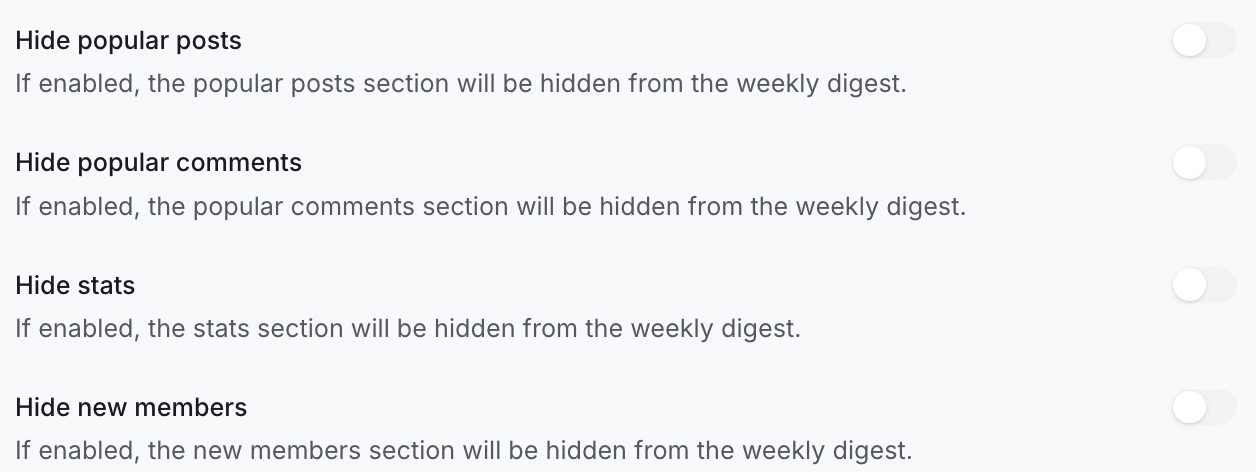
After making your desired changes, make sure to click Save changes.
Frequently asked questions
Can I handpick all the data that’s included in the digest?
No, Circle automatically selects the most relevant data for the recipient, taking the guesswork out of the process. However, you can hide specific sections or posts as needed.
Can I change the schedule for weekly digests?
No, the sending day or time is not customizable for the digest. When enabled, digests are automatically sent every Thursday starting at 9 AM Pacific Time to all eligible members. Please note that emails may take a few hours to reach all members.
Can I hide specific content from appearing in the digest?
Yes, you can hide a specific post, event, or entire space content from appearing in the featured areas (Feed and weekly digest). For more information, check out our guide on Exclude the specific event, post, or space from the Feed and weekly digest.
Is there a way to send a weekly digest to a specific group of members?
No, the weekly digest is sent to all members who are eligible as mentioned above in this article.
What can I do if a member says they didn't receive their digest?
If a member reports missing digests, you can consider the following steps to investigate and resolve the issue:
Digest notification preference: Start by checking with the member to see if they have weekly digest emails enabled in their notification settings. If disabled, they won’t be receiving digests.
Eligibility: Verify if the member meets the eligibility criteria outlined in the article. To receive the weekly digest, members must be active, including completing the onboarding and profile creation steps. Additionally, they should have at least two new posts published in the post-type spaces they are part of within the last seven days.
Spam: Suggest that the member check their spam mailbox for the digest.
Can I see analytics data for the weekly digest?
Currently, analytics data for the weekly digest is not available.