Manage default notification preferences for space members
Last updated: October, 2026
You have the flexibility to manage default notification preferences for select spaces at any time in your community. This article will guide you through the steps to do so.
When you create the following type of space within your community, you have the option to set default notification preferences for new space members when they join the space:
Posts
Images
Events
Chat
As an admin, you can change the default space notification preferences for new members via space settings. You also have the option to apply the updated preferences to existing space members if desired.
❗Important: Please note that members can override your space notification defaults for their account by changing the preferences anytime from their account’s notification settings.
ℹ️ Note: Circle will never automatically override a member's notification settings unless you tell us to do so. As a popular feature request, our intention is to give admins the ability to adjust their space defaults.
Manage notification preferences for posts, images, and events space members
Click Community in the left sidebar, then select Spaces.
Hover over the respective post, image, or event space name and click More actions (three dots) and select Edit space.
Navigate to the Options tab.
-
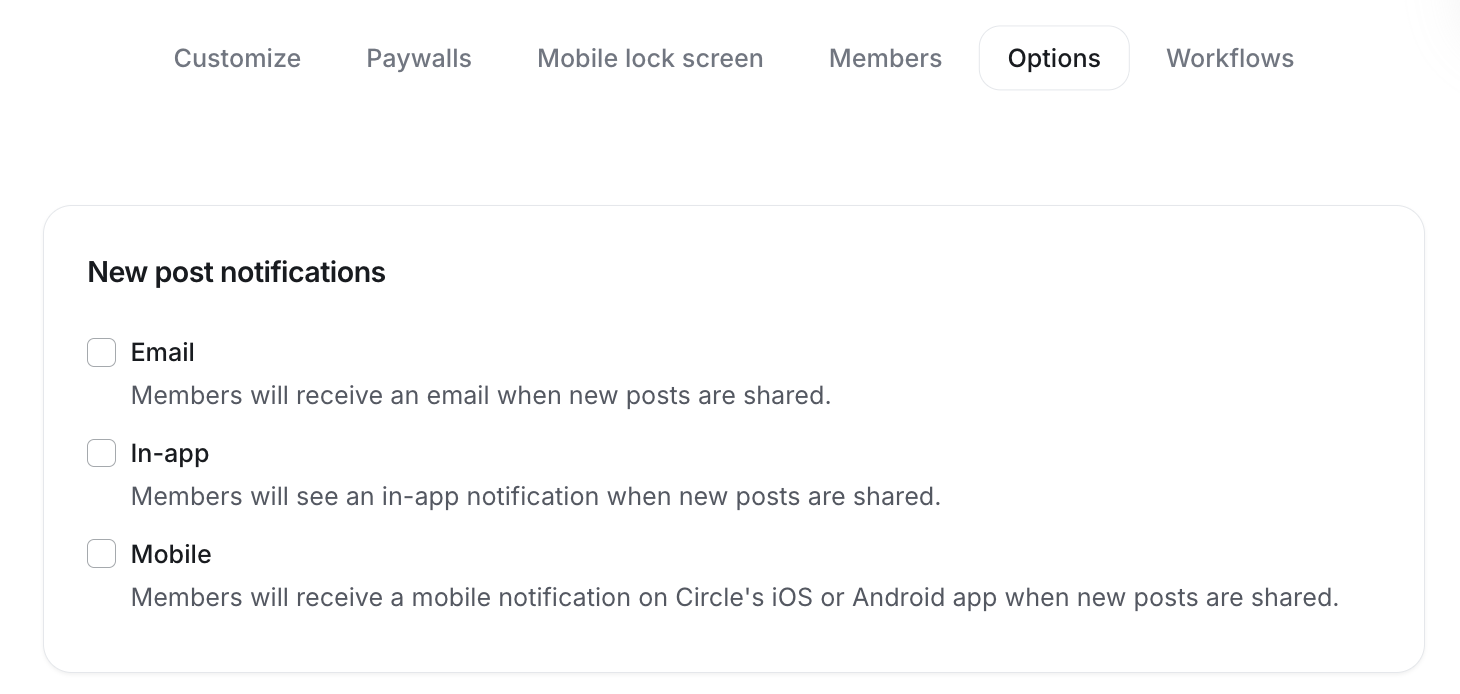
In the New post notifications section, select or clear the checkbox beside the notification type based on your preference.
Click Save changes. Next, you will be prompted with a dialog to confirm the change.
-
In the Edit notification settings dialog:
Select Yes, all members to apply the change to all your space members, including existing and new space members.
Select No, new members only to apply the change only to new members who will join the space after this change.
Manage notification preferences for chat space members
Click Community in the left sidebar, then select Spaces.
Hover over the chat space name and click More actions (three dots) and select Edit space.
Navigate to the Options tab.
-
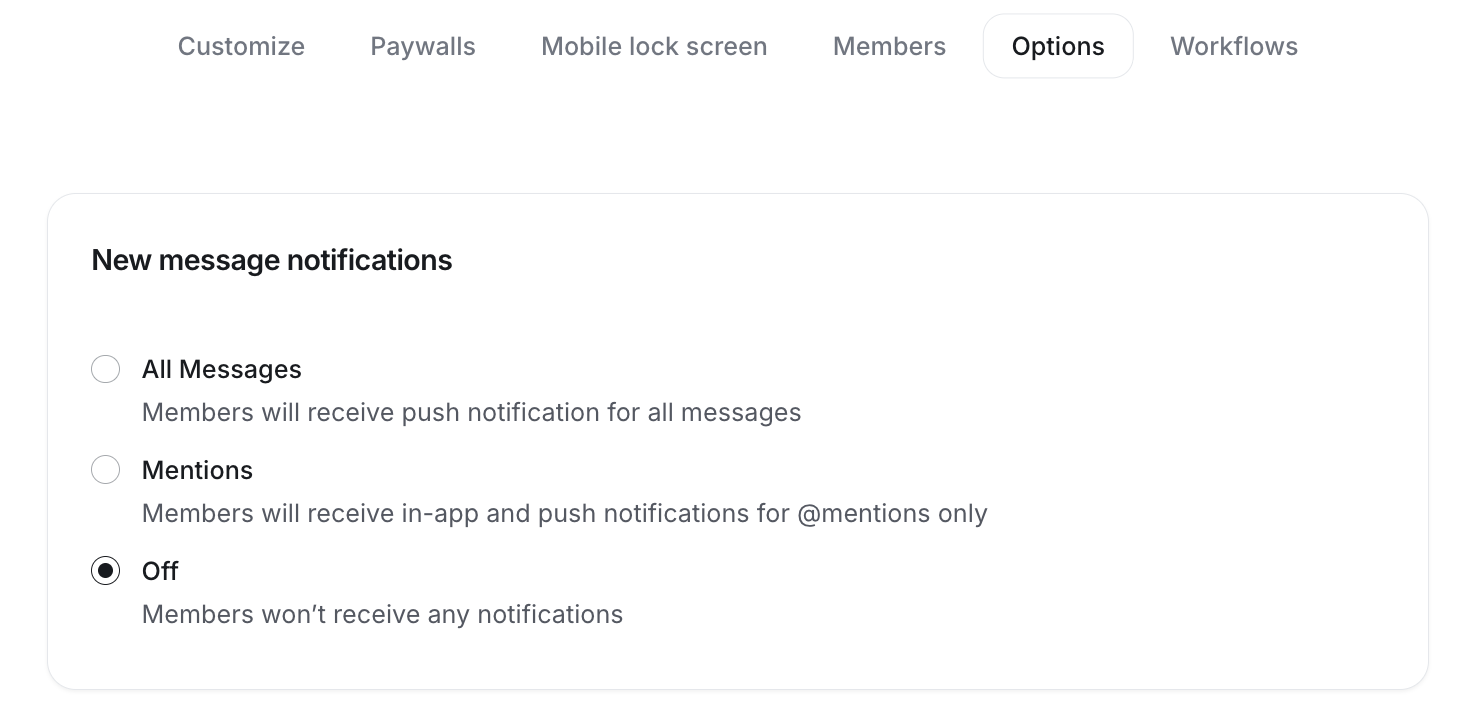
In the New message notifications, select the preferred option.
Click Save changes. A confirmation dialog will appear.
-
In the Edit notification settings dialog:
Select Yes, all members to apply the change to all your space members, including existing and new space members.
Select No, new members only to apply the change only to new members who will join the space after this change.