Apply and manage member tags
Last updated: November, 2026
Member tags can help you categorize and reward members within your community. Now that you've established member tags, let's explore various methods for applying these tags, utilizing them in automation, and effectively managing them.
Apply member tags
When creating or editing member tags, you can assign them to members. In addition, there are various ways to assign member tags in your community.
Community invite
Add tags to your new members when you invite them via individual invite, bulk invite, invitation link, or Circle API and automation tools like Zapier.
When using invitation methods, locate the Member tags field in the invitation form and select the tags from the list.
Member account update
Existing members can be assigned or removed from member tags directly by updating their individual member accounts.
To achieve this:
-
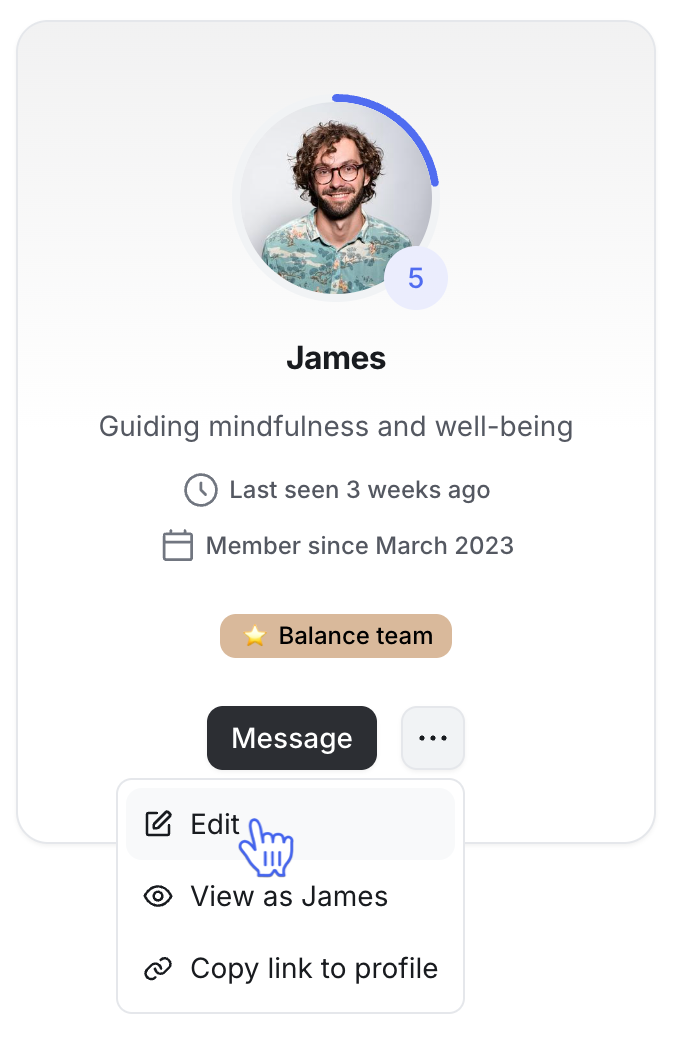
Search for the member's name or email, open their profile, click More actions (three dots), then select Edit.
On the Info tab, locate the Member tags field.
To add a tag, simply type the desired member tag and select it from the provided list.
To remove a tag, click ✖️ next to the specific tag.
After making the necessary changes, click Save.
Workflows
Use automation and bulk-action workflows to effortlessly manage member tags based on specific triggers and audience criteria in your community.
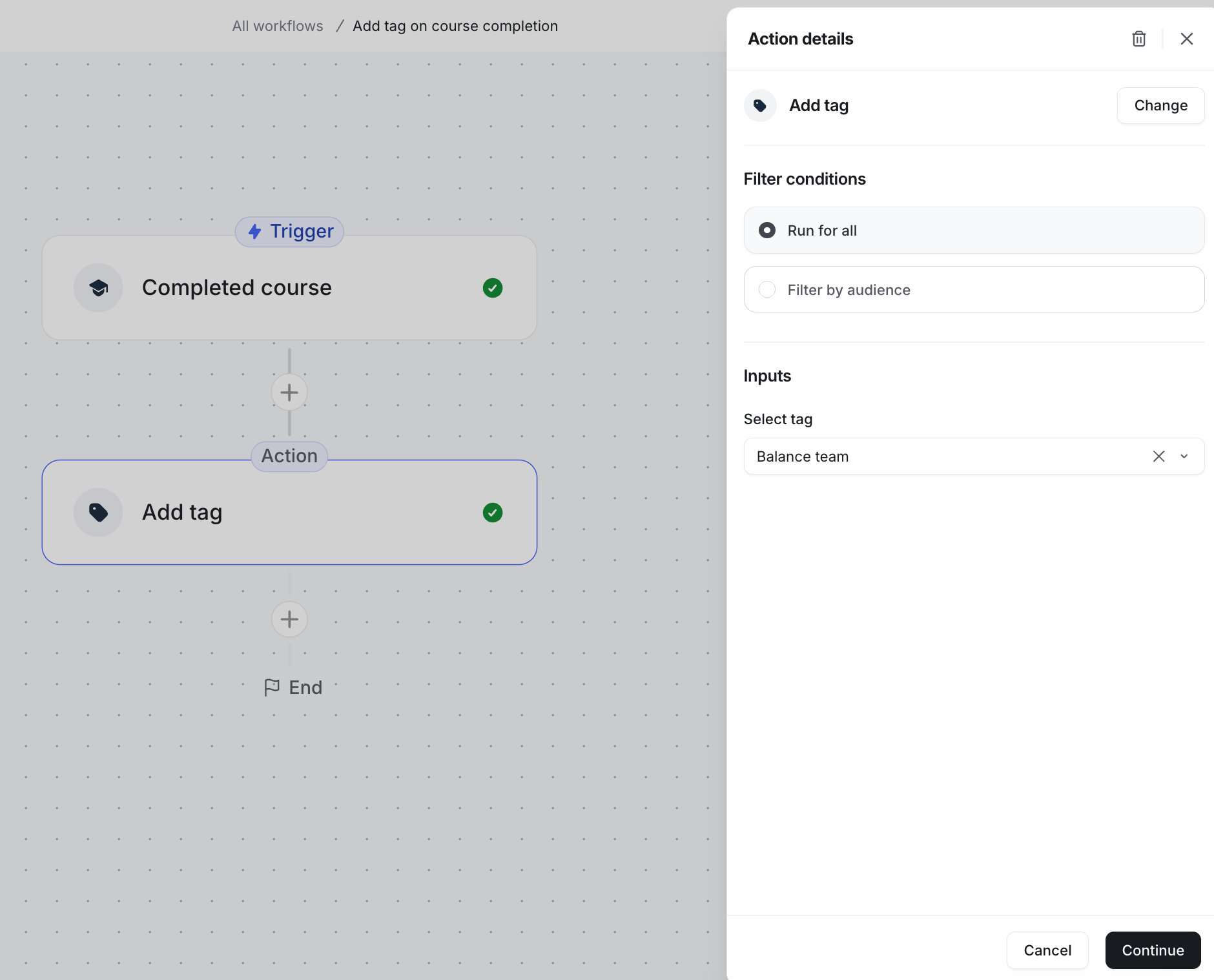
Automation workflow: Automate community actions by setting up workflows that execute tasks when tags are assigned or removed.
Bulk action workflow: Execute bulk actions instantly or schedule them based on audience filters that specify members with certain member tags.
Here are some ideas for using workflows:
Automatically add a member tag when a member joins the community.
Recognize and reward members by automatically applying a tag to members when they complete a course.
Streamline the onboarding process by assigning tags to members as they join specific spaces or space groups, thereby improving segmentation.
Tailor community experiences by adding or removing members from particular spaces or space groups based on whether the tag is assigned or removed. This can help you ensure relevant content and member engagement.
Assign a member tag when a member subscribes to a specific paywall, making it easier to recognize subscribers.
Foster direct communication by bulk sending personalized direct messages to members holding specific tags, facilitating targeted engagement and support.
Using bulk action workflows, RSVP members to an event based on their member tags.
-
Using bulk action workflows, create a paywall trial subscription for members with specific tags.
Automation
Automate tag assignment or removal actions through tools like Zapier and Integrately. Additionally, these platforms enable you to automate tag-related actions using Zapier.
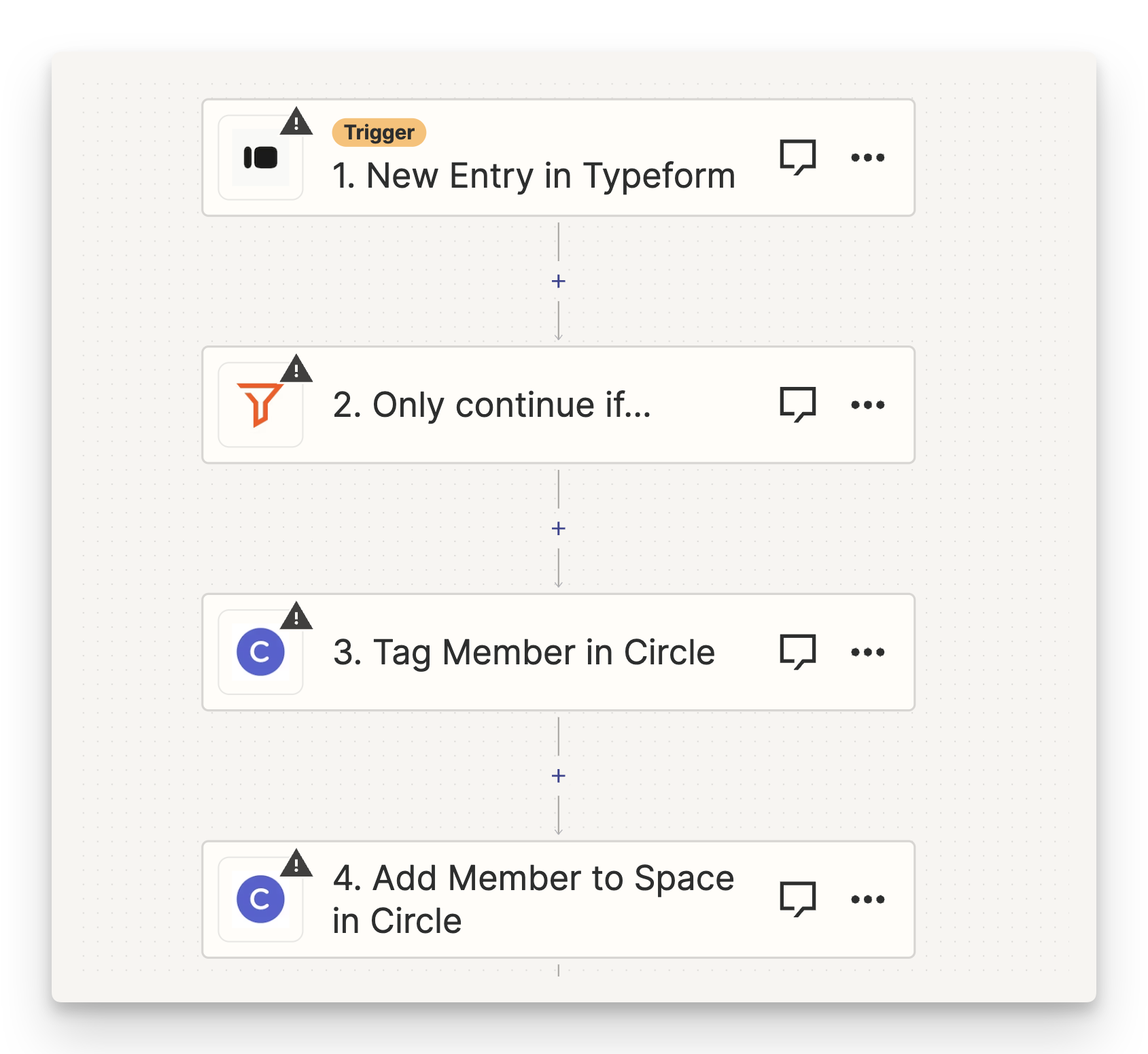
For instance, when a member submits an onboarding form via Typeform, you can automate a Zap to assign a specific member tag and add them to a space if their response in the Interest field matches both the tag and the space's content.
Here's a practical example:
Let's say a member fills out the form expressing interest in exploration. With Zapier, you can create an automated sequence that tags the member with an Explorer tag and subsequently adds them to the Mars Exploration space if their response in the interest field contains the keyword 'Exploration.'
Manage member tags
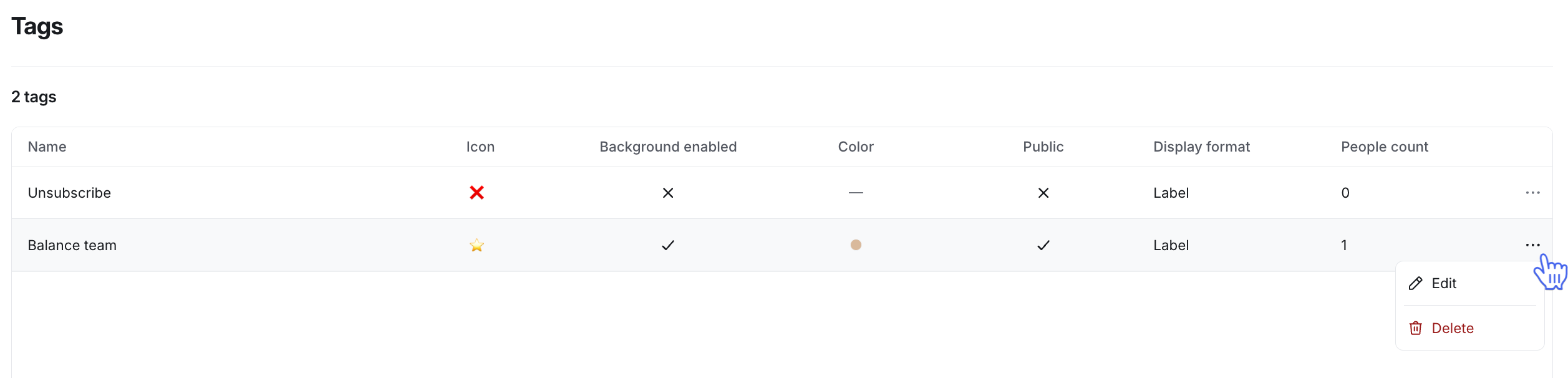
Within the member tags page, you gain a quick overview of all existing member tags, including their basic configurations and member count. You can search for tags and sort them on the member tags page. Use search to find a specific tag quickly, and use sort to organize your tags.
To modify or permanently delete a member tag, simply hover over the desired tag and click the More actions (three dots) icon.To modify or permanently delete a member tag:
Click Audience in the left sidebar, then select Tags.
Hover over the desired tag and click More actions (three dots) and select Edit / Delete.
ℹ️ Note: Please be aware that confirming the deletion of a member tag results in its permanent removal from your community. Once deleted, this action is irreversible, and the tag cannot be recovered.