Reward members with gamification points
Last updated: October, 2026
Custom points are a powerful way to boost engagement and inspire genuine participation within your community! By utilizing the dedicated action in workflows, you can tailor the points awarded based on the diverse ways your members contribute. This straightforward yet impactful approach keeps your community excited, motivated, and flourishing.
About custom gamification reward points
The Reward points action within workflows allows you to reward members with custom points based on their actions or achievements. This feature is available in all types of workflows, making it easy to create automated systems for rewarding points and set up bulk action workflows that reward points instantly or on a scheduled basis.
Members can view a detailed log of the points they’ve earned through workflows directly on their profile. This transparency helps them track their progress and understand how their participation and contributions to the community earned them points. As an admin, you can view members’ reward logs from their profile and revoke reward points if needed.
Automate point rewards
You can reward custom points using automation workflows based on various entry rule events. These triggers are based on specific activities performed by members or admins. By setting up workflows to automatically award points, you create a seamless, hands-off reward system.
There are many possibilities, allowing you to design an automated reward system that aligns with your community's goals and encourages active participation. Here are some practical examples:
Content creation: Reward members for publishing events or posts, starting new discussions or sharing valuable resources in various spaces.
Engagement activities: Award points when members comment on posts, like posts, RSVP to events, or attend live events.
Learning milestones: Assign points for completing lessons, passing quizzes, or completing courses.
Special recognitions: Reward points when members purchase paywall memberships or when specific tags are assigned to them.
Reward points in bulk
Bulk action workflows let you reward points at once based on specific audience rules, offering personalized recognition to individuals or groups. Depending on when you want to reward your members, you can either run the workflow instantly or schedule it for a later time.
These workflows are particularly helpful for recognizing the efforts of large groups. For example, if chat space members are actively engaging in meaningful discussions and supporting one another, you can reward them with points to show your appreciation. To do this, simply set up the Space audience rule, configure the Reward points action, and run a bulk action to award points to all members in that space.
You can also use bulk actions for more targeted rewards. For example, if a member co-hosted a live stream with you, you can reward them with custom points to acknowledge their contribution.
Availability
If your community plan includes Circle workflows, you can take full advantage of the Reward points action across all types of workflows. Please note that you’ll need to set up workflows via desktop or mobile web browser.
📚 To learn more about workflows and their availability, see our guide here.
Set up workflows to reward points
Click Workflows in the left sidebar, then select Workflows.
Create a new custom workflow. Depending on the type of workflow you are setting up, you can refer to our detailed guides on automation, bulk actions, and scheduled workflows.
In the workflow editor, set up your entry rule that will trigger the action. You can choose from any of the events or audience rules available for selection.
Create a new action by clicking the ➕ icon below the entry rule or action card.
In the Action card, click the Choose an action dropdown menu and select the Reward points action.
-
Enter the following details:
Points to reward: Enter the number of points you wish to reward members. You can award a maximum of 500 points. This allows you to scale rewards based on the level of achievement or contribution.
-
Reason: You can optionally provide a reason for awarding the points. This reason will appear on the Rewards tab in the member’s profile, helping them understand why they received the points.
When you are ready, click Continue and finish up your workflow setup.
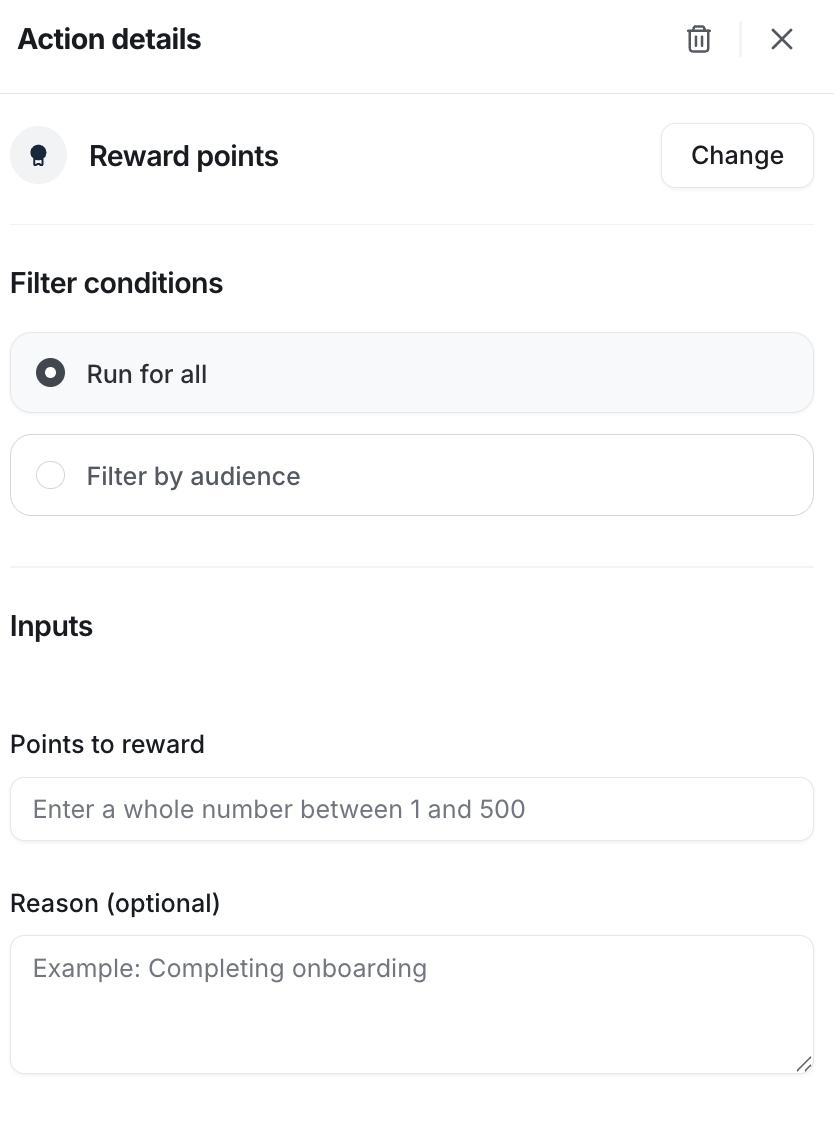
Whenever members receive points through this workflow action, they will see a new entry on the Rewards tab in their profile.
Manually reward custom points
You can recognize a member's contribution by awarding points directly to their profile, without needing to build or adjust an automated workflow.
To reward custom points to individual members:
Click Audience in the left sidebar, then select Audience.
Locate the member you’d like to reward and click their name to open the edit profile page.
Select the Gamification tab.
-
Click Reward points and update the following fields:
Points to reward: Enter the number of points you’d like to reward between 1 and 500.
-
Reason (optional): Enter a reason for the points you rewarded.
-
Click Reward.
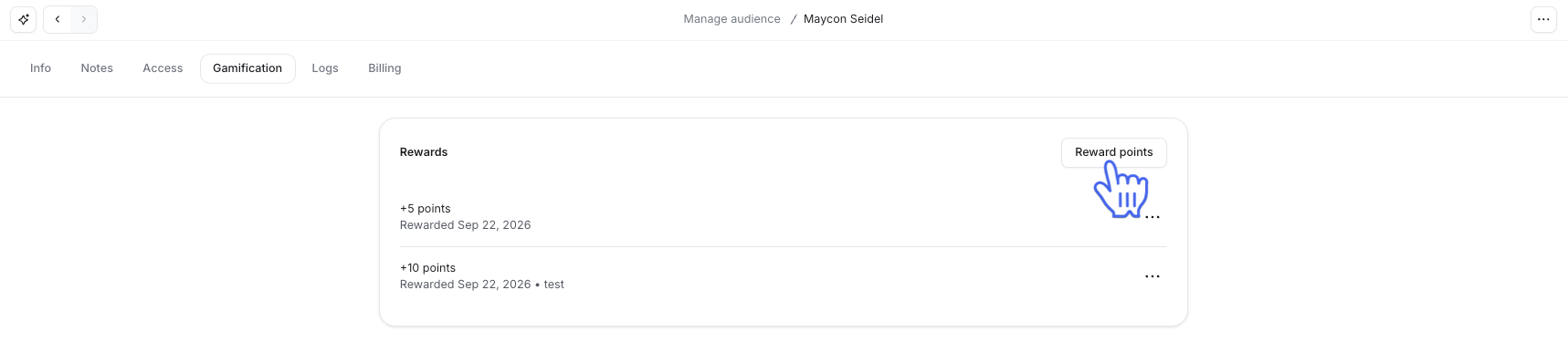
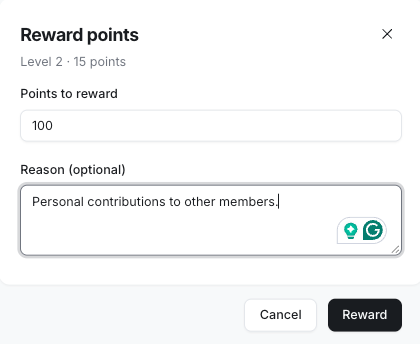
ℹ️ Note: If a reward levels a member up, any related workflows will be triggered.
Revoke custom points
You can revoke any manually awarded points from the Gamification tab on the edit profile page. Revoking points will also affect the member’s level and trigger any related workflows.
To revoke points:
-
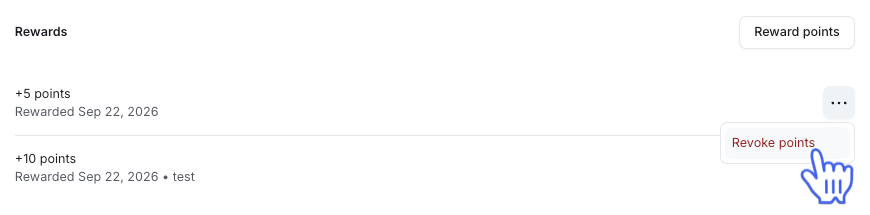
Click More actions (three dots) next to a reward entry.
Select Revoke points from the dropdown menu and click Revoke on the confirmation dialog.
Frequently asked questions
Do members get notifications when I reward them with points via workflows?
Yes, members will receive in-app notifications when you reward them with points through workflows. The notification includes the amount of points awarded and any reason provided.
Members can click the notification to navigate directly to the Rewards tab in their profile, where they can view a detailed rewards log.
💡 Tip: Members and admins can enable or disable reward notifications from their account's notification settings. In the New activity section within notification settings, they can manage this by selecting or deselecting the Gamification checkbox.
Can I revoke points for a member?
Yes, admins can revoke points awarded through workflows directly from a member’s profile. However, it’s important to note that you cannot revoke a custom amount of points. Points must be revoked in full.
📚 To learn more about how to revoke points, please refer to our detailed guide here.
What happens if a member moves up multiple levels?
Depending on the points awarded and the member’s current level, it’s possible for a large reward to push a member through multiple levels (e.g., from level 3 to level 5).
If you have set up automation workflows based on Member leveled up or Member leveled down events, the workflow action will trigger for each level the member passes through. This ensures that workflows are executed consistently as members advance or drop through levels.
For example, let’s say a member receives points through the workflow and achieves level 5 directly from level 3. The Member leveled up event will trigger for both levels 4 and 5.
Who can see the member's reward log?
By default, a member’s rewards log is visible to everyone in your community. However, admins can choose to hide these logs from other members.
To make members’ rewards log private, simply turn off the Make member rewards visible to other members toggle in the Gamification settings.
Can I turn off points for likes and only utilize reward points for gamification?
No, the points awarded to members for likes are system-generated and cannot be disabled. The reward points you provide through workflows are in addition to the existing gamification point system.