Understanding and managing your community’s storage
Last updated: April 6, 2026
This guide provides details on how storage works, what counts toward your limit, and how to manage it.
About community storage
Your community has a set amount of storage included with your plan. This storage is used whenever media is uploaded within any area of your community, whether by admins, moderators, or members.
Storage included with each plan
Each Circle plan includes a set amount of storage:
Professional: 200 GB
Business: 500 GB
Scale: 1TB
Plus: 1TB
Storage enforcement and overages
Starting November 15, 2025, storage limits included in your plan are actively enforced.
When your community reaches the storage limit on your plan:
Storage will automatically expand beyond your included limit.
Overage charges will apply for the additional space.
Admins will receive notifications about storage usage and automatic expansion.
What happens if you go over the limit
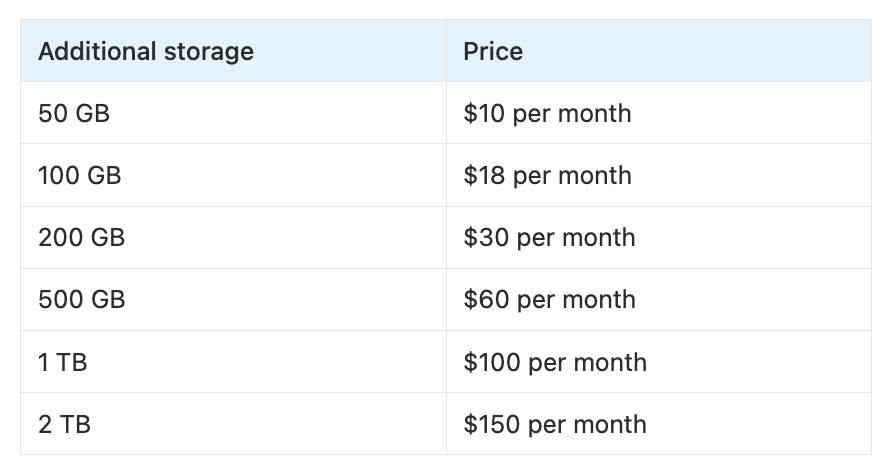
If your community uses more storage than what is included in your plan, Circle will automatically add extra space in 50 GB blocks, starting at $10/month.
This automatic expansion ensures your community keeps running smoothly without interruptions to content uploads.
Notifications
Admins receive alerts regarding community storage.
When storage reaches 80% of the storage limit, all admins receive an email alert.
Admins are also notified when storage reaches 100% of the limit, and overage (automated storage expansion) goes into effect.
Removing automatically applied storage add-ons
If your community exceeds the storage limit and an automated storage add-on is applied, you can free up space and contact our Support team to have the add-on removed. The add-on can’t be removed from the billing page.
For more information on freeing up space, please see the How to free up storage space section below.
What type of content counts towards your storage limit
Anytime you or your member uploads a file or piece of media to your community, it contributes to your community’s total storage.
📚 For a detailed breakdown of what counts toward your storage, what doesn’t, and some exceptions, see What counts towards your community storage.
Staying on top of storage usage
Admins can keep an eye on storage usage in the media manager (see Track your storage section below).
Once your community reaches around 70% of your limit, it’s a good idea to review your usage through the manager and plan ahead.
Here are some tips:
Adjust your content strategy: If you notice certain types of media take up a large share of space, consider whether you want to reduce content or optimize them, or get more storage.
Clean up unused files: Remove older or unnecessary uploads, such as media in posts, comments, or course content.
Plan for expansion: Decide whether to let automatic storage expansion occur when you exceed your limit, based on your needs.
Track your storage
As an admin, you can track how much storage the community is using and how close you are to the plan limit through the Media manager.
To access the media manager, click Community in the left sidebar and then select Media.
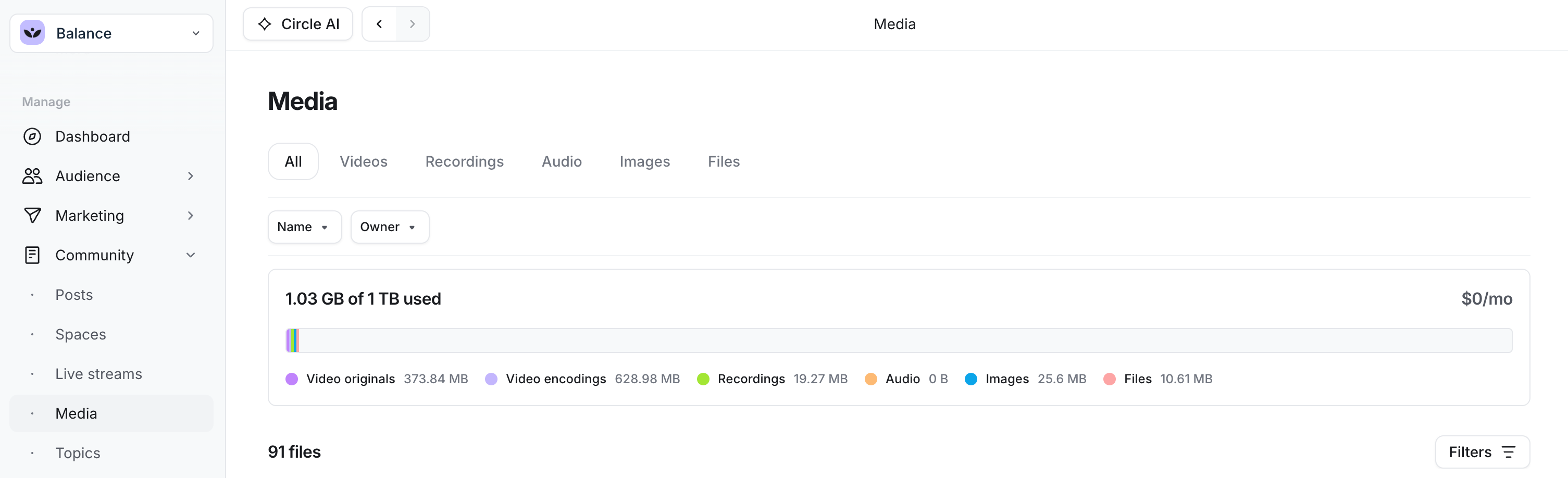
At the top of the manager, you can see:
Information on how much storage is used from the total storage included in your community plan.
A color-coded usage bar showing how much storage is used. Each color corresponds to a media category, allowing you to quickly identify which types of files are occupying the most space.
-
Just below the bar, storage is broken down into categories. Each category is paired with a colored dot and the amount of storage it’s taking up.
📚 To learn more about the media manager, see our guide here.
View file details
Below the storage summary, you’ll see a list of all media files in your community. You can review or manage any file by clicking its name.
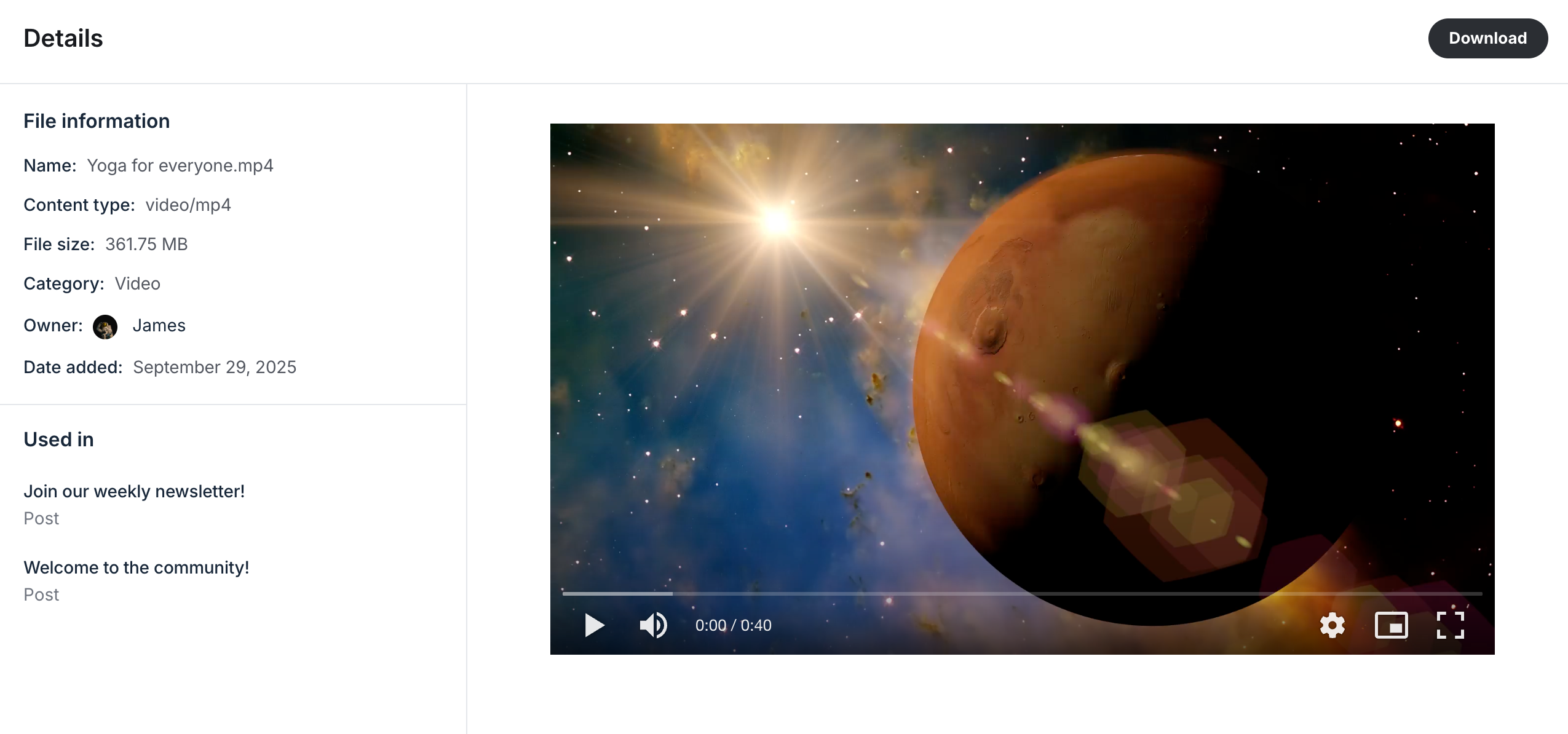
From the file details page, you can:
View information such as file size, owner, and the date when it was added.
Preview the file.
Manage video customizations (for uploaded videos and live recordings).
See where the file is used.
📚 To learn more, check out the See media details and previews section in our media manager guide.
How to free up storage space
If you need to free up storage space, you can delete uploaded media and live recordings directly from the media manager.
When you delete media, only the file itself is removed. The post, lesson, event, or other content where the file was uploaded will remain in place. It just won’t include that media anymore.
Tips and notes for removing media
-
Use sort and filter functionalities: In the media manager:
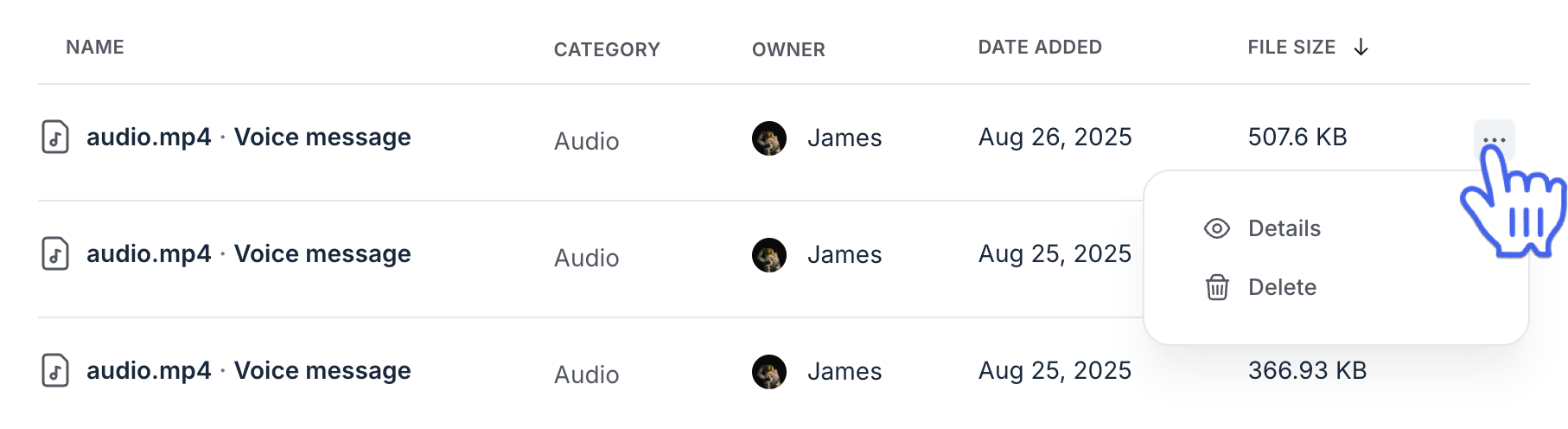
Sort media files by size (largest to smallest) to quickly identify which files occupy the most space. Sorting and filtering are available in every tab.
Use the owner filter to find media files uploaded by specific admins (helpful if one person uploads large videos).
Back up important files: Before deleting, download any media files you might want to keep for future use.
Delete unused spaces: If you no longer need an entire space, deleting it will also remove all uploaded media within it, freeing up the space.
Private media: Please note that you cannot remove media files shared in direct messages.
Steps to permanently delete media
Go to the media manager.
Navigate to the relevant tab (such as Videos or Files). Use sort or filter options if needed to find the file.
-
Hover over the file in the list, click the More actions (three dots icon), and select Delete.
-
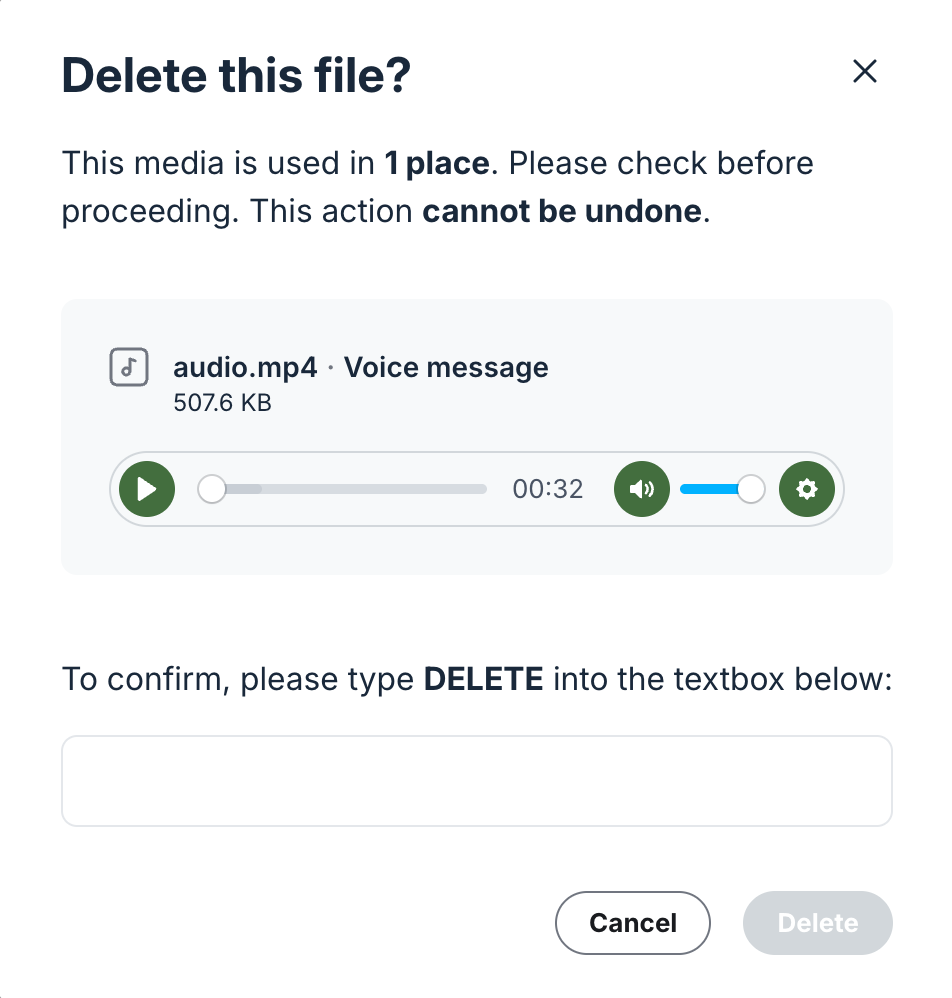
A dialog will open showing a preview of the media file and the number of places where it has been added.
-
ℹ️ Note: If you see a higher count, that means the same media file exists in duplicated content (for example, a post that has been duplicated). The file will be deleted from all those locations at once.
-
In the confirmation field, type the requested keyword exactly as shown, then click Delete.
ℹ️ Note: After deleting media, it may take a few minutes for your storage usage to update and reflect the freed-up space.