Manage custom profile fields
Last updated: September, 2026
Once you have set up a profile field, you can easily control its visibility, organization, and modification from the profile fields dashboard.
To manage your profile fields:
Click Audience in the left sidebar, then select Profile fields.
Click Manage in the top-right corner.
Manage profile fields interface
Profile field management page is divided into three main areas:
Top bar: To switch between page views
Sidebar: To manage profile fields
Preview pane: To preview changes in real-time
Switch between page views
In the top bar, you can switch between pages to manage the fields for each page. You can limit the visibility of your custom profile fields on these page views depending on the nature of the information and use case.
Sign up form
When members go through the sign-up process, they are prompted with the sign-up form to add their profile information. This is usually an ideal place to make all the non-internal fields visible to ensure the information collection at the beginning of a member’s journey.
Edit profile
This is a member-facing form accessible only to members when they navigate to edit their community profile. Enabling field visibility on this page allows members to update their responses.
View profile
The view profile page is visible to all the members of your community so that members can view each other’s profiles by clicking the member’s name or profile icon. This is an ideal place for profile fields that showcase information and member engagement.
Manage profile fields
The left sidebar on each page view displays all fields and lets you easily manage them for that page view.
Organize profile fields
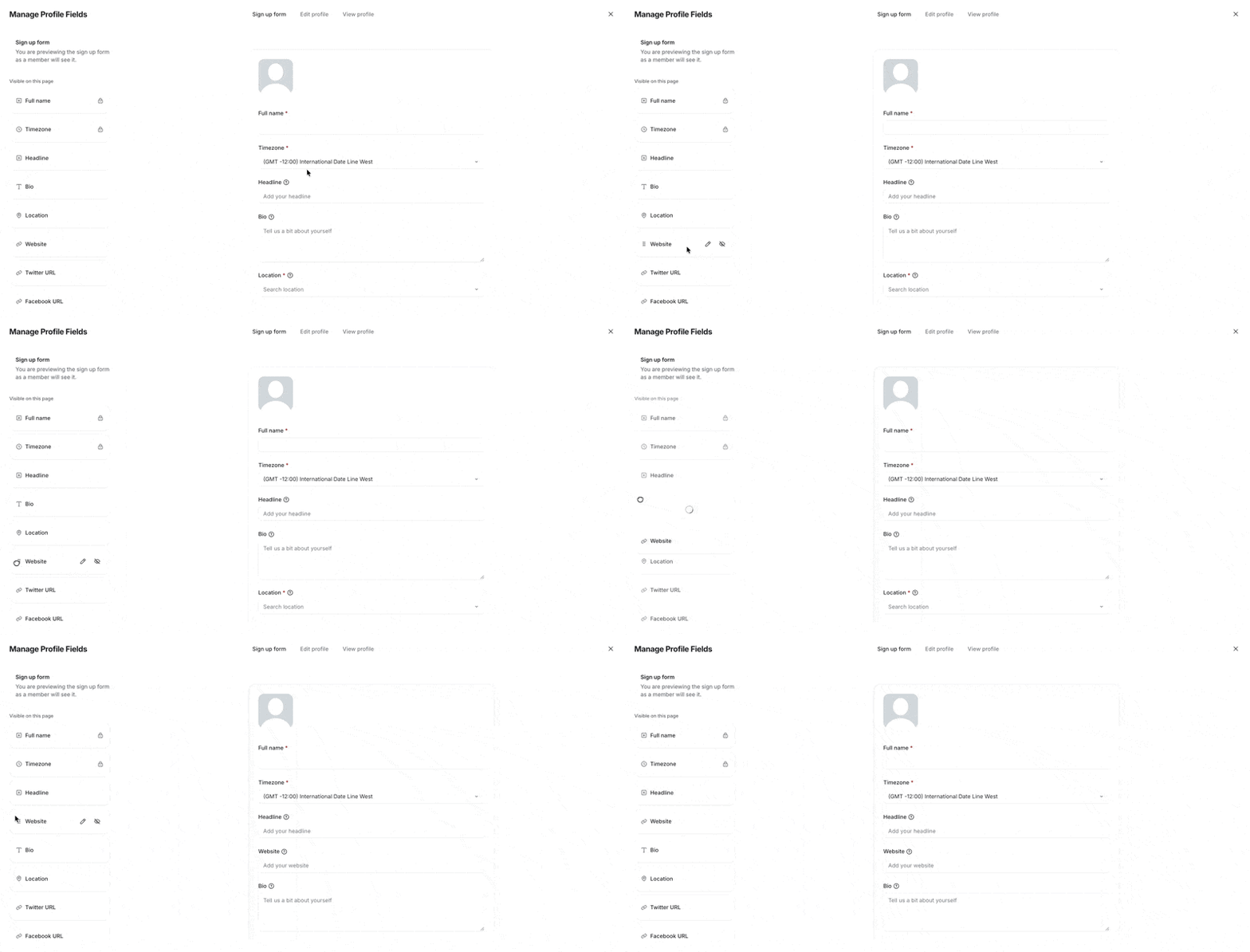
Simply drag and drop your profile fields to re-arrange their order.
❗Important: Please note that system fields marked with 🔒 icon are locked in place. You cannot re-arrange them or move any other field on top or between these locked fields.
Control field visibility
Hide field
You can choose to hide any of your custom fields to disable the field visibility for the specific page:
Navigate to Visible on this page section in the left sidebar.
Hover over the field and click Hide (👁️).
The hidden field will be moved to Hidden on this page section.
ℹ️ Note: System fields marked with 🔒 icon cannot be hidden.
Unhide field
You can unhide a field to enable the visibility for a specific page:
Navigate to Hidden on this page section in the left sidebar.
Hover over the field and click Hide (👁️).
The unhidden field will be moved to Visible on this page section.
Edit profile fields
To edit or archive your custom profile field:
Hover over the custom field and click Edit (✏️).
Make changes to your field.
Click Save Changes.
ℹ️ Note: Once the field is published, you cannot edit the field type.
💡 Tip: You have the option to Archive the profile field from the Edit field dialog. To learn more about archiving and deleting a profile field, see Archive or delete custom profile fields.
Preview your changes
You can preview the changes you are making to the field as a member in real-time in the preview pane on the right side of the manage profile field view!