Archive or delete custom profile fields
Last updated: September, 2026
If you no longer need a profile field, you can archive or delete it.
To get started, click Audience in the left sidebar, then select Profile fields.
Archive profile field
Navigate to the Active tab on the profile fields page.
Hover over the field and click More actions (three dots) beside the field entry to access options.
-
Click Archive and confirm archiving the field.
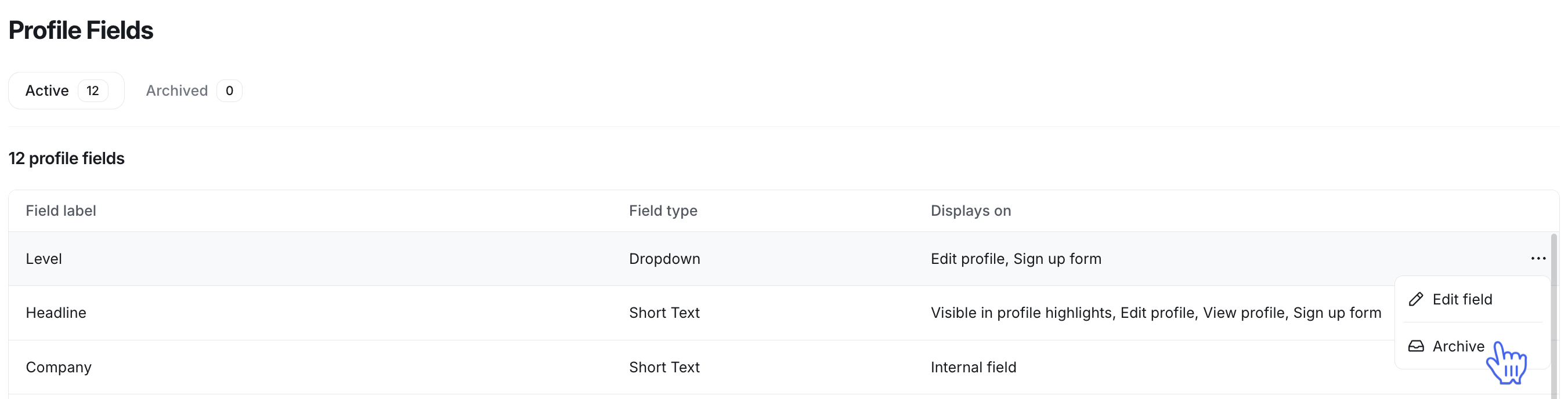
Once archived, the profile field will be moved to the Archived tab on the page.
Unarchive profile field
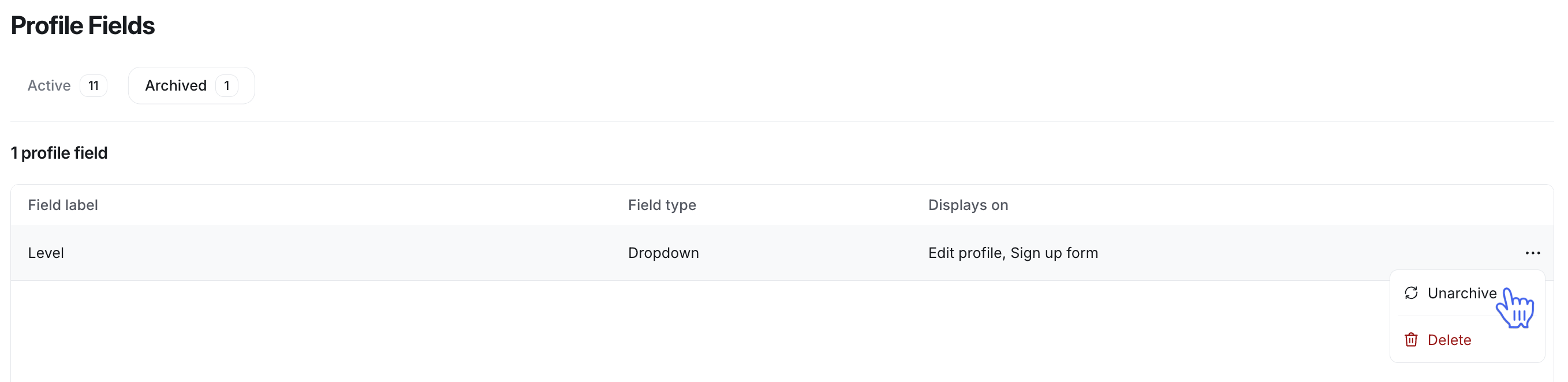
Navigate to the Archived tab on the profile fields page.
Hover over the field and click More actions (three dots) beside the field entry to access options.
-
Click Unarchive.
Delete profile field
Once the profile field is archived, you will also be able to permanently delete it.
ℹ️ Note: The following system fields can be archived, but won’t be deleted from the community:
Bio
Location
Website
Twitter, Facebook, LinkedIn, and Instagram URLs
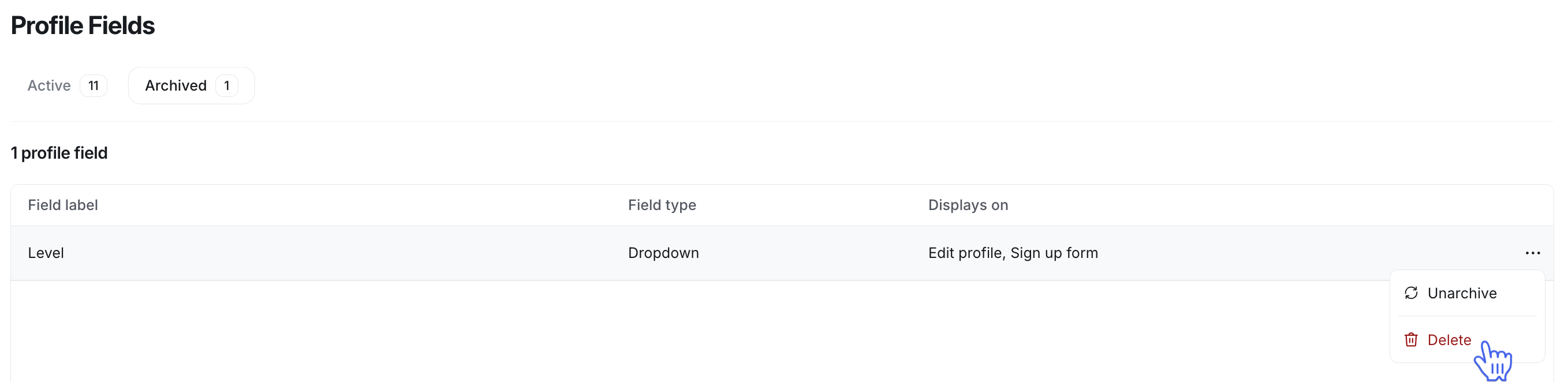
To delete an archived field:
Navigate to the Archived tab on the profile fields page.
Hover over the field and click More actions (three dots) beside the field entry to access options.
-
Click Delete and confirm the field deletion.