Canceling your community plan
Last updated: October, 2026
We recognize that things can change unexpectedly, requiring adjustments to your subscription.
In this article, we’ll walk you through canceling your paid plan or trial and explain how it affects your community and integrations.
Key things to consider before canceling your plan
If you have active paywalls and member subscriptions in your community, please consider the following before canceling your plan:
Canceling your community plan won’t automatically cancel your member’s paywall subscriptions.
You must cancel any active member subscriptions in your community and provide refunds, if any.
Your Stripe business for the paywall integration will remain active. However, we do not recommend using it for other purposes, as it will always remain connected and managed through the Circle integration.
If you would like, you can close your Stripe business once you have settled your member subscriptions and canceled the community plan.
📚 To learn more about how to cancel your member’s subscription and provide refunds, see the following articles:
Cancel a paid community plan
When you cancel a paid community plan, it will be set to cancel at the end of your current billing cycle, so your community will stay active and accessible until then.
To initiate the cancellation process:
Click the community name or logo (or the dropdown icon next to it) in the top-left corner and select Settings.
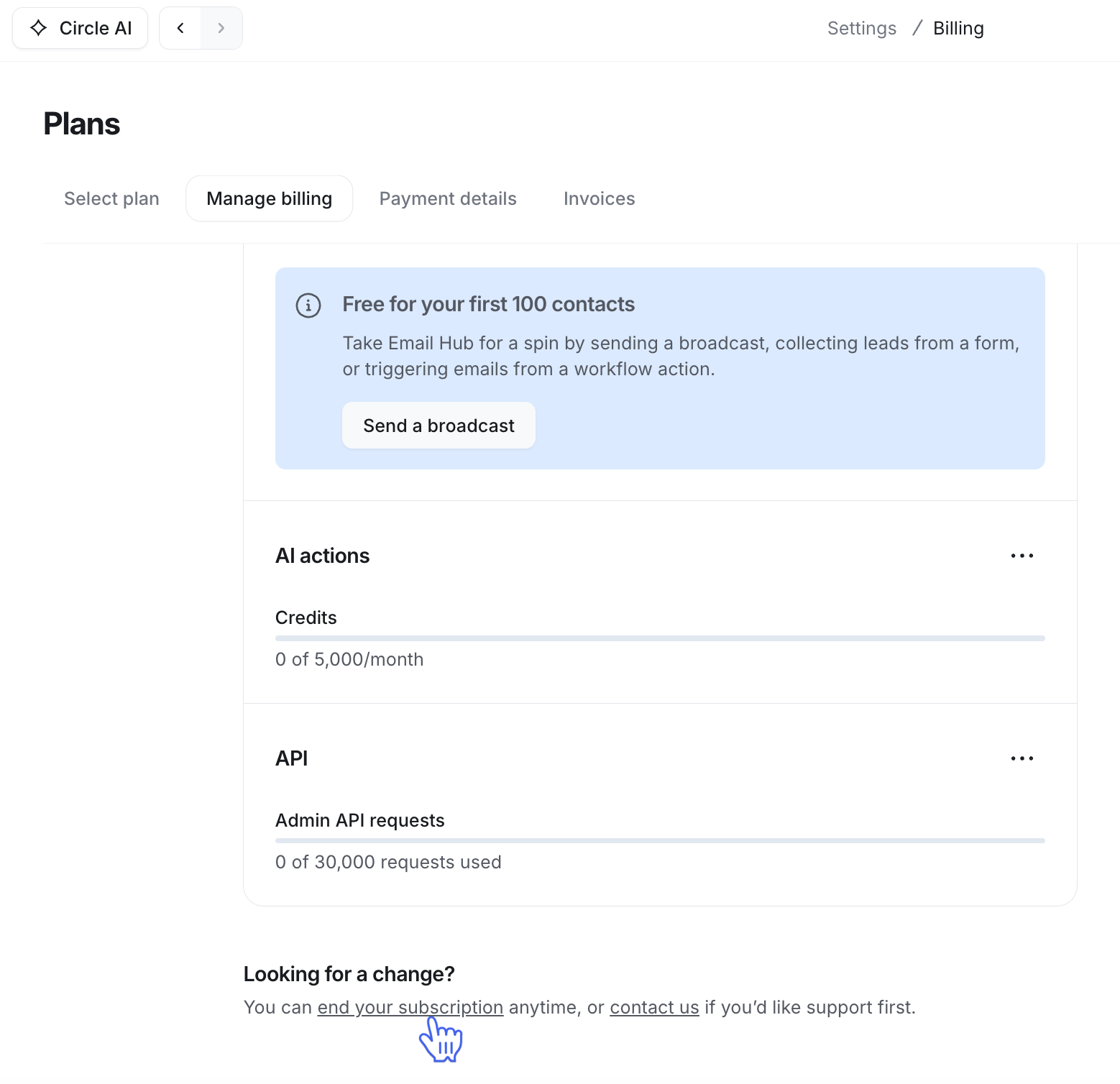
Under the Subscription section, select Plans.
Navigate to the Manage Billing tab.
-
Scroll to the bottom of the page and click the End your subscription link.
You will be redirected to the billing management page, where you can confirm your cancellation.
💡 Tip: If you would like to cancel your community plan and deactivate access immediately, please get in touch with our support team.
Cancel a community trial
When you start a free 14-day trial of Circle, we do not require a credit card upfront. If you decide that Circle isn’t the right fit for your needs, you can simply let the trial expire.
Once the trial expires, we typically remove all community data 90 days after expiry. If you’d like your data removed immediately, please contact our support team (see the "Your community data after the plan is canceled" section below).
❗️Important: If you connect a Stripe account and have any active subscriptions during your trial, please ensure that they are cancelled before the trial expires.
Your community data after the plan is canceled
Once your plan is canceled, we typically remove the community data after 90 days. Upon cancellation, admins can reach out to our support team to request a community data export that includes a CSV of:
Members (without member passwords)
Spaces
Posts (without images)
Comments
ℹ️ Note: It's not easy to re-import this data if you decide to renew your community, but it may be helpful if you need it for any other reason.
📚 For detailed information on data export, see Export your community data.