Configure automation workflows to send webhooks
Last updated: October, 2026
Webhooks are a great way to send information from Circle to your custom application. Using automation workflow, you can set up a webhook action to automatically send data from the triggered event within your community to a custom endpoint URL within your application.
Unlike traditional polling of API endpoints, webhooks are fired instantly when a workflow event occurs in your community, making them nearly real-time.
The Webhook action is only available to communities on the Scale and Circle Plus plans.
To set up a webhook action:
Create a new automation workflow and set up the entry rule event for the workflow.
-
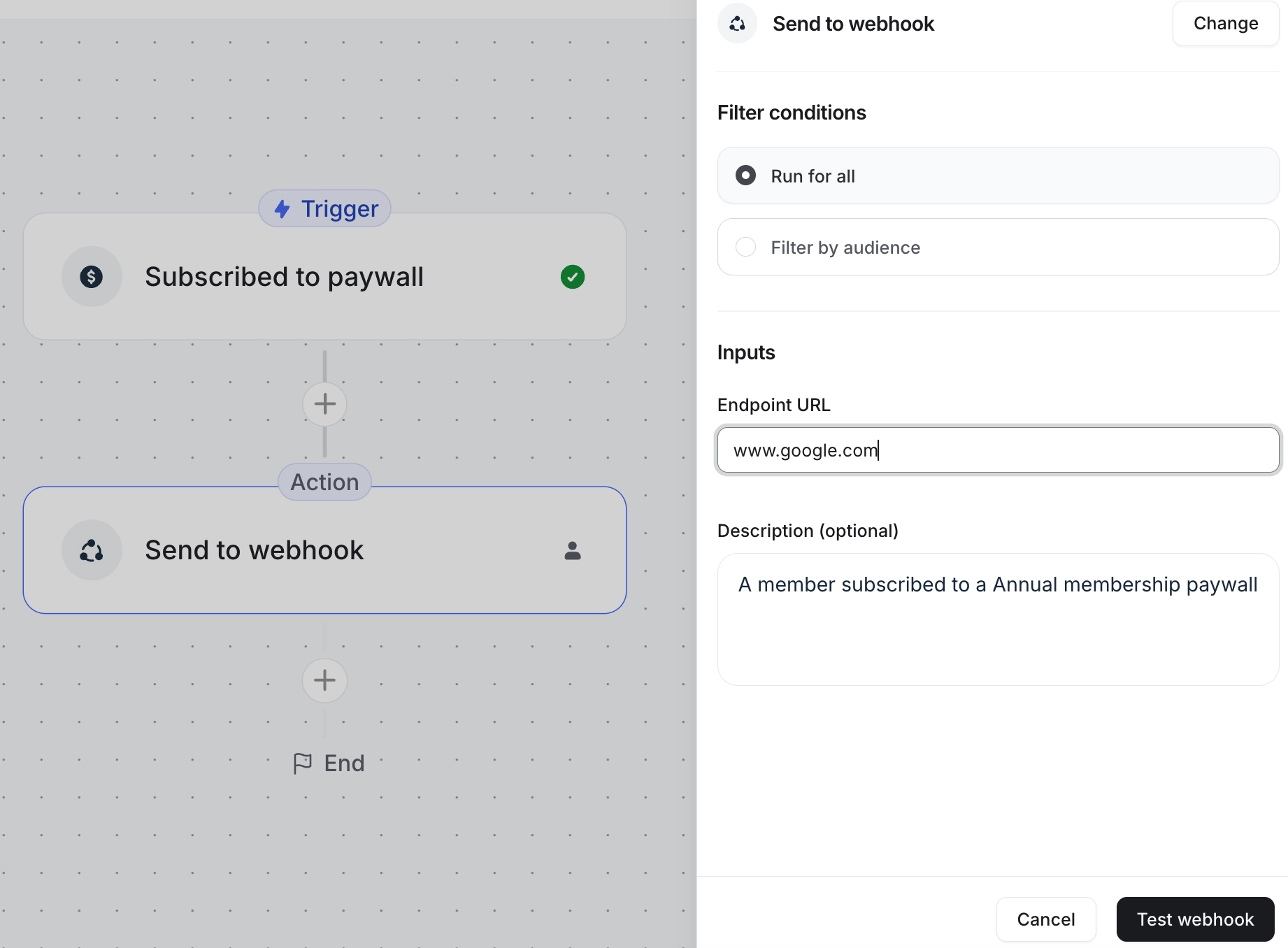
Go to the workflow action. In the Choose an action dropdown menu, select Send to webhook.
In the Endpoint URL field, enter the custom webhook endpoint to which you want to send event data.
(Optional) Provide a description of the purpose of this webhook endpoint.
-
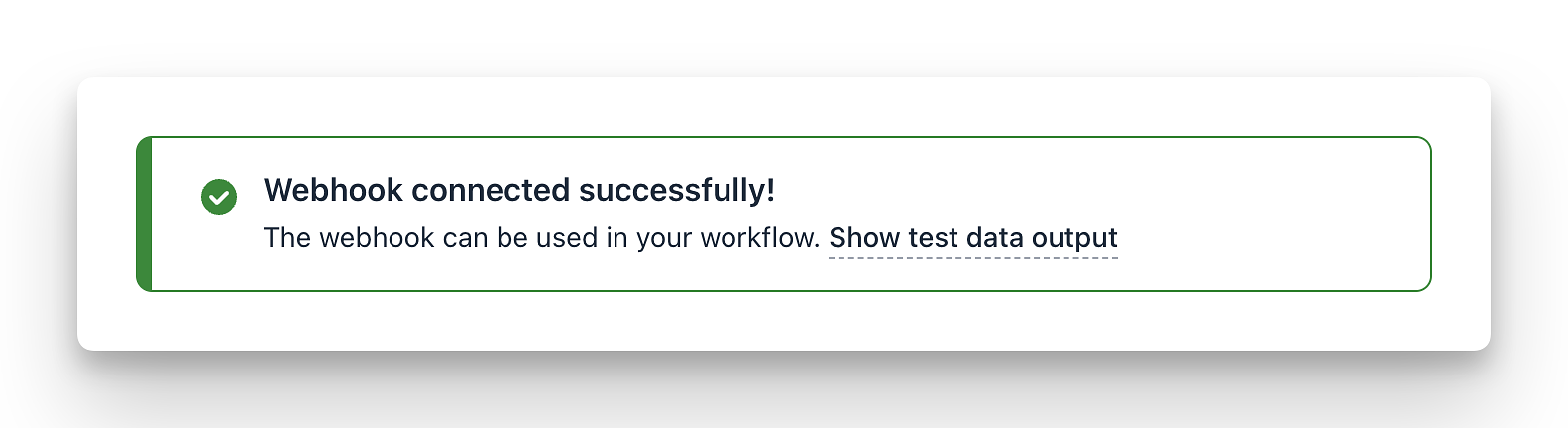
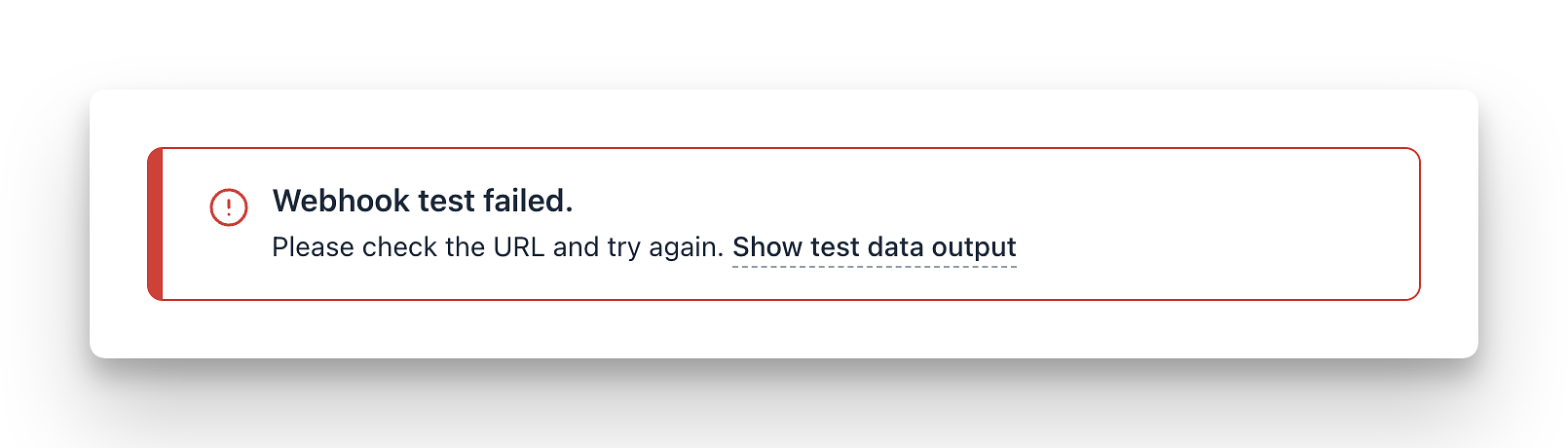
Click Test webhook. You will see a banner displaying the test result.
-
If the test is successful, click Show test data output to see sample data.
-
If the test fails, click Show test data output to see error information on the Response body tab. Once you have made changes, click Test again.
-
Once the webhook test is successful, click Continue and activate your workflow.
You're all set! To review the task history of this workflow, click History in the upper-right corner of the workflow overview page.
📚 To learn more about task history, see View task history of workflows.