Guide to embedding media in your community
Last updated: October, 2026
Enhancing your community with rich media has never been easier! Whether you want to share a podcast, video, audio clip, form, document, or more, you can embed content directly into various areas of your community from your favorite platforms.
Supported embed providers
With over 1,900 supported providers powered by Iframely, you can embed various types of media. Below is a brief overview of some popular examples:
Video platforms: YouTube, Vimeo, Dailymotion, Twitch.
Audio & podcasts: SoundCloud, Spotify, Bandcamp, Apple Podcasts.
Social media: Instagram, Twitter (X), Facebook, Pinterest.
Documents & presentations: Scribd, Google Docs, Dropbox, SlideShare.
Creative & visual: Flickr, Giphy, 500px, Behance.
Interactive tools: Google Maps, Typeform, Calendly, Google Calendar.
For a comprehensive list of supported providers, please visit iframely.com/domains. You can also use the search bar to see if your favorite provider is supported.
Community areas supporting embedded content
You can embed media in different parts of your community to make content more engaging and interactive, including:
Posts: Add videos, forms, or other embeds directly inside community posts to spark conversation and provide extra context.
Events: Include embeds in event descriptions to make them more dynamic. For example, adding a promo video or a form.
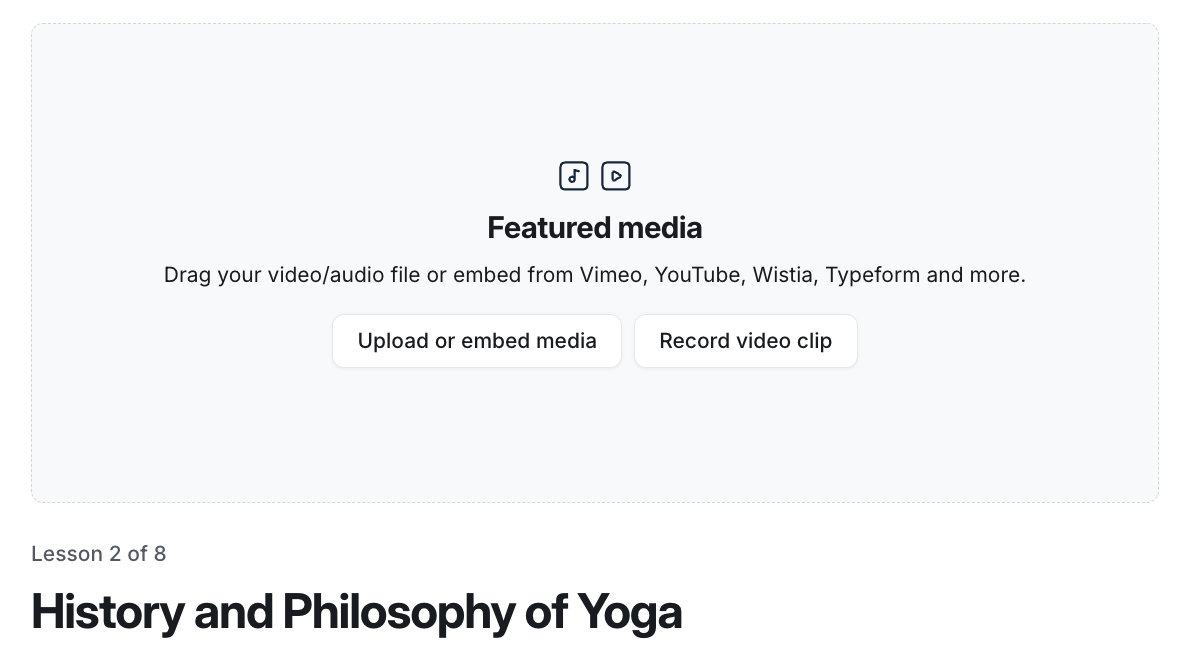
Lessons: Use embeds in a lesson’s featured media section or main content to share supporting resources and create richer learning experiences.
Mobile lock screens: Place embedded media in the description block of lock screens to catch attention and highlight key information.
Pages: Add embeds to the custom pages you build with the website builder for more flexibility in showcasing interactive content.
💡 Tip: Beyond these areas, you can also embed images using an embed URL in various places, such as space covers, onboarding pop-up images, event covers, and images in marketing emails!
Embed’s privacy considerations and mobile display
Before you start embedding media, understanding how privacy settings and mobile app behavior affect your content ensures a seamless experience for your community.
Reviewing privacy settings for embedded media
Many media platforms offer privacy settings that control whether media can be embedded on websites or where it can be embedded. These settings may prevent your media, like videos or documents, from appearing in your community. To ensure your embeds display correctly in your community, you’ll need to adjust the privacy settings on the hosting platform, which can vary by platform.
Private videos
If your embedded media isn’t showing up in your community, it could be due to restrictive privacy settings. When content is restricted, it won’t display as expected unless the right permissions are in place.
For example, Vimeo offers various privacy options for videos hosted on its platform. If your video is made private on Vimeo, it won’t appear in your community when you embed it. To fix this, you need to adjust the video’s privacy settings to allow embedding (e.g., set it to “Public” or “Hidden from Vimeo”). You may also need to check the domain restriction settings (see below).
Domain restrictions
Some platforms let you limit embedding to specific websites or domains. If you’ve enabled this feature or setting, you must add your community’s domains to the allowed list for the embed to work. Here are the domains you can add to the list:
circle.so
[YOUR_COMMUNITY_SLUG].circle.so (e.g., community.circle.so)
Your community’s custom domain, if you’ve set one up
The domain restriction settings/options may differ by platform, but here are a couple of examples to guide you:
On Vimeo, if your video is set to be hidden from Vimeo and embeds are restricted to “Specific domains,” you will need to add the recommended domains in the privacy settings.
On Wistia, if you’ve enabled domain restrictions, include the above domains in your account settings.
Understanding how embeds appear on mobile apps
On iOS and Android mobile apps, your embedded content will appear inline. However, there are a couple of things to know:
Circle community’s iOS app: If Iframely doesn’t provide a size for the embed, it will show as a link preview instead. This allows members to tap on the preview to open the embedded URL through a browser.
Circle community’s Android and branded apps (iOS and Android): If Iframely doesn’t provide a size for the embed, the app will automatically adjust the embed’s size for display.
To make sure your embeds look great on mobile, we suggest testing them in the app after adding them to your community.
Embedding media in your community
Using the Embed option, you can add media to any supported area. All you need is the URL of the content you want to embed, which is typically the “share” link from the platform hosting your media.
❗Important: Inserting an embed code directly into the embed URL field won’t work. If you want to use custom HTML code to embed media, you can do this in posts. For more information, see Embed custom HTML code within posts.
To embed media within posts, events, lock screens, or the body of the lesson:
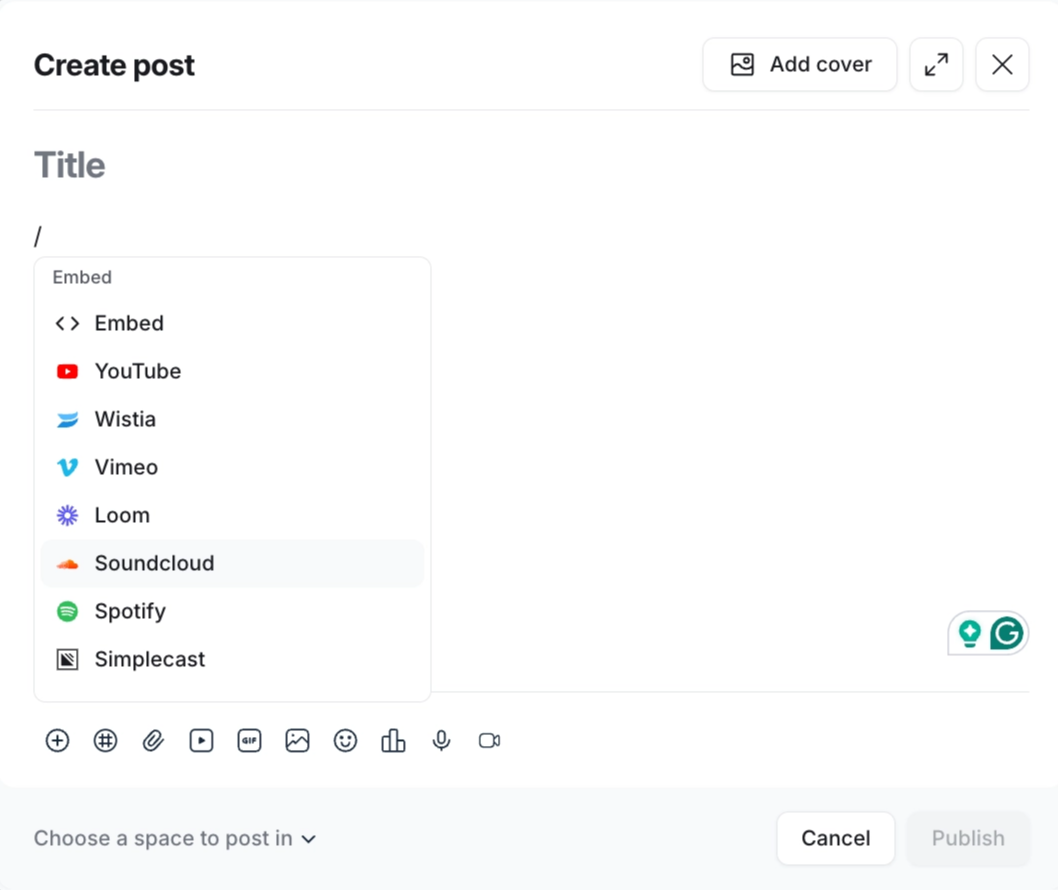
In the text editor, type the forward-slash (/) command where you want to embed media.
-
From the menu, select one of the providers from the embed section or select Embed.
-
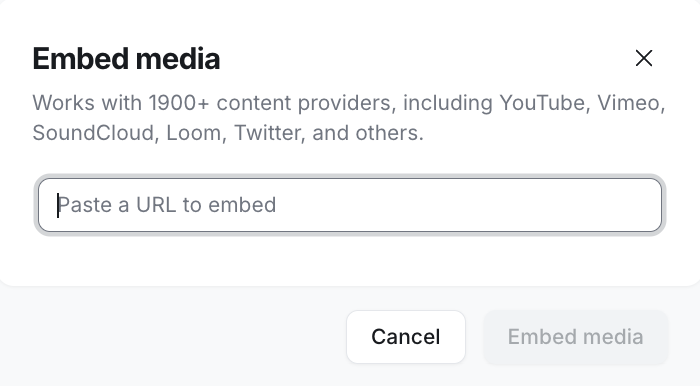
Enter the embed URL.
To embed featured media in course lessons:
When editing a lesson, click Upload or embed media in the featured media section.
-
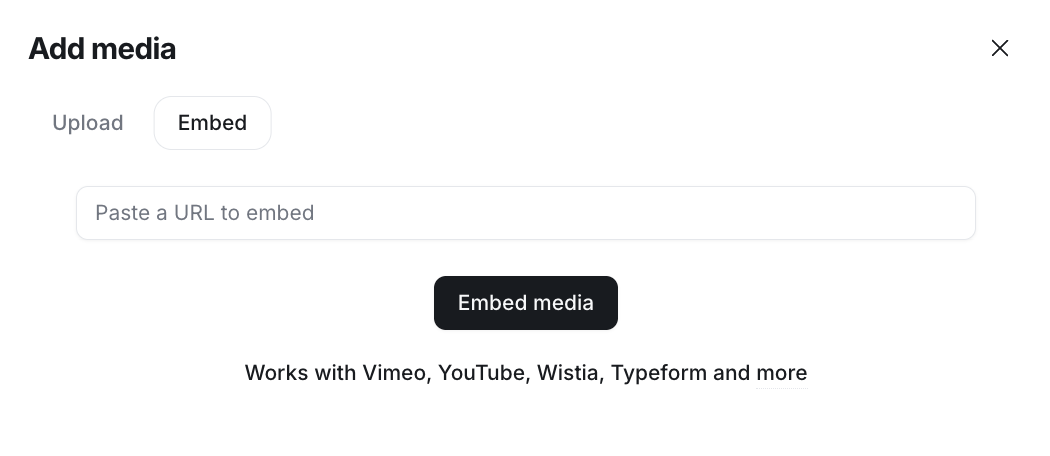
Navigate to the Embed tab and enter the embed URL.