Hide members count in spaces and space groups
Last updated: September, 2026
When you create a new space or space group, the member count button appears by default, displaying profile thumbnails and the member count.
You can choose to hide the members count from the following areas:
Space group: When members navigate to see all spaces inside the space group, the members count badge appears in the space group header.
Space: When members navigate to a specific space, the members count badge appears in the space header.
❗Important: As an admin, you can still access the space or space group members list by navigating to space or space group settings.If you have set your community's member directory to public, members can still access the members list for the specific space using space filters in the Members tab located in the left sidebar.📚 To learn more about the member directory, see Get to know the member directory.
ℹ️ Note: The hiding member count option is only supported by desktop and mobile browsers at the moment.
To hide members count in a space group
Click the community name or logo (or the dropdown icon next to it) in the top-left corner and select Back to community.
Hover over the space group in the left sidebar.
Click More actions (three dots) and select the Edit space group.
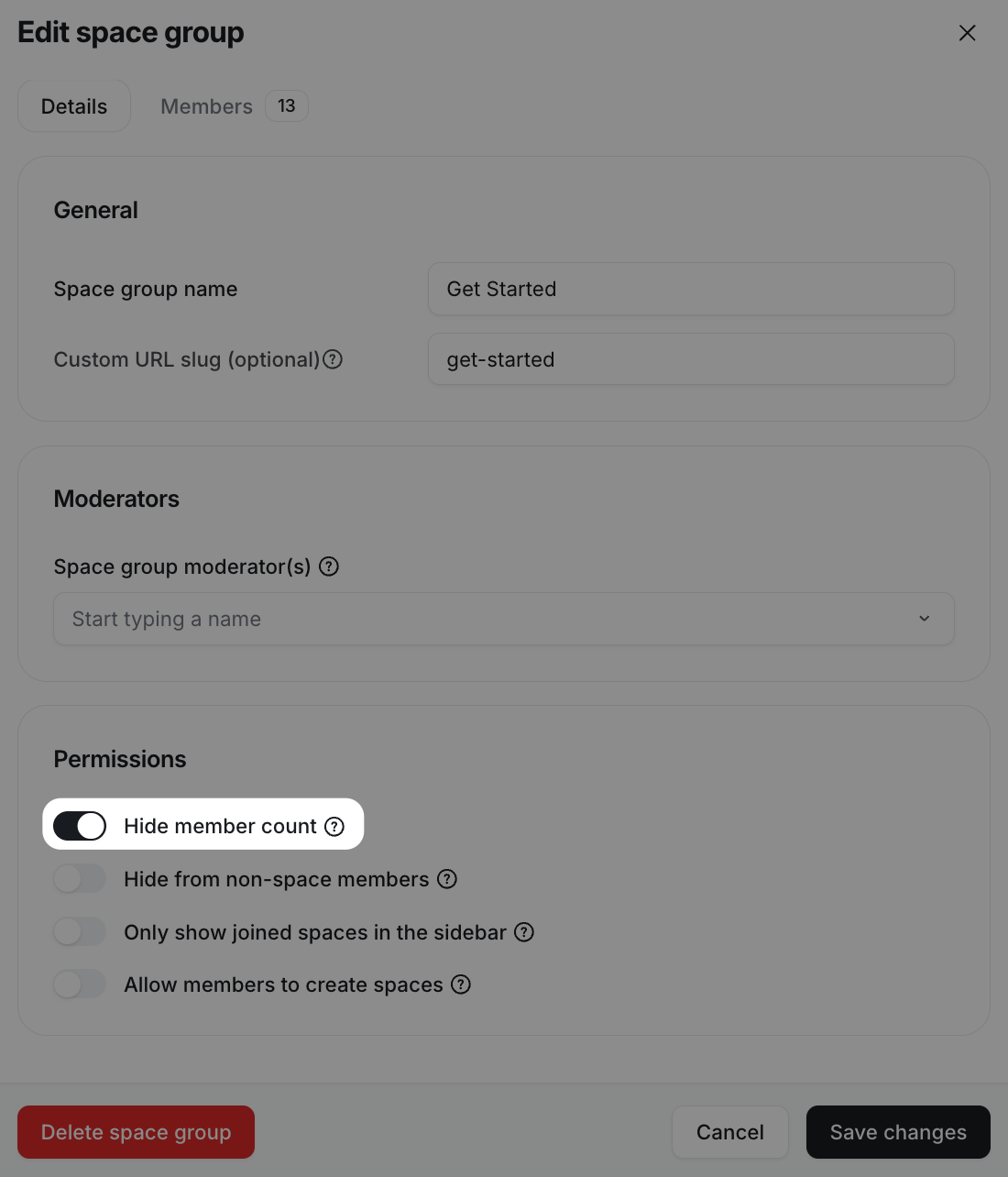
Turn on the Hide members count toggle.
Click Save changes.
To hide members count in a space
Click Community in the left sidebar, then select Spaces.
Hover over the space name and click More actions (three dots) and select Edit space.
Navigate to the Options tab.
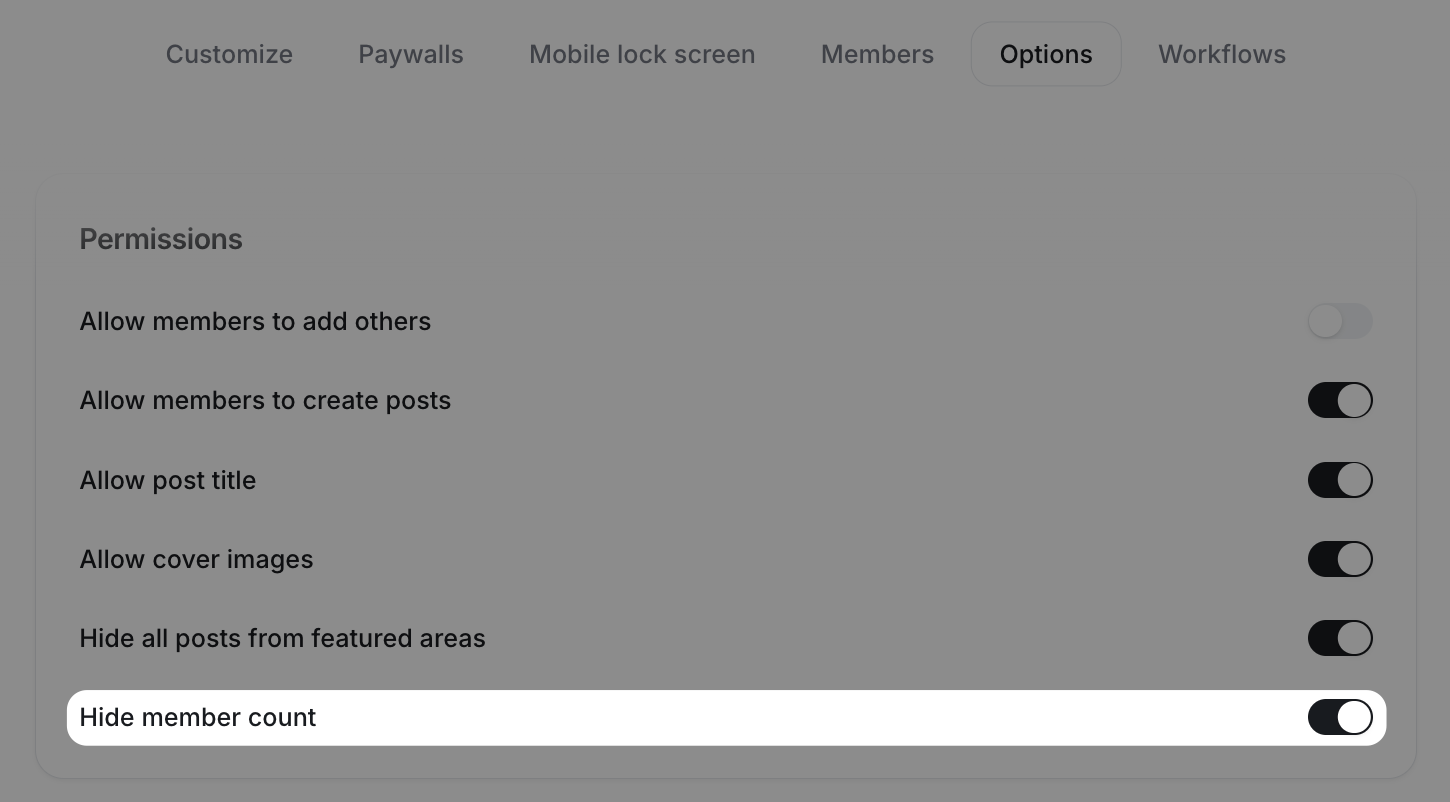
Under Permissions, turn on the Hide members count toggle.
Click Save changes.