Preview your community as a member
Last updated: October, 2026
Have you ever wondered what your community looks like for your members? As an admin, gaining insights into their experience can help you better understand and optimize their community journey. In this article, we will guide you through the steps to view your community as a member.
Get familiar with the “view as” feature
Masquerading allows you, as an admin, to view and navigate your community precisely as a chosen member would without invading their privacy.
You can use the “view as” feature to preview the following:
Community member: View your community as a specific member would. This helps you verify that members see the correct content and have the appropriate access to spaces.
Access group: Preview the community as a new member who gains access through a specific access group. This helps confirm that new members see only the content or spaces they’re entitled to via an access group. For more information, see Preview an access group as a member.
Paywall: Experience the community as a new member who has purchased access through a paywall. This helps verify that paying members receive the correct access through a paywall. For more information, see Preview your community’s paywall access.
Invite link: Preview the community as a new member who joins via an invite link. Similar to access groups and paywalls, this helps confirm that the invite links grant access to spaces as you intended. For more details, see Preview your community’s invite link access.
Key things to know about the “view as” feature
This feature is exclusive to admins, allowing them to view the community as community members.
You can preview any member's account, regardless of role, including active and invited members, moderators, and other community admins.
While using this feature, you're granted view-only permission to emulate the member experience. This helps prevent any actions and safeguards their account privacy.
You can navigate the community sidebar and access spaces just as a member would.
While viewing the community as a member, sensitive member data such as notifications, messages, threads, bookmarks, and their member profile located in the community header will remain inaccessible to preserve their privacy.
Benefits of the “view as” feature
Curious about how this feature can benefit you? Let’s take a look at some use cases:
Gain insight into different member access without needing multiple test accounts.
Validate your community's sidebar visibility by viewing as a member. This will help you view your visibility configurations for this member as they would see them.
Easily confirm what spaces are accessible to a specific member through this feature.
Explore how space content and various elements appear for the member within the space based on your configurations. For instance, you can navigate to the post space and see how the right sidebar, space header, cover image, bookmarks bar with links and folders, and posts appear for the member.
For communities with tiered memberships, use this feature to view as different tiered members, ensuring they receive appropriate access based on their tier.
View the community as a member
There are multiple ways to initiate the “view as” feature in your community:
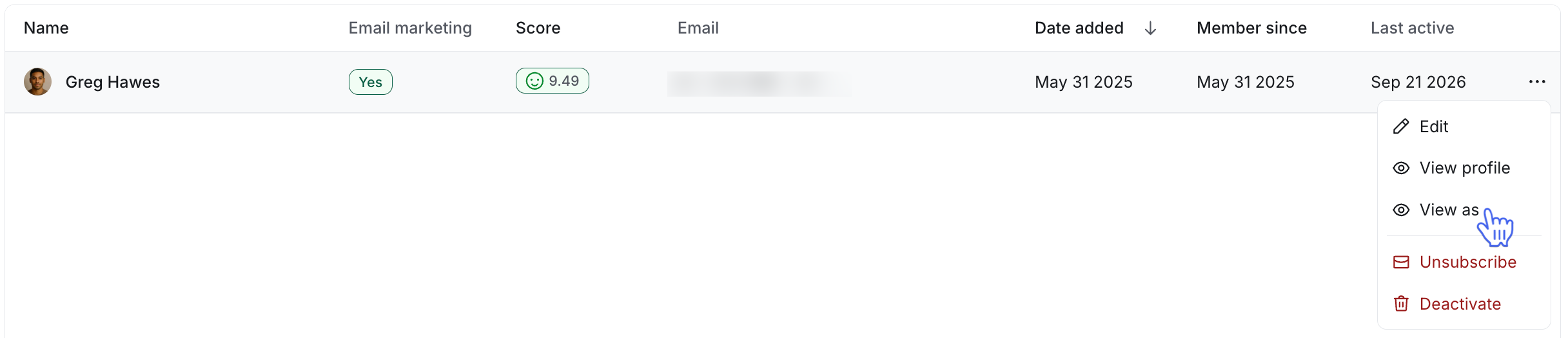
Manage audience
Click Audience in the left sidebar, then select Audience.
On the Manage audience page, locate the member.
-
Hover over the member, click More actions (three dots), and select View as.
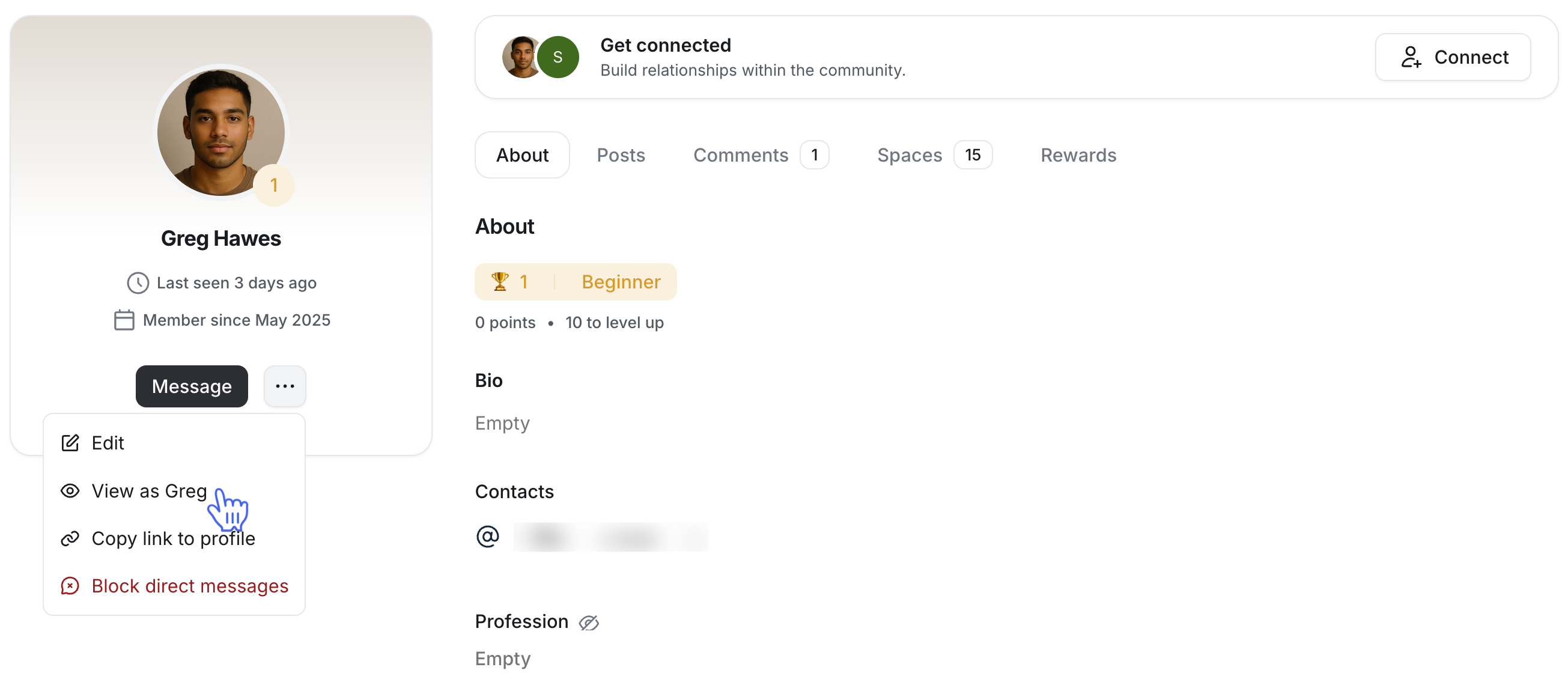
Member profile:
Click the community name or logo (or the dropdown icon next to it) in the top-left corner and select Back to community.
Type the member's name or email into the search bar, then select their name from the search results to open their profile.
-
On their member profile, click More actions (three dots) below member details and select View as.
Community dropdown menu
Click the community name or logo (or the dropdown icon next to it) in the top-left corner and select View as.
-
In the masquerade control bar, type the member's name in the search field, then select it from the search results.
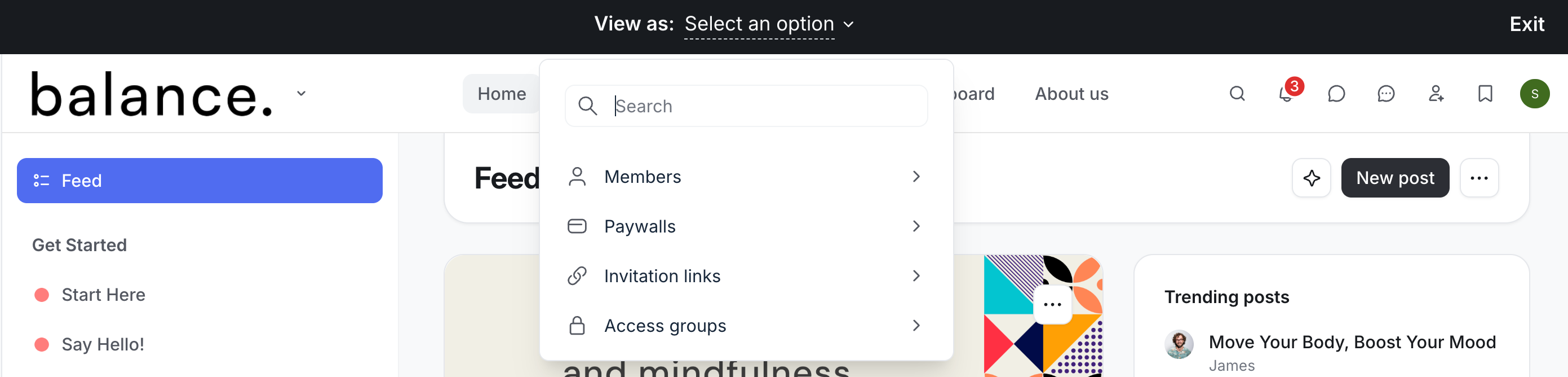
Once you activate the “view as” mode, you'll experience the community exactly as the member would when they are logged into their account. You can seamlessly navigate through different spaces using the community sidebar.
The masquerade control bar, located at the top of the community header, provides information about whose view you're emulating. To switch to another member's perspective, preview paywall, or invite links, click the current member’s name in the masquerade control bar. Then, choose your desired option by utilizing the search field or selecting the category from the dropdown menu.
When you're ready to return to your original view, click Exit at the right end of the masquerade control bar.