Preview your community’s invitation link access
Last updated: February 21, 2024
With our “view as” feature, you can get a sneak peek of the access that members will receive with an invitation link.
Get to know the “view as” feature for invitation links
The “view as” feature allows you to view and navigate your community exactly as a new member would when they sign up via an invitation link. This helps you confirm the space access that you have configured for the invitation link and how all spaces appear to members in the sidebar.
Here are key things:
This feature is exclusive to admins. You can also utilize this feature to preview the paywall access and view your community as a specific member.
When using this feature, you're granted view-only permission to mimic the space access and sidebar visibility.
Options such as notifications, messages, threads, bookmarks, community settings, and member profile located in the community header remain inaccessible while you are previewing invitation link access.
Preview invitation link access
There are multiple ways to initiate the “view as” feature to preview access members receive via the invitation link:
-
Community dropdown menu: Click the community name or logo in the top-left corner and select View as. In the masquerade control bar, click the dropdown menu next to View as, select the Invitation links option, and choose the link you would like to preview.
-
Invitation link settings: Click the community name or logo in the top-left corner and select Members. From the sidebar menu, navigate to the Invitation links page. Hover over the invitation link, click the More actions (three dots) icon, and select View as.

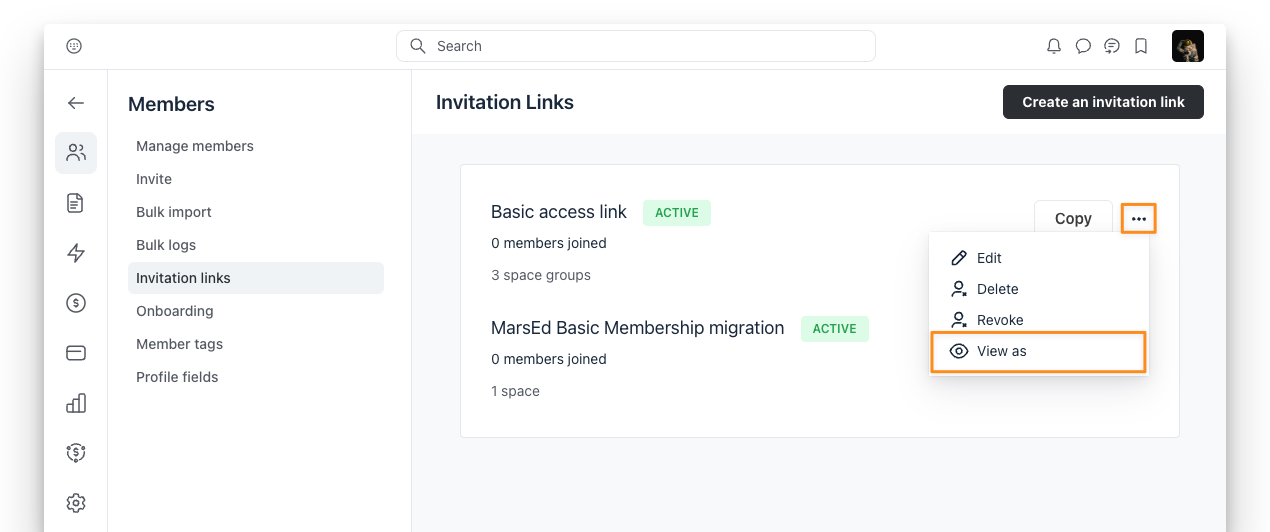
Once you enter the “view as” mode, you'll experience the community exactly as a new member would when they sign up using a specific invitation link.
In the masquerade control bar, located at the top of the community header, you'll find information about which view you’re emulating. To switch to another invitation link preview, view your community as a member, or preview paywall access, click the current selection in the masquerade control bar. Then, choose your desired option by utilizing the search field or selecting the category from the dropdown menu.

When you're ready to return to your account, click Exit at the right end of the masquerade control bar.