Add dynamic variables to direct message action
Last updated: September, 2026
You can add dynamic variables inside the message body of the Send a direct message action to insert personalized information into the message. These variables are placeholders that will be replaced with actual values once the messages are sent.
Add dynamic variables
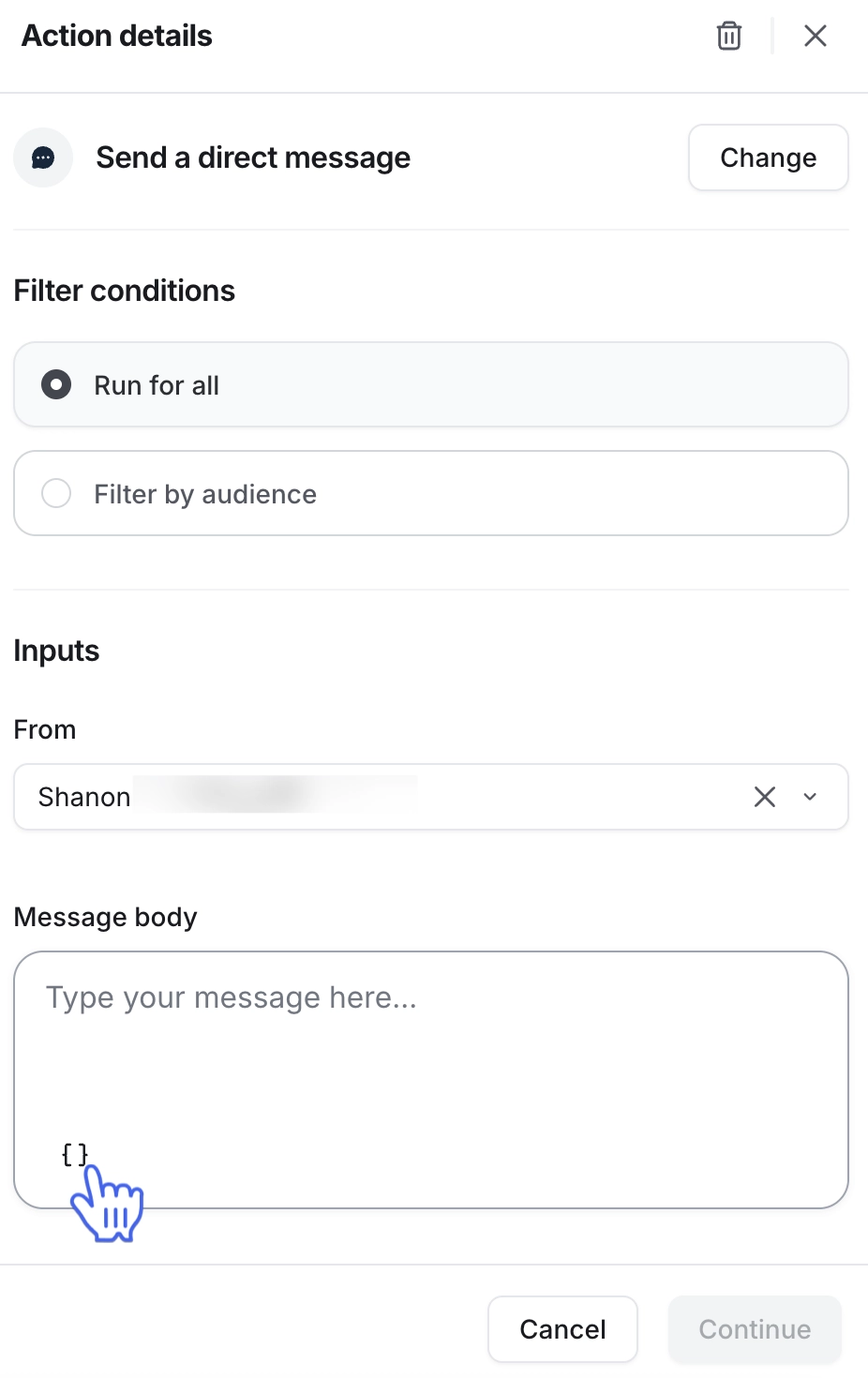
When creating an automation or bulk action workflow, go to the workflow action.
Choose Send a direct message action.
-
In the Message Body field, type {{ or click the Add variable ( {} icon) and select an option from the list.
You can add multiple variables within the message body.
💡 Tip: When setting up automation workflows, you have the option to choose from additional trigger-based variables beyond the basic member and community variables. The trigger-based variables available to you will depend on the event you have selected.
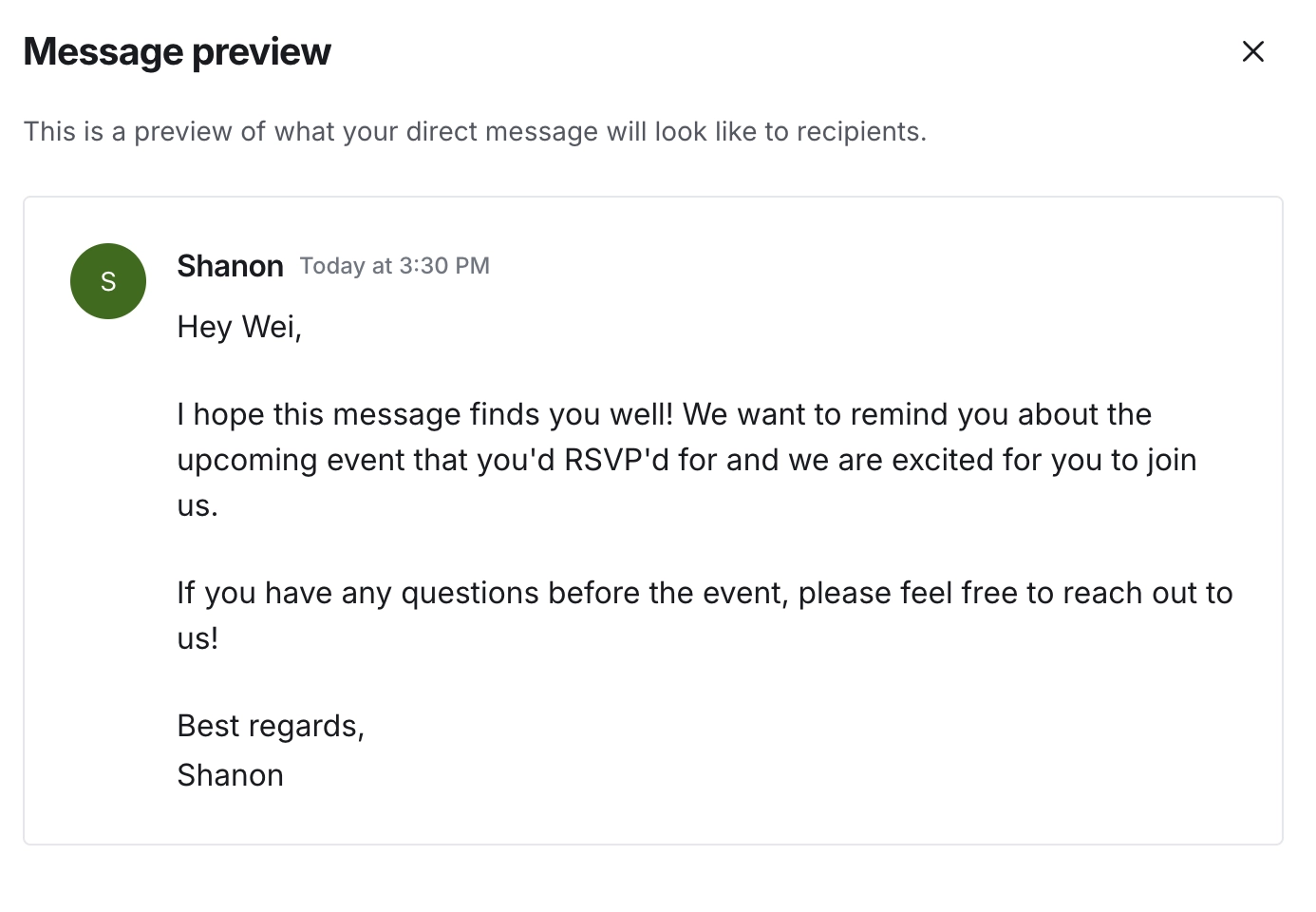
Preview direct message
Once you have added a message in the body, you can preview the message by clicking Preview message under the Message body field before activating the workflow.