# Connect my Circle post comments to Teachable lectures
https://help.circle.so/p/sso-and-integrations/teachable/connect-my-circle-post-comments-to-teachable-lectures
Category: [SSO and integrations](https://help.circle.so/p/sso-and-integrations) › [Teachable](https://help.circle.so/p/sso-and-integrations/teachable)
---
_Last updated: October, 2026_
By dynamically loading your comments, you can easily associate comments from a specific Circle post to any Teachable lecture.
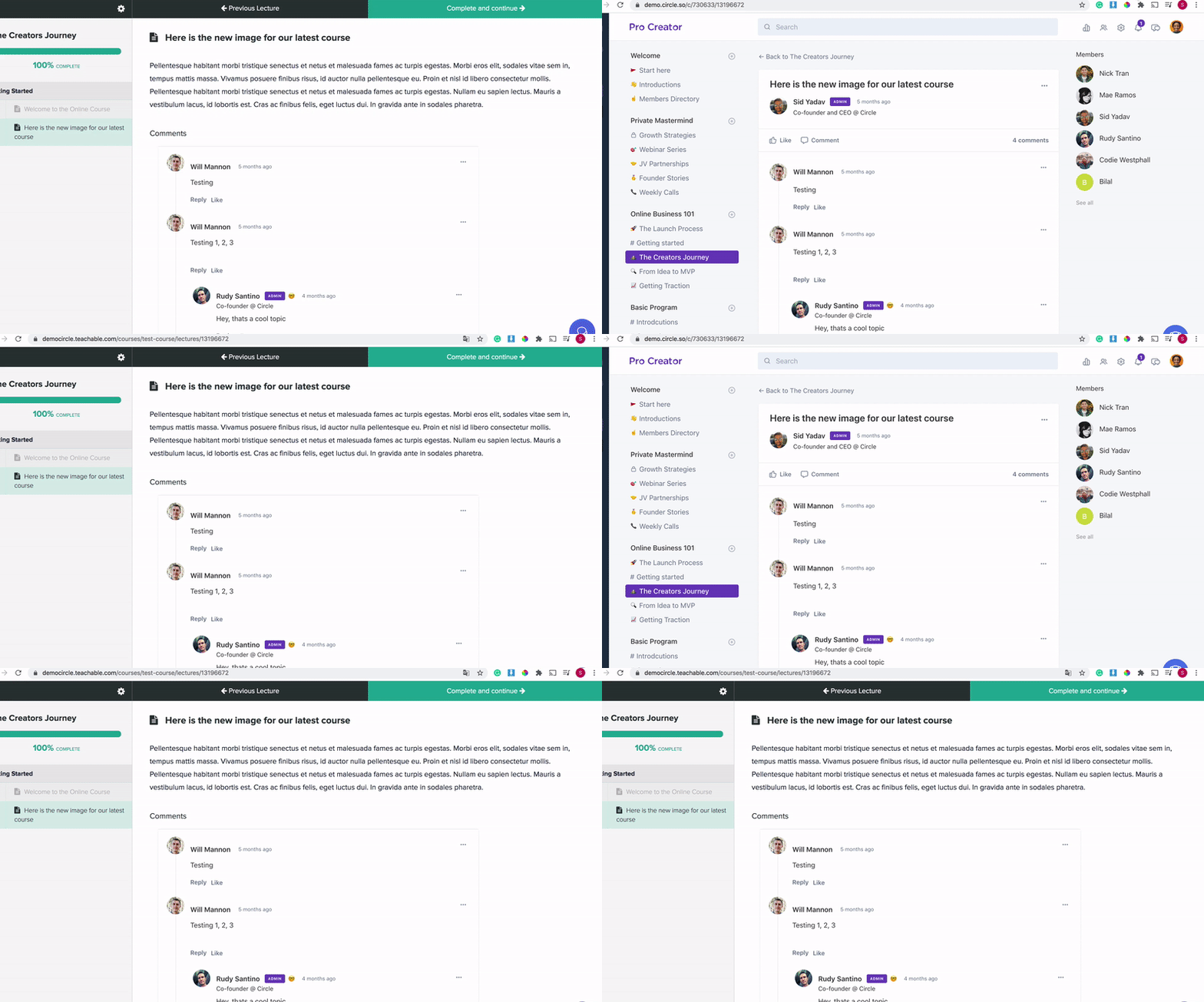
The key to making this work under any lecture where you'd like to implement this feature is to ensure that the Circle **post slug** and Teachable's **lecture ID** are identical. You'll also want to ensure that your Circle **space slug** and Teachable **course slug** are the same as well. For example, your URLs should resemble the following:
- **Teachable URL:** [**democircle.teachable.com/admin/courses/**](https://democircle.teachable.com/admin/courses/) **730633** /curriculum/lectures/ **13196672**
- **Circle URL:**
[**demo.circle.so/c/**](https://demo.circle.so/c/) **730633** / **13196672**
To implement this in your Teachable courses, complete all of the following steps:
## **Step 1: Find your Teachable lecture ID**
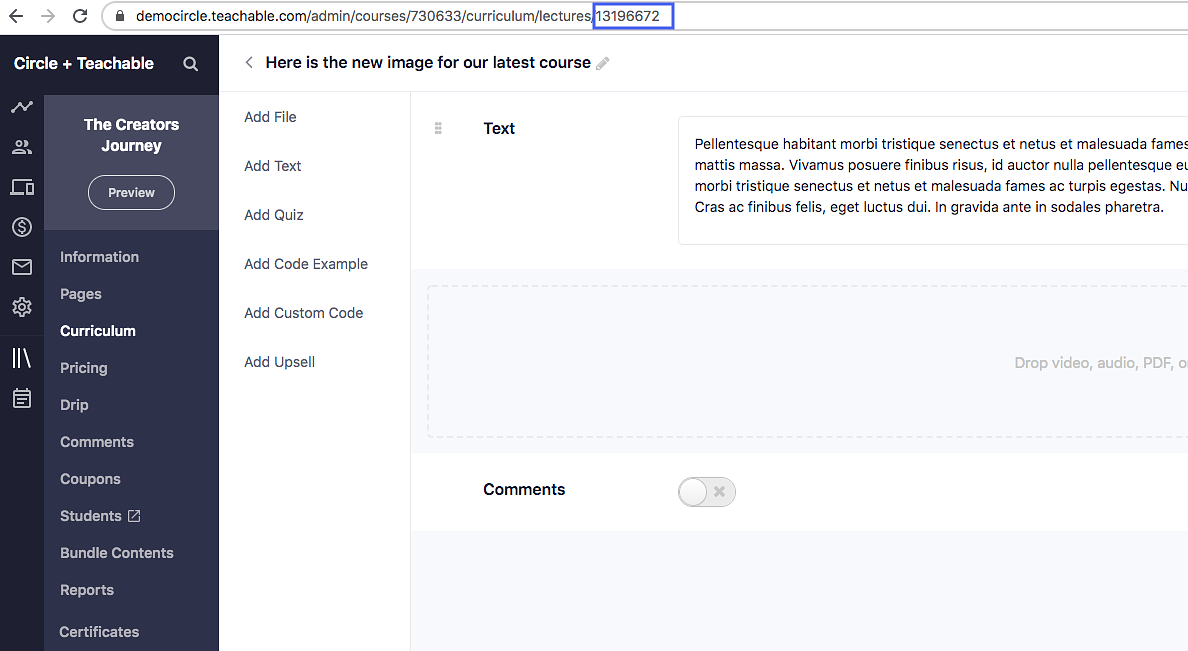
To find your Teachable lecture ID, navigate to **Courses → Select Course → Curriculum → Click on the Lecture → Locate ID.**
The ID is the set of numbers at the very end of the URL.
## **Step 2: Update your Circle post slug**
To update your slug for a Circle post:
1. Click **Community** in the left sidebar, then select **Posts**.
2. Hover over the post and click **More actions (three dots)** and select **Edit post.**
3. Click **Settings (⚙)** in the dialog header.
4. In the Settings dialog, you can find and update the **Custom URL slug** for the post.
Paste your Teachable lecture ID here. Then click **Done.**
Going forward, you’ll want to make sure that when you add new lectures to your Teachable course, you create a Circle post with the same slug.
## **Step 3: Find your Teachable course slug**
To find your Teachable lecture ID, navigate to **Courses → Select Course → Curriculum → Locate ID.**
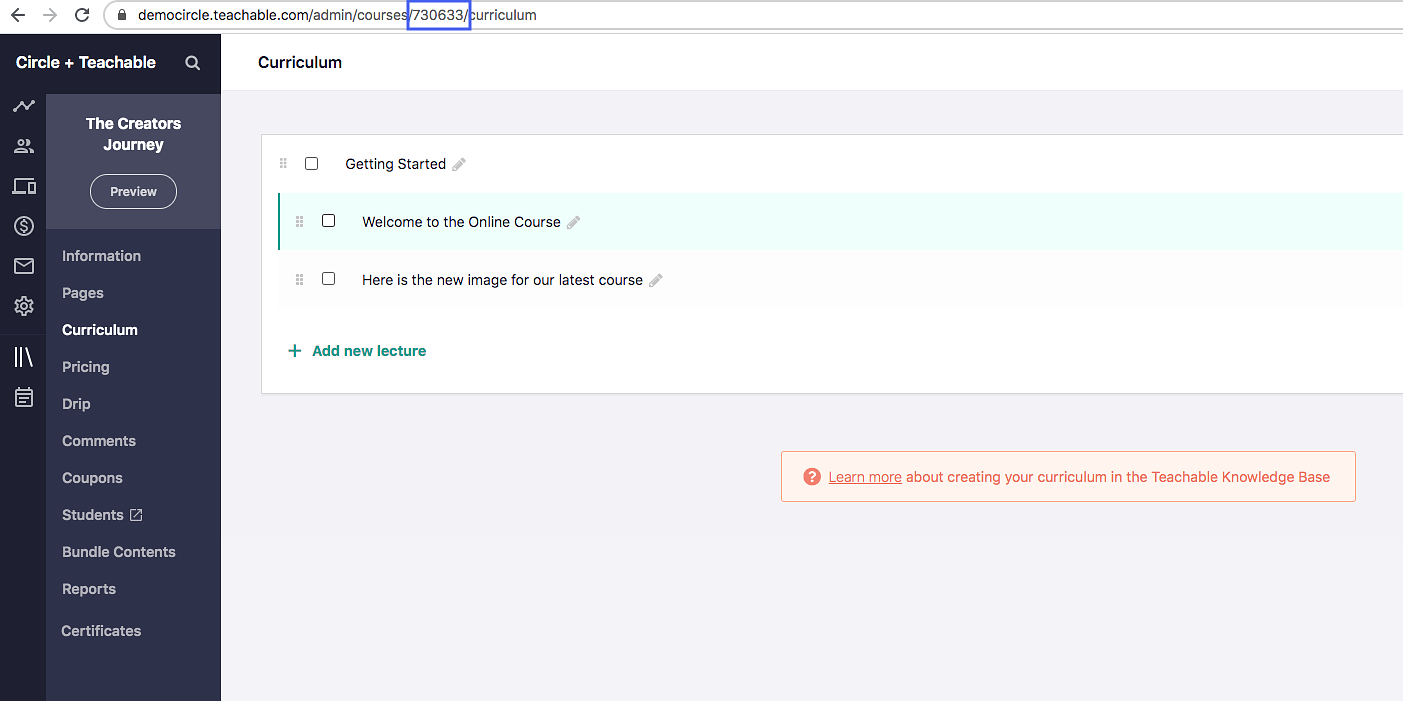
Copy the number located in the URL.
## **Step 4: Update your Circle space slug**
In Circle:
1. Click **Community** in the left sidebar, then select **Spaces**.
2. Hover over the space and click **More actions (three dots)** and select **Edit space.**
3. Navigate to **Options** tab.
4. Under the **SEO** section, you can find the **Custom URL slug** for the space.
Here is where you will paste the curriculum ID that we found in Step 3!
## **Step 5: Insert your Circle post code into Teachable's Power Editor**
Within Teachable, navigate to **Admin → Site → Power Editor** and search for the ' **lectures/show**' folder.
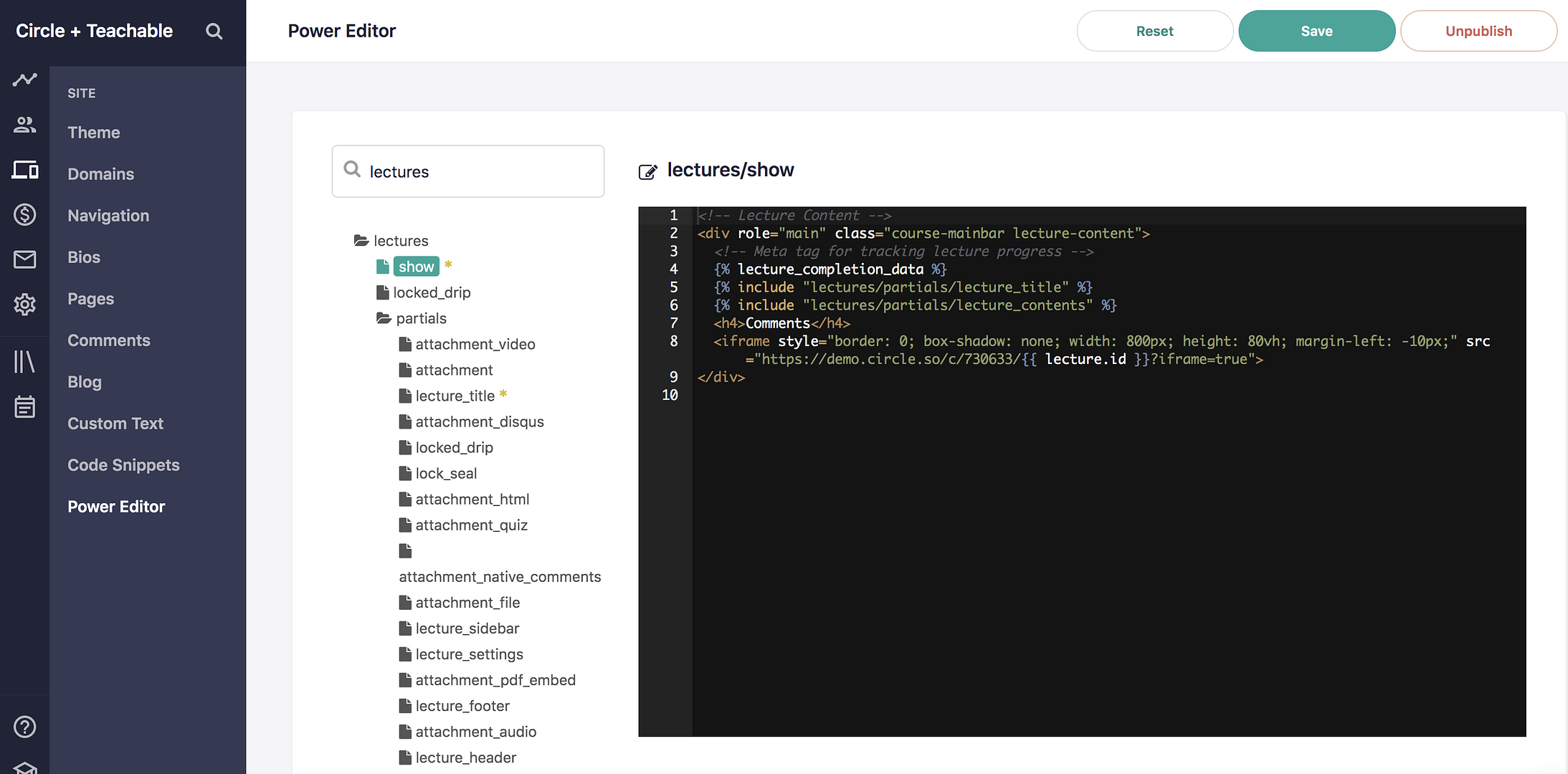
Just above the closing **\** tag you will want to copy and paste the following code. Replace [INSERT YOUR SPACE SLUG] with the Circle space slug that we modified in Step 4, and [INSERT YOUR COMMUNITY URL] with your community base URL Don't forget to remove the brackets!
It should look something like this:
[**https://demo.circle.so/c/**](https://demo.circle.so/c/) **730633** / **13196672**
```
{% include "lectures/partials/lecture_title" %}
{% include "lectures/partials/lecture_contents" %}
Comments