Troubleshoot your WordPress SSO integration
Last updated: October, 2026
While setting up your WordPress SSO integration, you may encounter a few errors. We commonly see a 400 Error, 500 Error, or a Temporarily Unavailable Error. This article will walk you through troubleshooting and common solutions.
Before using this guide, please ensure you've fully set up your WordPress integration following these steps.
404 Error
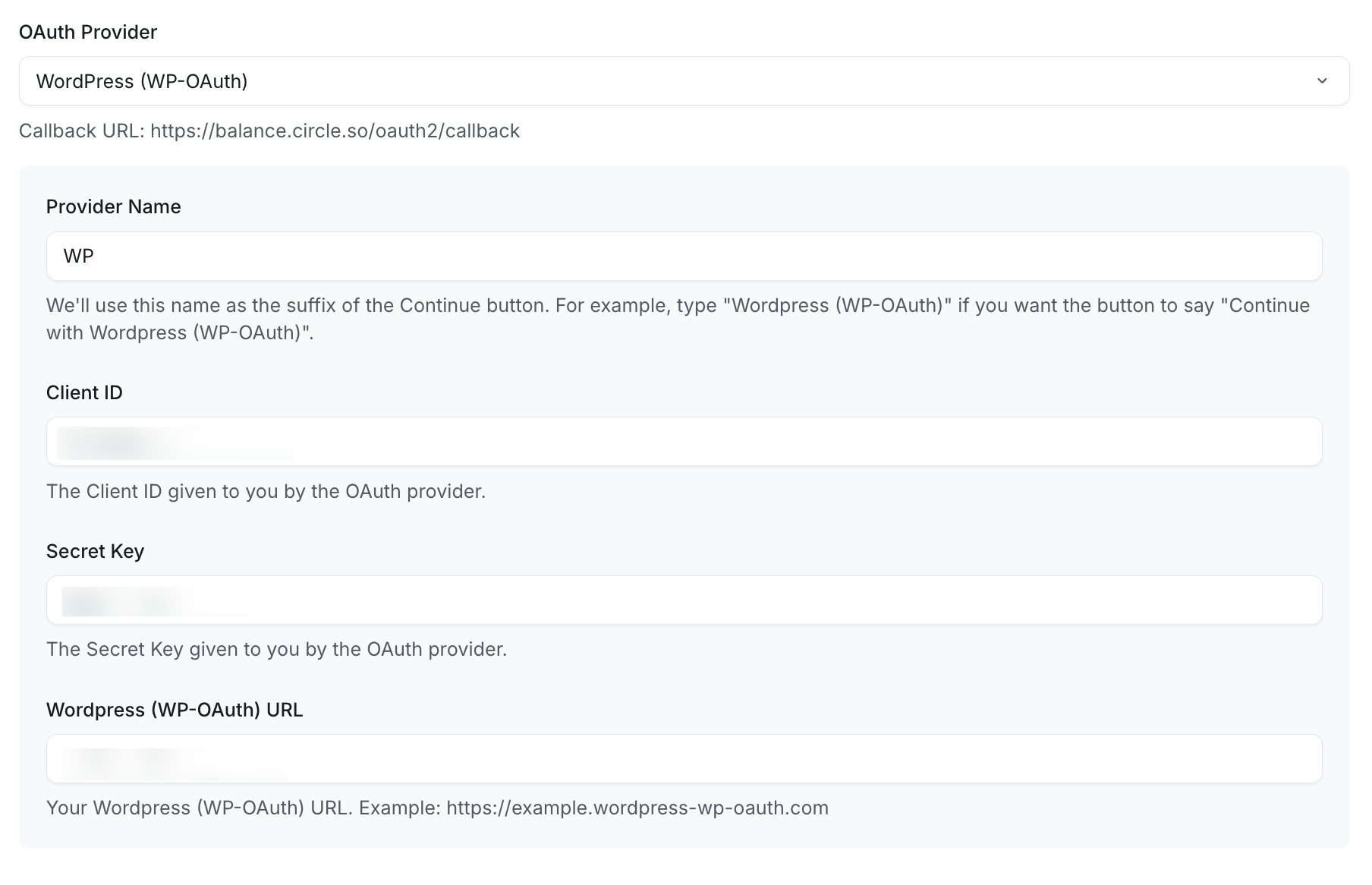
Solution: Navigate to your SSO Settings page within Circle, and confirm you have your correct WordPress website URL set. This URL should be the main page of your WordPress website.
Temporarily Unavailable Message
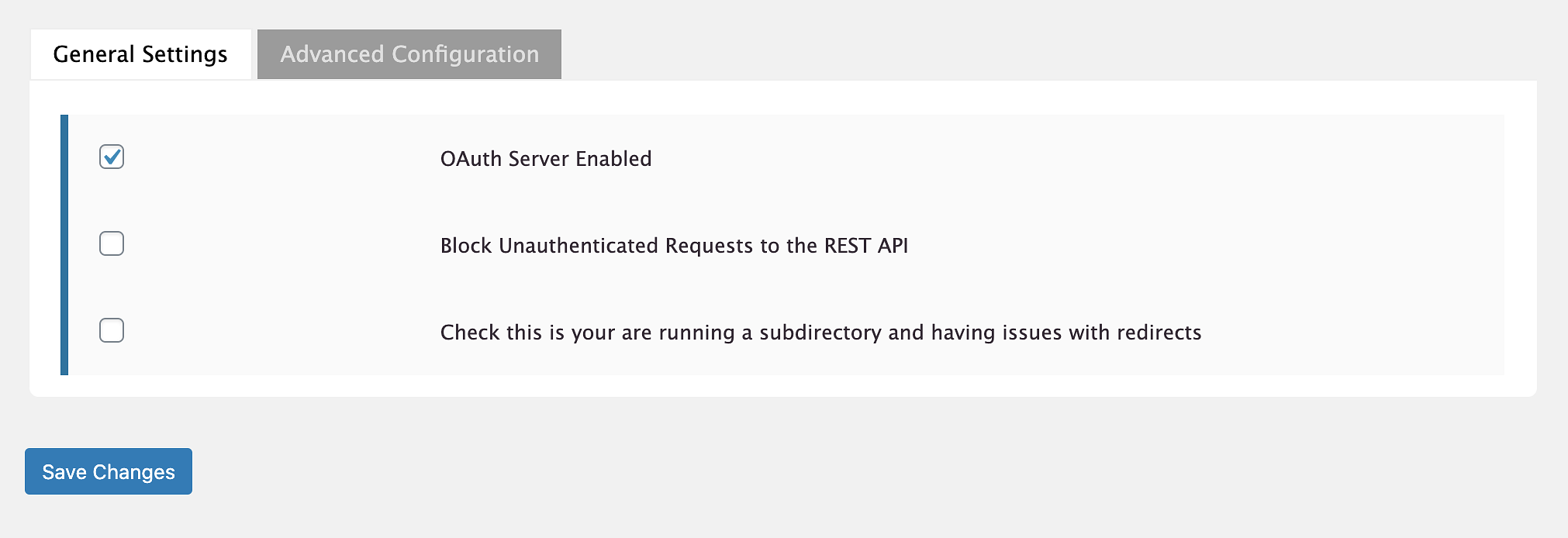
Solution: Navigate to your WP-OAuth Settings Page, and ensure that 'OAuth Server Enabled' is checked.
Redirect to WordPress instead of Circle
If after logging in a member is redirected back to their WordPress account and not Circle, something within WordPress is interfering with the redirect. WordPress controls where a member is redirected after successful login, so any issues will need to be resolved in WordPress.
There could be a variety of factors causing this such as plugins or other custom configurations. We recommend working with a WordPress expert, or one of our unaffiliated Circle experts that can dive deep into your WordPress installation and setup to resolve any issues.
"Yikes" or "Oops" Error
If you're receiving "Yikes" errors (also considered 500 errors), there are a few areas of your WordPress OAuth setup you will want to check.
1) WordPress OAuth Settings Page
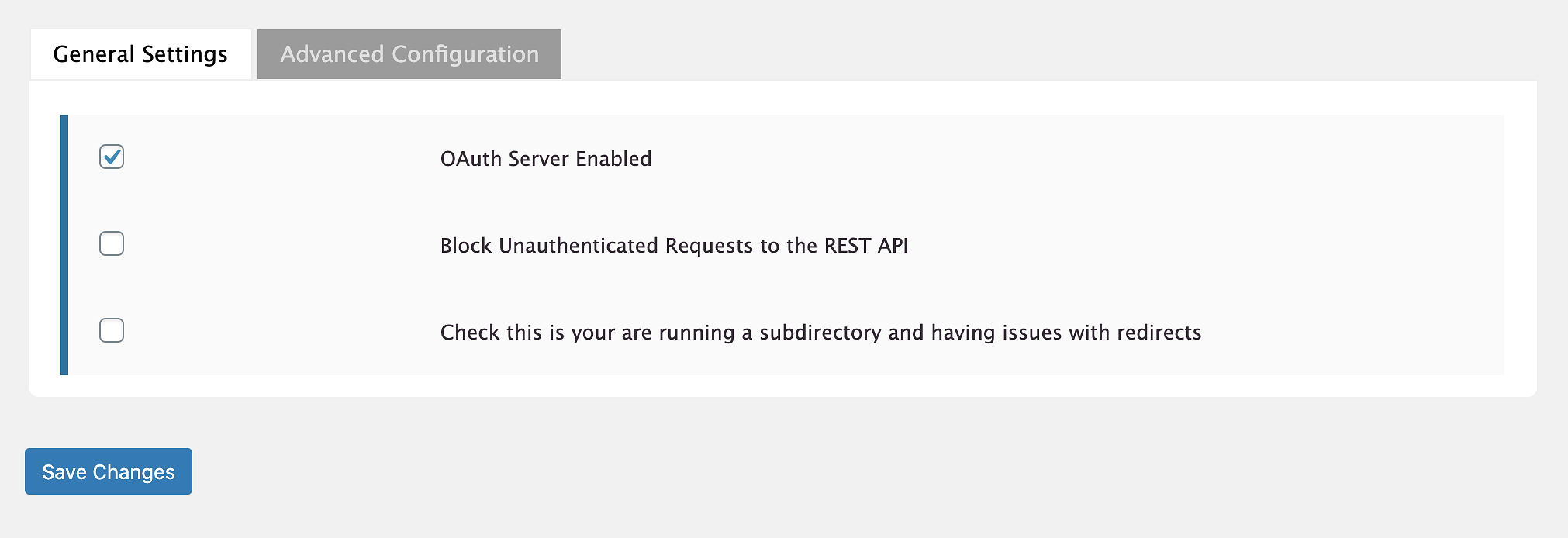
The settings page should have 'OAuth Server Enabled' checked.
2) WordPress Client ID Page
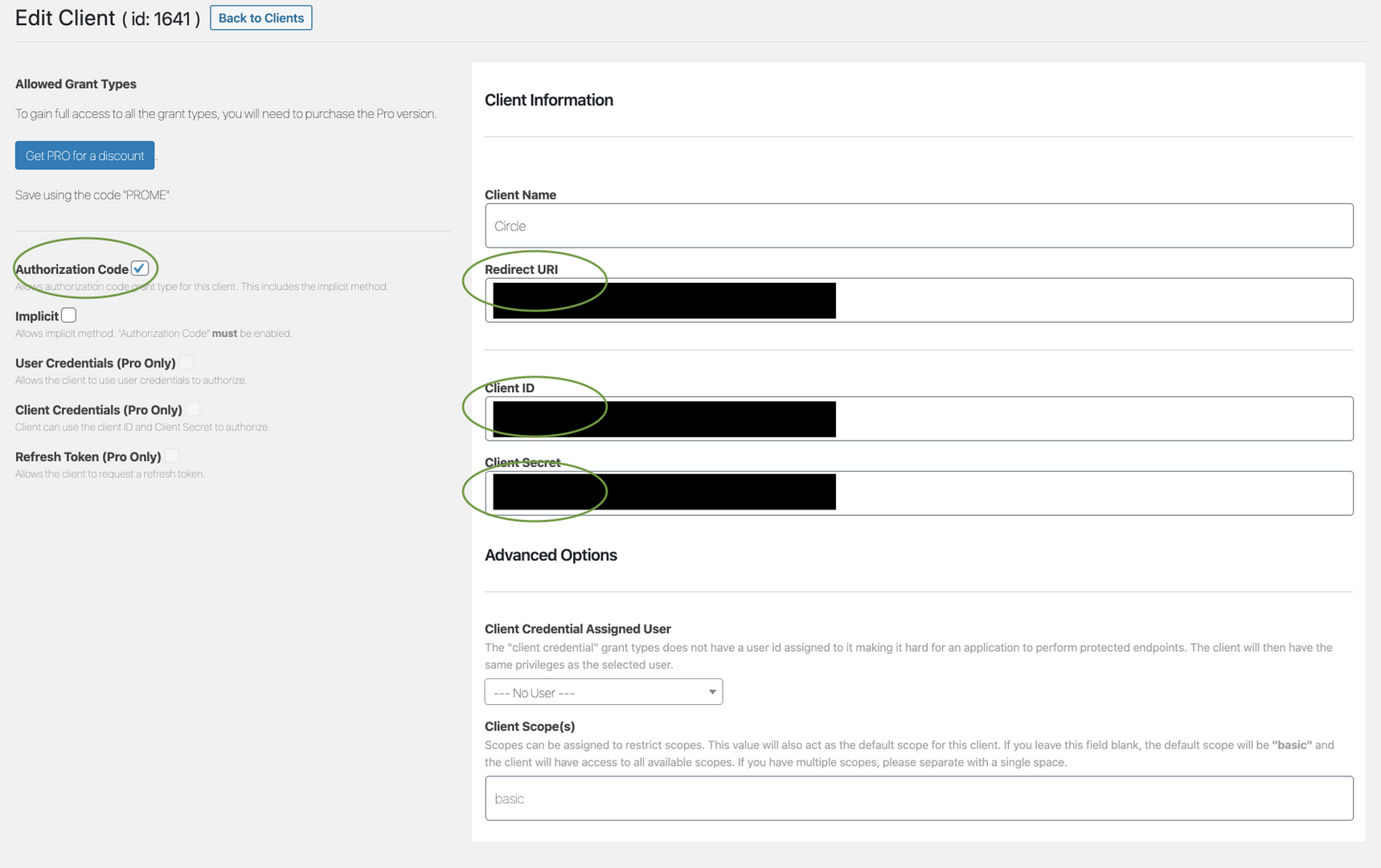
On the page where you've created your Circle ID, please confirm the following:
'Authorization Code' is checked
Redirect URI, Client ID, and Client Secret, are correctly entered under your Circle SSO Settings Page.
3) OAuth Status Page
Your OAuth Status page should display a NO (OK) status as pictured below.
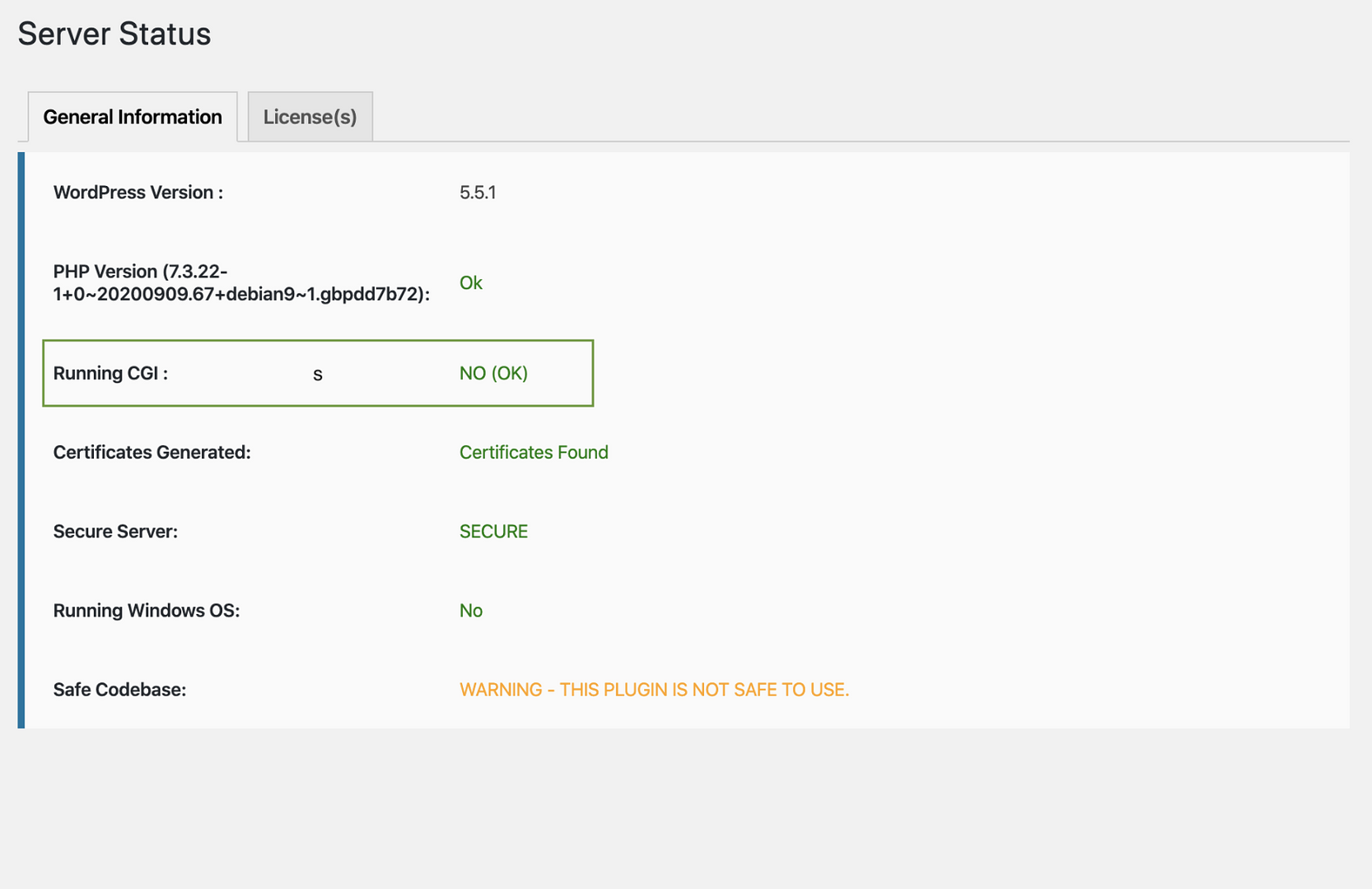
If you see any kind of error message here, the most common issues we see are related to:
cPanel hosting - Sometimes the required headers are not being passed from the server. The .htaccess file needs to be edited to allow authentication headers.
Conflict with other plugins - Some plugins may override the WP OAuth workflow. As a result, WP OAuth can't redirect back to Circle.
Please reach out to support@circle.so if you'd like us to provide the specific error code. These kinds of issues may be difficult to troubleshoot, we recommend working with a developer, or a Circle Expert.
Logging in as another member
A small percentage of WordPress customers may experience an issue where a member logs in, and appear as a different member. This is the cause of a caching issue with WordPress, at the hosting level, a plugin override, or some other kind of issue within your WordPress configuration. We recommend working with a WordPress expert to identify the root cause.
Once SSO is enabled, the OAuth provider (in this case WordPress) controls how a member is redirected upon successful login.
One solution we can recommend is to exclude some URLs from your cache:
1) https://yourdomain/oauth/authorize2) https://yourdomain/oauth/token3) https://yourdomain/oauth/m
If you are using Kinsta as your hosting provider we recommend reaching out to them directly to add specific bypass cache rules.
If for any reason you need some professional support, we highly recommend our unaffiliated Circle expert Narendra here who can help investigate.
Suggested Articles: