Connect Shopify with Circle
Create a community gateway to your Shopify store! With Zapier, you can build automation between Shopify and Circle.
To pick a common scenario, we will show how you can automatically invite a member to your community after they purchase an order in this article.
These are all of the actions you can perform within your Circle community:
Invite Members
Create Posts
Send Direct Messages
Create Comments
Remove Members
Tag Members
Untag Members
Add Members to Space Groups
Remove Members from Space Groups
Add Members to Spaces
Remove Members from Spaces
To jumpstart other use cases, check out the Circle and Shopify Zapier page here! Click here to access our Zapier template for the following example.
Please note: Shopify is a premium app on Zapier.
Step 1: Choose the New Paid Order in Shopify trigger
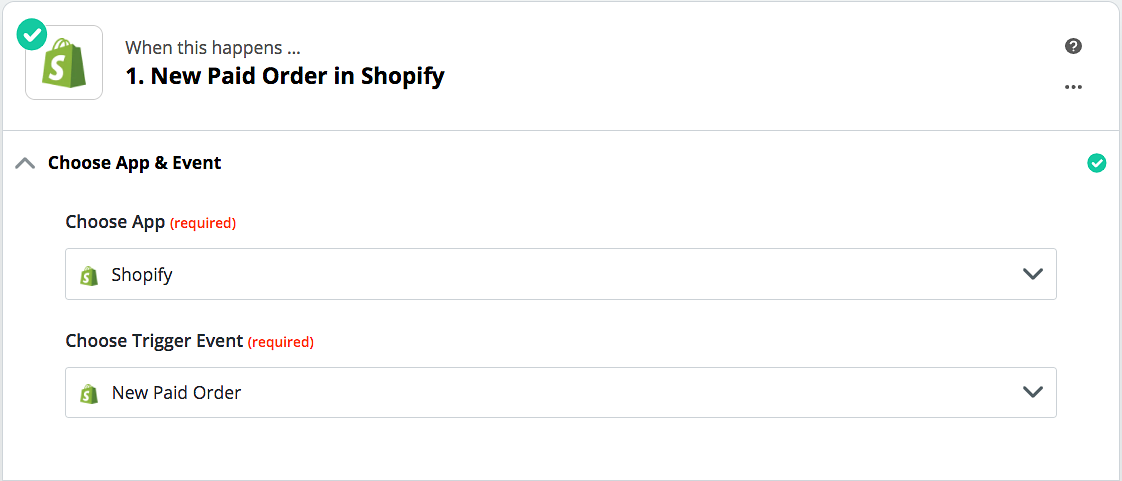
Choose App & Event
Your Zapier integration will need to look for new orders that get created in Shopify. Therefore we'll start by getting the Shopify account connected.
Once you select your Shopify account, click "Continue".
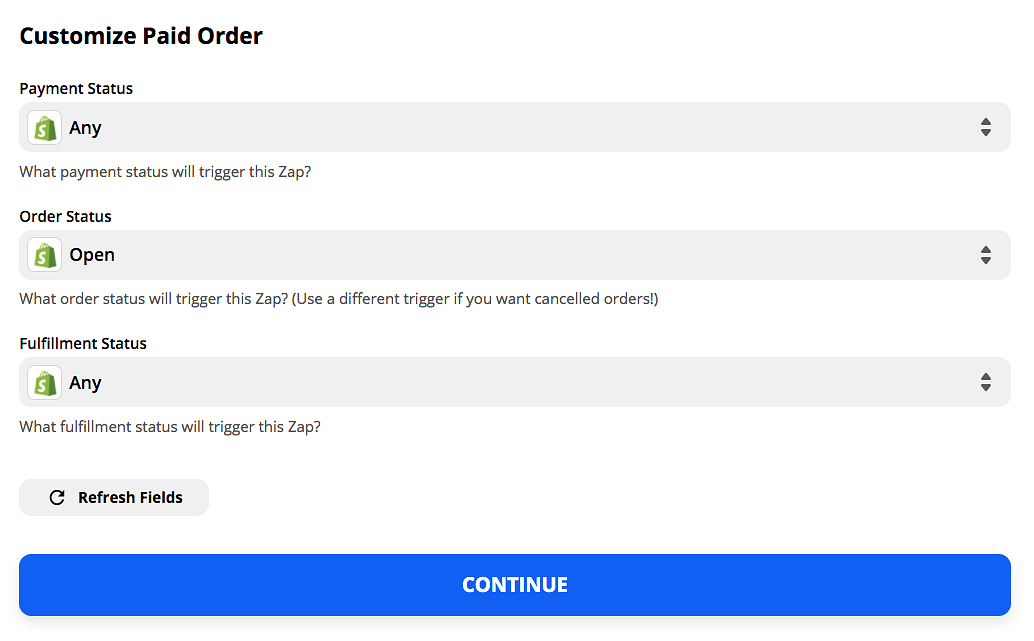
Customize Paid Order
Here is where you will filter out which orders you want Zapier to look for.
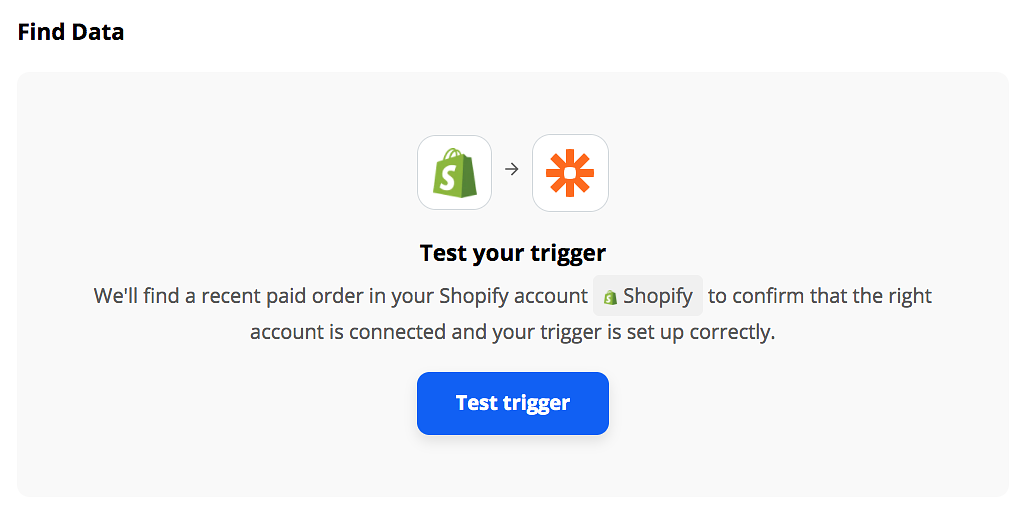
Find Data
Run a quick test to make sure you're pulling the right fields from the right accounts!
Step 2: Use the Invite Member to Circle action
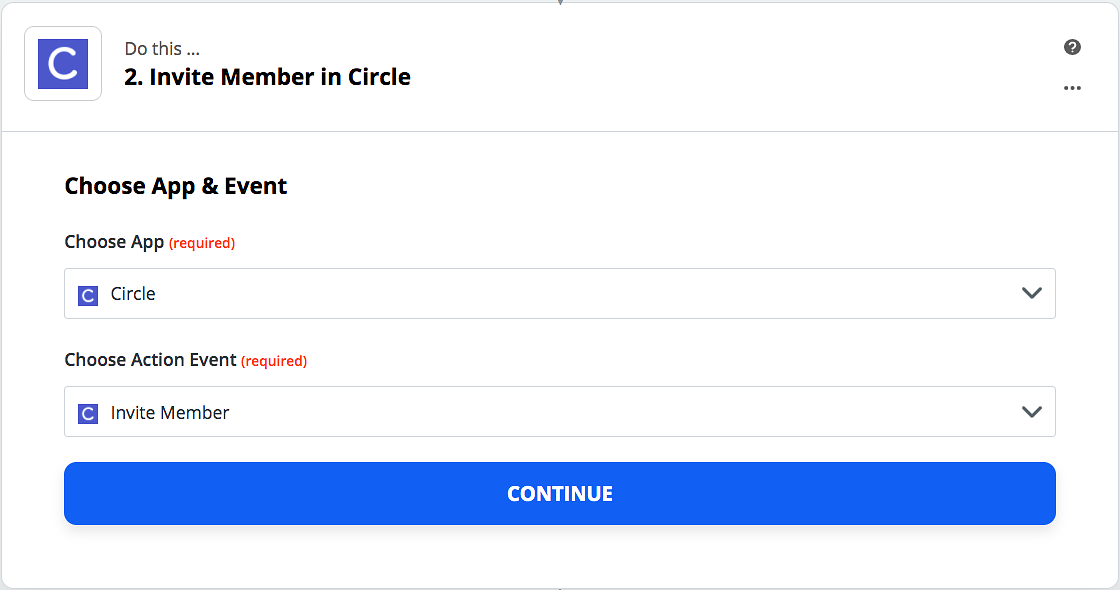
Now that we've set up a Zapier trigger, select the Circle app so we can start creating some actions. Get started by connecting your Circle account.
Choose action event
For this example, we will use "Invite Member" in order to invite a member based on a completed order.
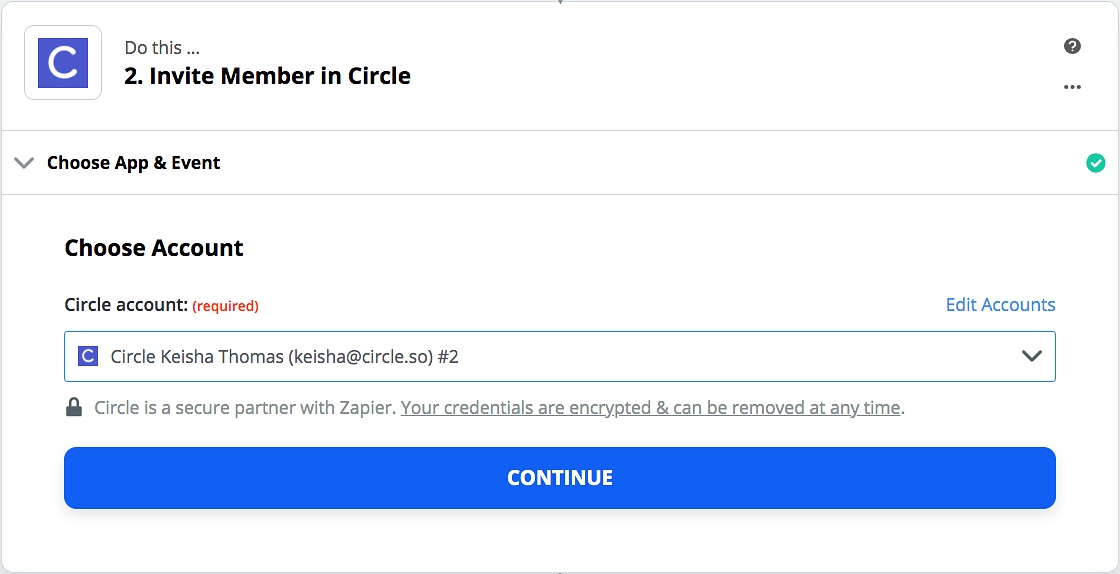
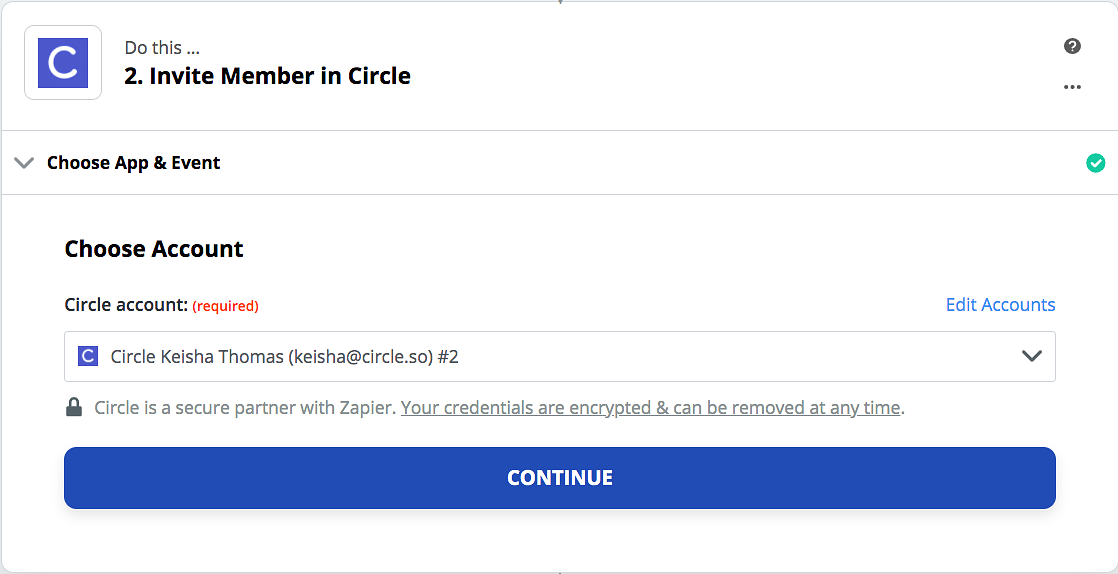
Choose account
Select the Circle community that these members will be a part of.
Customize member
This is where you will sync the relevant Shopify data with Circle to properly import users to your community.
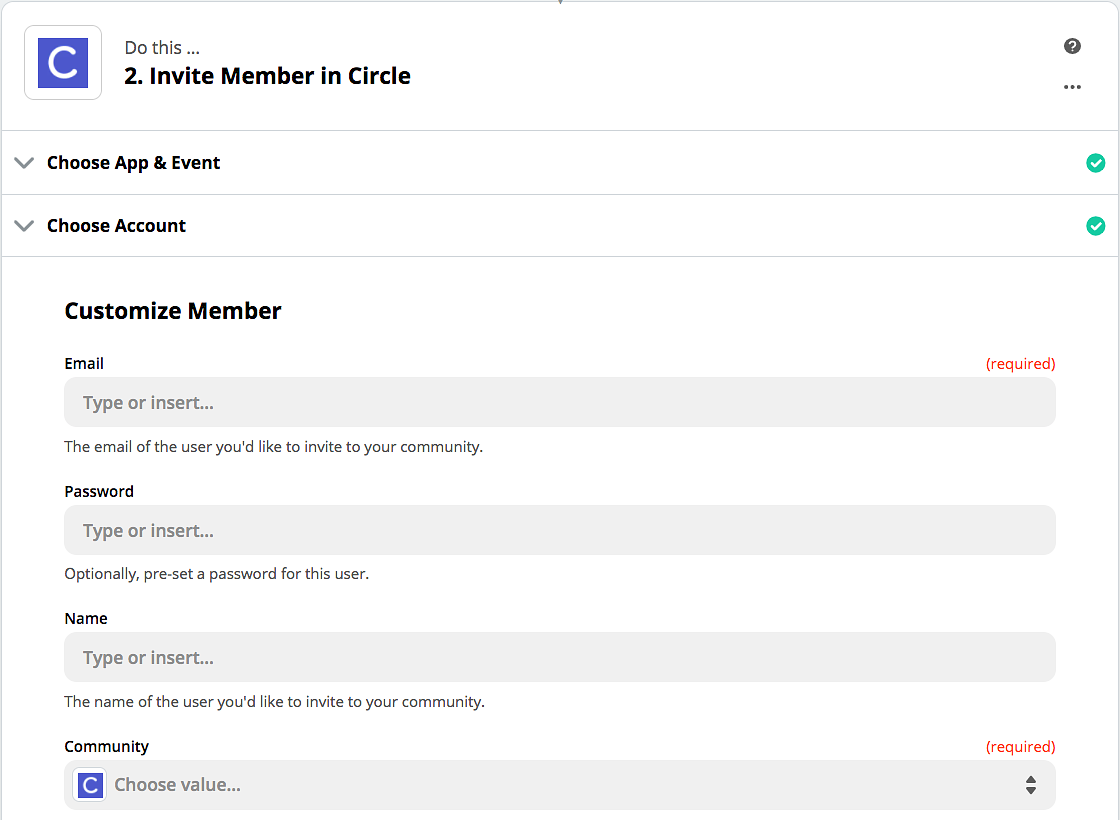
Email: You'll want to ensure that you are pulling the customer's email from Shopify so that they can receive the invite.
Password (Optional): Set a password for your user, this can be pulled from any fields created in your Typeform.
Community: Select your Circle community that you'd like to invite members to once the form is completed.
Add To Space(s): If you'd like to add members that complete this form to specific spaces, select those here.
Add To Space Group(s): If you'd like to add members that complete this form to a specific space groups in your community, select that here.
Add Member Tag(s): Select if you'd like to automatically apply member tags for members that complete this form.
Skip Invitation Email? (Optional): Once the member completes the form, you can skip sending the invitation email if you'd like. This might be helpful if they already know their password.
Send Data
Send data to test out your zap and see if you see your desired results. This step will notify you of any potential errors when creating your zap. You'll get a success message once it's ready to go!
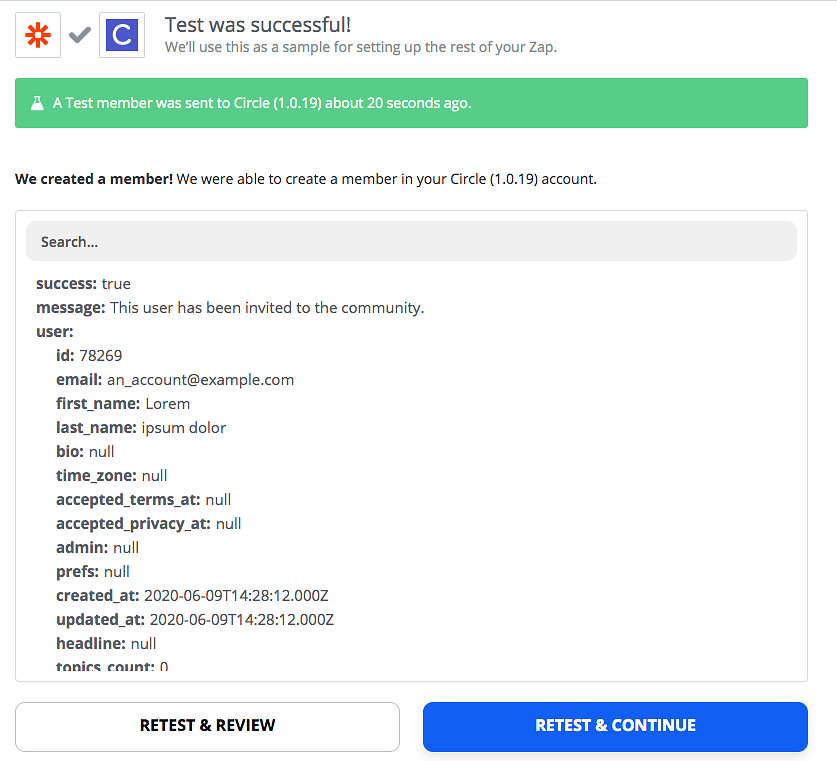
🏁 Once your Zap is ready, make any modifications needed, and turn it on!