Edit an image post
Last updated: September, 2026
Whether it's adjusting the image, adding a touch of creativity in captions, or arranging images in a specific order, you have the flexibility to make these changes in your existing posts. This article will guide you through the steps to edit image posts.
Edit post content
After saving a post as a draft, scheduling it, or publishing it within the space, you can modify the post's content and settings in either a desktop or mobile browser.
To edit a published post, open the post, click More actions (three dots) in the upper-right corner, and select Edit post.
If you are an admin or moderator trying to edit a draft or scheduled post:
Click Community in the left sidebar, then select Posts.
Hover over the post, click More actions (three dots) and select Edit post.
Update your caption
In the Add a caption, make your preferred changes to the caption. You can also use the same content formatting, lists, and emojis options that you used when creating a post.
Crop images
To crop an image in your post:
Choose the desired image from the thumbnails displayed at the bottom.
-
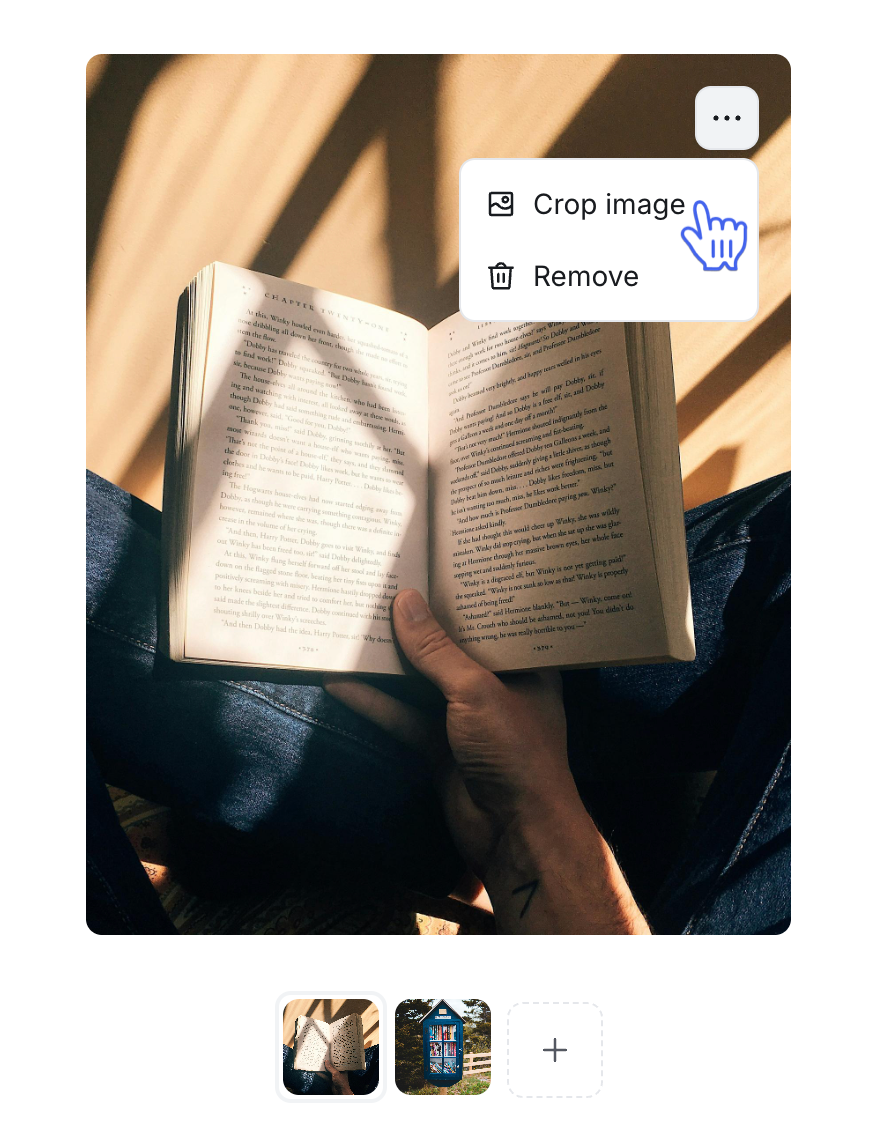
Click More actions (three dots) on the top-right corner of the selected image and select Crop image.
Use the slider to zoom in on the image. Then, click and drag the image to align and fit it within the crop.
Once you're satisfied with the adjustments, click Save to apply the changes.
Remove images
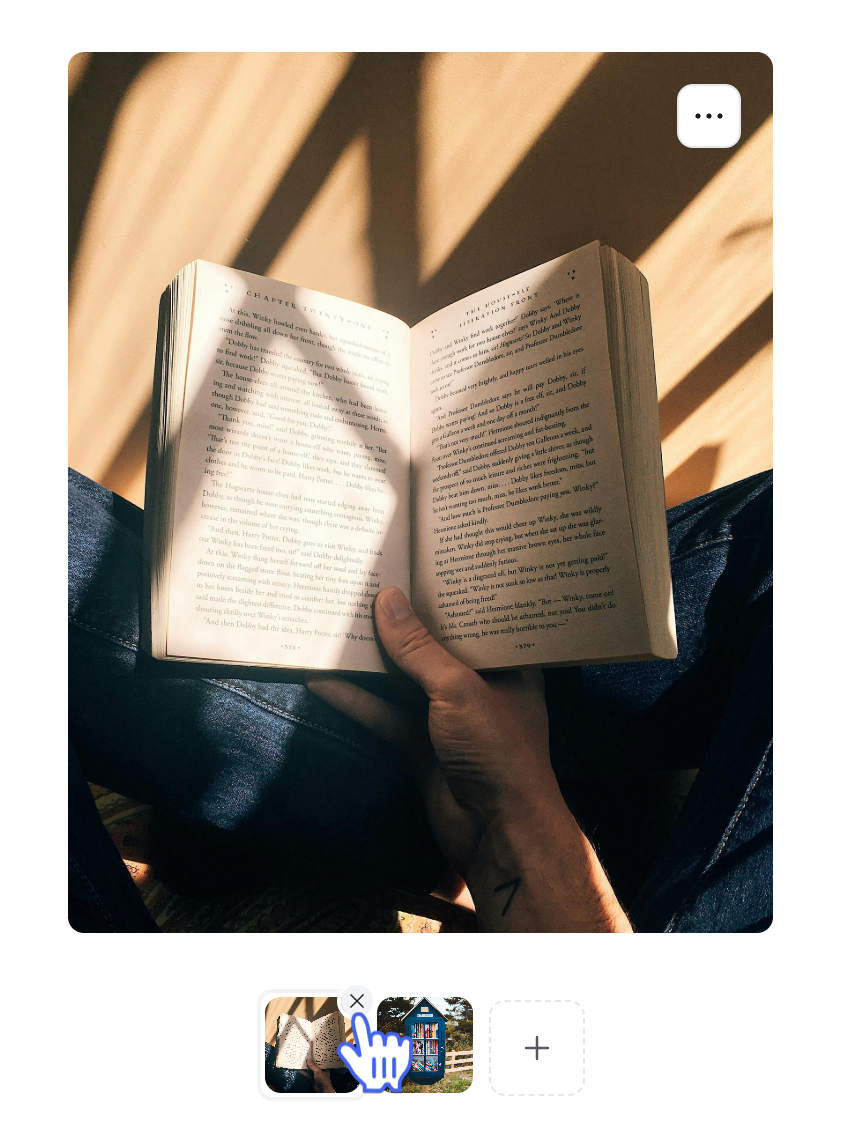
Hover over an image thumbnail at the bottom of the dialog and click the X icon to remove it if needed. You can also click More actions (three dots) in the top-right corner of the selected image, then select Remove.
Add new images
To add new images, click the + icon at the bottom of the dialog to add more images. This opens your system uploader to select images from your device.
ℹ️ Note: You can upload up to 10 images, each with a file size limit of 20 MB, in a single post.
Add or remove topics
You can assign new topics or remove existing ones from your post.
To add topics, in the post editor, click the Select topics field or type the name of the topic in the field and select it from the list.
To remove existing topics, click Remove (X icon) next to the topic you want to remove. To remove all topics from the post, click Remove all (🗑️ icon).
📚 To learn more about topics, see our guide here.
Update post settings
While editing the post, you also have the option to update any post settings that you configured when creating a post.
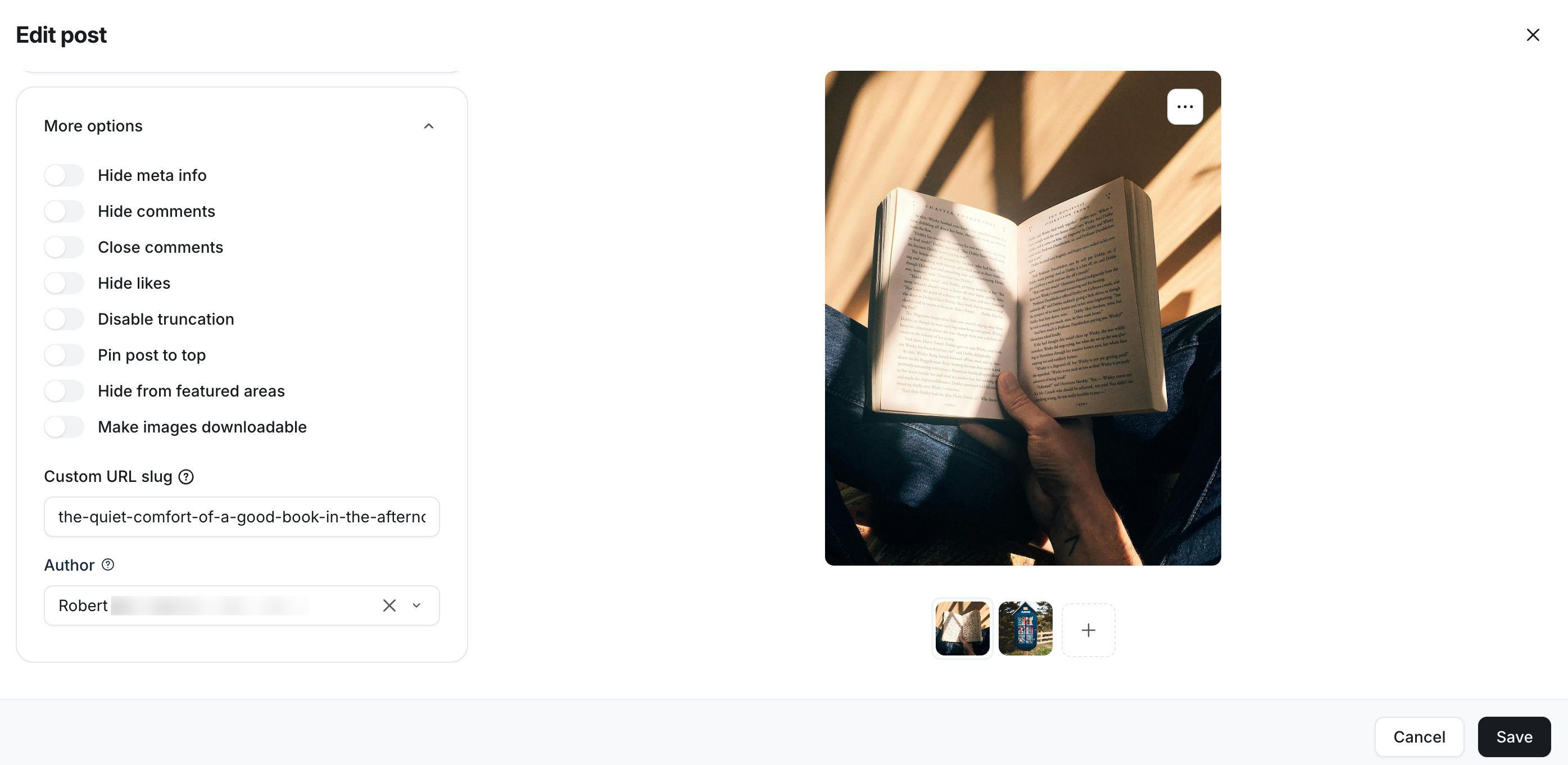
To access these options, click the More options section. Here, you will be able to manage the permissions, update the URL slug, and the author of the post.
ℹ️ Note: The option to configure post settings, including pin post to top, is only available if you are an admin or moderator of the space editing this post on a desktop or mobile browser.
Pin post to top
Elevate the visibility of your image posts by pinning one to the forefront of your space at any moment. This feature is ideal for highlighting a specific image post within the feed layout.
ℹ️ Note: In masonry and grid space layouts, your pinned post will appear first on the top row, positioned from the left, ensuring it stands out prominently within the layout.
To pin a post:
Click Community in the left sidebar, then select Posts.
Locate the post and click the name of the title to open the post.
Click More actions (three dots) in the upper-right corner, and turn on the Pin to top toggle.
Delete a post
The admin, moderator, or member who is the post's author can permanently remove the post from the community. It’s important to note that once the post is deleted, you cannot retrieve or view it in your community.
To delete a post using a browser on a desktop or mobile:
Click Community in the left sidebar, then select Posts.
Locate the post and click the name of the title to open the post.
Click More actions (three dots) in the upper-right corner and select Delete post.
Click Confirm to delete the post.
To delete a post using the Circle mobile app:
Head to space and tap the post.
Tap More actions (three dots) next to the post title, and select Delete post.